
Create your account
Sign up with your name, e-mail and password, accept the two required consents and confirm your e-mail address.
- Goal
- You have a confirmed RothDine account and you are on the screen where you set up your restaurant.
- Before you start
- An e-mail address you can open right now
- A password of at least 8 characters with a letter and a number
Anyone can create an account. You do not need a card, and creating an account does not start the free trial yet: the trial starts when you create your first restaurant. You will give two consents on the sign-up form, and you can only continue after confirming your e-mail address.
Open the sign-up page
Go to the sign-up page of the app (app.rothdine.com/signup), or click Create an account on the sign-in page. Fill in Your name, Email address and Password.
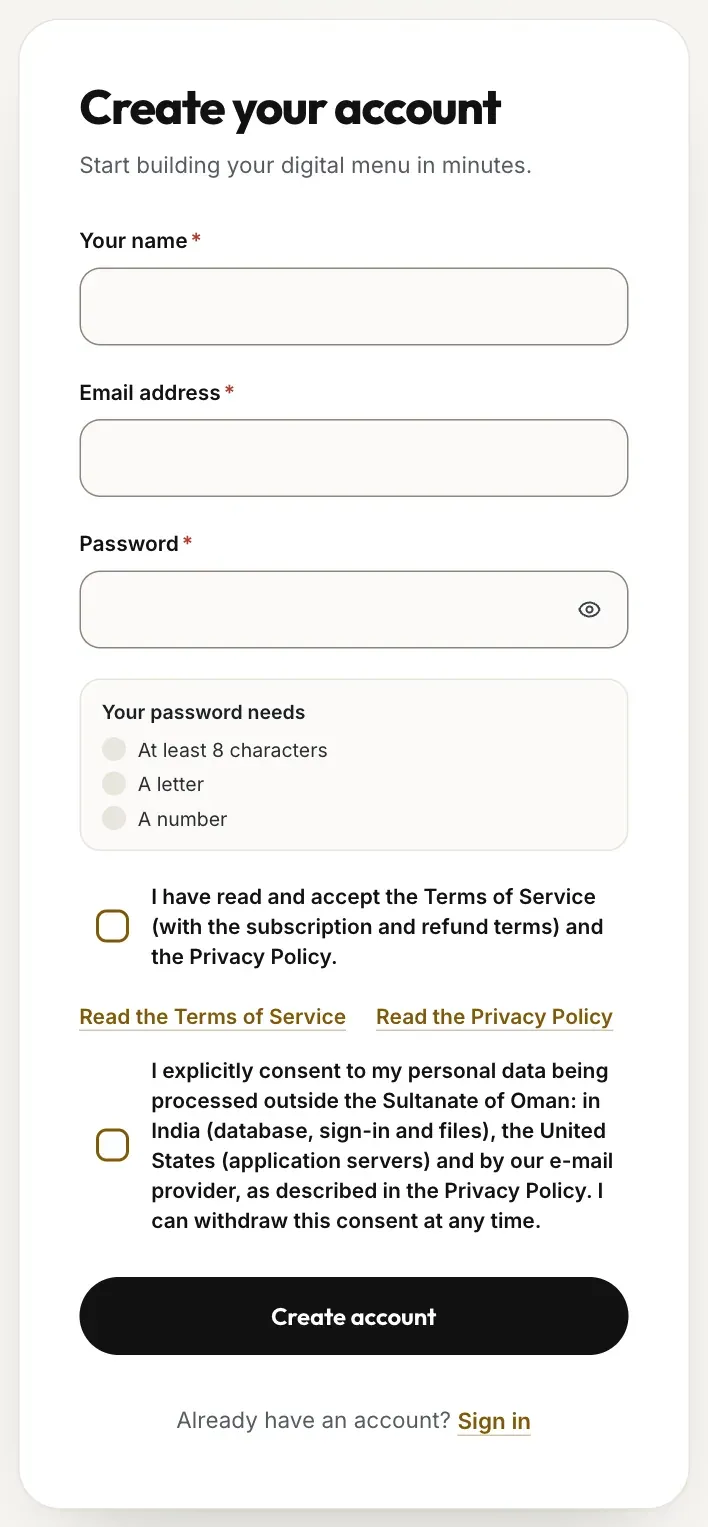
- Your name
- Email address
- Password
Check your password
Under the password field the box Your password needs ticks off each rule as you type: At least 8 characters, A letter and A number. It also shows the strength: Weak, Good or Strong. Use the eye icon to show or hide what you typed.
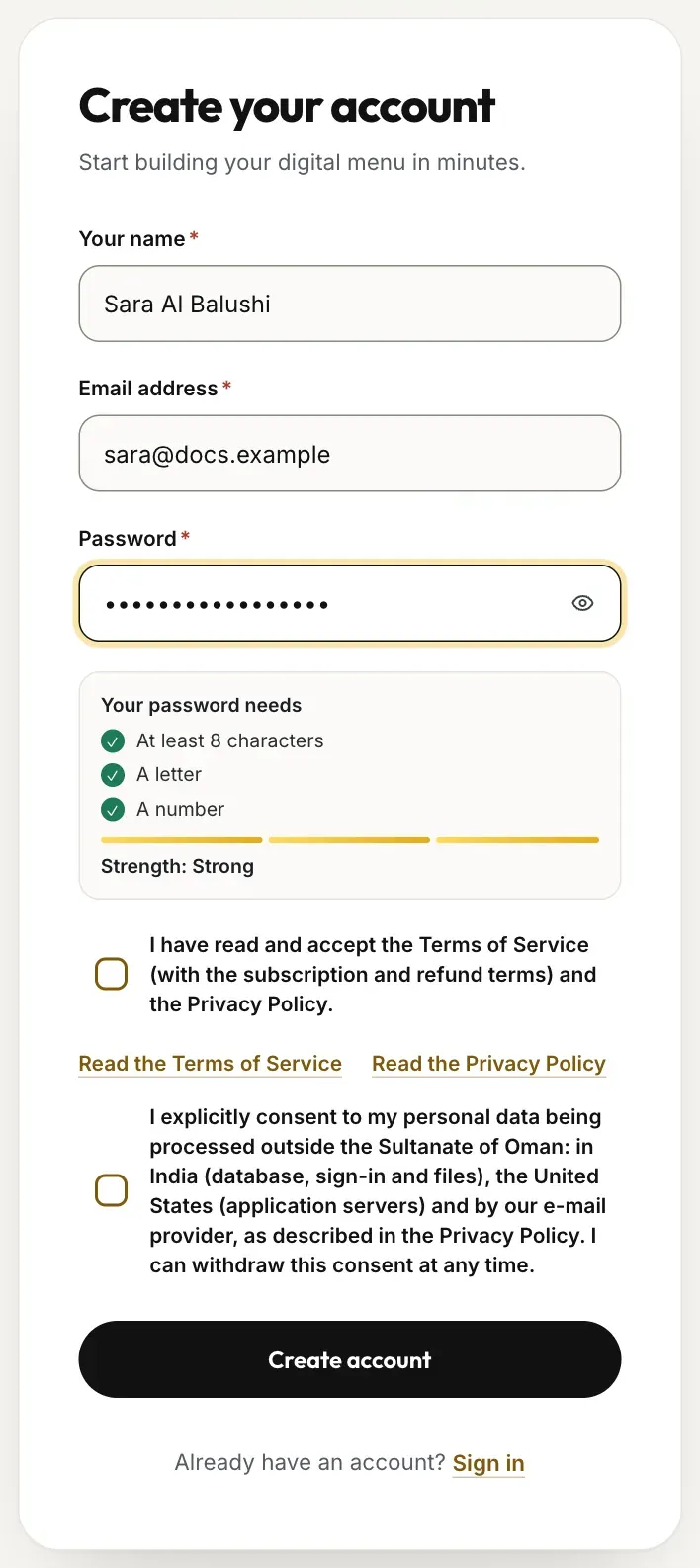
- Your name
- Email address
- Password with its rules and strength
Accept the two consents
Two separate boxes are required. The first accepts the Terms of Service (with the subscription and refund terms) and the Privacy Policy; the links Read the Terms of Service and Read the Privacy Policy open each document. The second is your explicit consent to your personal data being processed outside the Sultanate of Oman, as the Privacy Policy describes. You can withdraw that consent at any time. If you click Create account without them, each box shows This consent is required to continue.
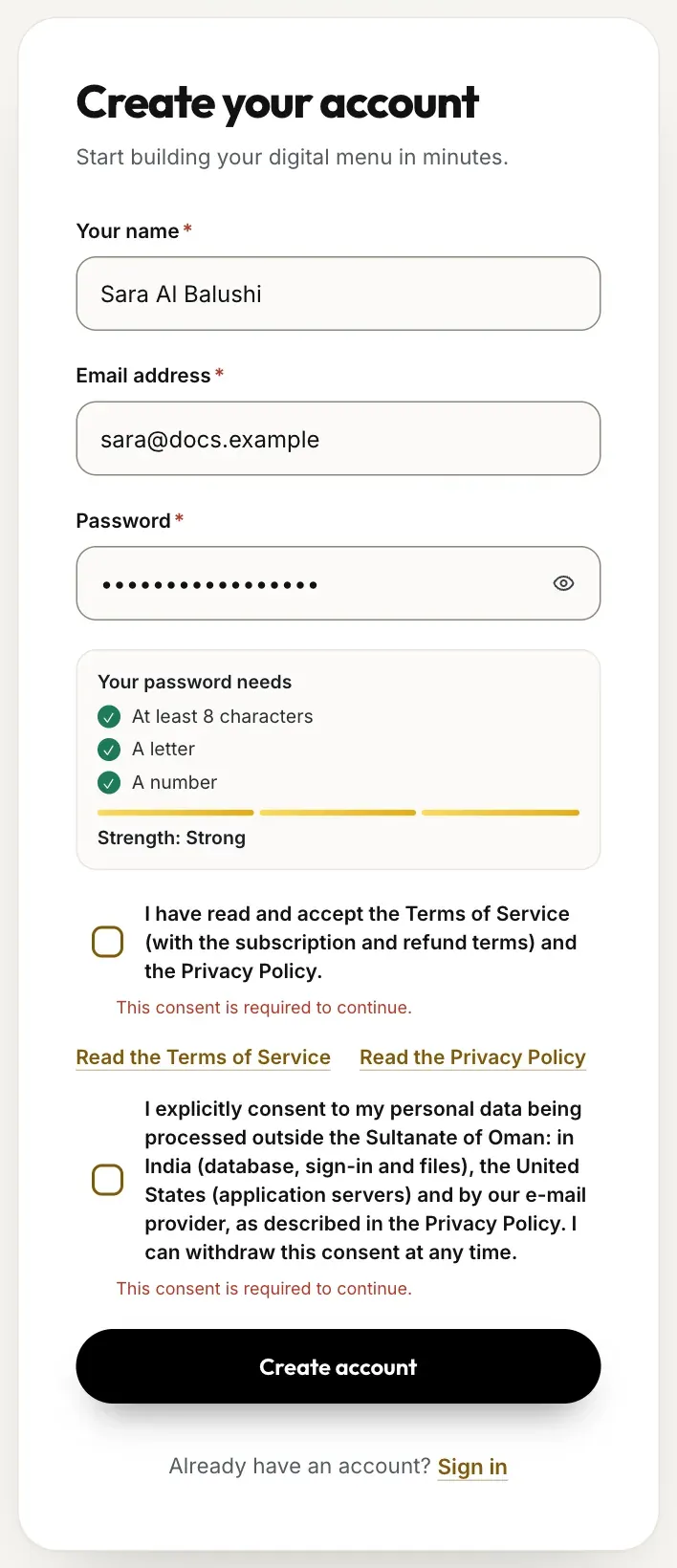
- Terms of Service and Privacy Policy consent
- Consent to process data outside Oman
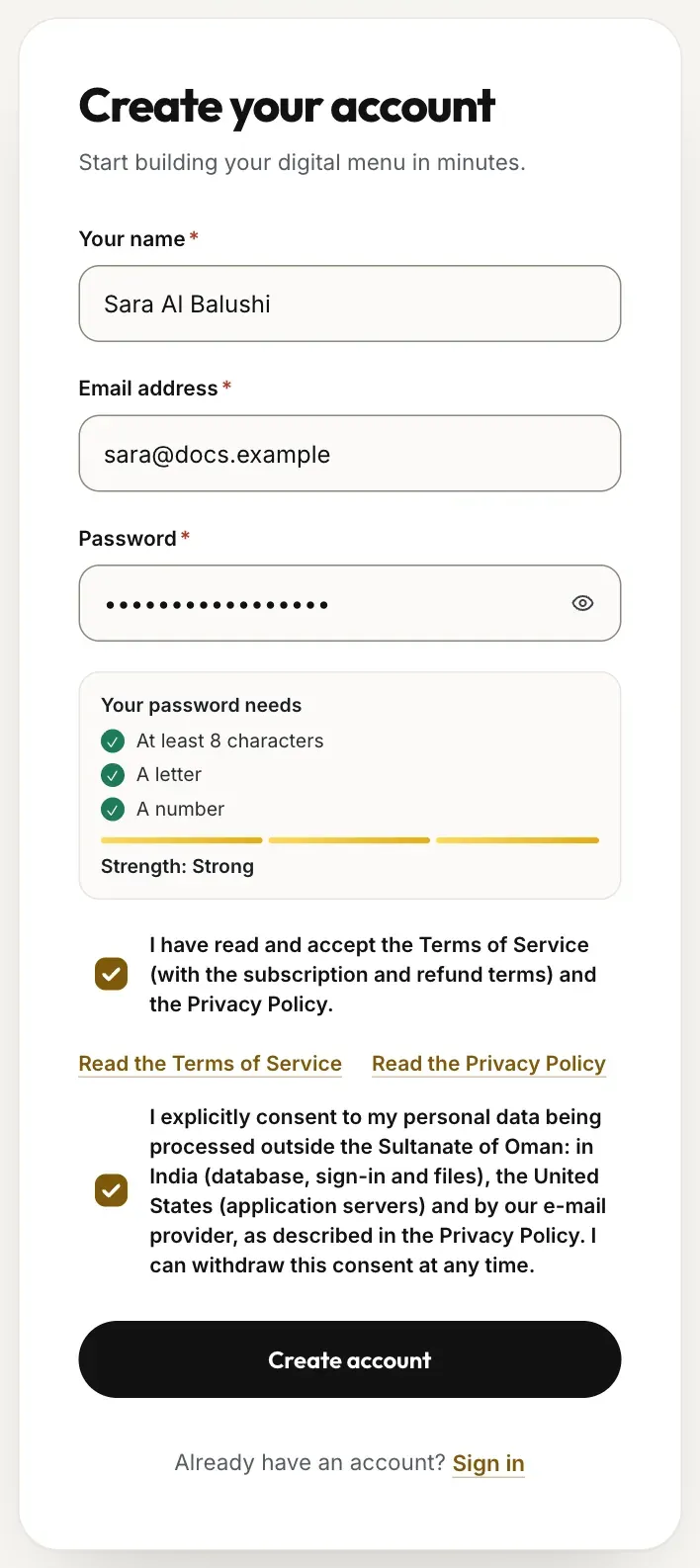
- Terms and Privacy Policy ticked
- Data processing consent ticked
- The Create account button
Look for the confirmation e-mail
After you click Create account the page says Check your email. It always says the same thing, so nobody can use the form to find out which addresses are registered. Open your inbox and look for the confirmation message. If nothing arrives, check your spam folder or try again in a few minutes.
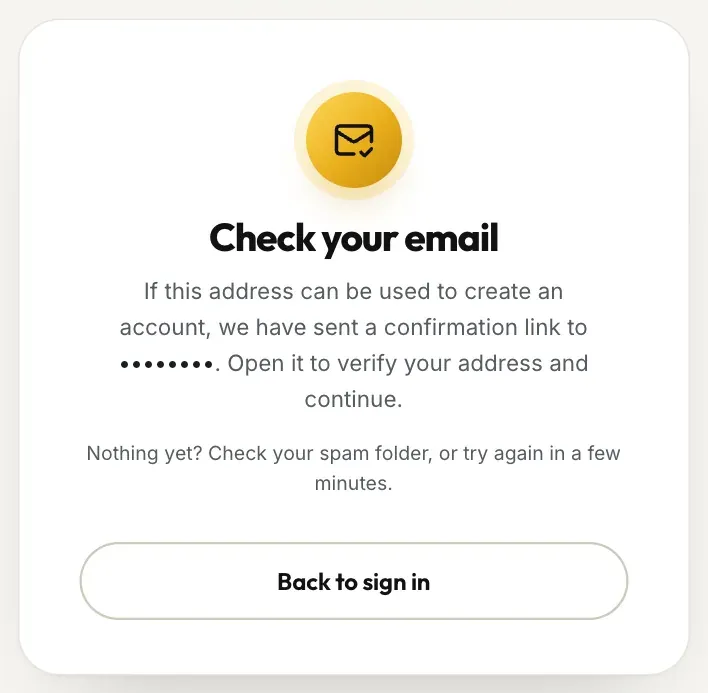
Open the confirmation link
Click the link in the e-mail. It confirms your address, signs you in and takes you straight to Set up your restaurant. Continue with Create your restaurant.
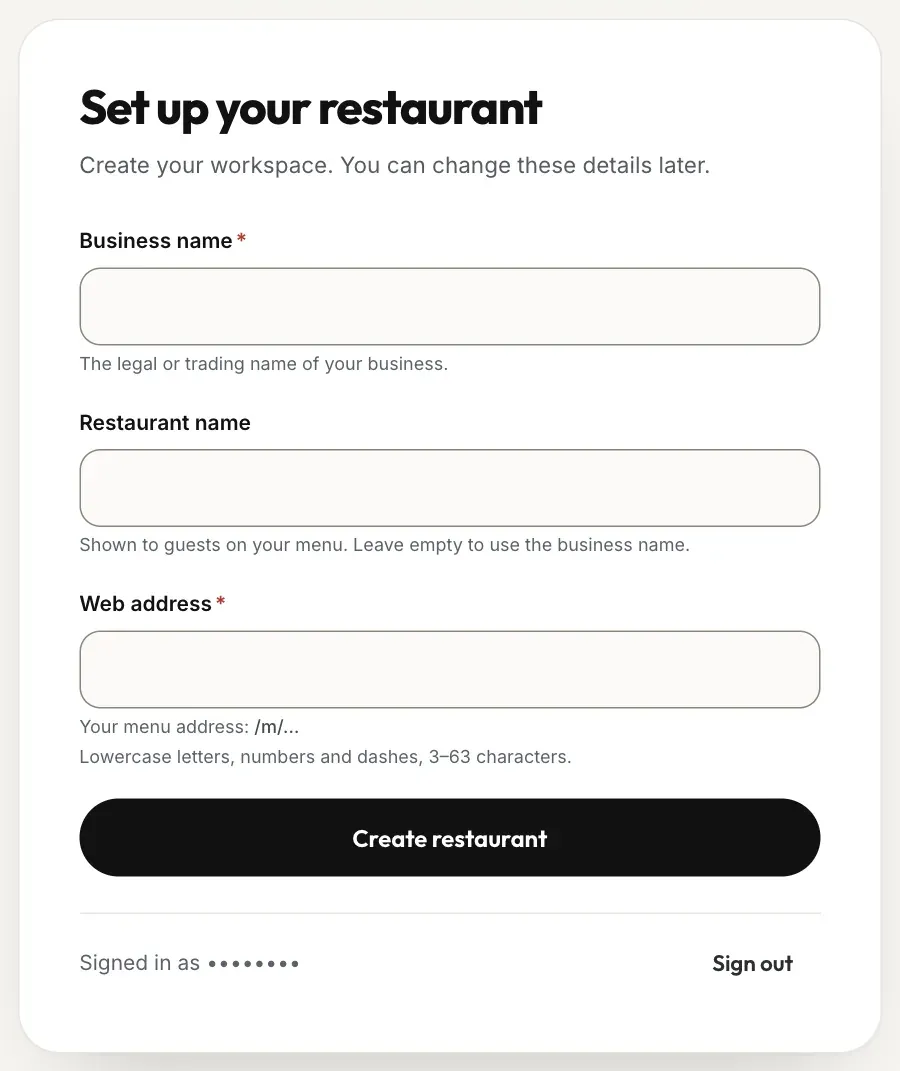
- Business name
- Web address
What happens to your data
RothDine records both consents with the date and the version of the documents. You cannot create a restaurant without them. Your name and e-mail are used to sign you in and to send you account e-mails such as this confirmation.
Troubleshooting
Tick both boxes. They are separate on purpose: one for the Terms and Privacy Policy, one for processing your data outside Oman.
Follow the checklist under the password field until all three rules are ticked. A password can have up to 72 characters.
Sign-up is limited to a few attempts per minute from one connection. Wait a minute and try once more.
Check the spam folder and wait a few minutes. The page gives the same answer whether or not the address can be used, so it cannot tell you more. Make sure you typed the address correctly, then try again. If it still does not arrive, write to support@rothdine.com or call +968 9705 5140.
The confirmation link has already been used or is too old. If you confirmed before, simply sign in. See Sign in and reset your password.
This message appears instead of the form when new sign-ups are closed. Write to support@rothdine.com to ask when the free trial opens.
Related guides
- Getting startedCreate your restaurantName your restaurant, choose its web address and open your first dashboard.
- Getting startedSign in and reset your passwordSign in to your restaurant, and get a new password by e-mail if you forgot it.
- Getting startedYour 14-day free trialWhat the free trial includes, where you see its end date and what pauses when it ends.