
Sign in and reset your password
Sign in to your restaurant, and get a new password by e-mail if you forgot it.
- Goal
- You can sign in, and you know how to set a new password if you forget the old one.
- Before you start
- A RothDine account with a confirmed e-mail address
- Access to that e-mail inbox, if you need to reset the password
You sign in with your e-mail address and password. There is no way to change your password from inside the app yet, so if you forget it or want a new one, use the reset link described below.
Sign in
Open the sign-in page (app.rothdine.com/login), type your Email address and Password, then click Sign in. If you have one restaurant you land on its dashboard. If you have several, you choose one first. If you have none yet, you land on the setup form. Staff who only work in the kitchen land on the Kitchen screen.
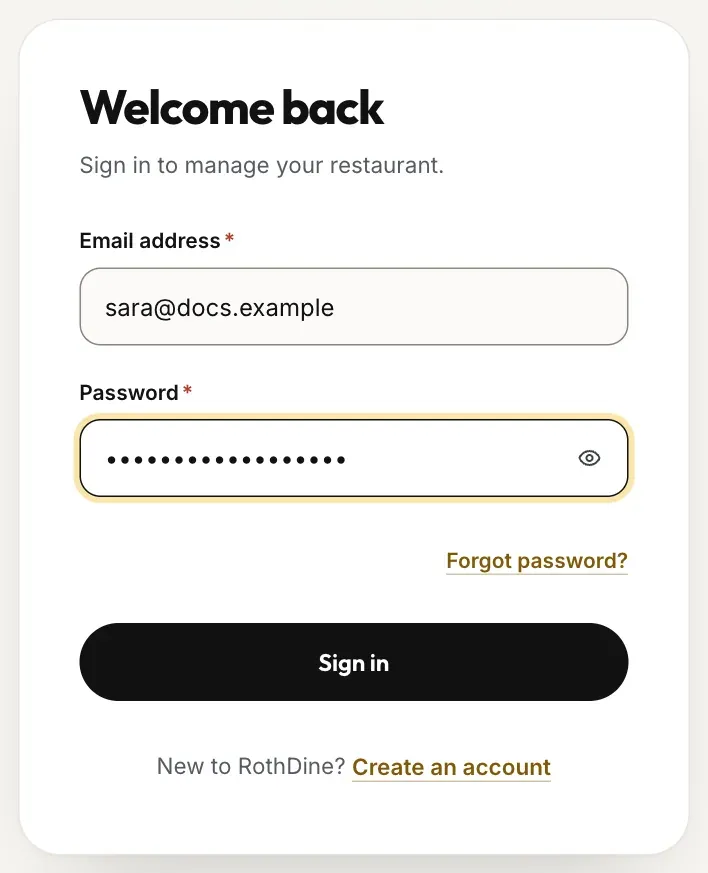
- Email address
- Password
- The Sign in button
- The Forgot password? link
When the e-mail or the password is wrong, the page shows the same message in both cases, so it never reveals whether an account exists.
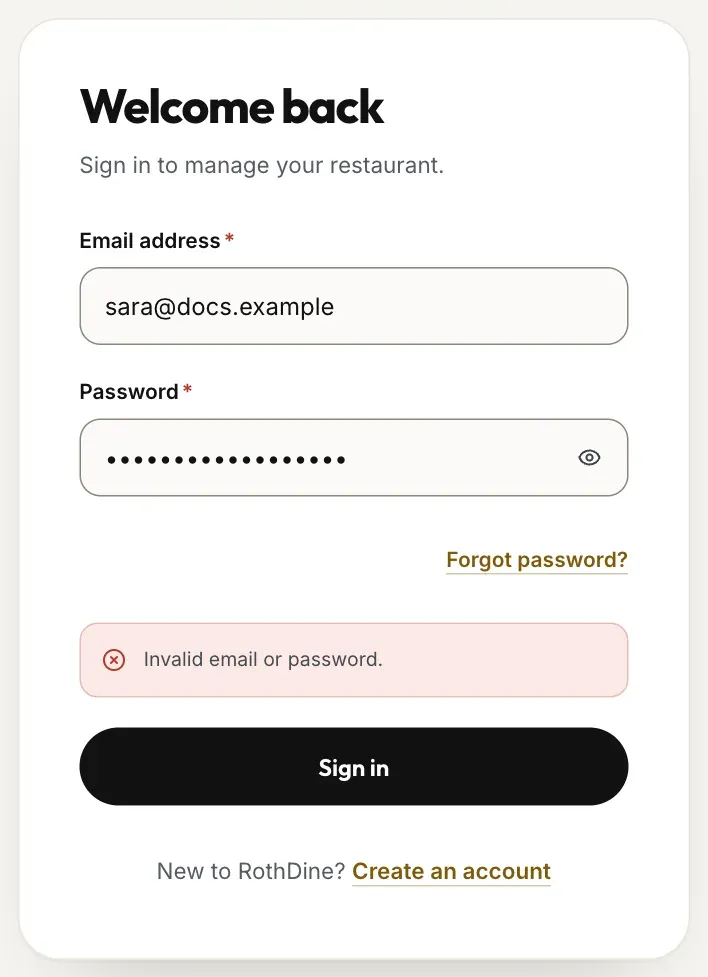
- The error message
Ask for a reset link
Click Forgot password?, type your e-mail address and click Send reset link. The page answers that if an account exists for that address, a reset link is on its way.
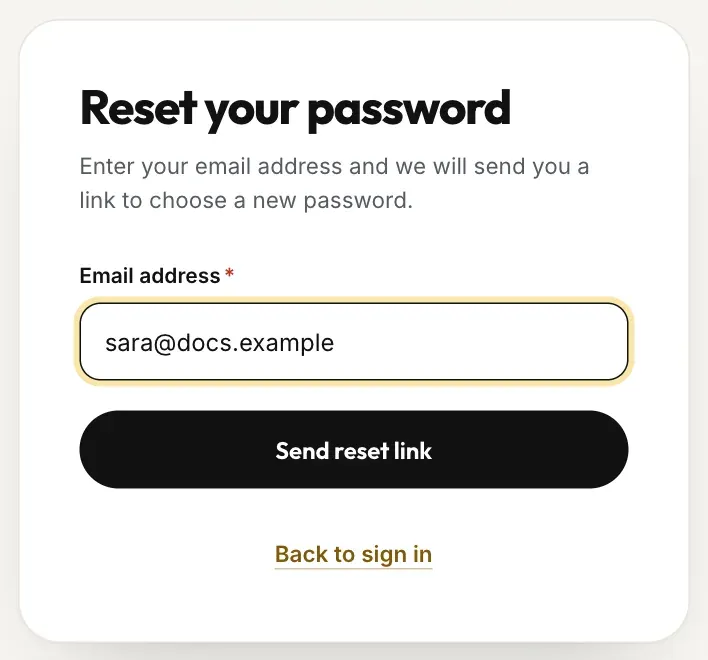
- Email address
- The Send reset link button
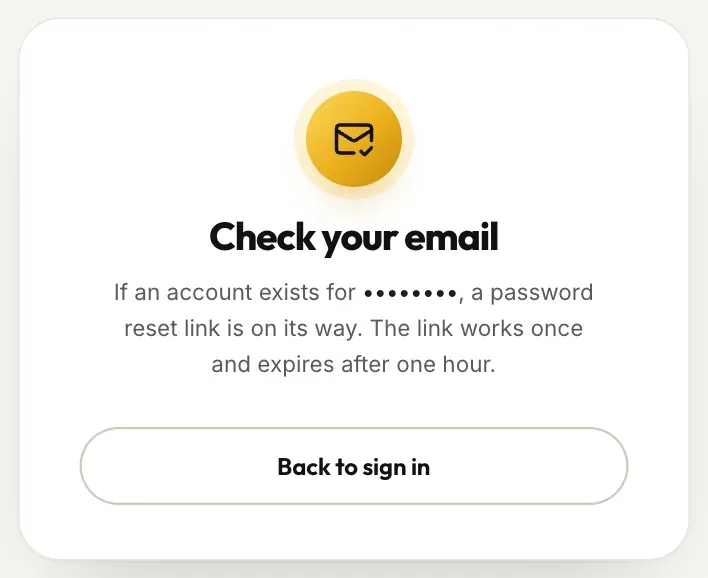
Choose a new password
Open the e-mail and click the link. It works once and expires after one hour, and you should open it in the same browser where you asked for it. Type the new password in New password, repeat it in Confirm new password and click Update password. The same rules apply as at sign-up: at least 8 characters, a letter and a number.
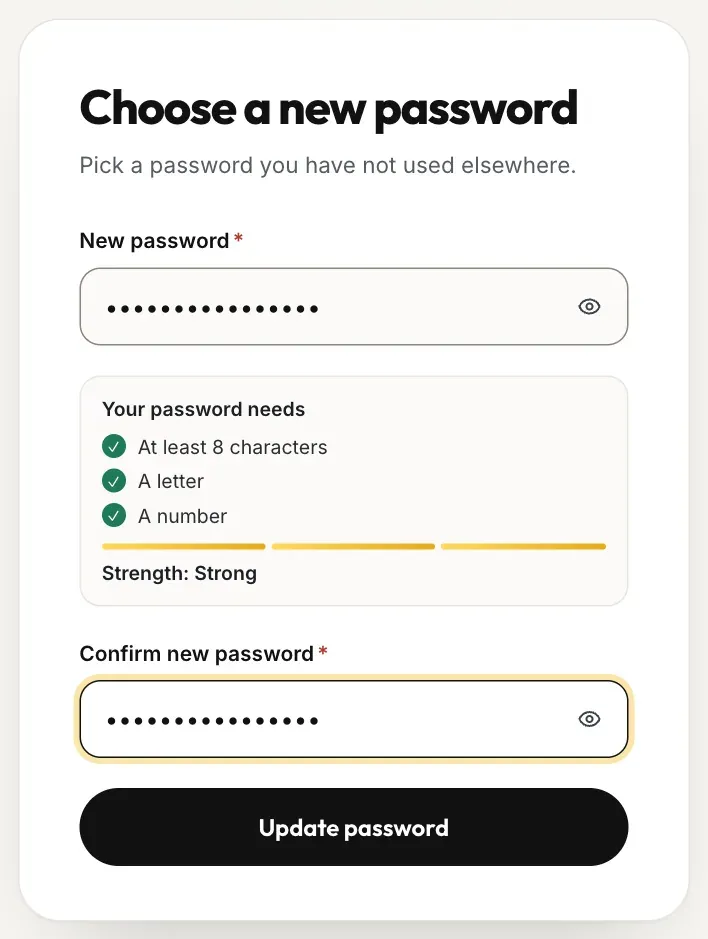
- New password
- Confirm new password
- The Update password button
Sign in with the new password
You return to the sign-in page with a green message: Your password was updated. Sign in with your new password. Sign in as usual.
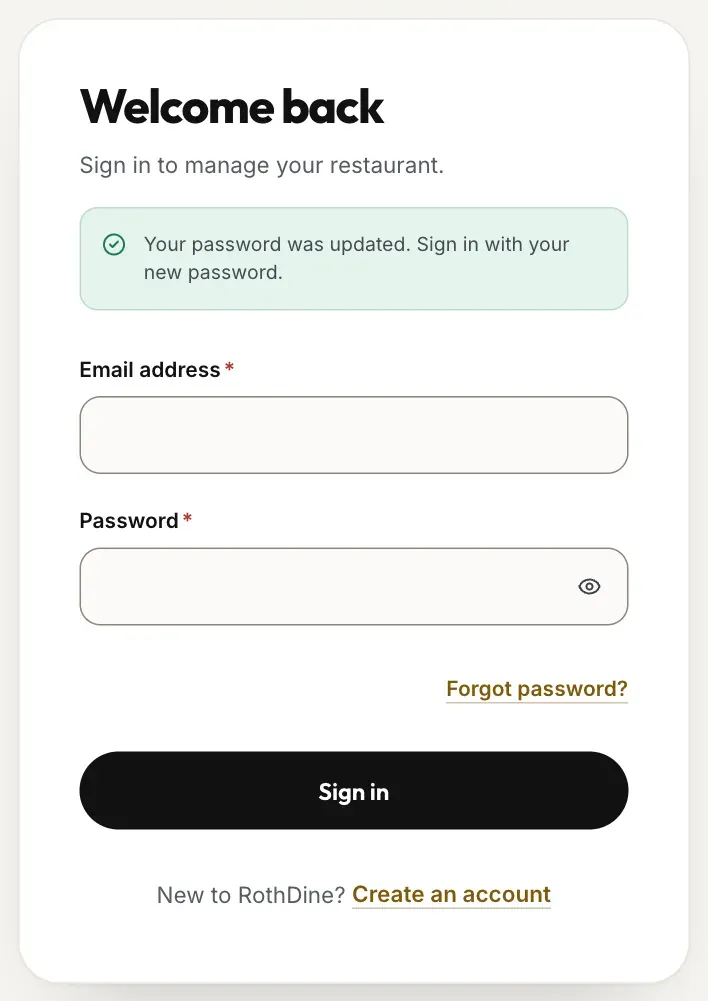
- The password updated notice
Changing a password inside the app
On Account Settings the Change password button is switched off. The page explains that you should use Forgot password on the sign-in page to set a new one.
Troubleshooting
Check the address and the password, then try again. Remember that passwords are case sensitive. If you are not sure, reset the password.
Your password is right, but you have not confirmed your e-mail yet. Open the confirmation message from sign-up and click its link. See Create your account.
Sign-in and reset requests are limited per connection and per address. Wait a minute, or a few minutes for reset requests, and try again.
The link was used already, is older than one hour, or was opened in another browser. Click Request a new link and use the new e-mail in the same browser.
You were signed out after being away. Sign in again; your data is untouched.
Related guides
- Getting startedCreate your accountSign up with your name, e-mail and password, accept the two required consents and confirm your e-mail address.
- Getting startedCreate your restaurantName your restaurant, choose its web address and open your first dashboard.
- Getting startedQuick-start checklistThe seven setup steps on your dashboard, what each one opens, and the shortest road from an empty restaurant to a live QR menu.