
Renewals and trial expiry
What you see 7 days and 1 day before the end, what the 7-day grace period is, what pauses after expiry, and how to renew.
- Goal
- You know when your trial or plan ends, what keeps working if it runs out, and how to renew in time.
- Before you start
- Your restaurant is on the free trial or a paid plan
- You are the owner (staff can see the banners but cannot renew)
Nothing renews by itself: you pay by bank transfer each time. RothDine reminds you inside the app. It does not send e-mails or messages about billing, so look at your dashboard and at Subscription & Billing.
Watch for the reminder banners
In the last 7 days before a free trial or a paid term ends, the owner sees a blue banner at the top of the dashboard that counts the days left. A notice is also added 7 days before and again 1 day before the end. On a trial the banner button is Choose a plan. On a paid plan it is Renew now.

- The banner text with the end date
- The Choose a plan button

- The banner text with the end date
- The Renew now button
Read the notices
Open Subscription & Billing. The Notices card keeps the same reminders and tells you when a payment is approved or rejected. Unread notices show new; use Mark all as read to clear them.
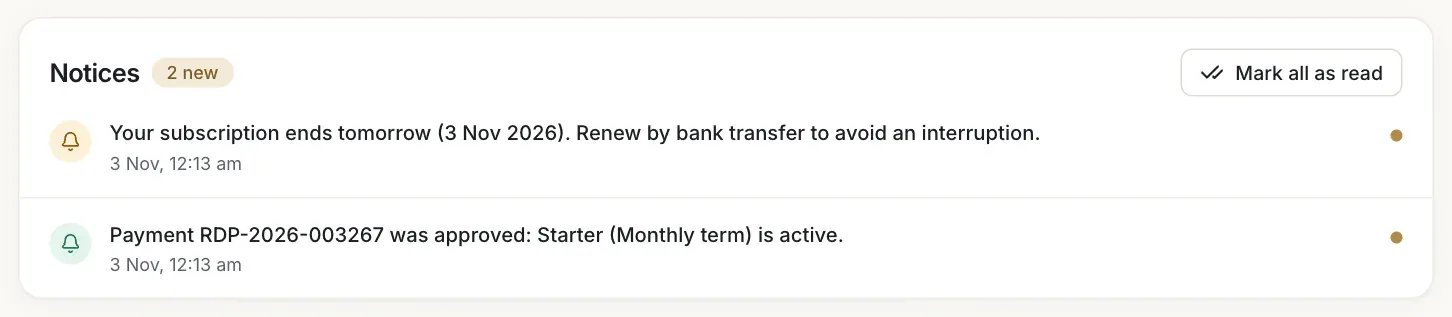
- The reminder notice
Renew during the grace period
When a paid term ends, you get a grace period of 7 days. Everything keeps working, and an amber banner asks you to renew. The Subscription card shows Grace period and the date it ends. There is no grace period after a free trial: the trial simply ends.

- The grace period banner text
- The Renew now button
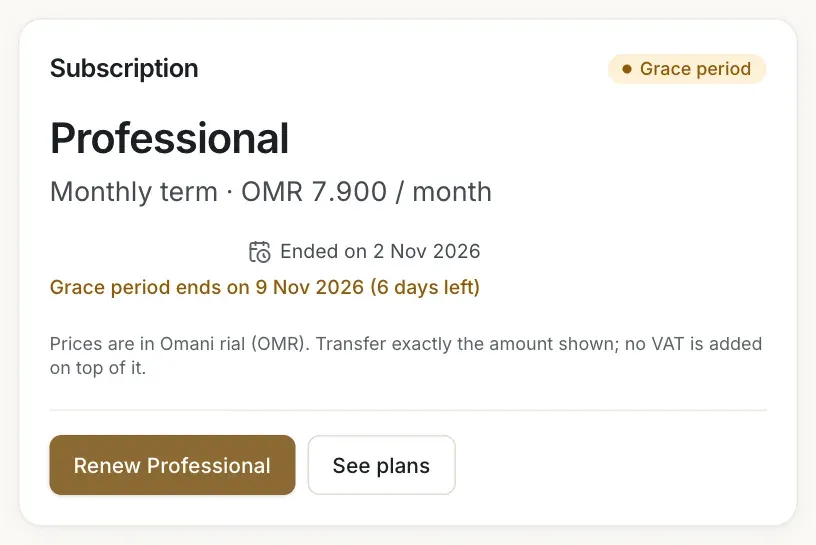
- The Grace period status
- The date the grace period ends
- The Renew button
See what your team sees
Team members who are not the owner see the grace period and expired banners without a button, with a line asking them to tell the owner to renew. The reminder banners before the end are shown to the owner only.

- The message for team members
Understand expiry
When the grace period ends (or the free trial ends) the status becomes Expired and a red banner tells you what is paused. Your menus, QR codes and data are untouched.

- The expired banner text
- The Renew now button
Know what stops and what keeps running
Two things pause: table ordering (Mode C) and publishing new menus. If you try to publish you see "Your subscription has ended, so new menus cannot be published. Renew to publish again." Your draft is not lost. Everything else keeps working: published menus and QR codes, waiter calls, the admin and all your data. Nothing is deleted.
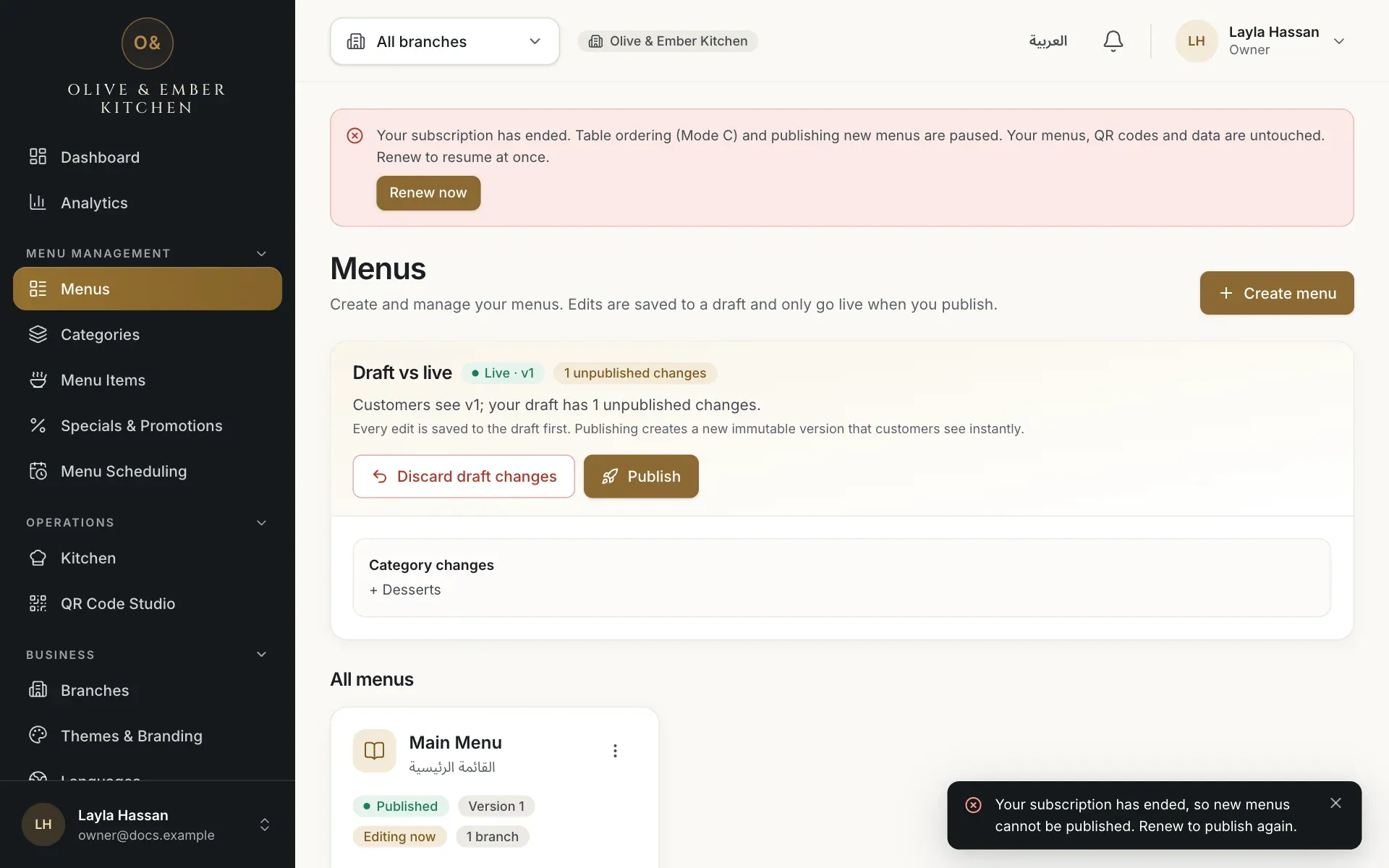
- The message about publishing

- What is paused and what still works
Renew by bank transfer
On Subscription & Billing click the renew button, for example Renew Business, then Create request, and follow the same steps as for a first payment: transfer the exact amount, upload the receipt and wait for approval. See Pay by bank transfer. Renewing while the plan is still active adds a new term after the current one. If the term has already ended, the new term starts when RothDine approves your payment. You can also choose a different plan.
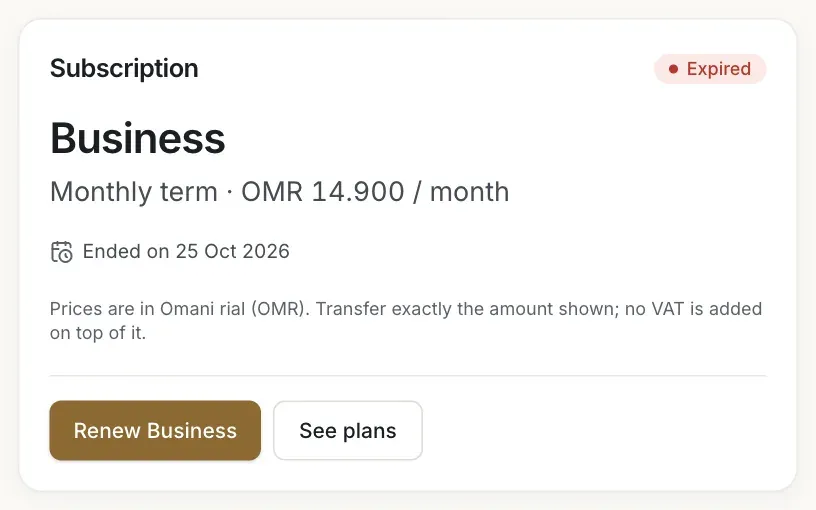
- The Expired status
- The Renew Business button
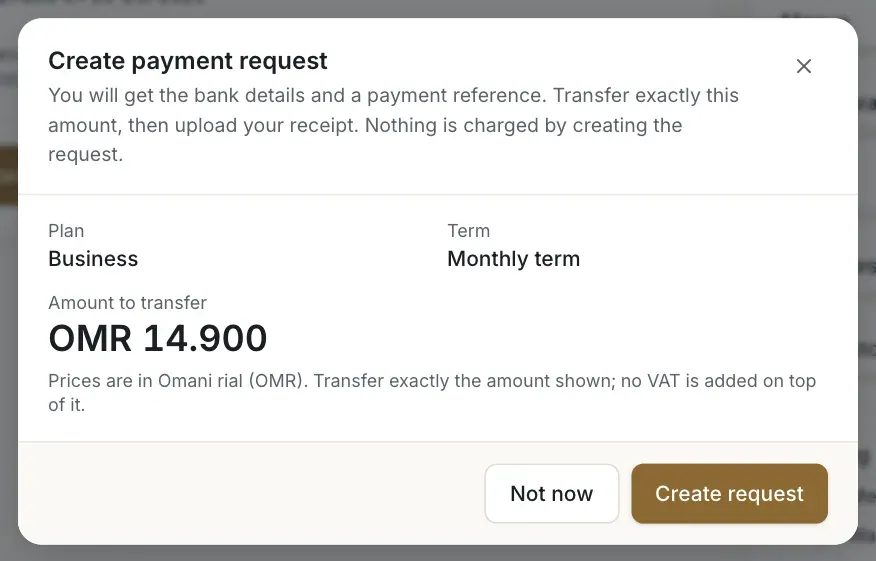
- The amount to transfer
- The Create request button
Check that everything resumed
Only an approved payment reactivates your subscription, and it does so at once: table ordering and publishing work again and the banner disappears.
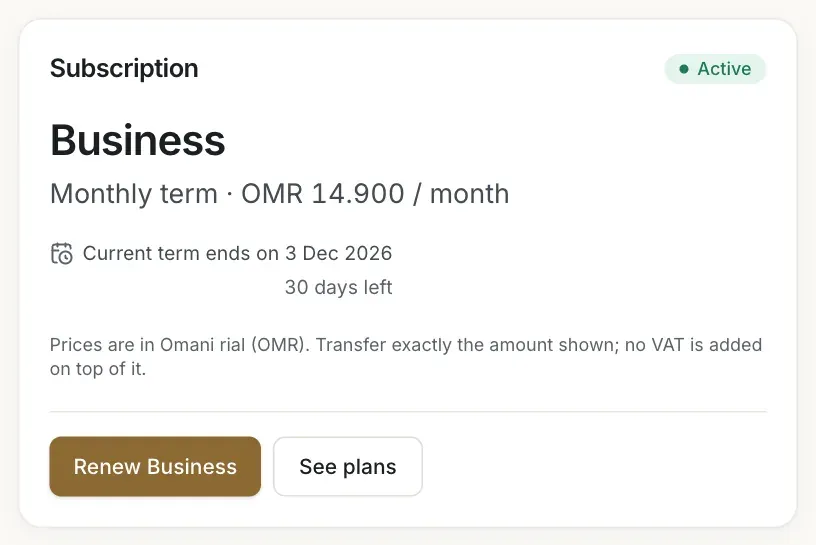
- The Active status
- The new term end date
Renew before the end
Days left on an old plan are not credited when you move to a higher plan, so renewing early on the same plan keeps all your days.
Troubleshooting
Your trial or paid term ended and the grace period is over. Ask the owner to renew from Subscription & Billing. Your draft stays as it is and can be published after the payment is approved.
Guests see this when table ordering (Mode C) is paused or switched off. If your subscription has ended, renew it. Otherwise check that Accept orders is on in Restaurant Settings.
Your plan changes only after RothDine approves the payment, which happens after the money is seen in its bank account. Open Subscription & Billing and check the request: Under review means it is waiting, Rejected shows the reason. If it stays under review for a long time, contact support with your payment reference.
Related guides
- Plans & billingPay by bank transferChoose a plan, transfer the exact amount, upload your receipt and follow the request until RothDine approves it.
- Plans & billingPlans and limitsSee your current plan, what each plan includes, and how much of your limits you have used.
- Getting startedYour 14-day free trialWhat the free trial includes, where you see its end date and what pauses when it ends.
- Help & troubleshootingTroubleshootingFind the message you see on screen, learn what it means and how to fix it, grouped by area.