
Choose a theme
Pick one of seven themes, set an accent colour and tagline, preview it in English and Arabic, and save it to your guest menu.
- Goal
- Your guest menu uses the theme, accent colour and tagline you chose, and you have checked how it looks on a phone.
- Before you start
- You are the owner or an admin (the roles that can change branding)
- A published menu, so you can see the result on the guest menu
The theme sets the colours, type and shapes of the menu your guests open after scanning a QR code. Guests see nothing new until you press Save branding. Branding is separate from menu publishing: saving applies at once, with no publish.
Open Themes & Branding
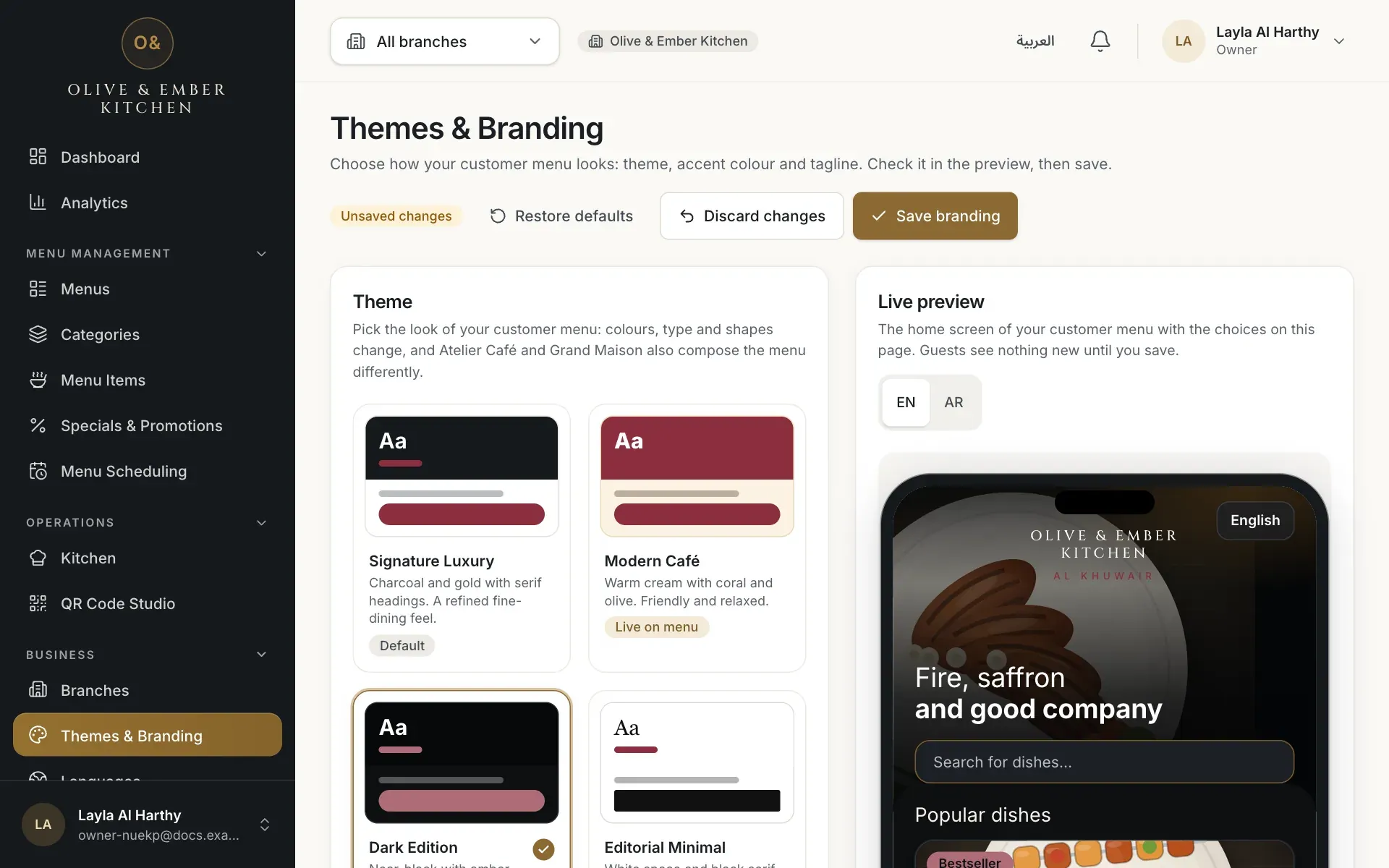
In the sidebar, under Business, choose Themes & Branding. On the left you choose; on the right a phone shows a Live preview of your menu home screen. The badge All changes saved means the page matches what guests see.
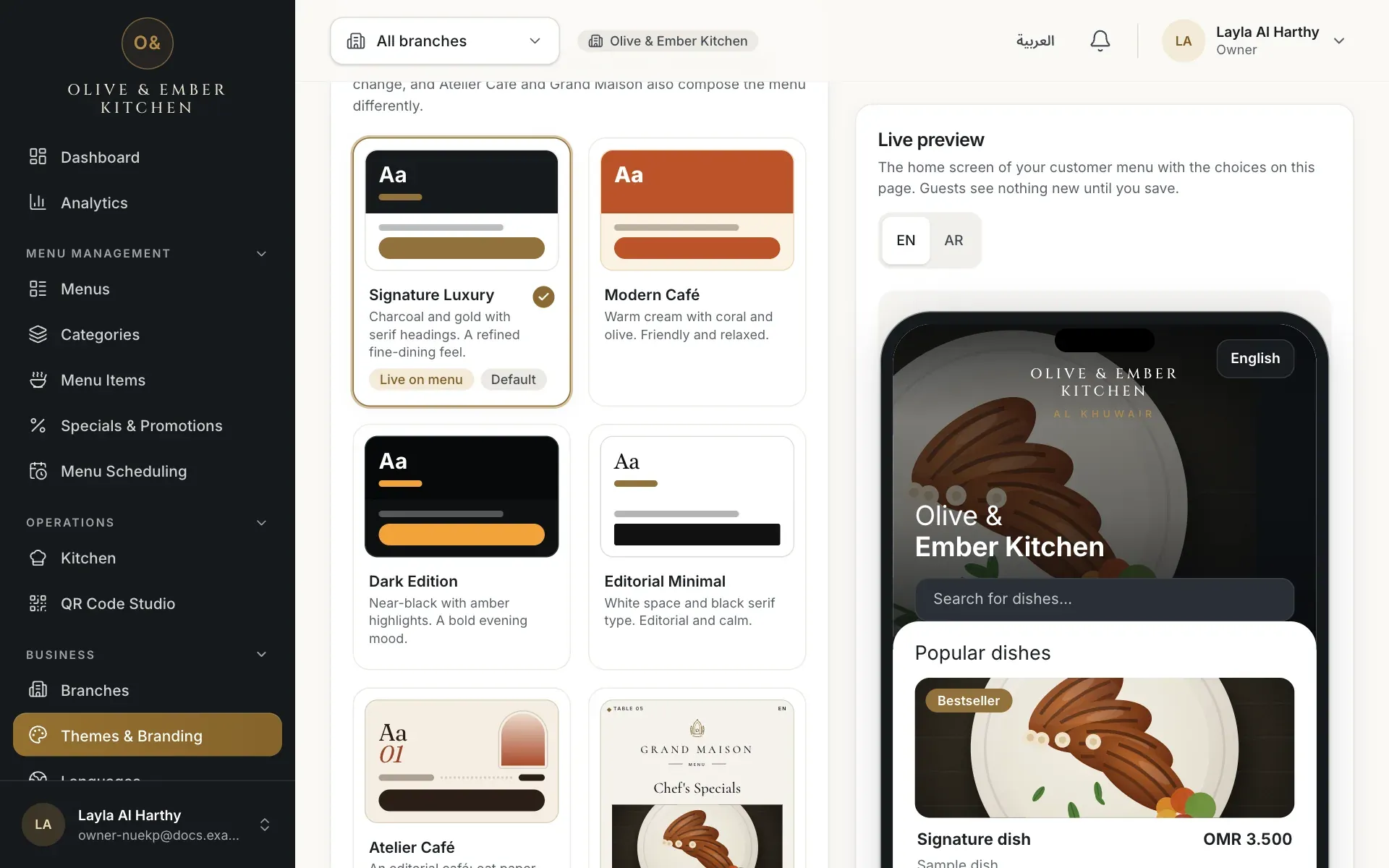
- The theme cards
- The live phone preview
Meet the seven themes
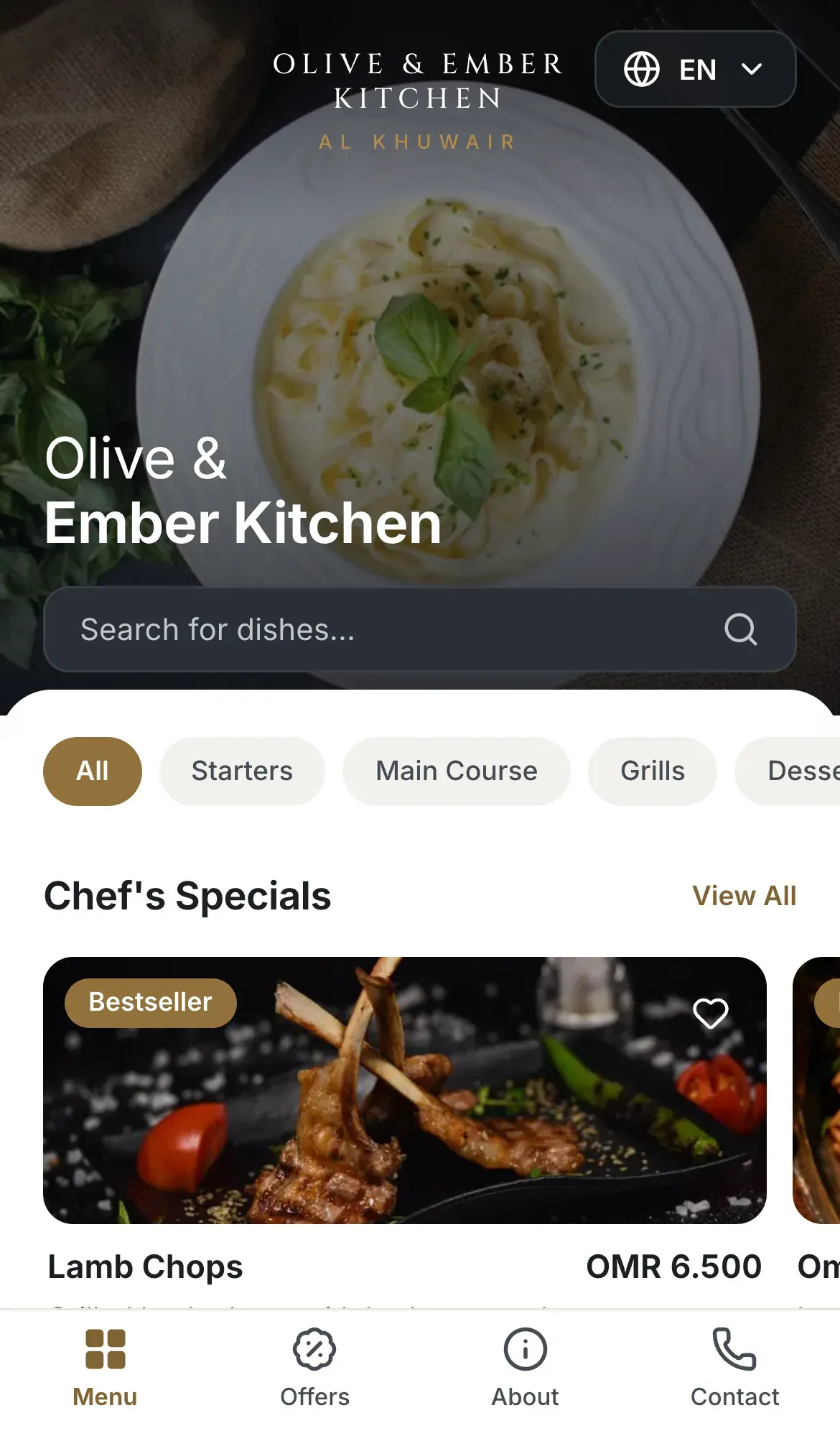
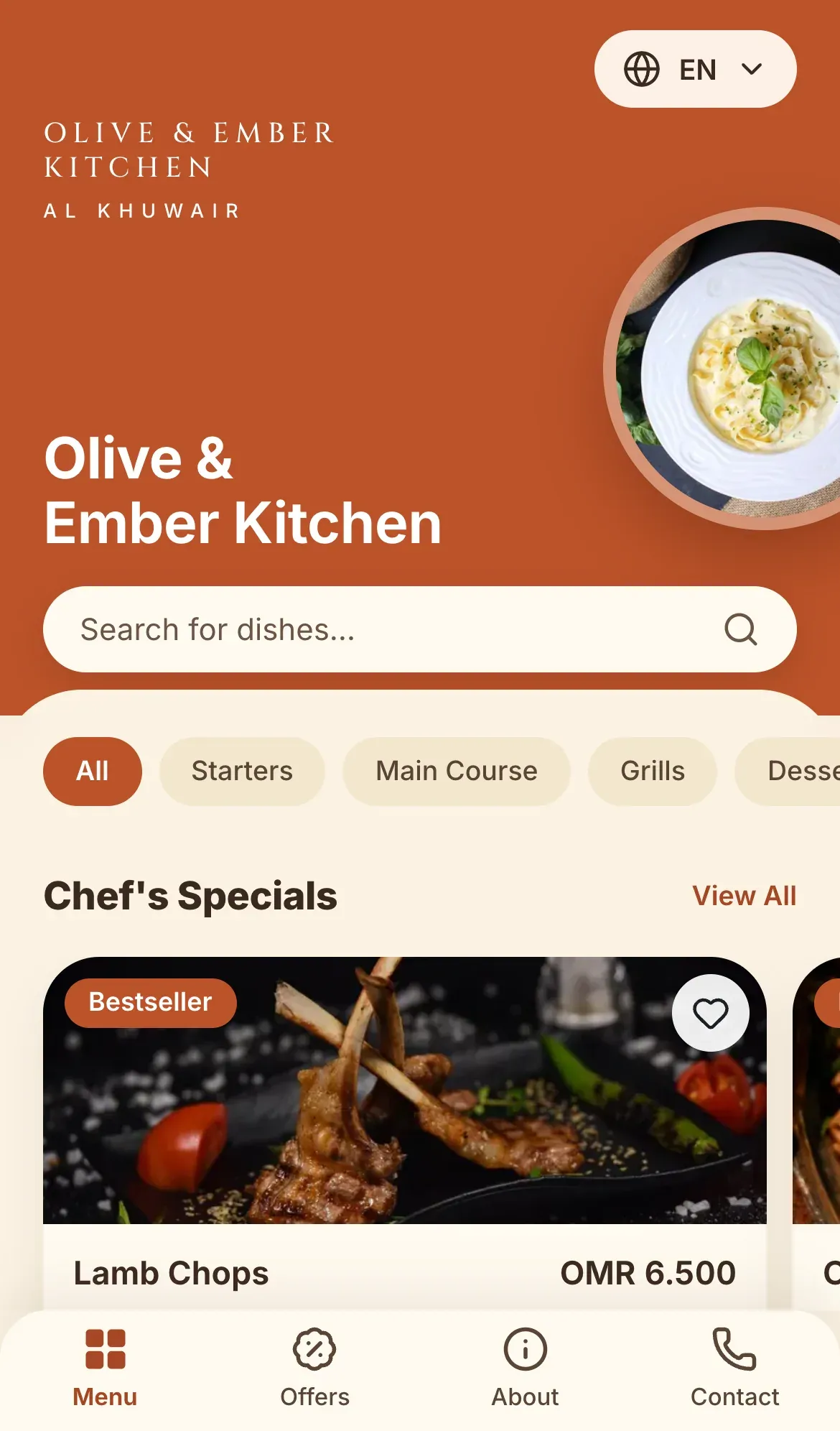
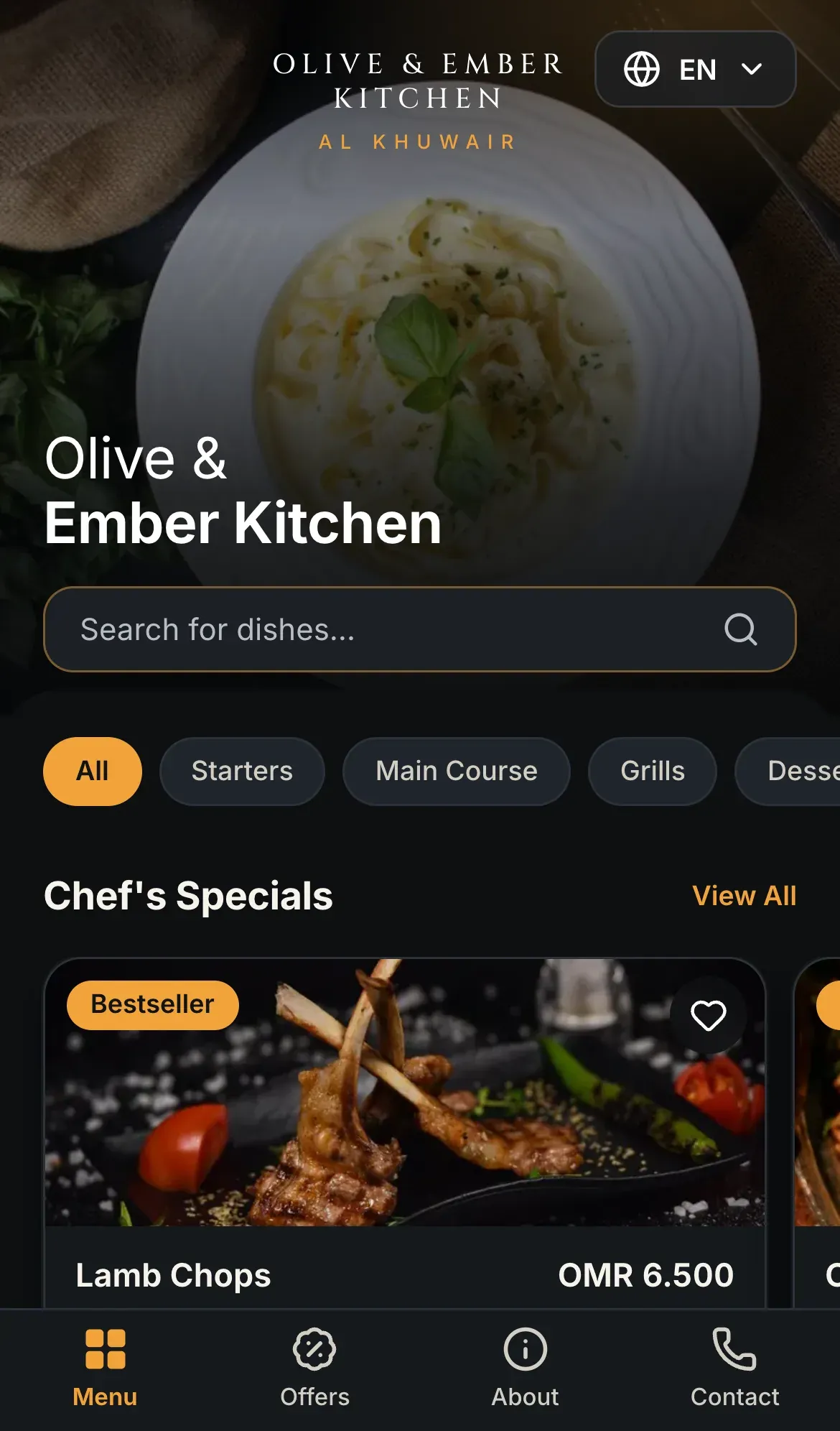
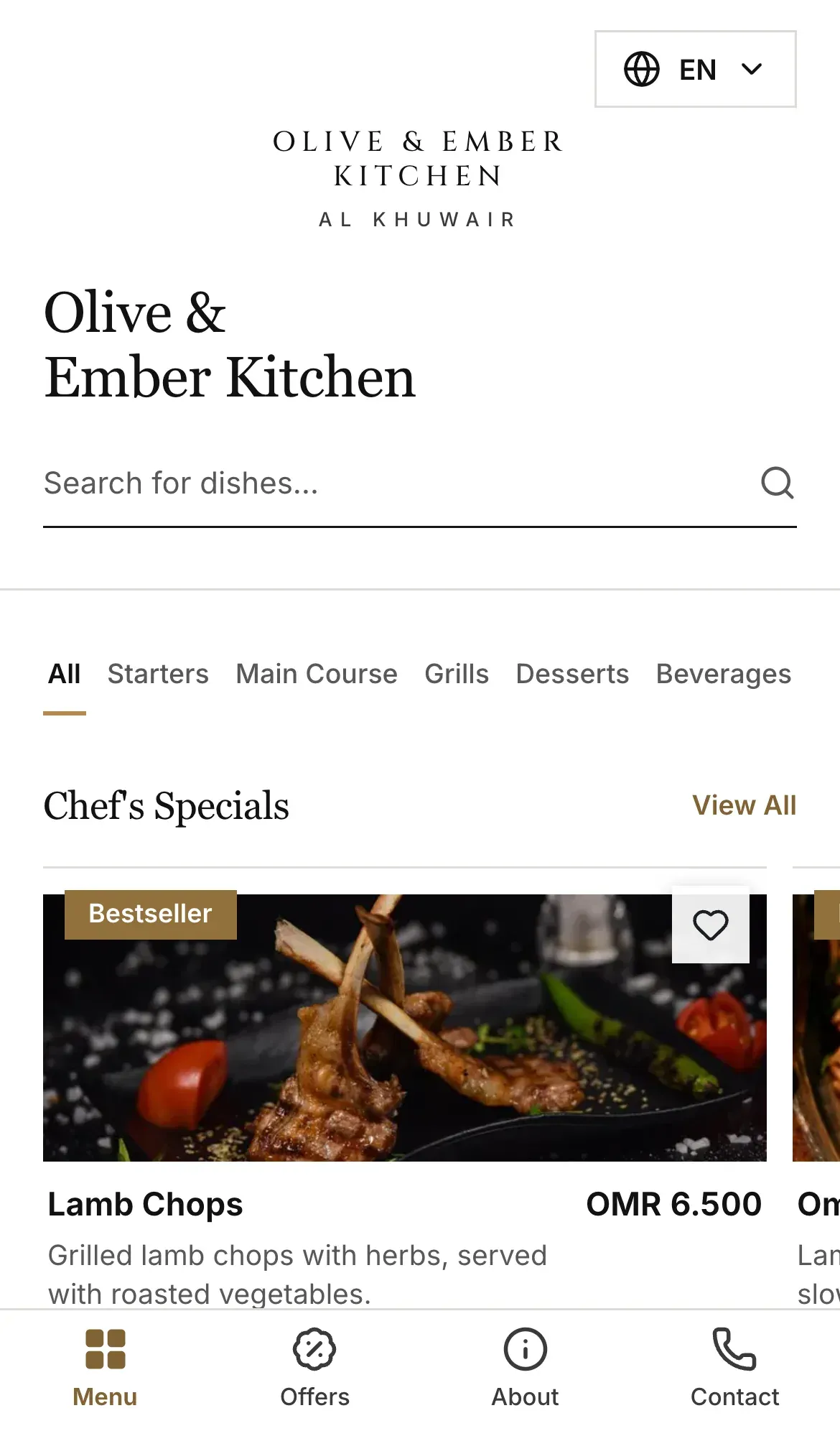
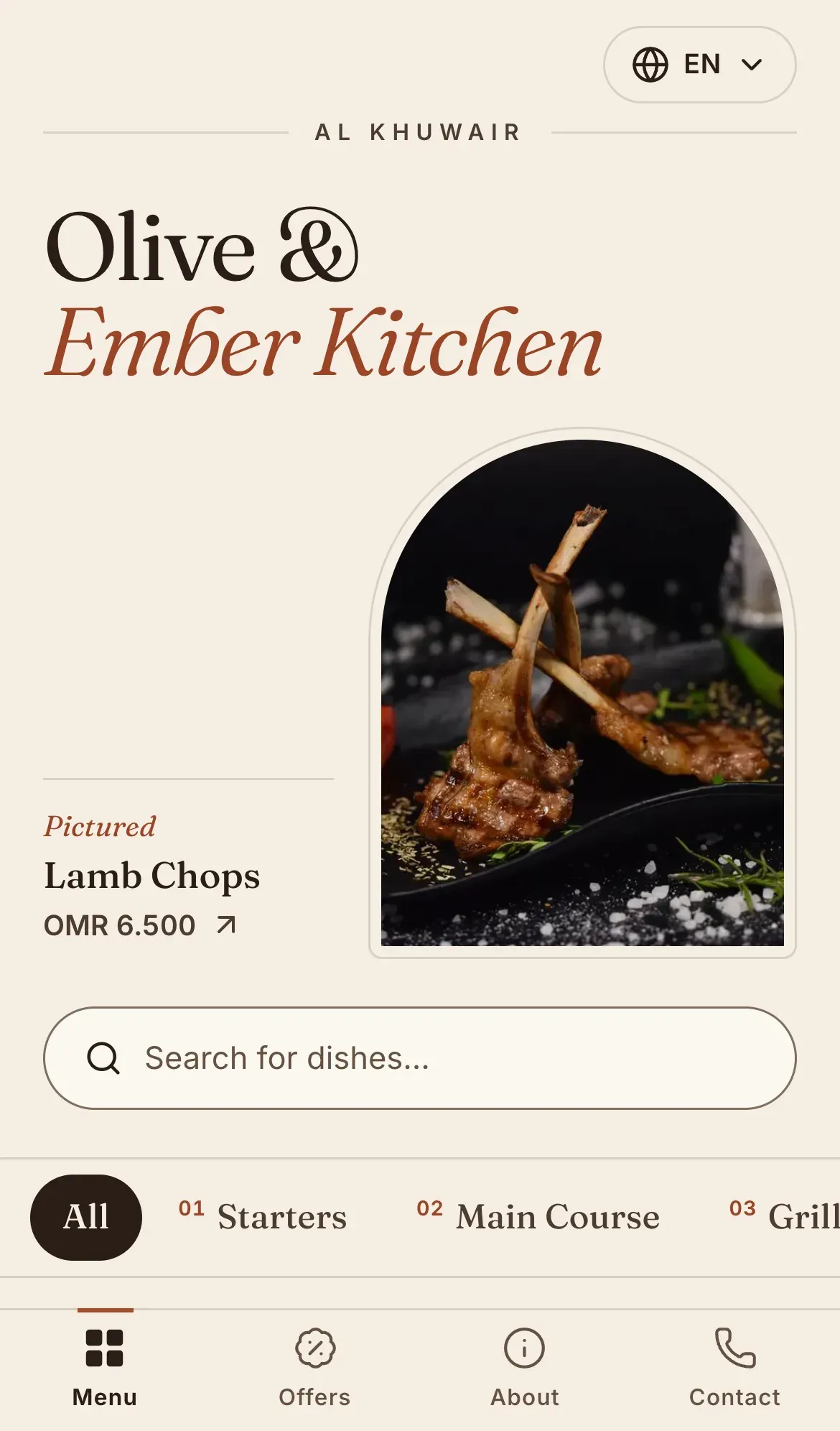
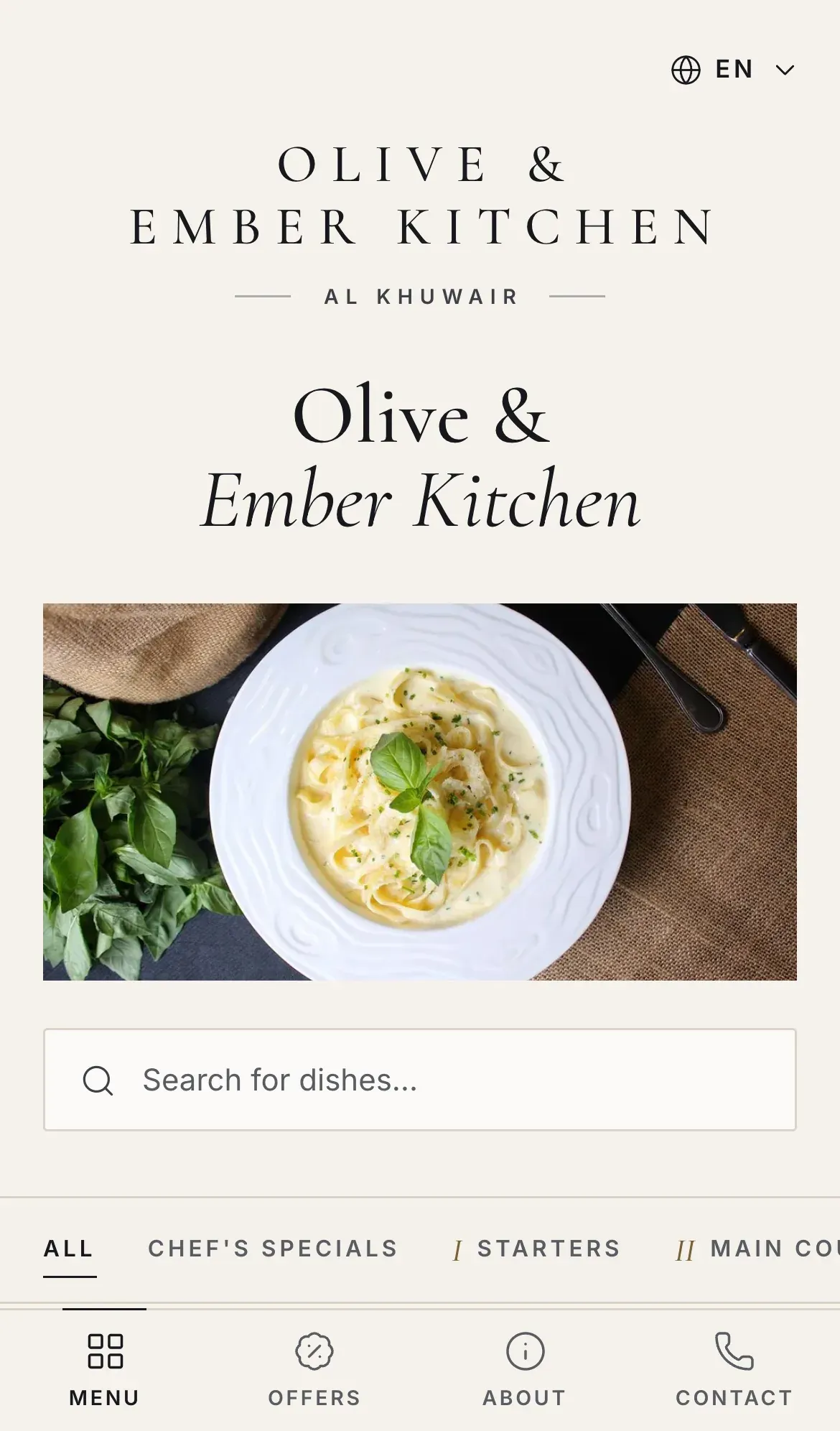
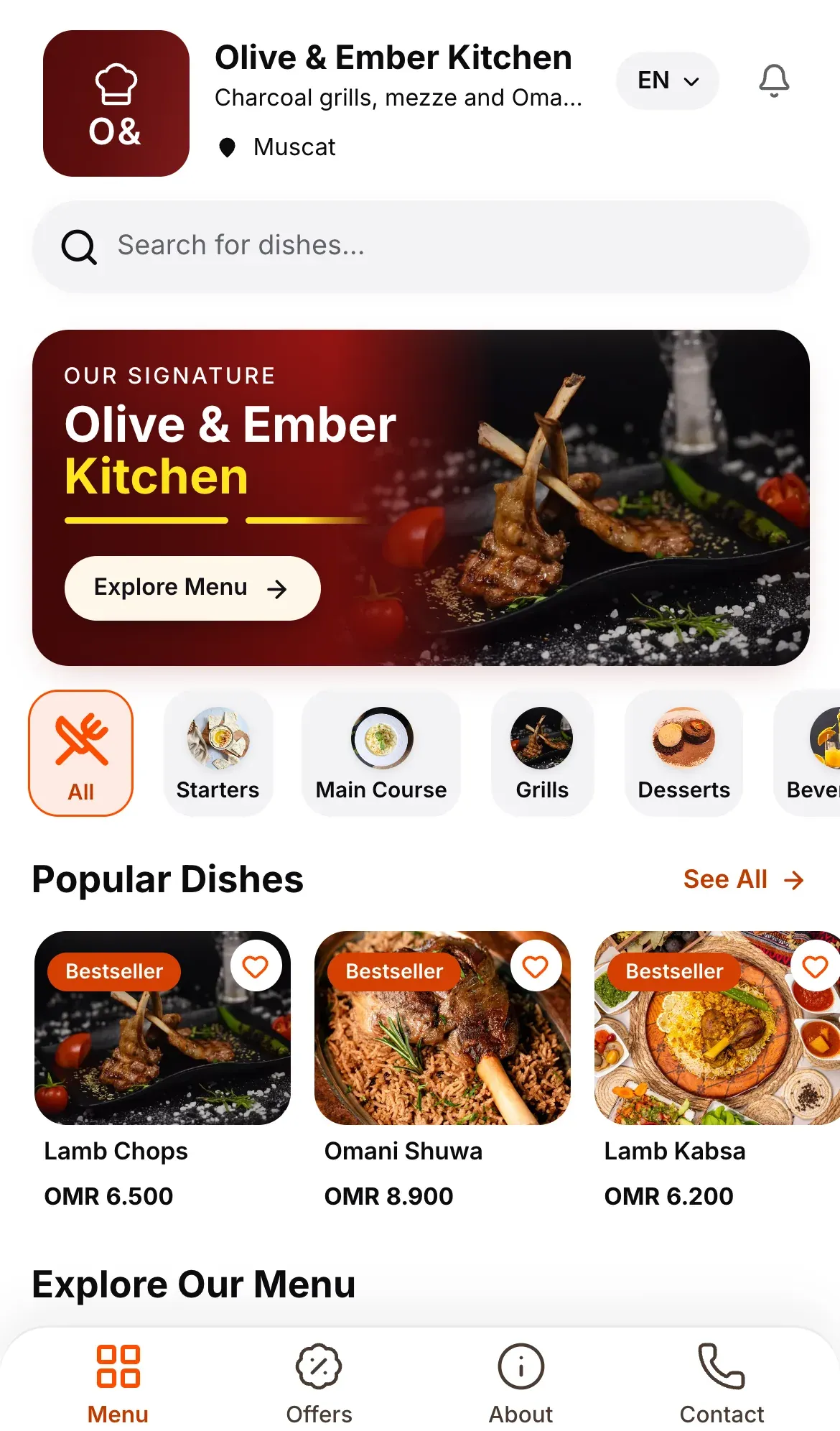
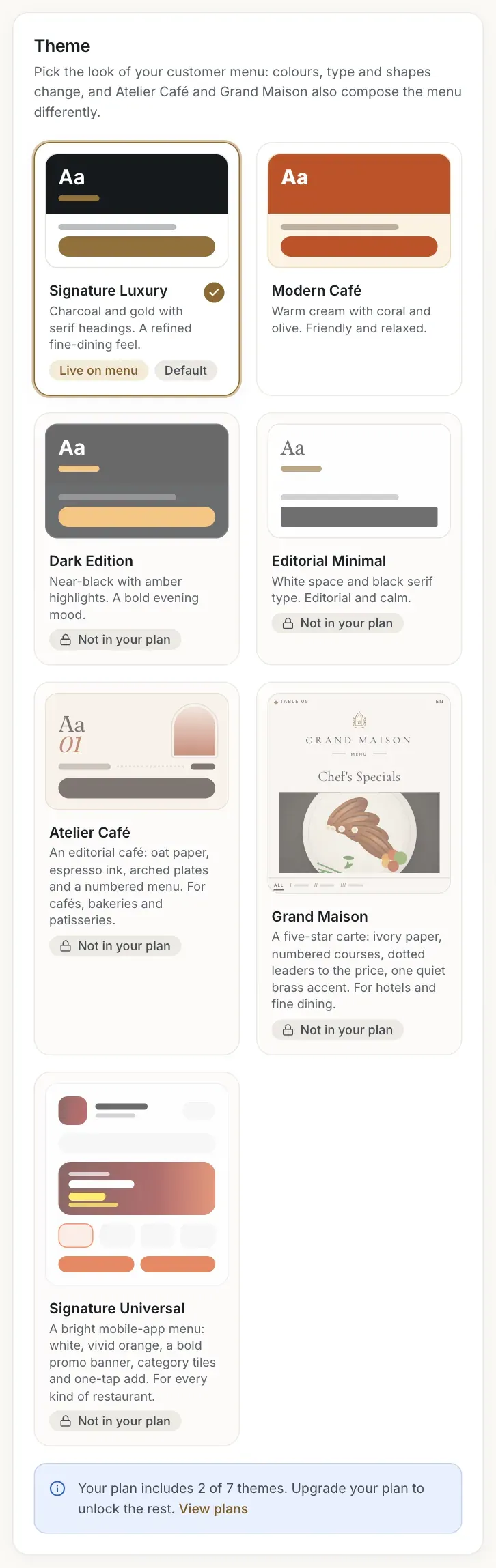
There are seven themes: Signature Luxury (charcoal and gold, the default), Modern Café, Dark Edition, Editorial Minimal, Atelier Café, Grand Maison and Signature Universal. Atelier Café and Grand Maison also arrange the menu differently, not only the colours. The card of your saved theme is marked Live on menu.
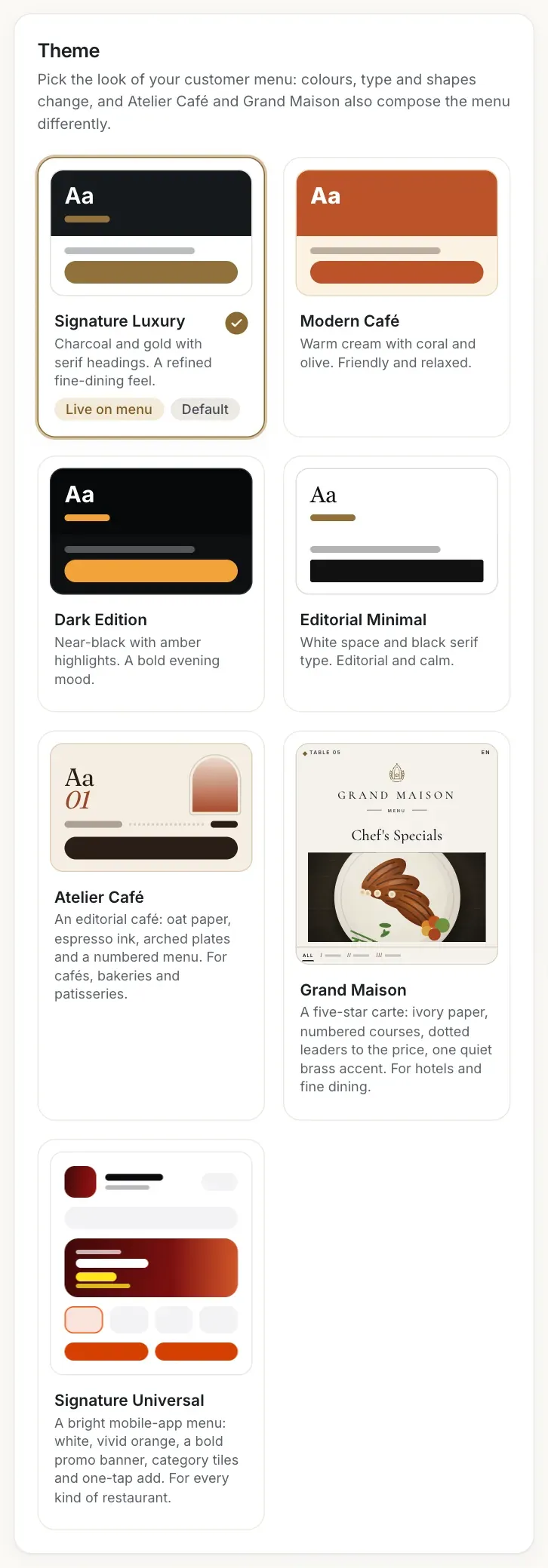
- Signature Luxury
- Modern Café
- Dark Edition
- Editorial Minimal
- Atelier Café
- Grand Maison
- Signature Universal
Pick a theme and check the preview
Click a card. The phone on the right changes at once, and the badge changes to Unsaved changes. Use EN and AR above the phone to preview the menu in English and in Arabic (right to left).
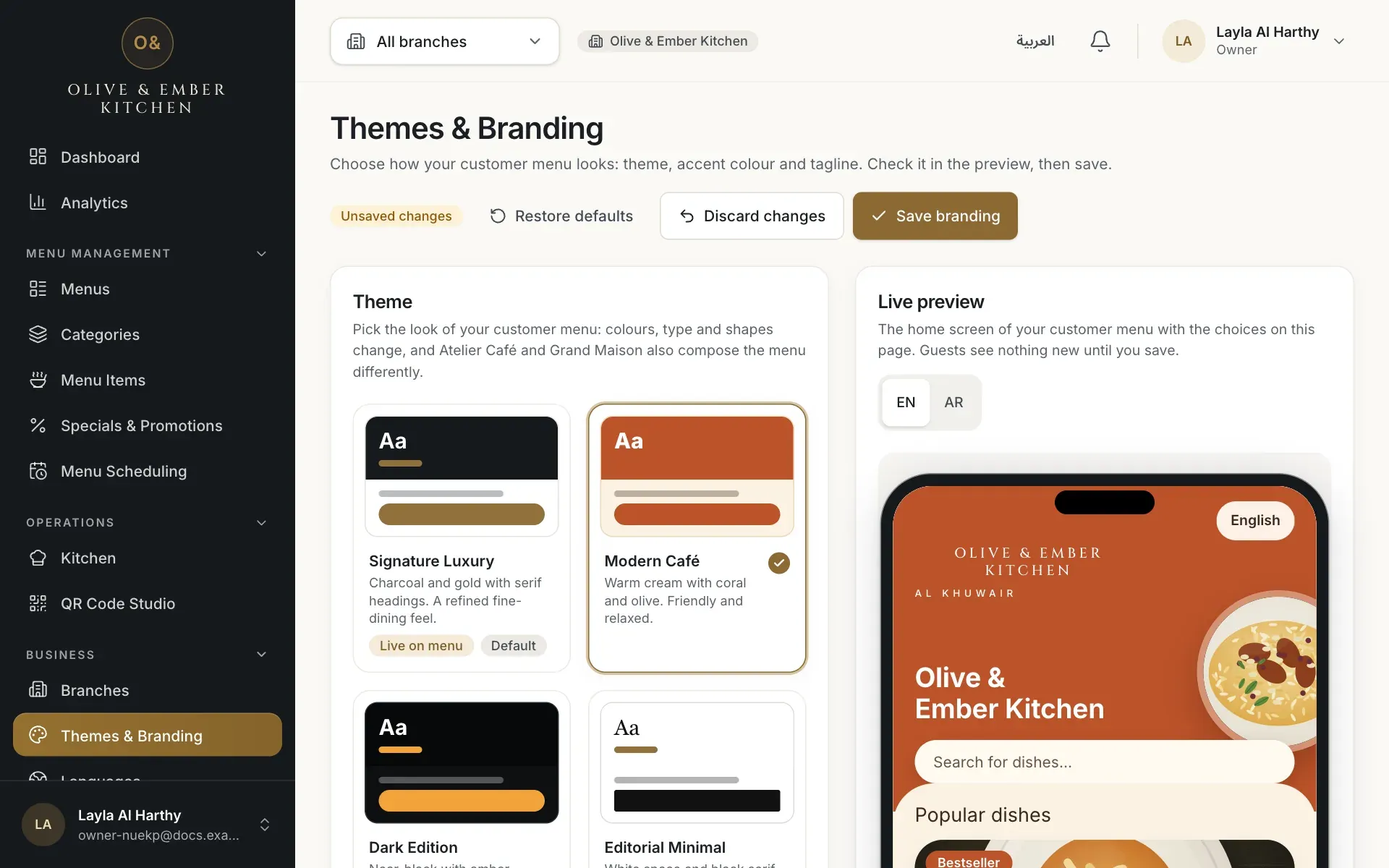
- The selected theme card
- The phone preview
- The AR button of the preview
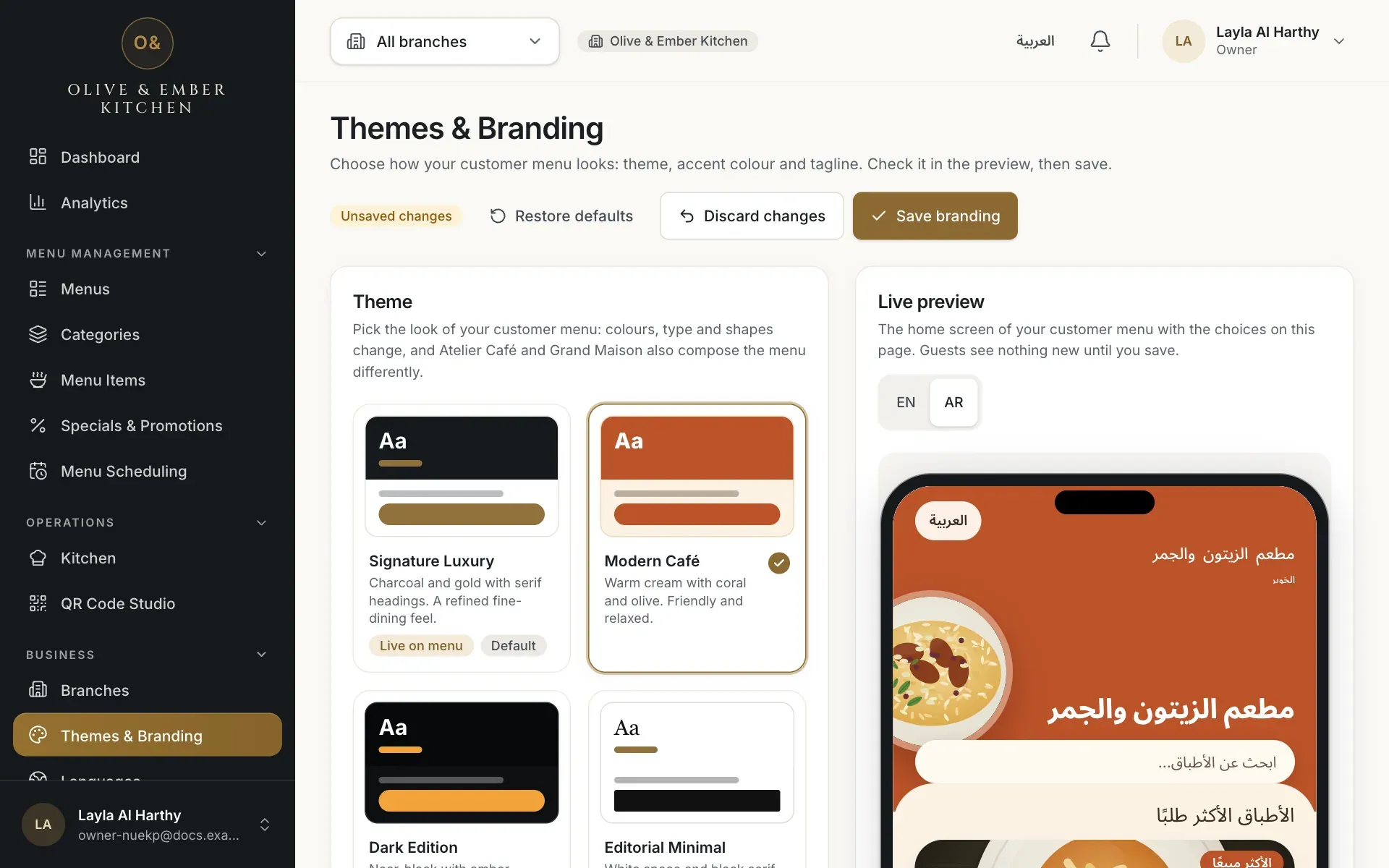
- The AR button, selected
- The preview in Arabic
Choose an accent colour
Under Accent colour click one of the swatches (Gold, Coral, Olive, Amber, Emerald, Ink black, Burgundy or Blue) or type a six-digit colour in Hex value, such as #8B2E3D. Theme default keeps the colour of the theme. Text colours adjust automatically so they stay readable.
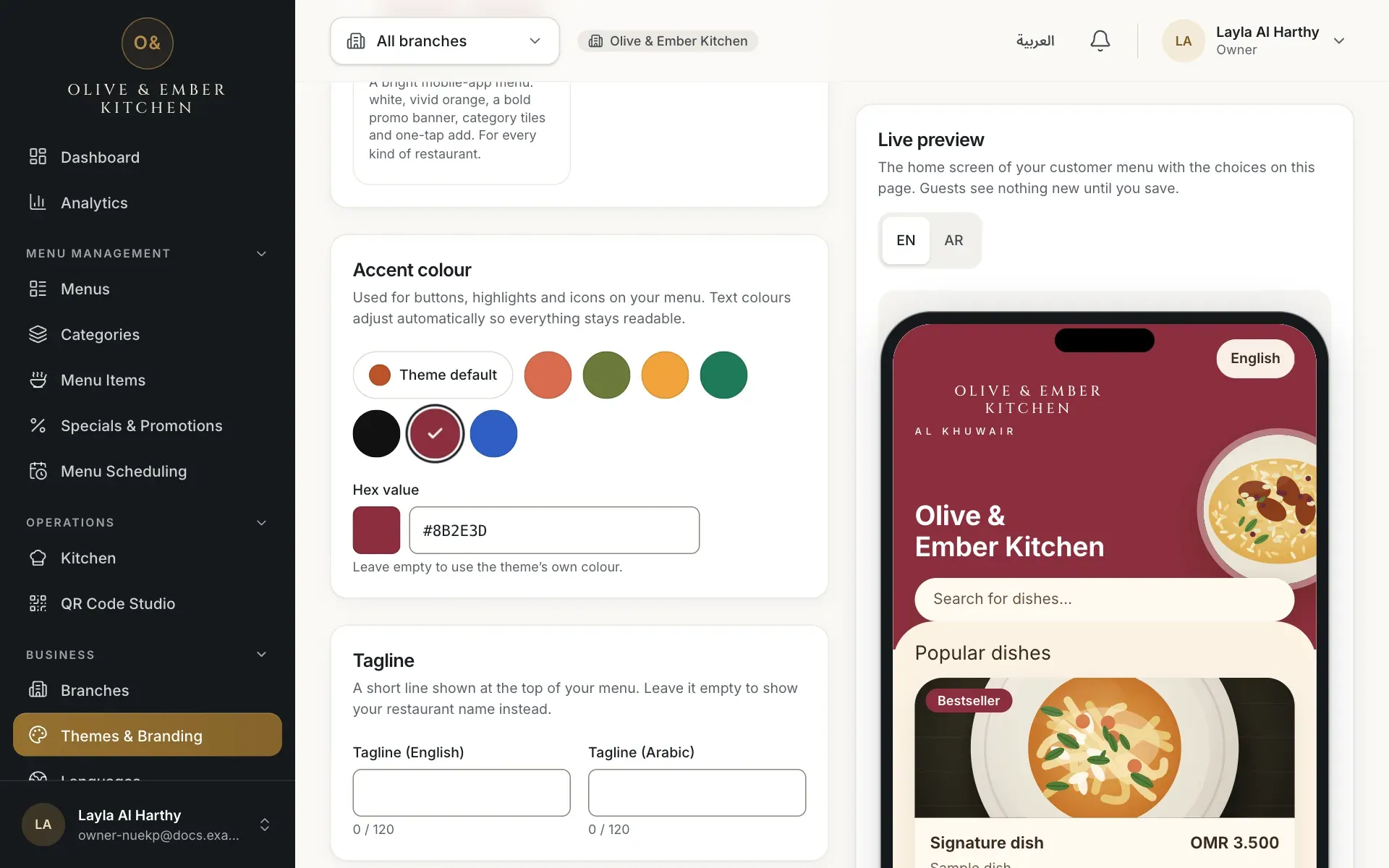
- The Burgundy swatch
- The hex value
Write your taglines
Type a Tagline (English) and a Tagline (Arabic): a short line shown at the top of your menu, up to 120 characters, plain text only. The Arabic tagline must contain Arabic letters. If you leave them empty, guests see your restaurant name and description instead.
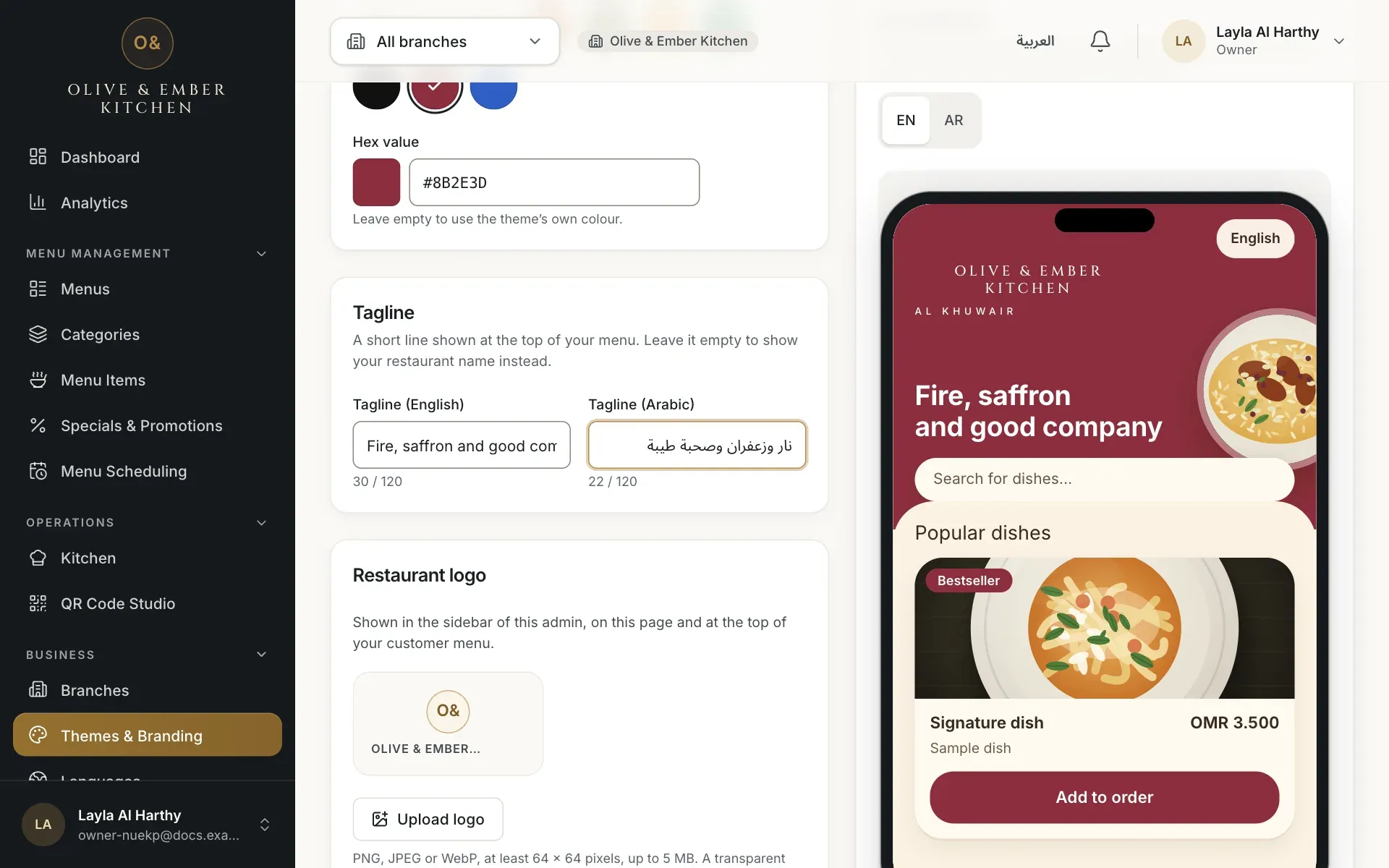
- The English tagline
- The Arabic tagline
Save branding
At the top (or bottom) of the page click Save branding. The notice Branding saved. Your customer menu now uses it. appears and the badge turns to All changes saved. Open your menu on a phone to see it.
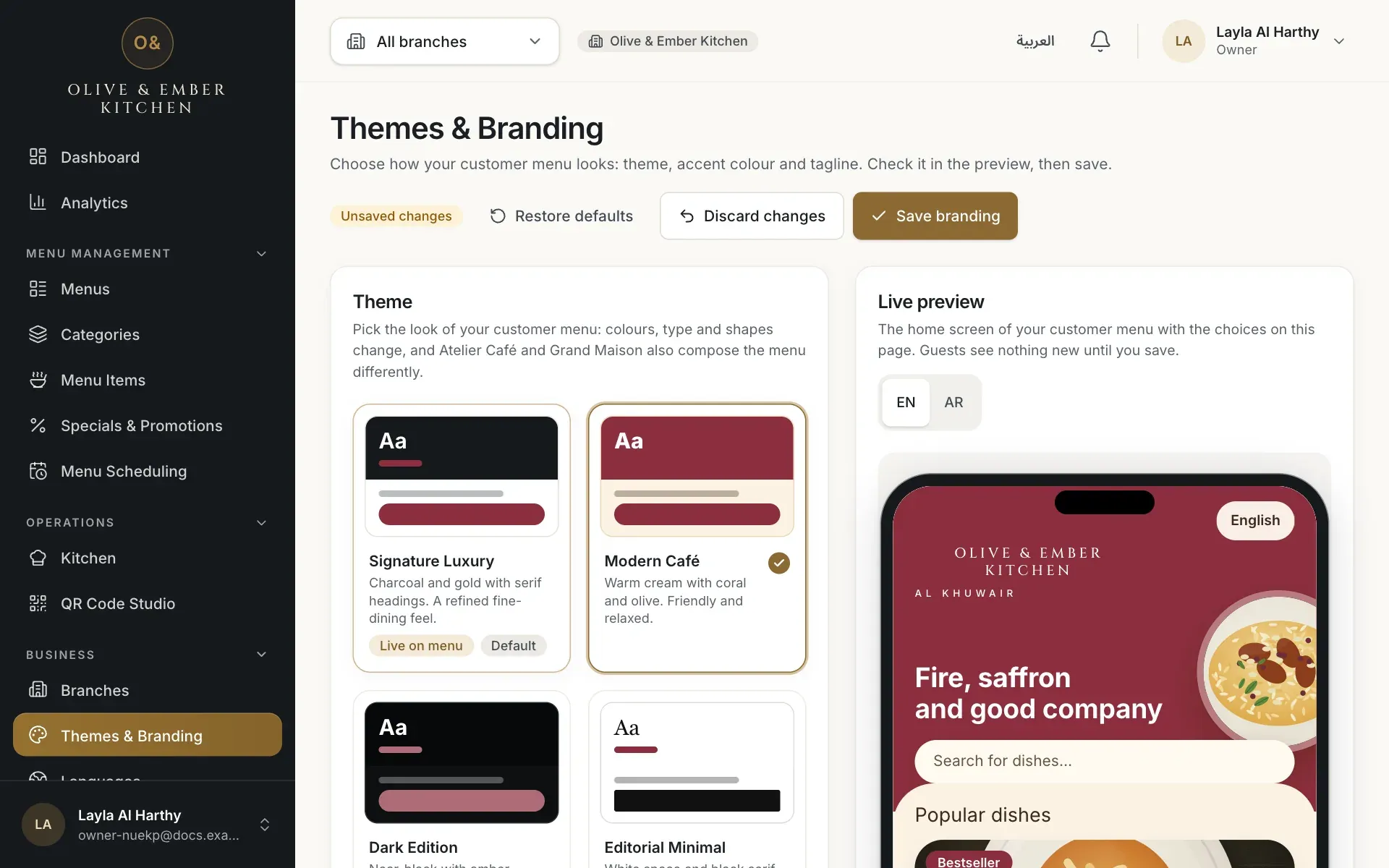
- The Unsaved changes badge
- The Restore defaults button
- The Discard changes button
- The Save branding button
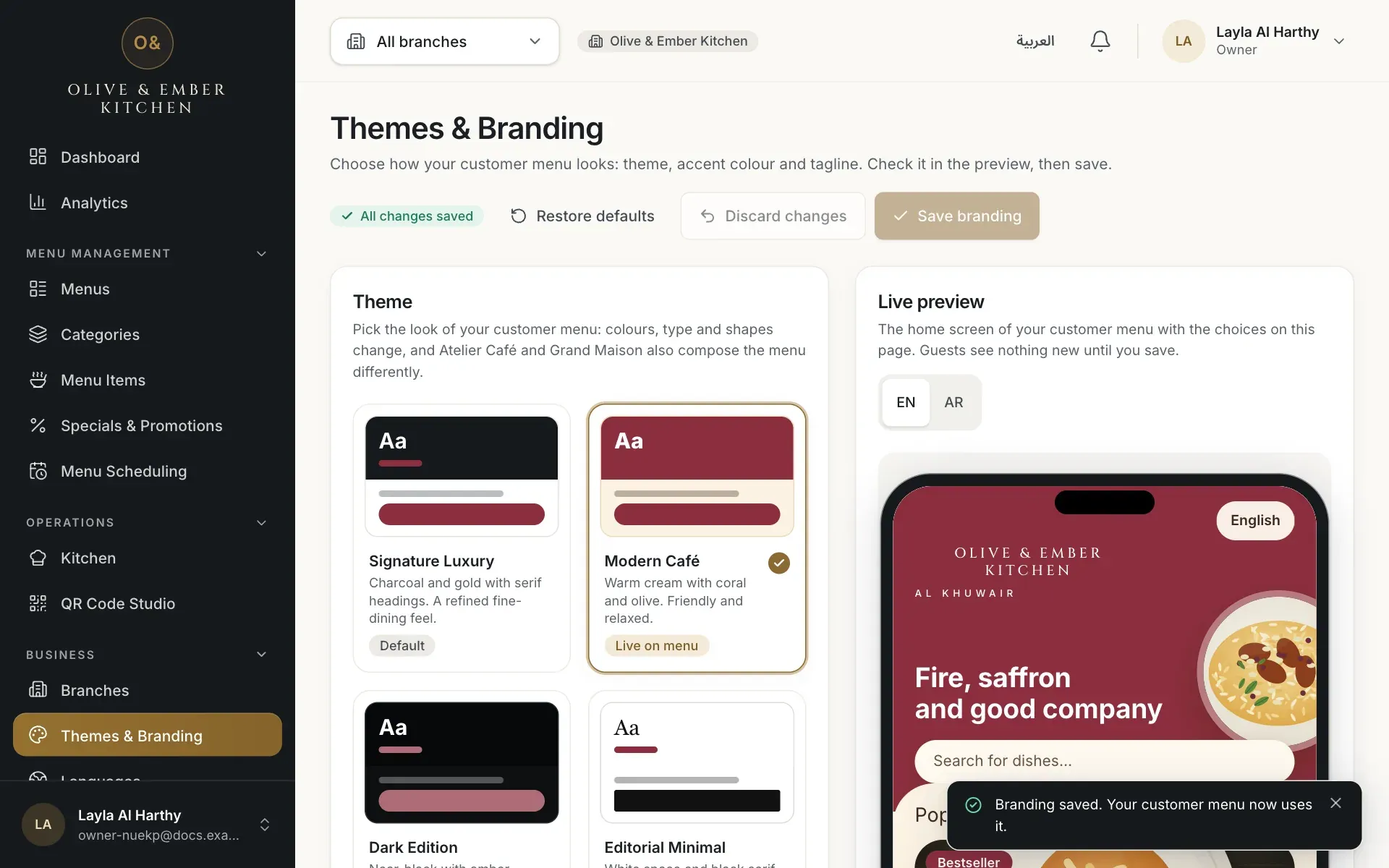
- The All changes saved badge
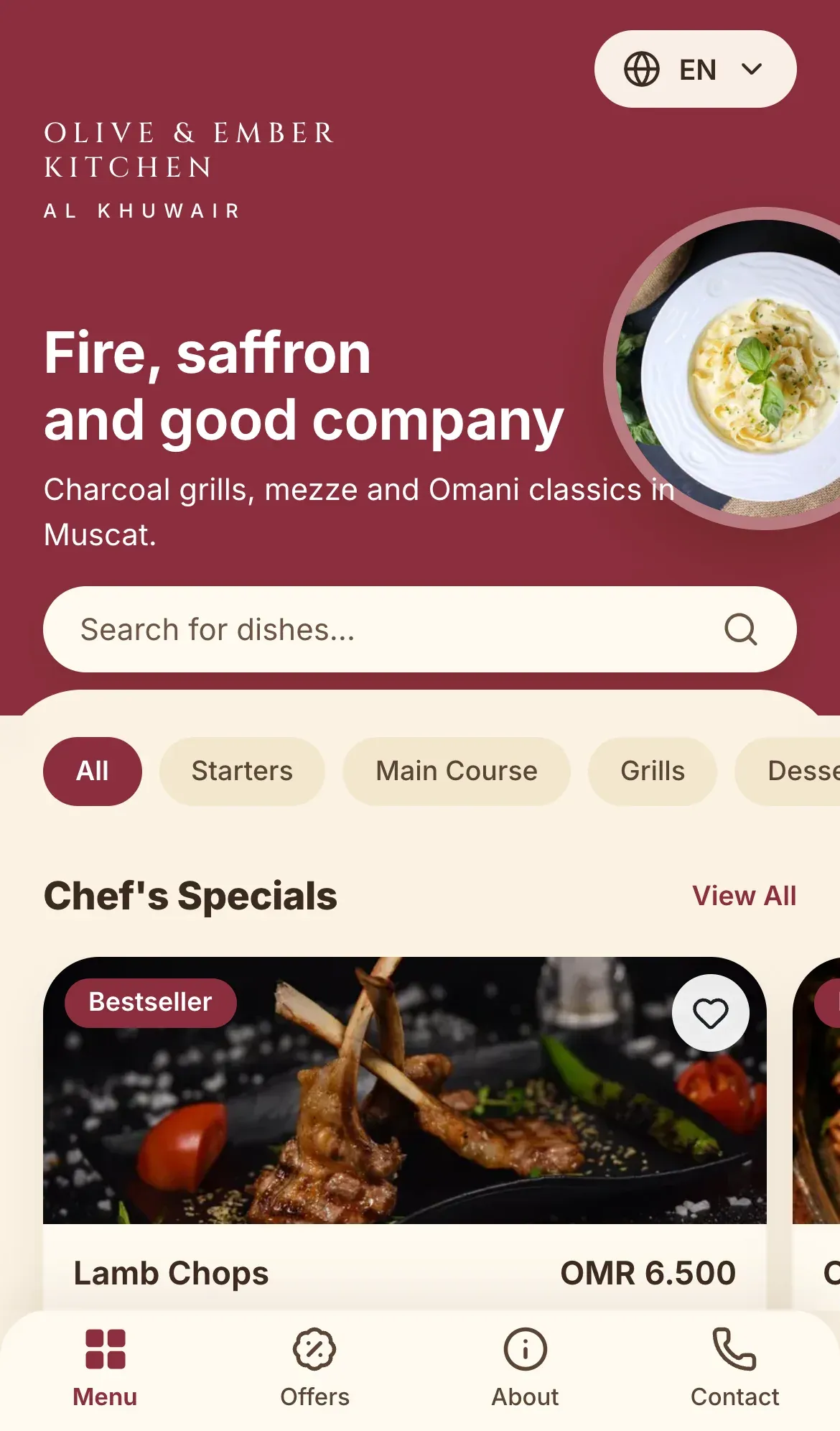
See all seven themes on a phone
To compare themes on your real menu without saving anything, add ?theme= and the theme key to your menu address, for example ?theme=dark. The keys are luxury, cafe, dark, minimal, atelier, maison and signature. This only changes the view in that browser; the saved theme stays the same.
Undo or start again
Discard changes throws away what you changed since the last save. Restore defaults puts the default theme, accent and taglines back in the editor; click Save branding afterwards to apply them to your menu. Both are only active while you have unsaved edits.
- The Restore defaults button
- The Discard changes button
Know your plan limit
Your plan decides how many themes you can use. A plan that includes N themes gets the first N in the list above; the free trial and the larger plans include all seven, while Starter includes the first two: Signature Luxury and Modern Café. Themes outside your plan show Not in your plan and a click says This theme is not included in your plan. A notice reads Your plan includes 2 of 7 themes. Upgrade your plan to unlock the rest. with a View plans link.
- A theme that is not in the plan
- The notice about the plan limit
Who can change branding
Only the owner and admins can save branding. Other roles can open the page but it is read-only for them.
Troubleshooting
A tagline is too long (over 120 characters), contains HTML or line breaks, or the Arabic tagline has no Arabic letters. Or the hex colour is invalid: use six digits such as #B38A49.
A colleague saved branding at the same time. Review your edits on the refreshed page and click Save branding again.
The theme is outside your plan. Choose one of the themes your plan includes, or open View plans.
Check that the badge says All changes saved. Reload the menu on the phone. If you used a ?theme= address, remove it to see the saved theme.
Related guides
- Themes & brandingUpload your logoAdd, replace or remove your restaurant logo and see where it appears in the dashboard and on the guest menu.
- MenuPublish your menuCheck the draft, assign the menu to a branch, publish it, read the version history, roll back, discard changes or take a menu away.
- Plans & billingPlans and limitsSee your current plan, what each plan includes, and how much of your limits you have used.