
Upload your logo
Add, replace or remove your restaurant logo and see where it appears in the dashboard and on the guest menu.
- Goal
- Your logo shows in the dashboard sidebar and at the top of your guest menu.
- Before you start
- You are the owner or an admin (only they can change the logo)
- A logo file: PNG, JPEG or WebP, at least 64 x 64 pixels, up to 5 MB
Without a logo, RothDine shows your restaurant name (with a round monogram) instead. A logo is saved the moment you upload it: there is no draft and no publish step for logos.
Open the logo card
In the sidebar choose Restaurant Settings and scroll to Restaurant logo. The same card is at the bottom of Themes & Branding. It says No logo yet: your restaurant name is shown instead. and lists the rules: PNG, JPEG or WebP, at least 64 × 64 pixels, up to 5 MB. A transparent PNG works best.
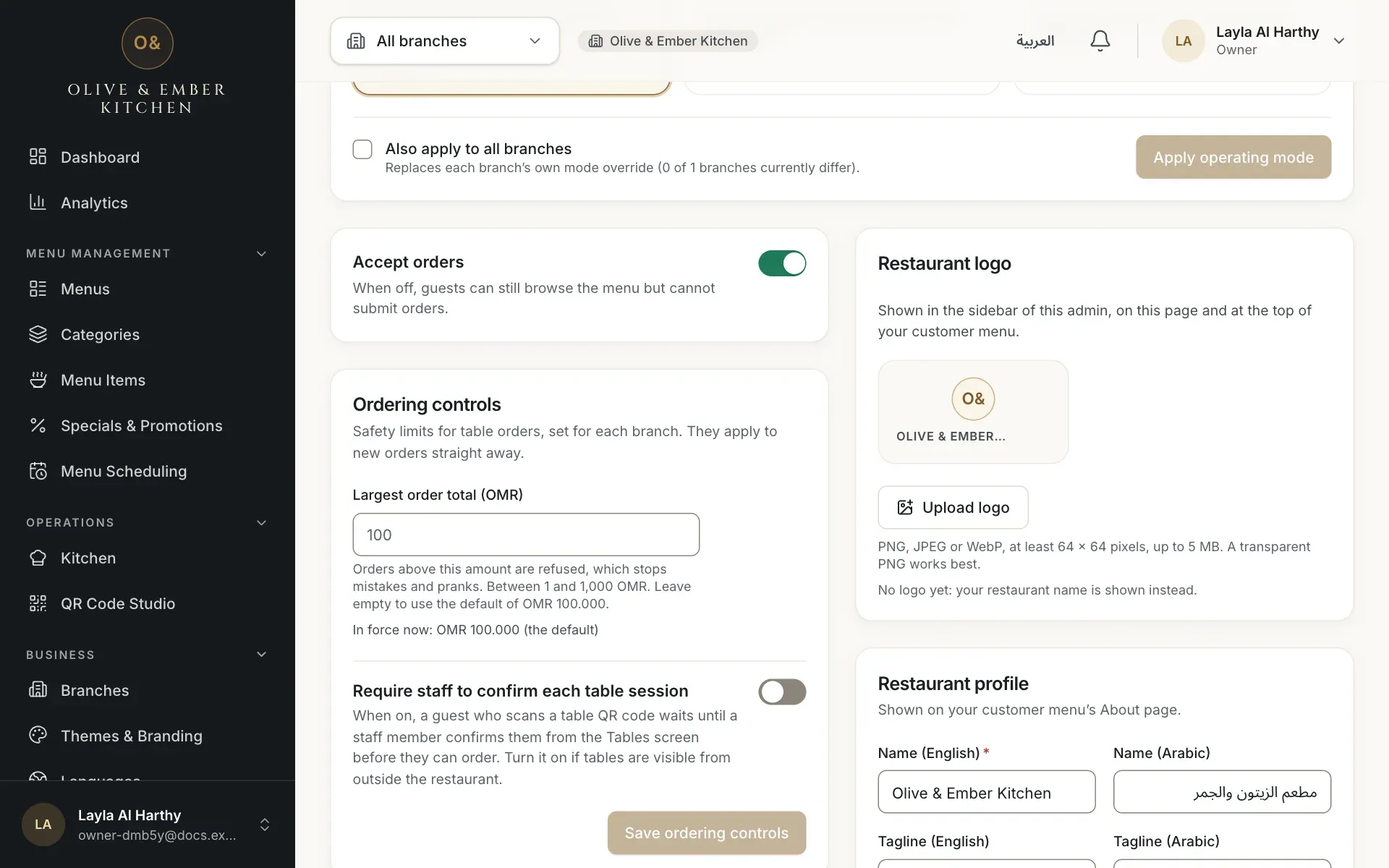
- The Upload logo button
- The current logo preview
Upload the logo
Click Upload logo and choose your file. While it uploads the button shows the progress. When it finishes the notice Logo saved appears and the preview shows your logo.
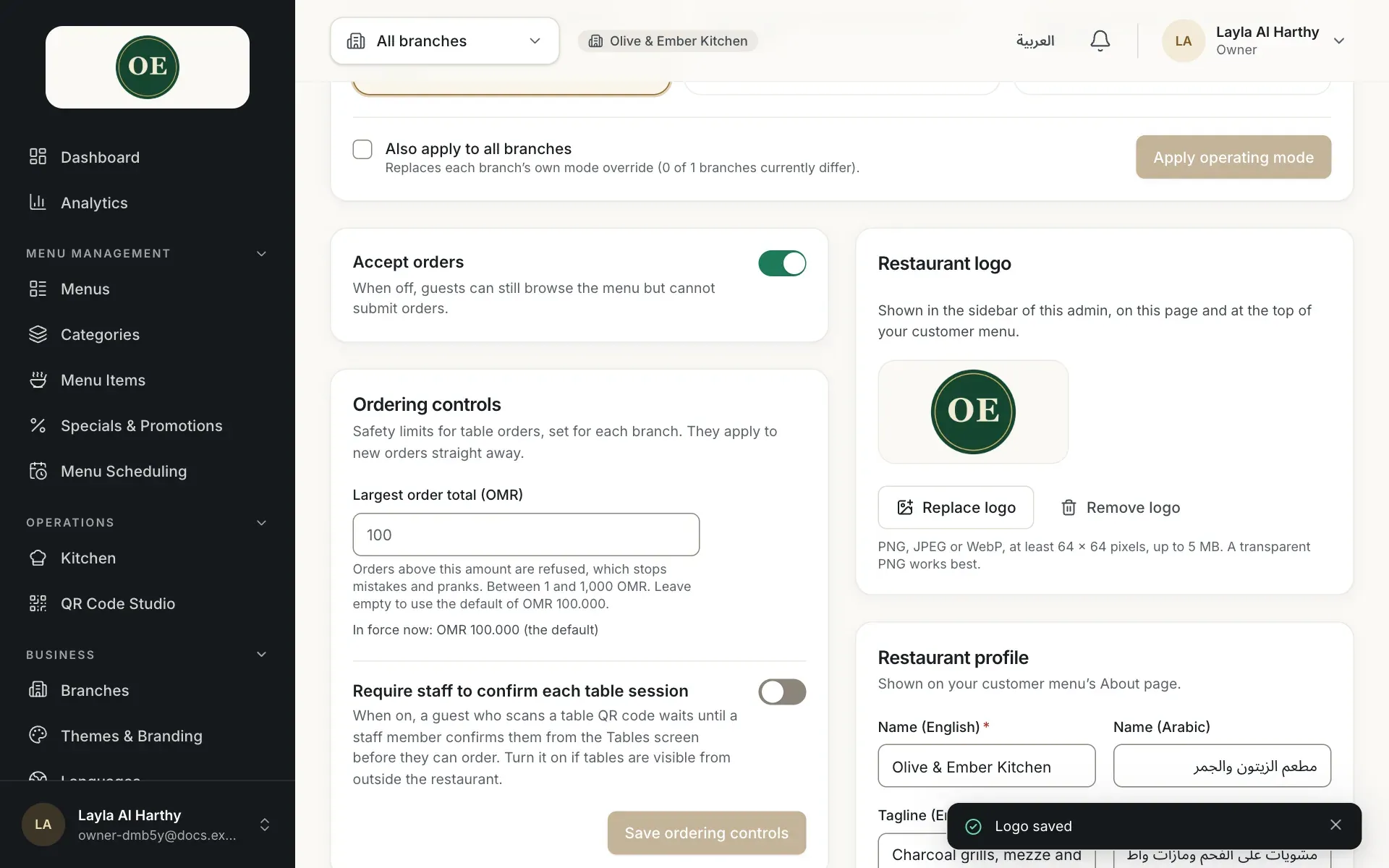
- The logo preview
- The Replace logo button
- The Remove logo button
See it in the sidebar
The logo replaces the name at the top of the dashboard sidebar for everyone on your team.
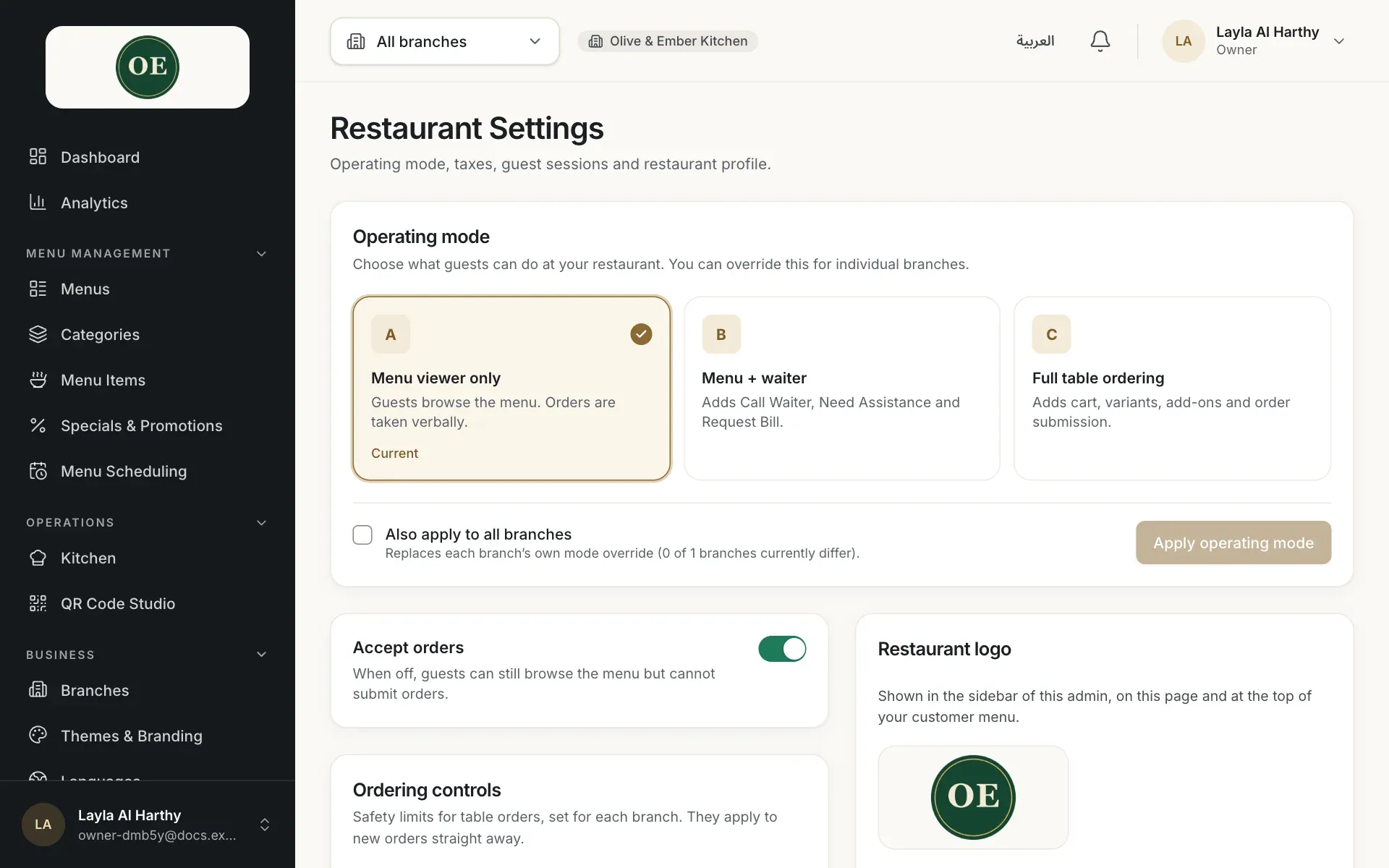
- The logo in the sidebar
See it on the guest menu
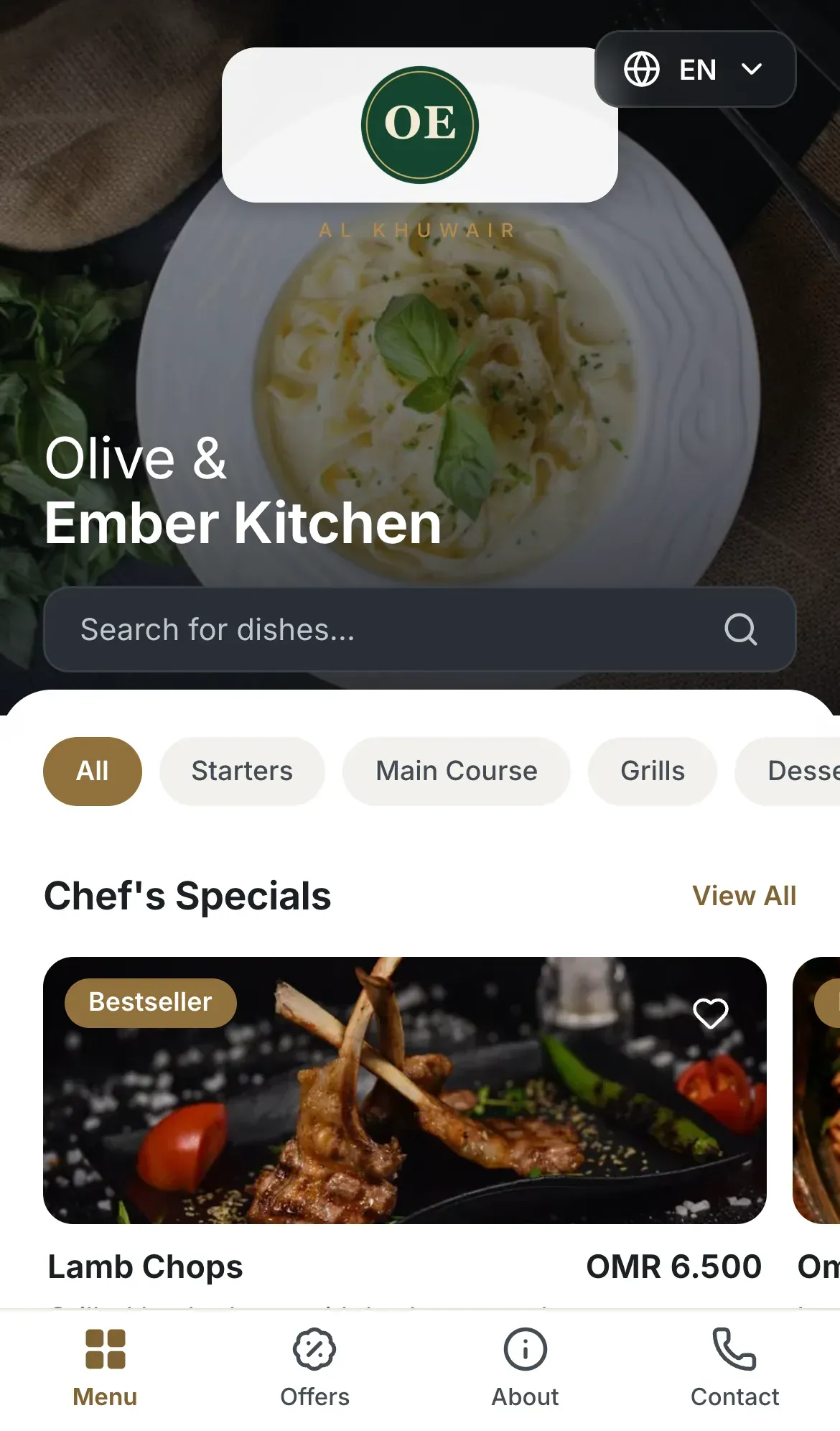
Open your menu on a phone. The logo is shown at the top of the guest menu, above the restaurant tagline.
Replace the logo
When a logo exists the button reads Replace logo. Choose a new file and it takes the place of the old one at once.
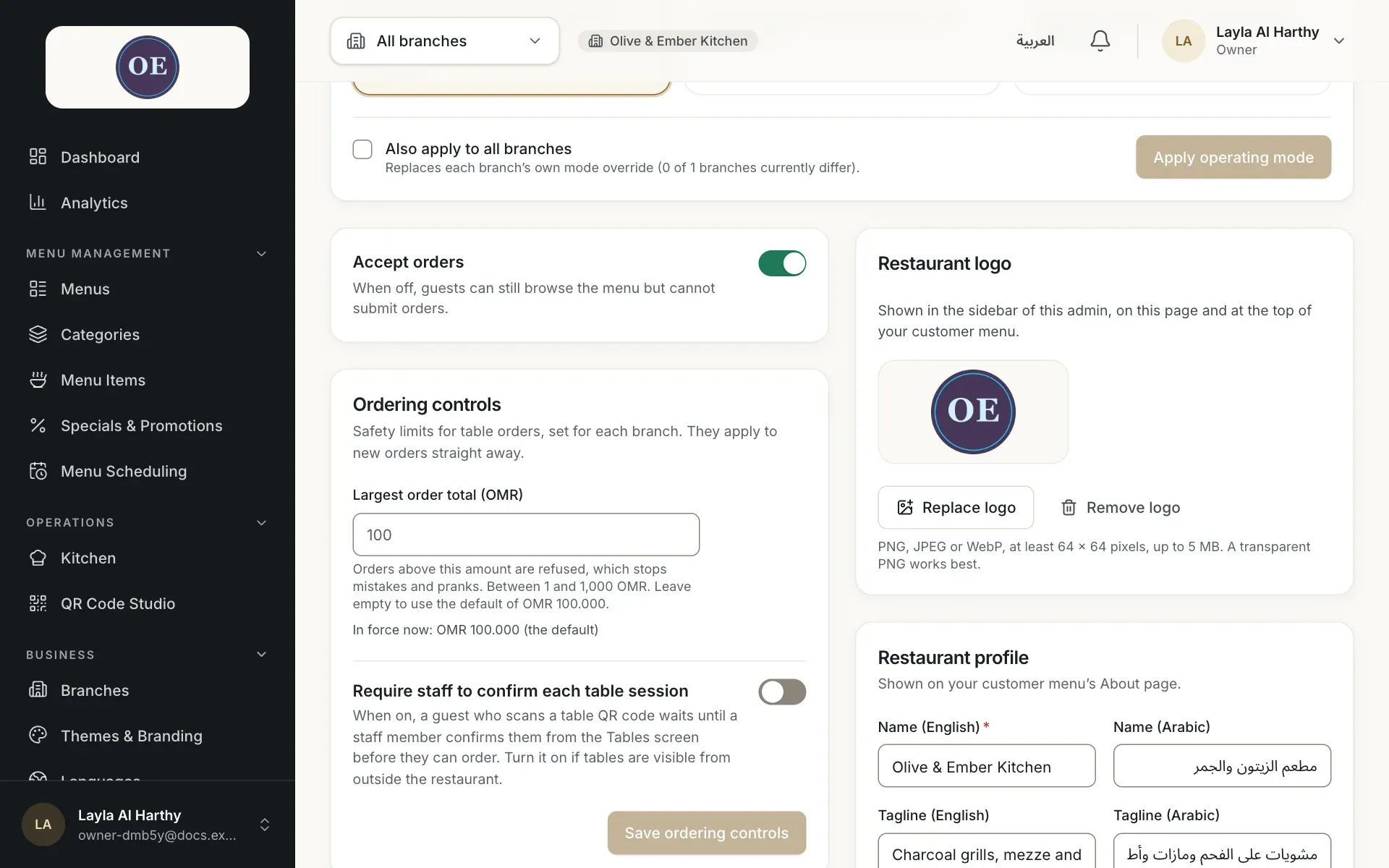
- The new logo
- The Replace logo button
If a file is refused
A picture smaller than 64 × 64 pixels shows The logo must be at least 64 × 64 pixels. A file over 5 MB shows This file is larger than 5 MB. Choose a smaller image. A file that is not PNG, JPEG or WebP shows Unsupported file type. Choose a JPG, PNG or WebP image. Nothing changes when a file is refused.
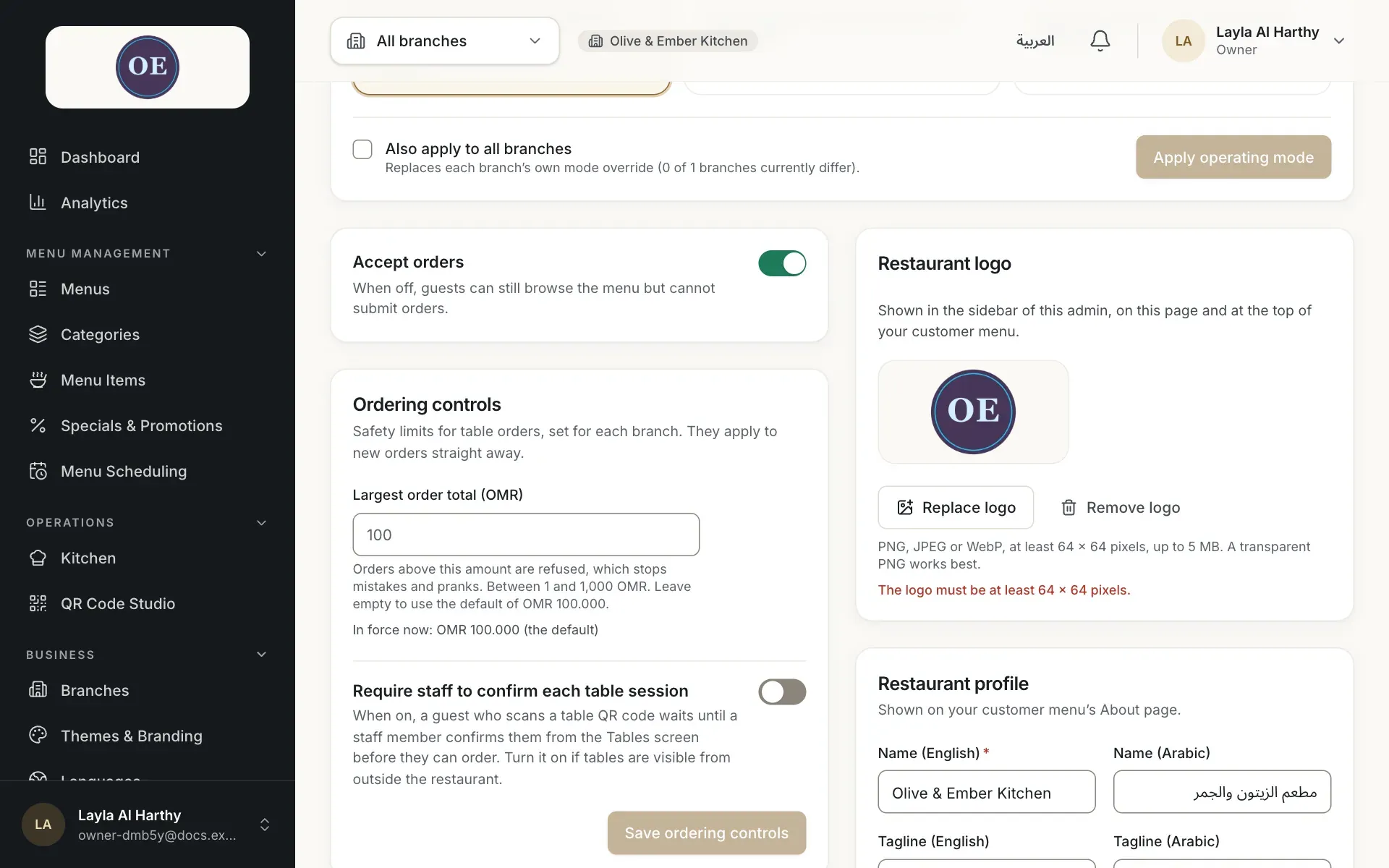
- The error message
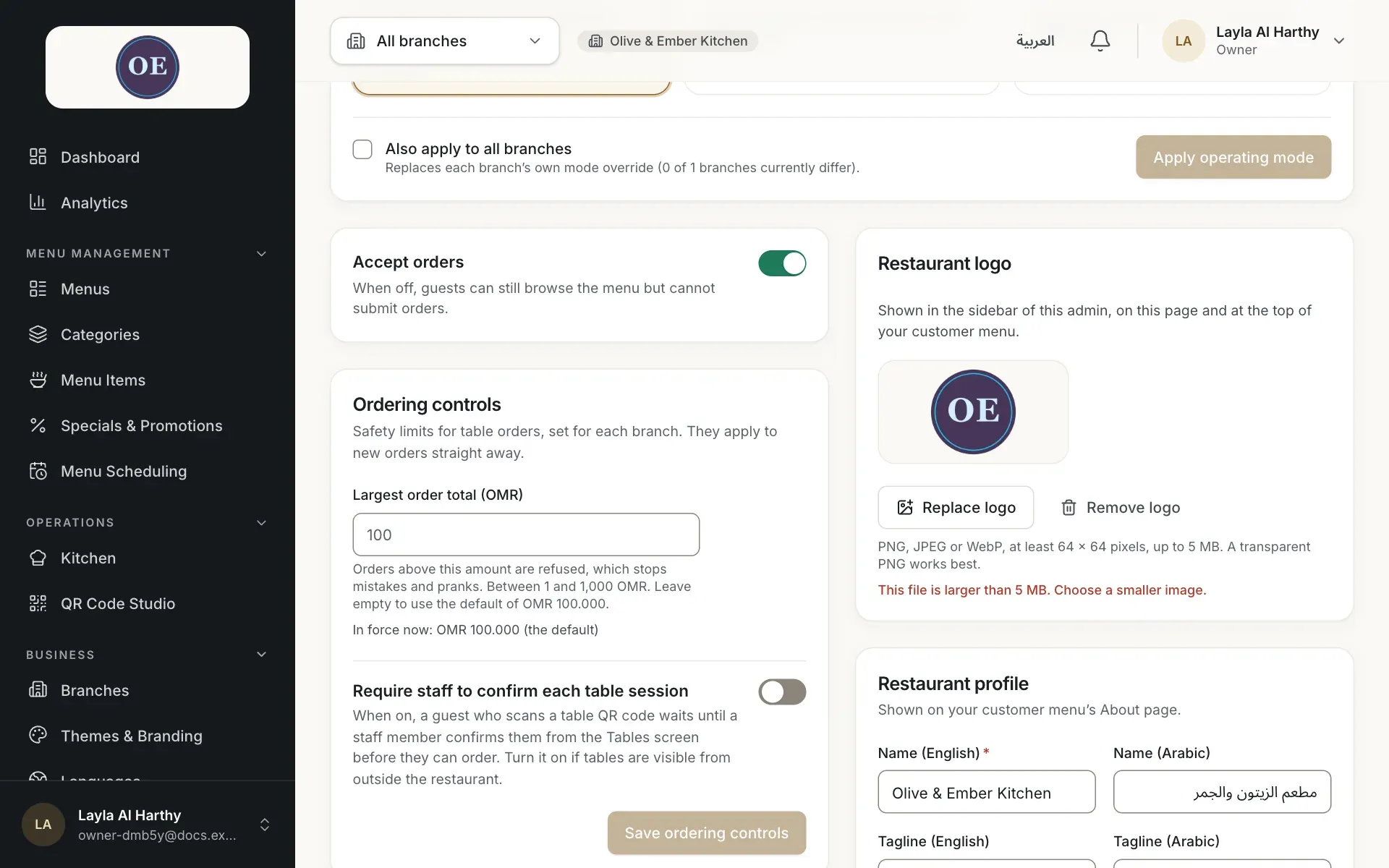
- The error message
Remove the logo
Click Remove logo, then confirm with Yes, remove the logo. The notice Logo removed appears and your restaurant name is shown again.
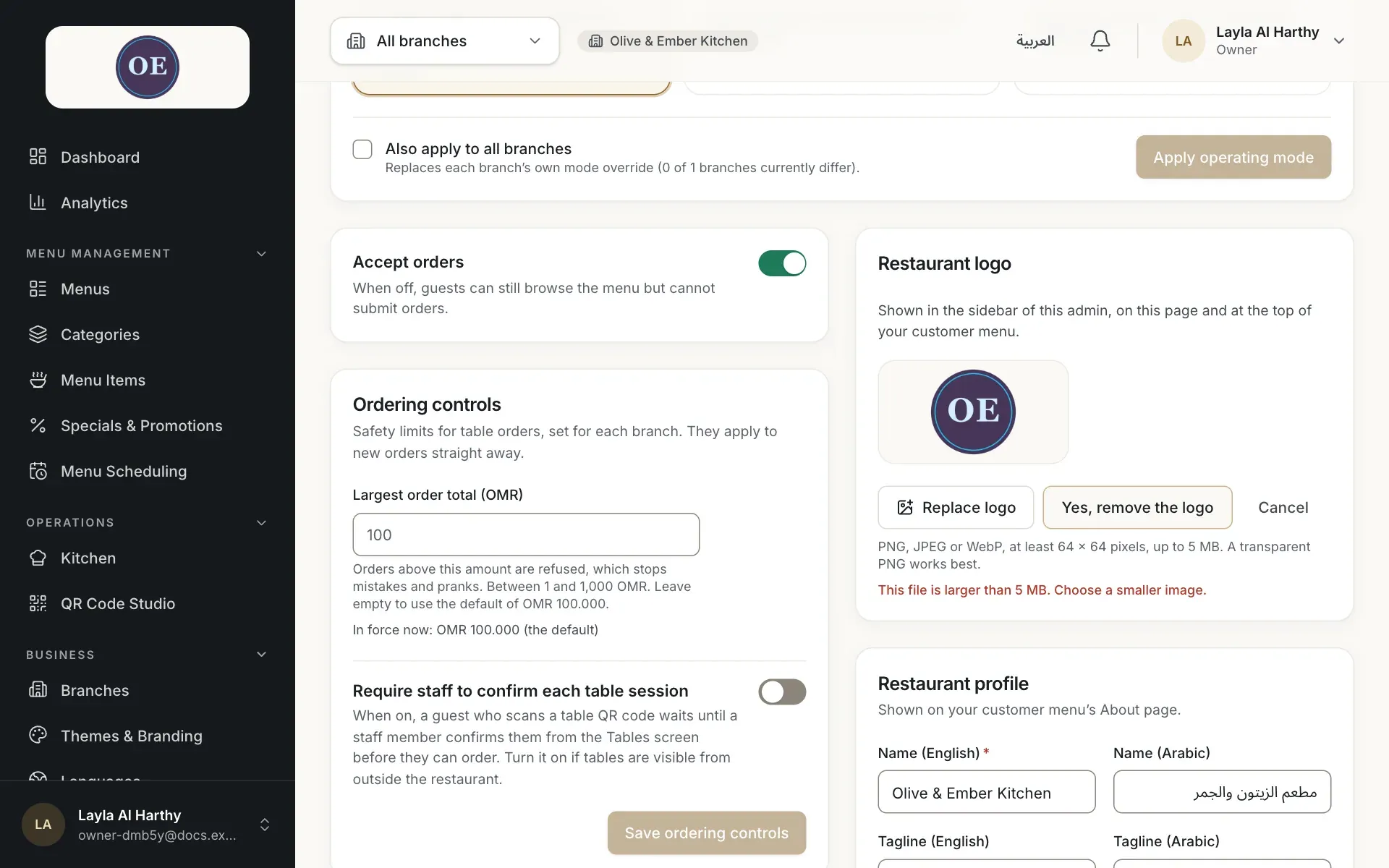
- The Yes, remove the logo button
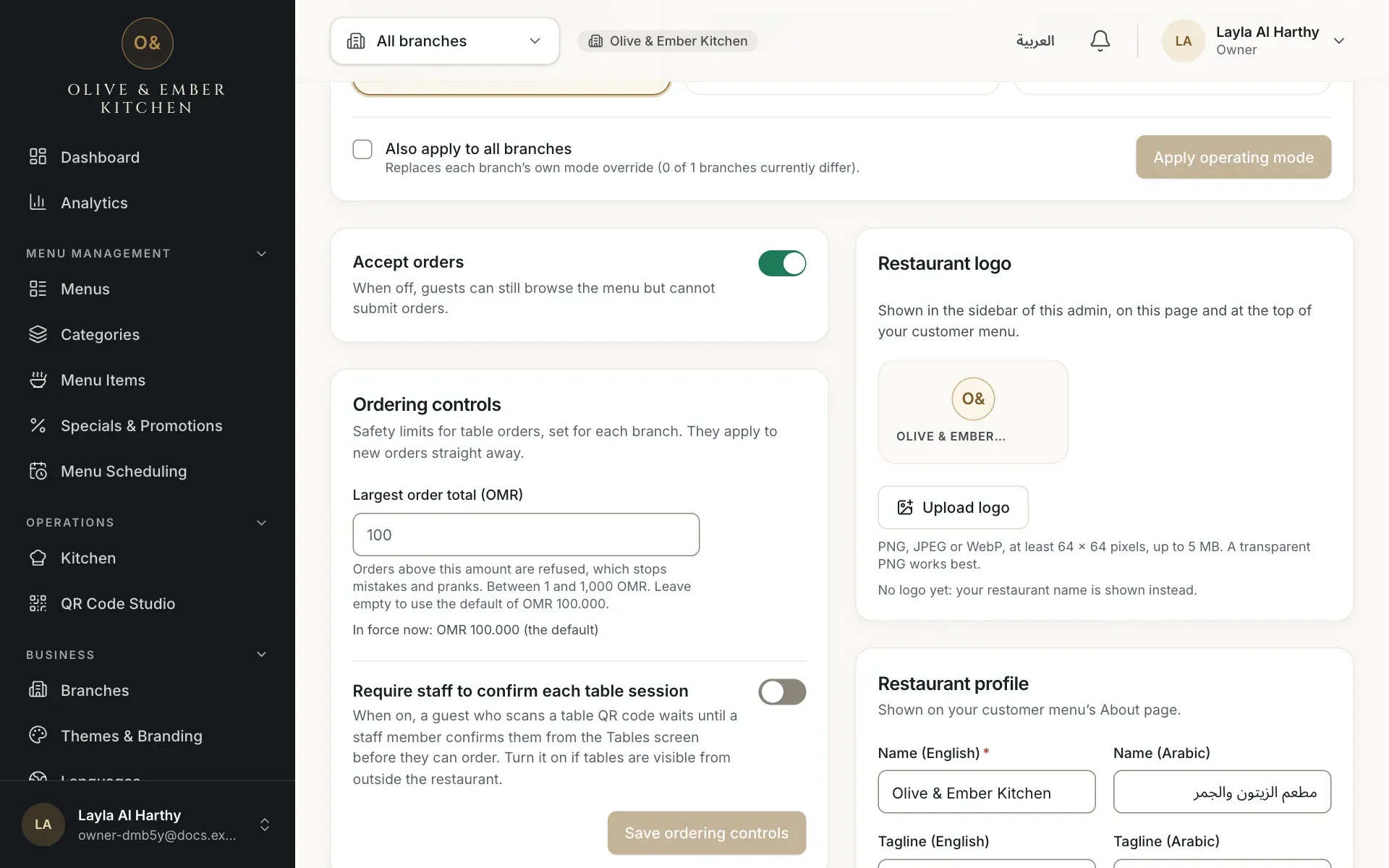
- The restaurant name shown instead of a logo
- The Upload logo button
Find the same card on Themes & Branding
The Restaurant logo card is also on the Themes & Branding page, so you can set your logo and your theme in one visit.
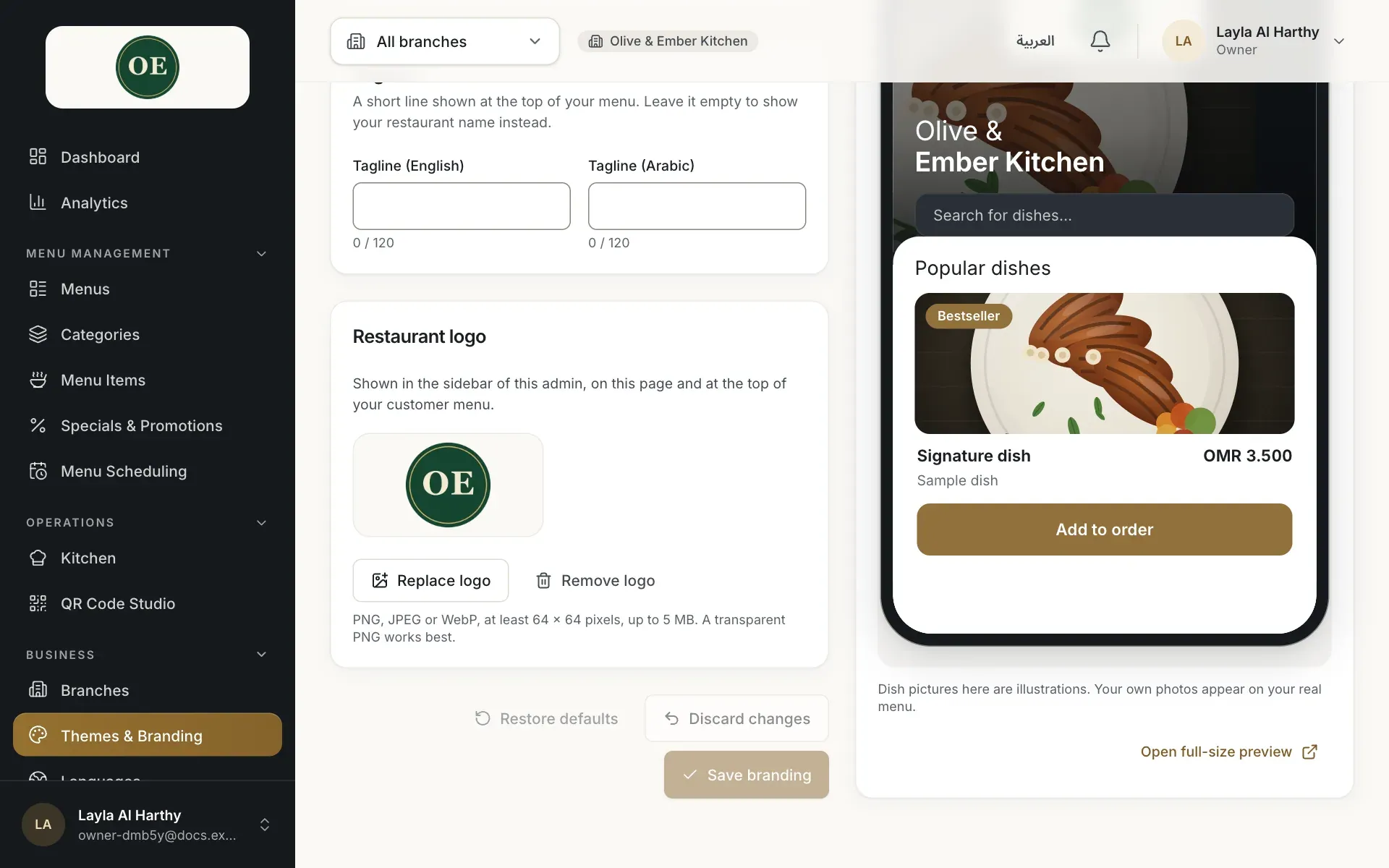
- The Restaurant logo card
Tip for a sharp logo
Use a square or wide PNG with a transparent background, at least a few hundred pixels wide. Very small files look blurry on phones.
Troubleshooting
Use a larger picture. The smallest accepted size is 64 by 64 pixels.
Compress or resize the picture so it is 5 MB or smaller.
Save your logo as PNG, JPEG or WebP and upload it again.
Your role cannot change the logo. Ask the owner or an admin.
Related guides
- Themes & brandingChoose a themePick one of seven themes, set an accent colour and tagline, preview it in English and Arabic, and save it to your guest menu.
- Restaurant setupRestaurant profileSet your restaurant's Arabic name, taglines and contact details, and learn what guests do and do not see.
- MenuUpload dish photosAdd, replace or remove a dish photo, and learn the photo rules: JPEG, PNG or WebP, up to 5 MB.