
Publish your menu
Check the draft, assign the menu to a branch, publish it, read the version history, roll back, discard changes or take a menu away.
- Goal
- Your menu is live at a branch, you can see which version guests get, and you know how to go back or take the menu away.
- Before you start
- A menu with at least one active dish
- You are the owner, an admin or a menu editor (the roles that can publish)
Publishing turns your draft into a new numbered version that guests see immediately. Versions are never changed afterwards: every publish and every roll back adds a new row to the history. A published menu only reaches guests at the branches it is assigned to.
Review the draft
Open Menus. The panel Draft vs live shows the live version and the number of unpublished changes, with lists of added, changed and removed dishes and price changes. Click Publish when you are ready.
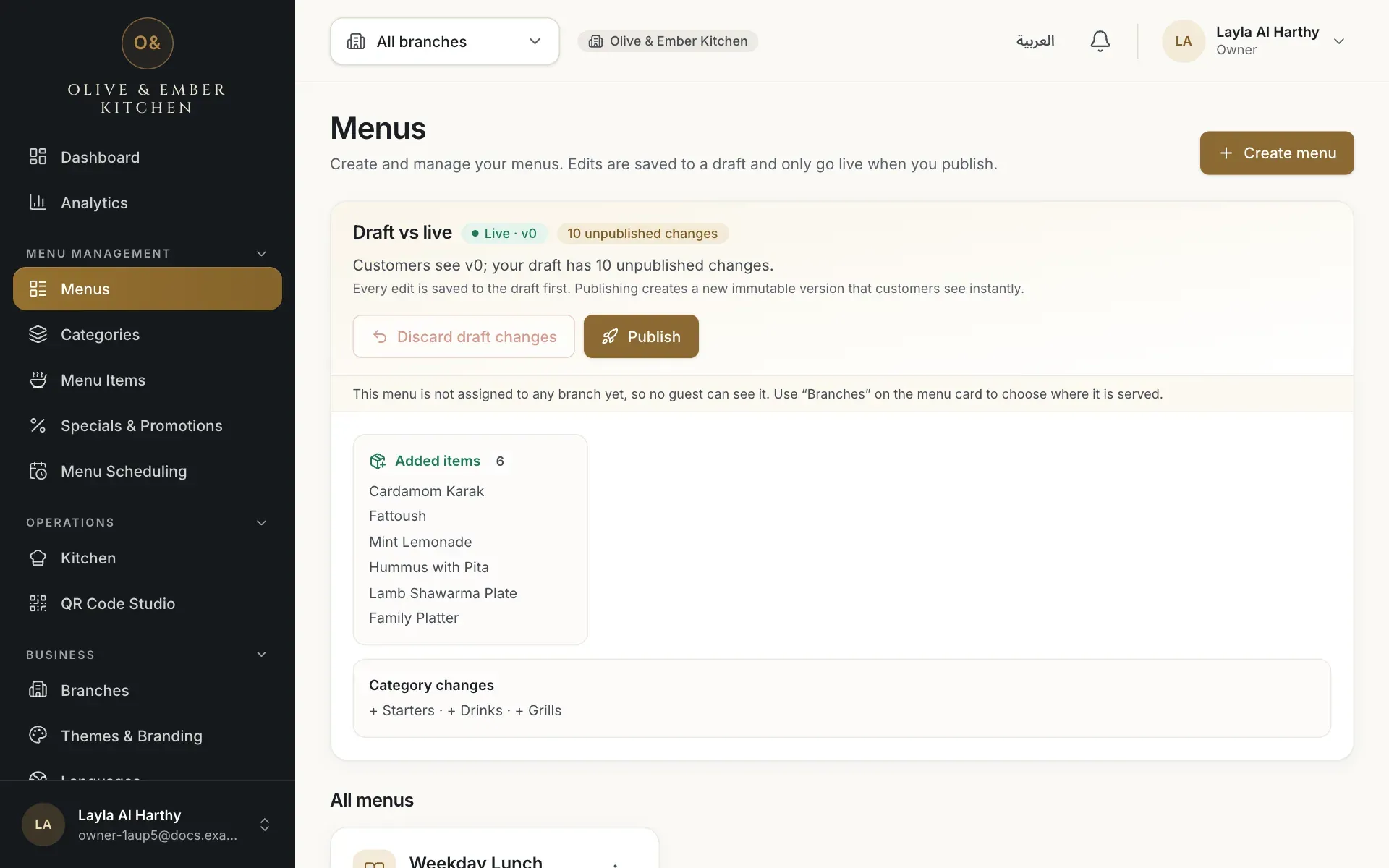
- The number of unpublished changes
- The Publish button
Run the checks with Preview
Click Preview on the menu card. The phone preview shows the draft exactly as guests would see it, and the checks appear below it. Fix before publishing lists problems that block publishing, for example a dish with sizes but none available. Worth a look lists notes that do not block, for example dishes that are still drafts and will not be published. If you try to publish while a problem remains, you get a message that starts with The menu cannot be published yet:.
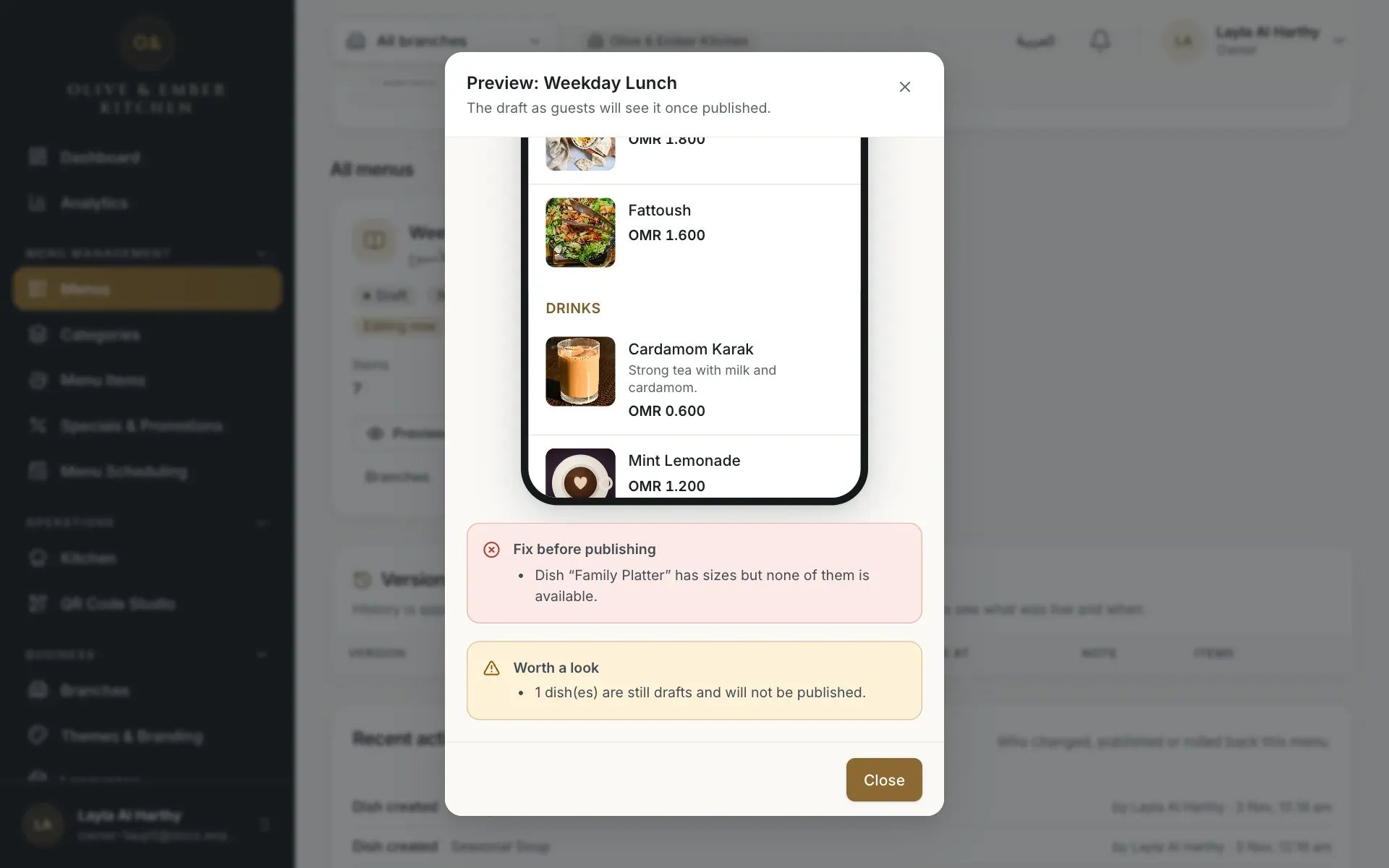
- The problems that must be fixed
- The notes worth a look
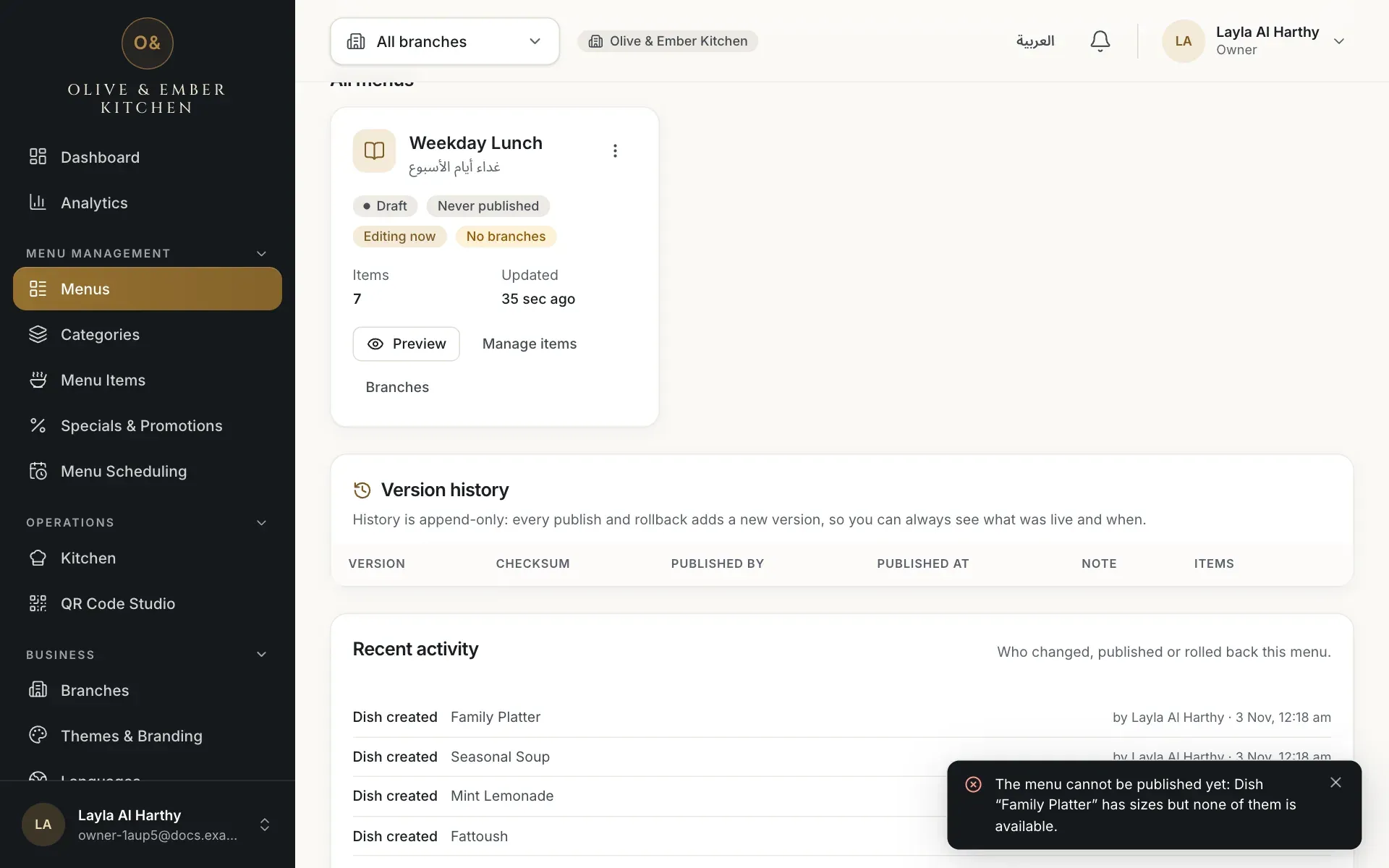
- The message naming the dish to fix
Assign the menu to a branch
Click Branches on the menu card. In Where is this menu served? tick the branches that should show this menu to guests, then click Save branches. A menu that is not assigned to any branch shows the warning This menu is not assigned to any branch yet, so no guest can see it.
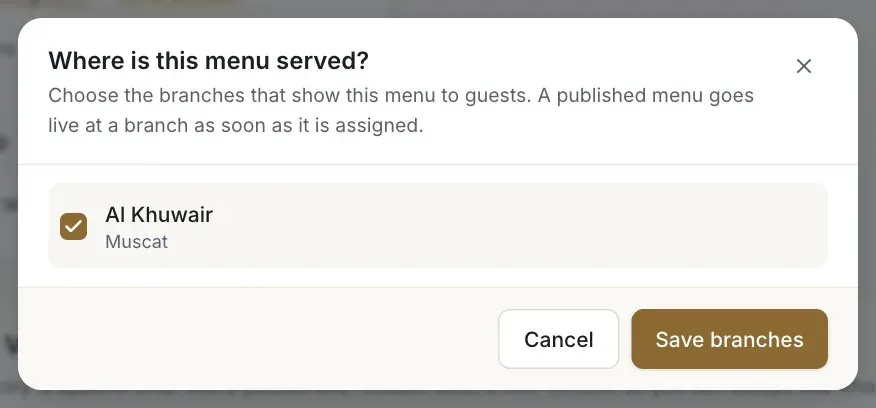
- The branch tick box
- The Save branches button
Publish with a release note
Click Publish. The dialog Publish draft says which version will be created. Add a short Release note (optional), for example "Opening menu", so your team knows what changed. Click Publish now. The panel then shows Live · v1 and the card shows Version 1.
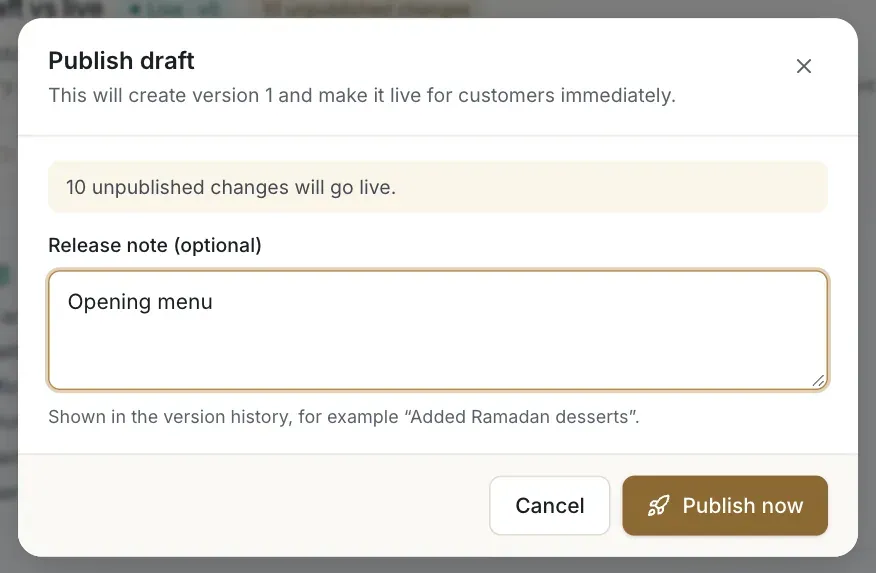
- The release note
- The Publish now button
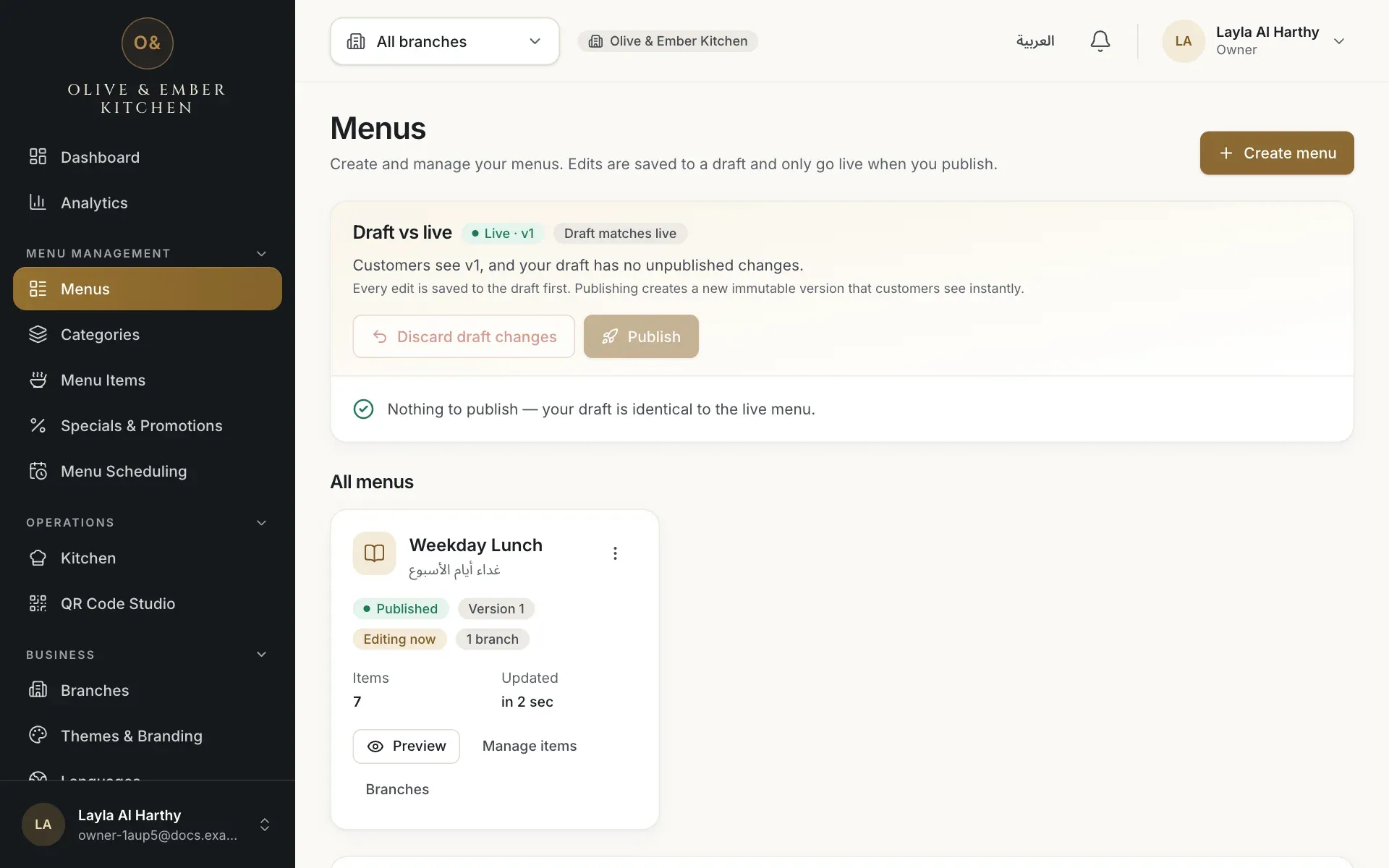
- The live version badge
Read the version history
Under Version history every version has its number, a checksum, who published it and when, your note and the number of dishes. The newest version is marked Live. History can only grow: nothing is edited or deleted.
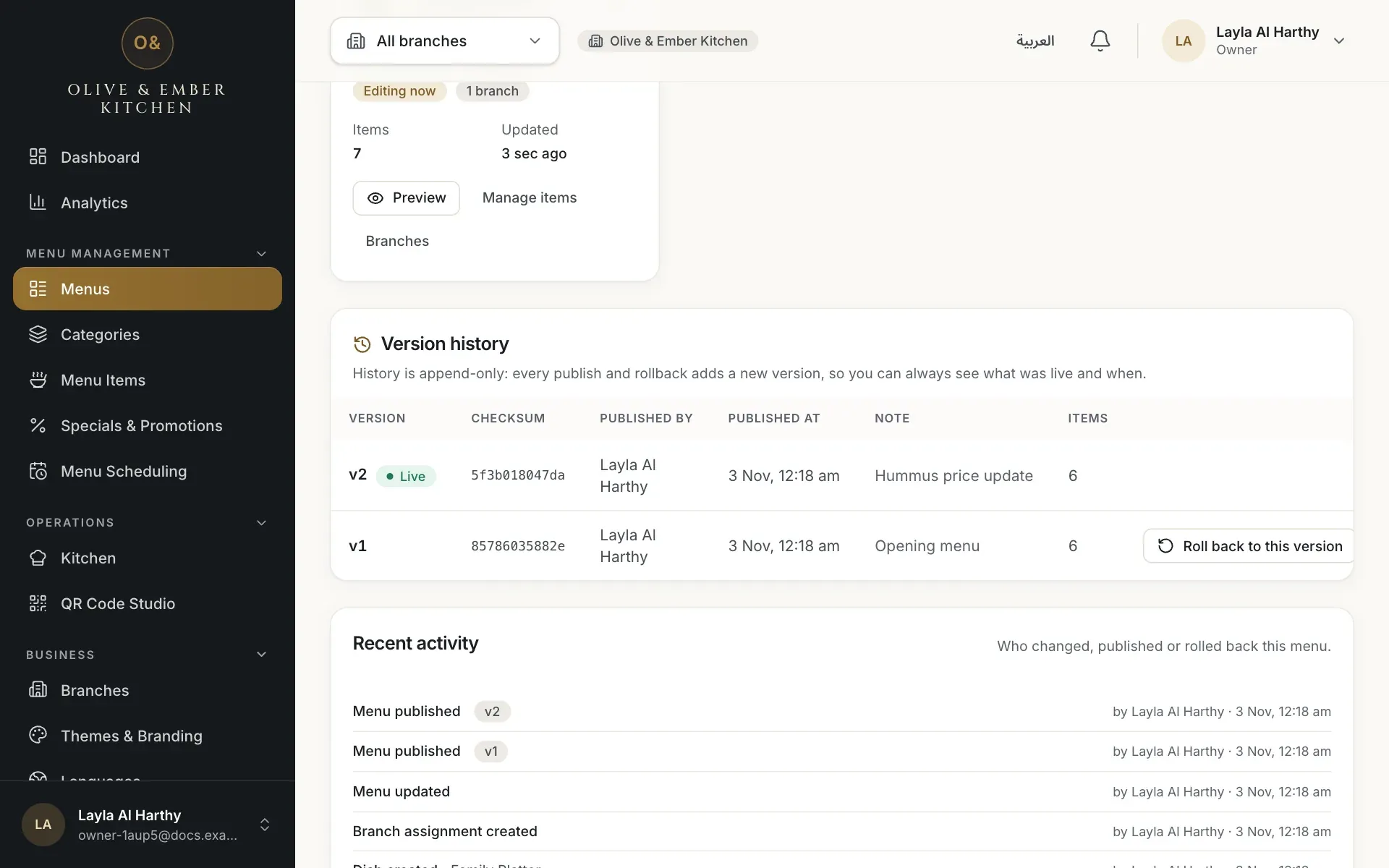
- The version history
- The Roll back to this version button of version 1
Roll back to an older version
Click Roll back to this version on the row you want. The dialog Roll back to v1? explains that nothing is deleted: a new version identical to v1 is published and guests see it immediately, and your current draft is replaced by that content. Click Roll back.
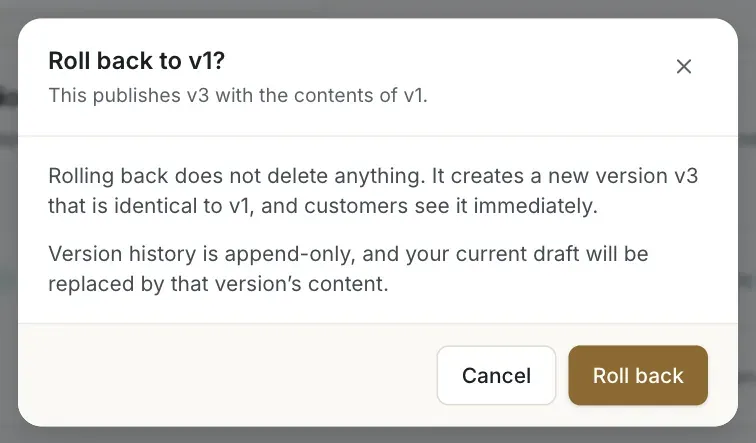
- The Roll back button
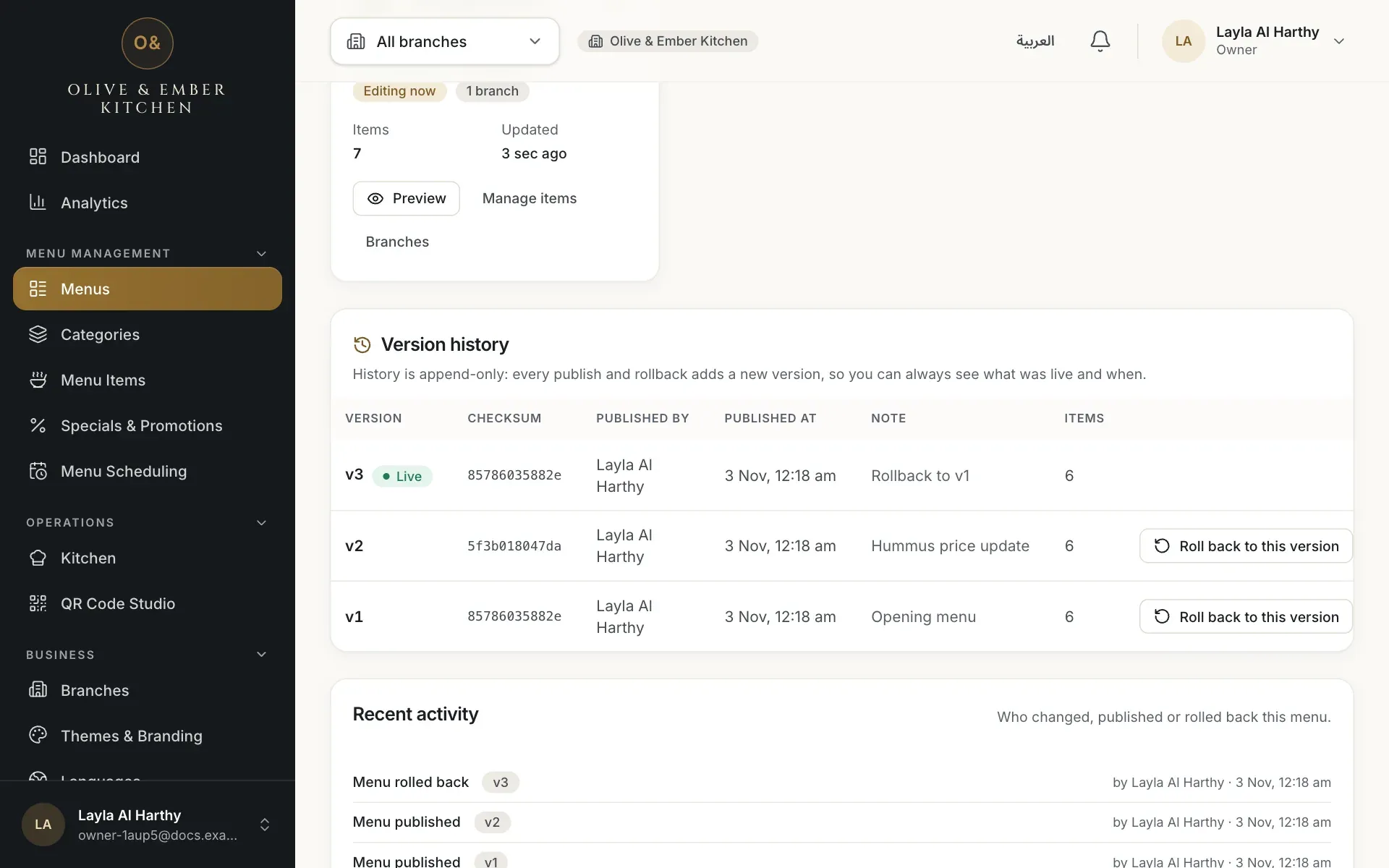
- The new live version created by the roll back
Discard draft changes you do not want
If you changed your mind about unpublished edits, click Discard draft changes. The dialog Discard draft changes? warns that the unpublished changes will be lost and this cannot be undone. Guests are not affected.
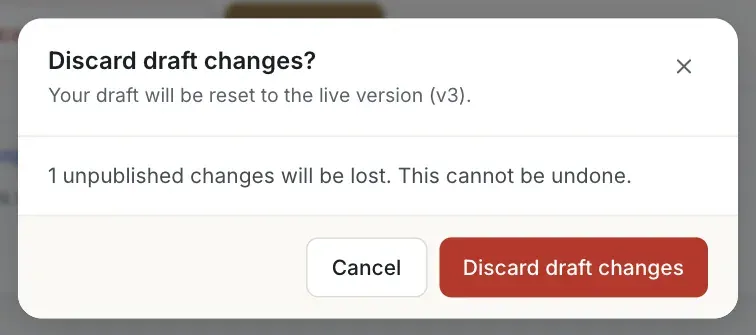
- The Discard draft changes button
Take a menu away from guests
There is no Unpublish button. To stop a branch from showing a menu, open Branches on the card, untick the branch and click Save branches. You can also archive the menu from the three-dot list on its card. To go back to older content, roll back instead.
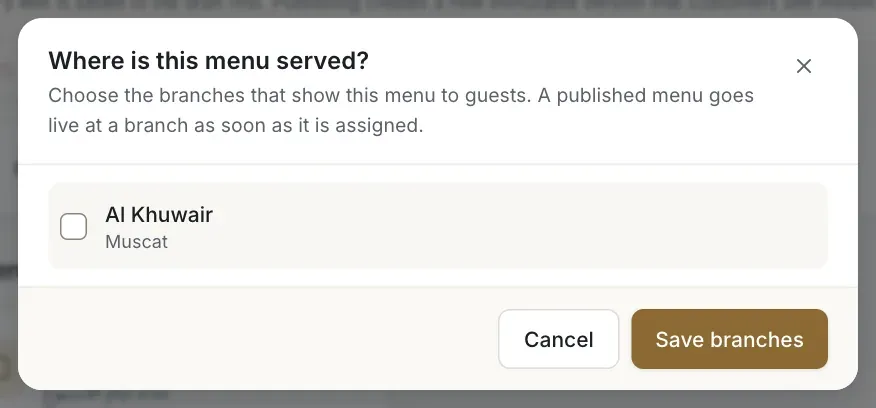
- The branch tick box, cleared
- The Save branches button
Publishing is immediate
There is no review or delay. As soon as you click Publish now the new version is live for guests at the branches that serve this menu.
Troubleshooting
The message names the dish to fix, for example that it has sizes but none of them is available, or that its category is archived. Fix it in Menu Items or Categories, check the preview, and publish again.
The draft is the same as the live menu. Make a change first.
Someone edited the draft while your publish dialog was open. Look at the refreshed list of changes and publish again.
Only the owner, admins and menu editors can publish. Ask one of them.
Check that the menu is assigned to the branch (Branches on the card). A menu with no branch is not shown to anyone. If the plan has expired you also cannot publish.
Related guides
- MenuMenus and draftsCreate a menu, understand draft versus live, and rename, duplicate or archive a menu.
- MenuMenu schedulingServe a different menu at different times of day, with days, a time window and a priority for each schedule.
- MenuSpecials and promotionsCreate a banner or a special offer for a dish, publish it, and see what guests really see on the Offers page.
- Tables & QR codesCreate QR codesCreate a QR code for your restaurant, a branch or a single table, and see what a guest gets when scanning it.