
Upload dish photos
Add, replace or remove a dish photo, and learn the photo rules: JPEG, PNG or WebP, up to 5 MB.
- Goal
- Your dish shows a real photo in the dashboard, saved to the draft and ready to publish.
- Before you start
- A dish already exists (see Add a dish)
- A photo of the dish on your computer or phone, which you own or may legally use
A good photo helps guests choose. Each dish form shows one main photo. The photo is part of the draft: guests only see it after you save the dish and publish the menu. You need the permission to manage media, which the owner, admins and menu editors normally have.
Open the dish
In Menu Items, click the name of the dish (or the Edit button at the end of its row).
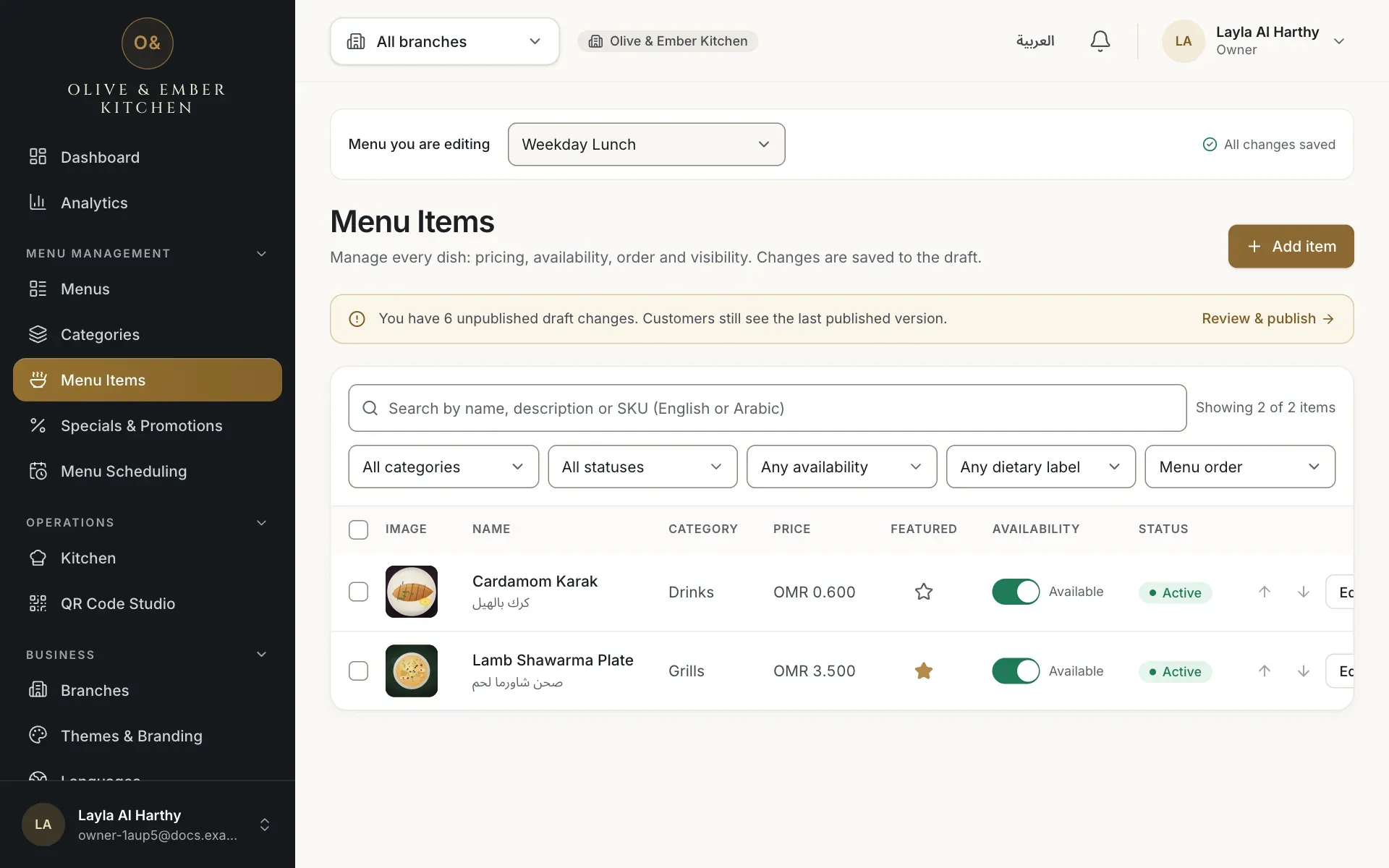
- The name of the dish, which opens the form
Find the Photo section
Scroll to the Photo section. Without a photo the dish shows a drawing. Next to it you see Upload photo and the rules: JPEG, PNG or WebP, up to 5 MB. The photo must be yours or licensed for use.
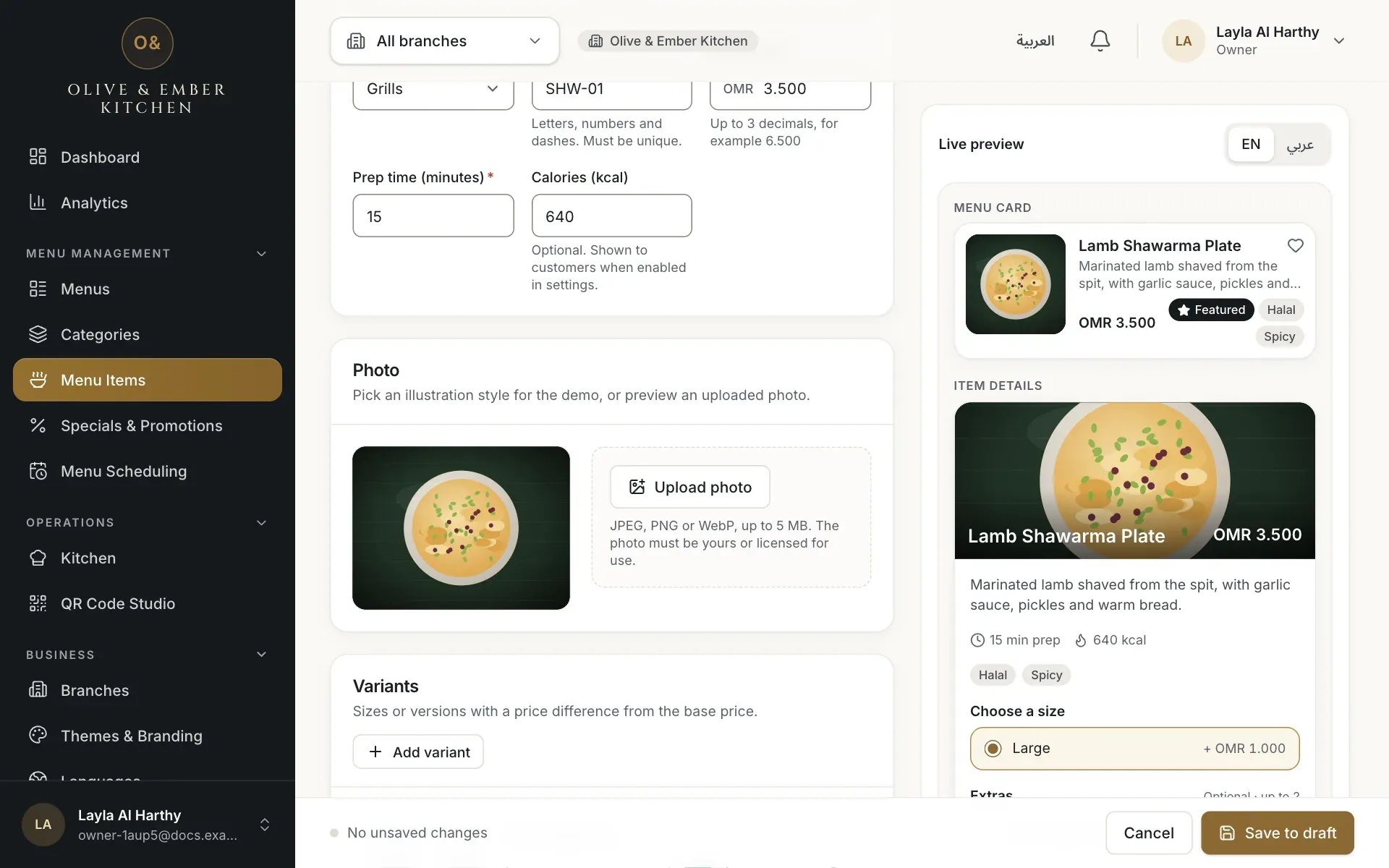
- The Upload photo button
Choose the photo
Click Upload photo and pick the file. The photo is sent and appears in the preview. The note The photo is saved with the dish when you press “Save draft”. reminds you that the photo is not final yet. Photos larger than 8192 pixels are refused.
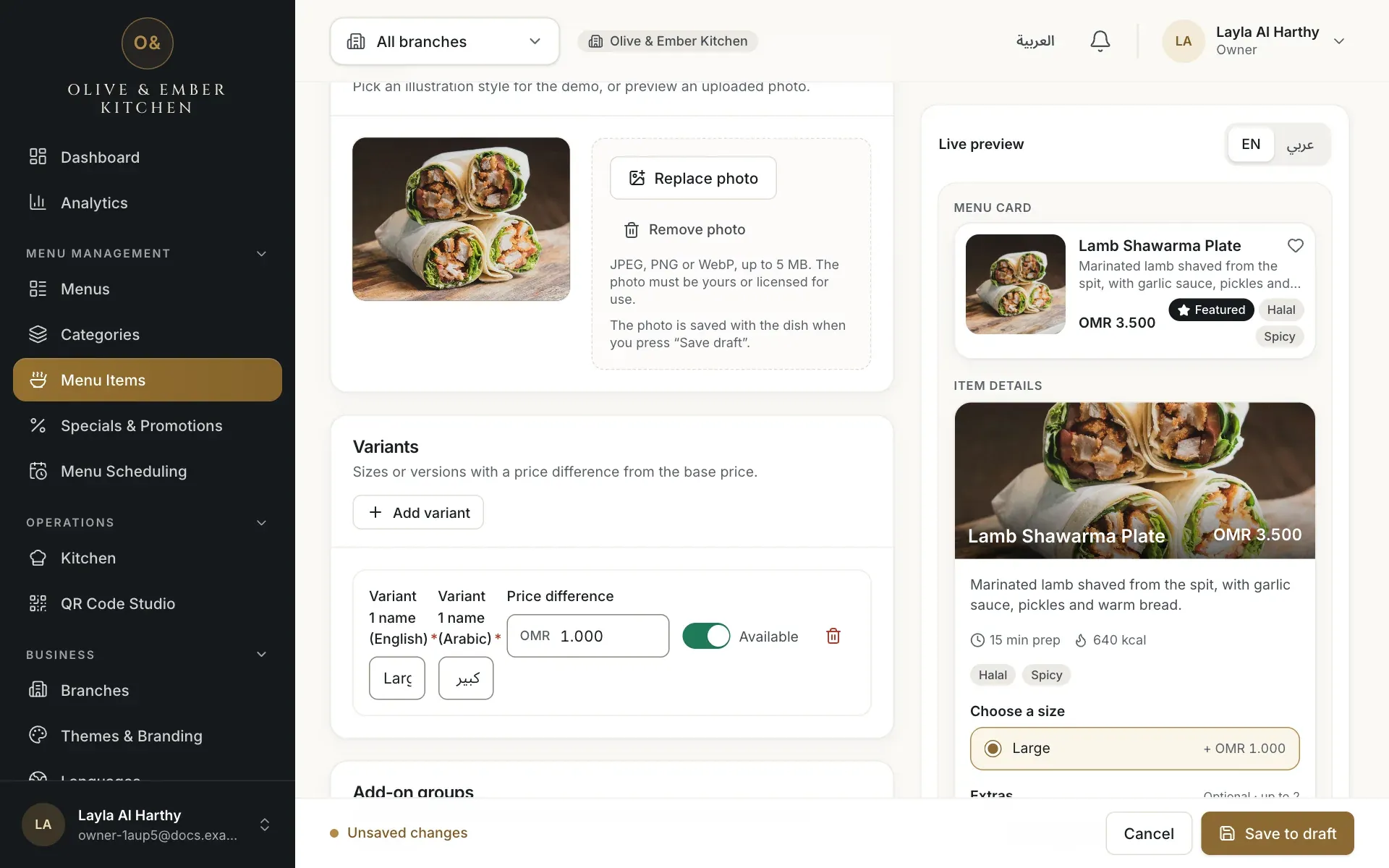
- The photo preview
- The note that the photo is saved with the dish
- The Save to draft button
Save to draft
Click Save to draft. Without this click the photo is not attached to the dish. Go back to the list: the dish now shows its photo in the first column.
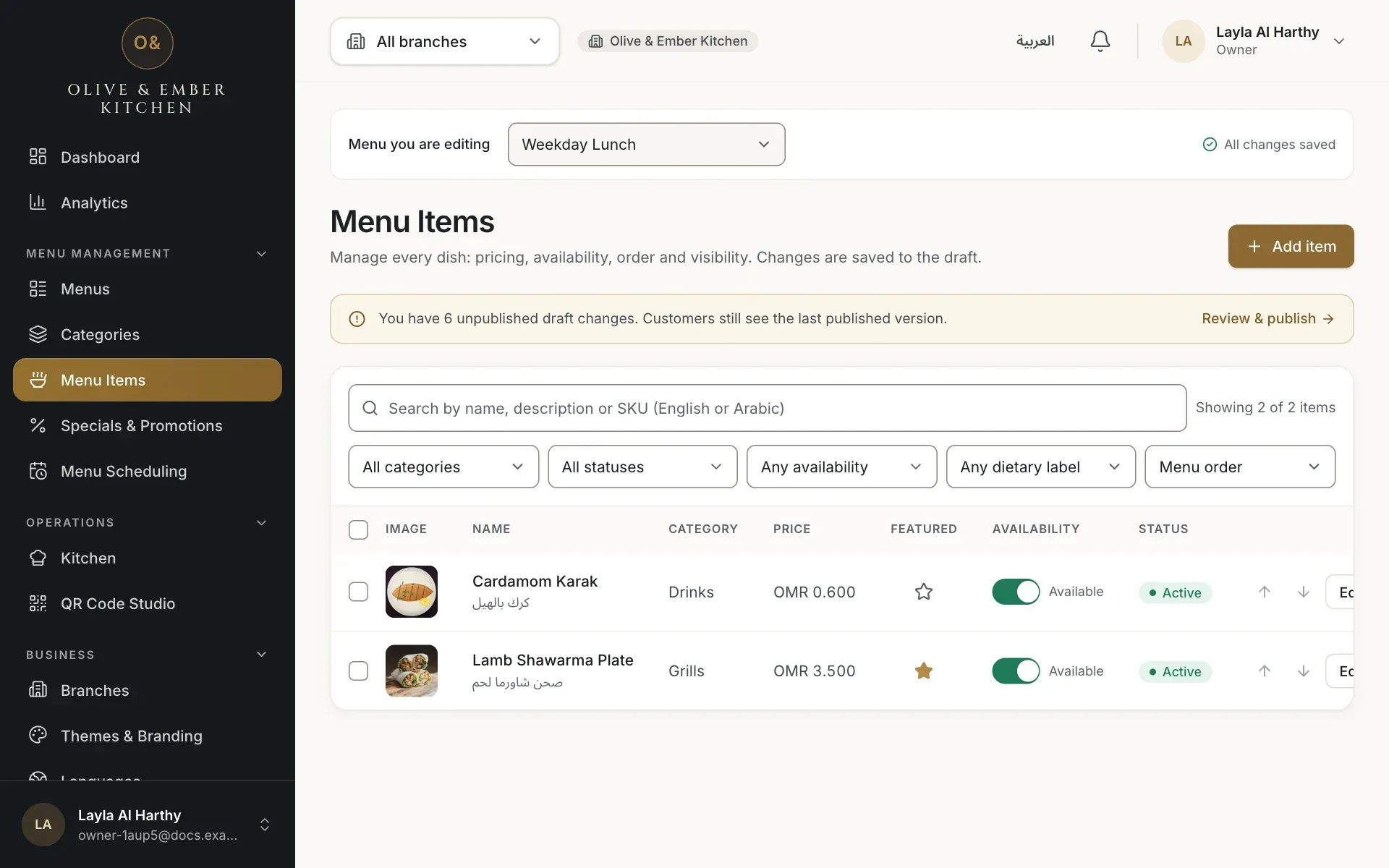
- The photo of the dish in the list
Replace or remove the photo
Open the dish again. The button now reads Replace photo; choose a new file and save. Remove photo takes the photo away and the dish goes back to the drawing. Save to draft again after either change.
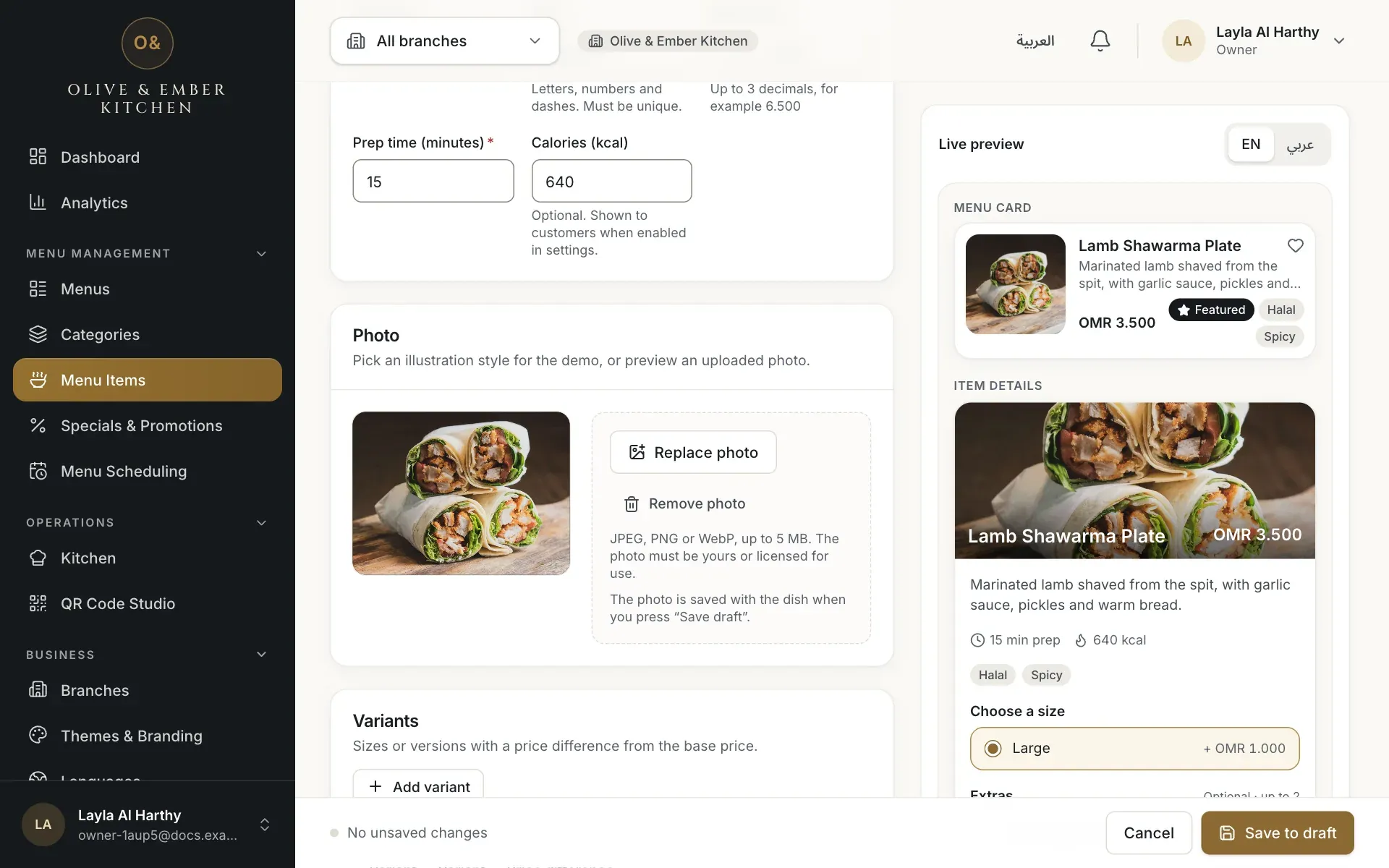
- The Replace photo button
- The Remove photo button
If a file is refused
A file larger than 5 MB shows This file is larger than 5 MB. Choose a smaller image. A file of another type shows Unsupported file type. Choose a JPG, PNG or WebP image. Resize or convert the photo and try again.
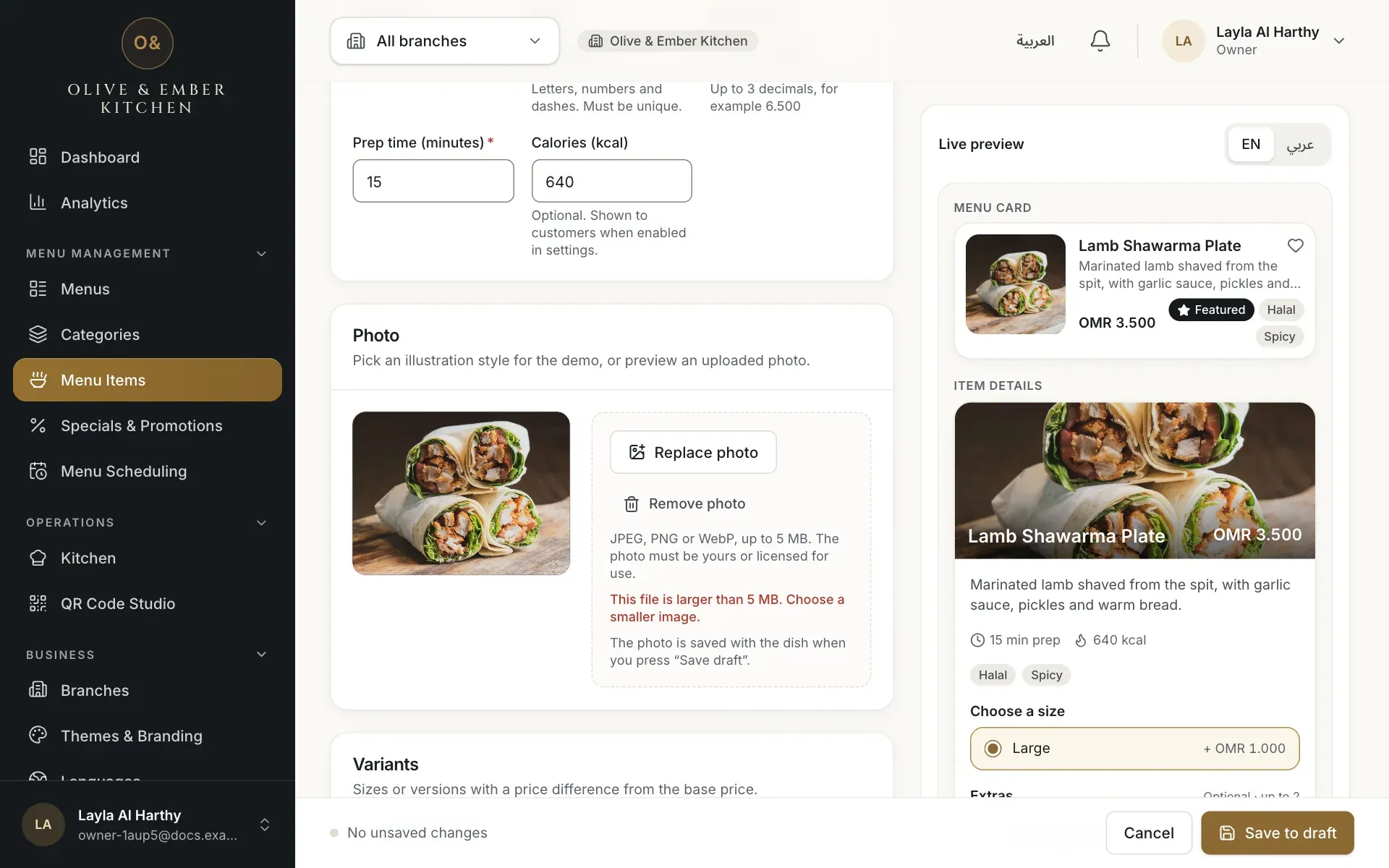
- The error message under the photo rules
Use photos you own
Upload only photos you took yourself or that you are licensed to use. Each restaurant also has a storage allowance for photos that depends on its plan.
Troubleshooting
Your role cannot manage media. Ask the owner or an admin to upload the photo or to change your role.
Only JPEG, PNG and WebP images are accepted. Save the picture in one of those formats (for example, export it from your phone's photo app).
Make the photo smaller, for example by choosing a lower quality when exporting, and upload it again.
The photo reaches guests only after you press Save to draft on the dish and then publish the menu. See Publish your menu.
Related guides
- MenuAdd a dishFill in the dish form from names and price to sizes, extras, allergens and availability, then save it to the draft.
- MenuPublish your menuCheck the draft, assign the menu to a branch, publish it, read the version history, roll back, discard changes or take a menu away.
- Themes & brandingUpload your logoAdd, replace or remove your restaurant logo and see where it appears in the dashboard and on the guest menu.