
Print and download QR codes
Download a QR code as a PNG, SVG or PDF file, then print it for your tables.
- Goal
- You have the QR code of a table as a file on your computer, ready to print.
- Before you start
- A QR code already created in QR Code Studio
- A printer, or a print shop that accepts PNG, SVG or PDF files
QR Code Studio gives you the code as a file. RothDine does not print for you and has no print sheet. You download the file, then print it on your own printer or give it to a print shop. The code has no colour or logo options. It is black on white, with the line Scan for the menu and the name of the place under it.
Pick the code to download
Open QR Code Studio. Choose the Scope, the branch and, for a table, the table. The code of that place appears on the right. If it does not exist yet, create it first. See the guide on creating QR codes.
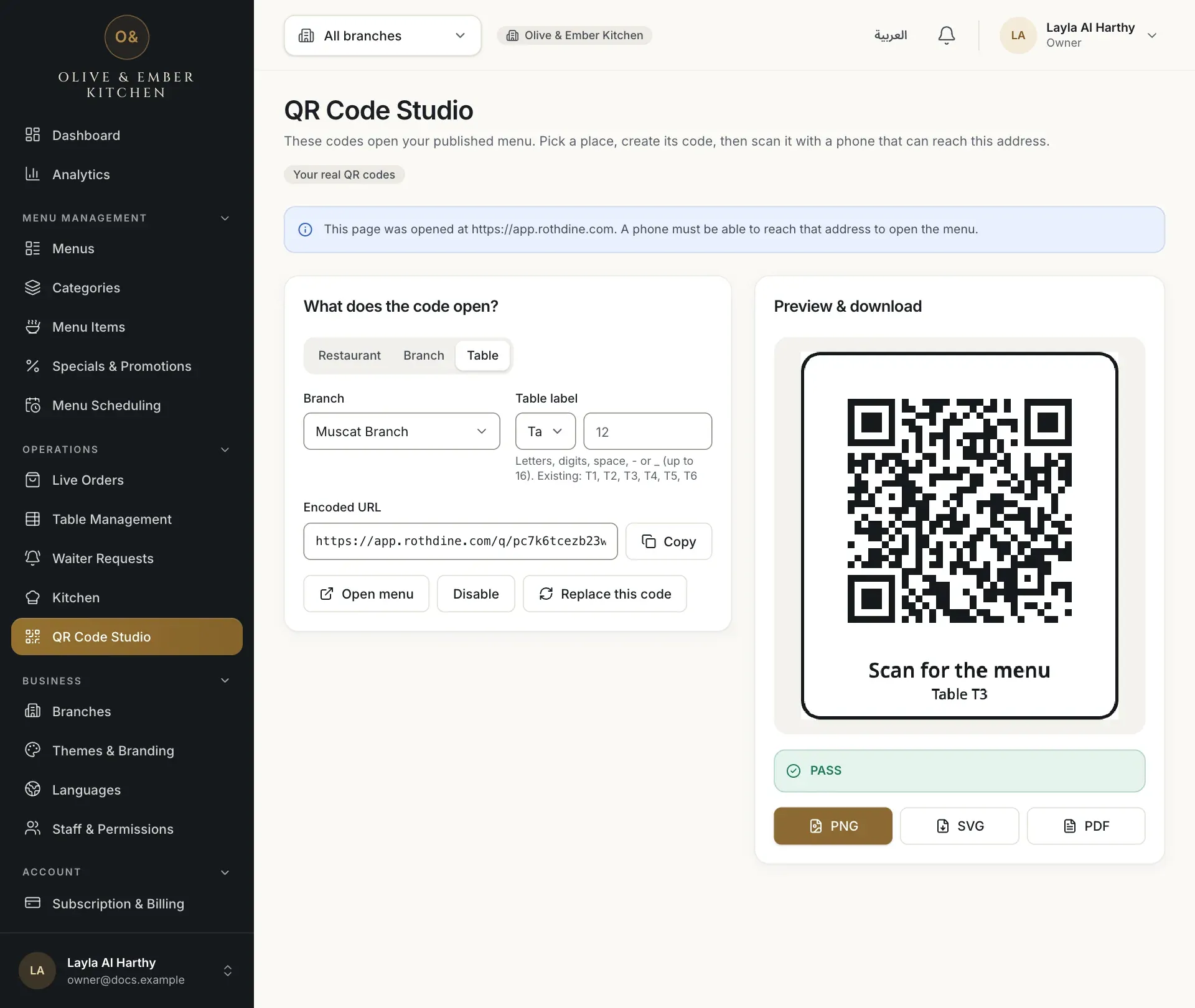
- The Table scope
- The table you want to print
Wait for the check to pass
Studio reads the code back and compares it with the address. When it matches, the preview shows PASS in green. The download buttons stay off until the check has passed. If you see FAIL, reload the page and try again.
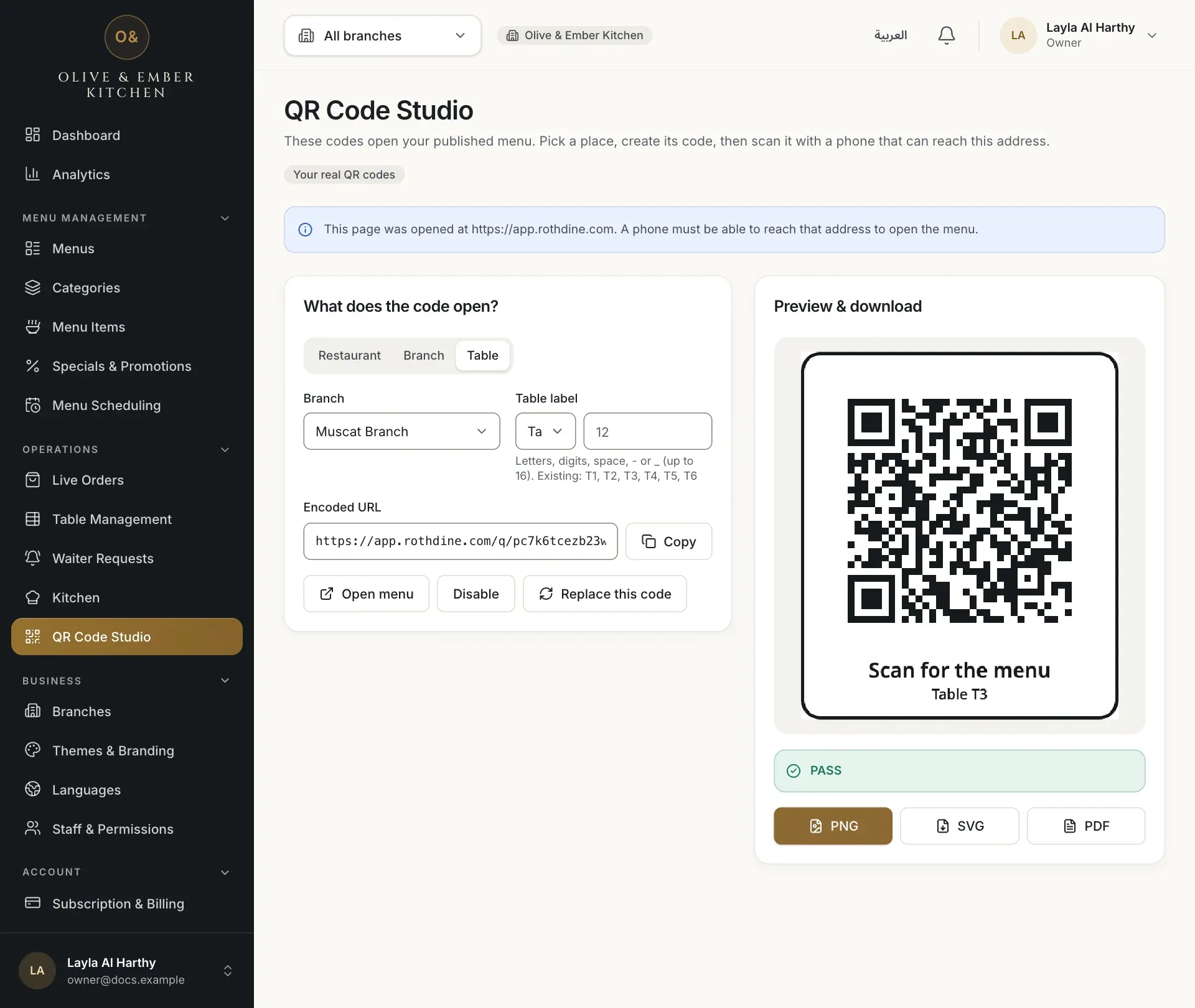
- The PASS check
- The preview of the code
Choose the file type
Under the preview there are three buttons. PNG is a picture, good for most printers and for sending by message. SVG is a sharp drawing that stays clear at any size, good for a print shop or a large sign. PDF is a ready table card in A5 size, with the code, the line Scan for the menu, and the restaurant and table names.
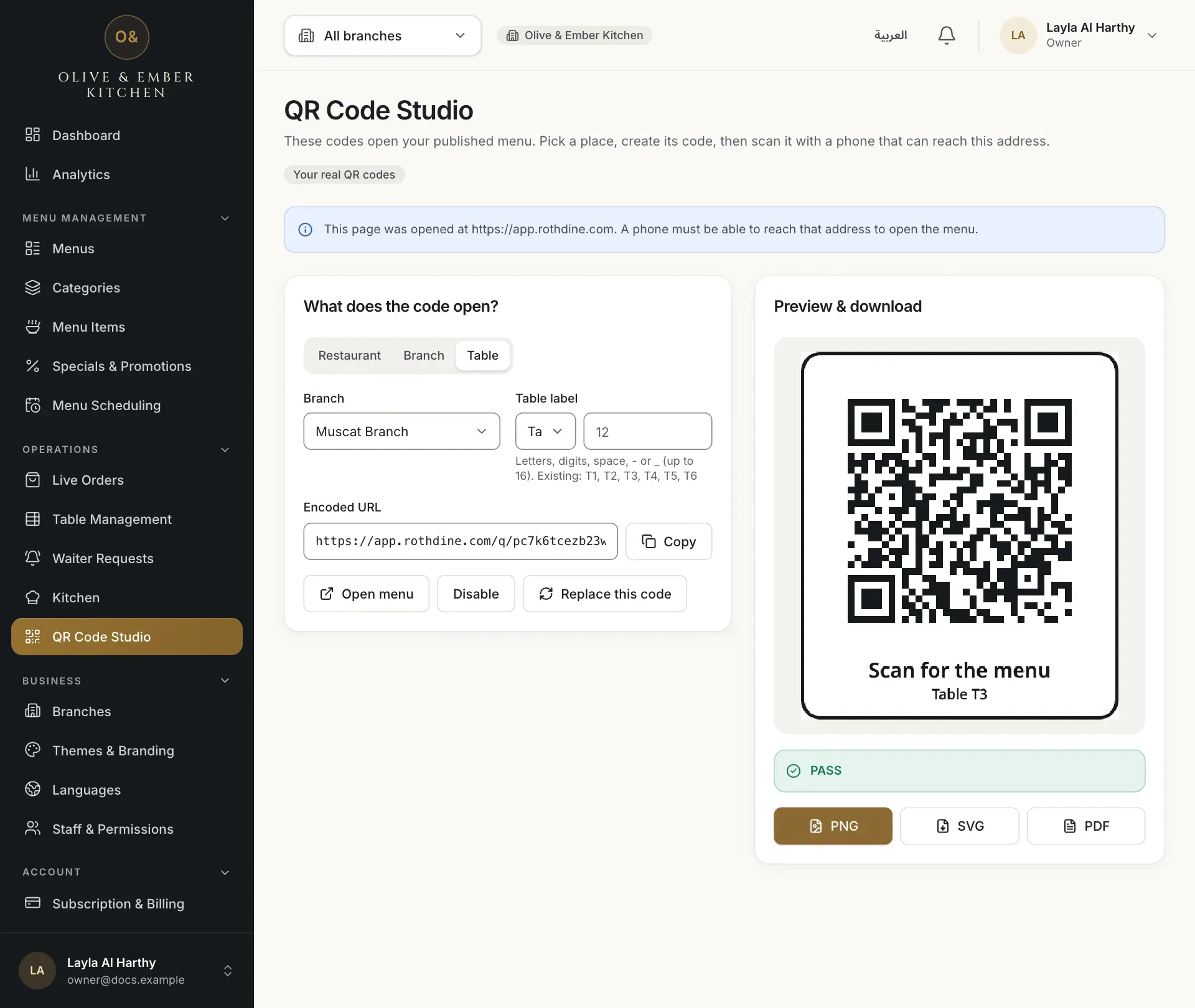
- PNG
- SVG
Download the PNG
Click PNG. The message Downloaded with the file name appears, and your browser saves the file in its download folder. The name starts with your restaurant name in the web address and ends with the table, for example …-table-T3.png.
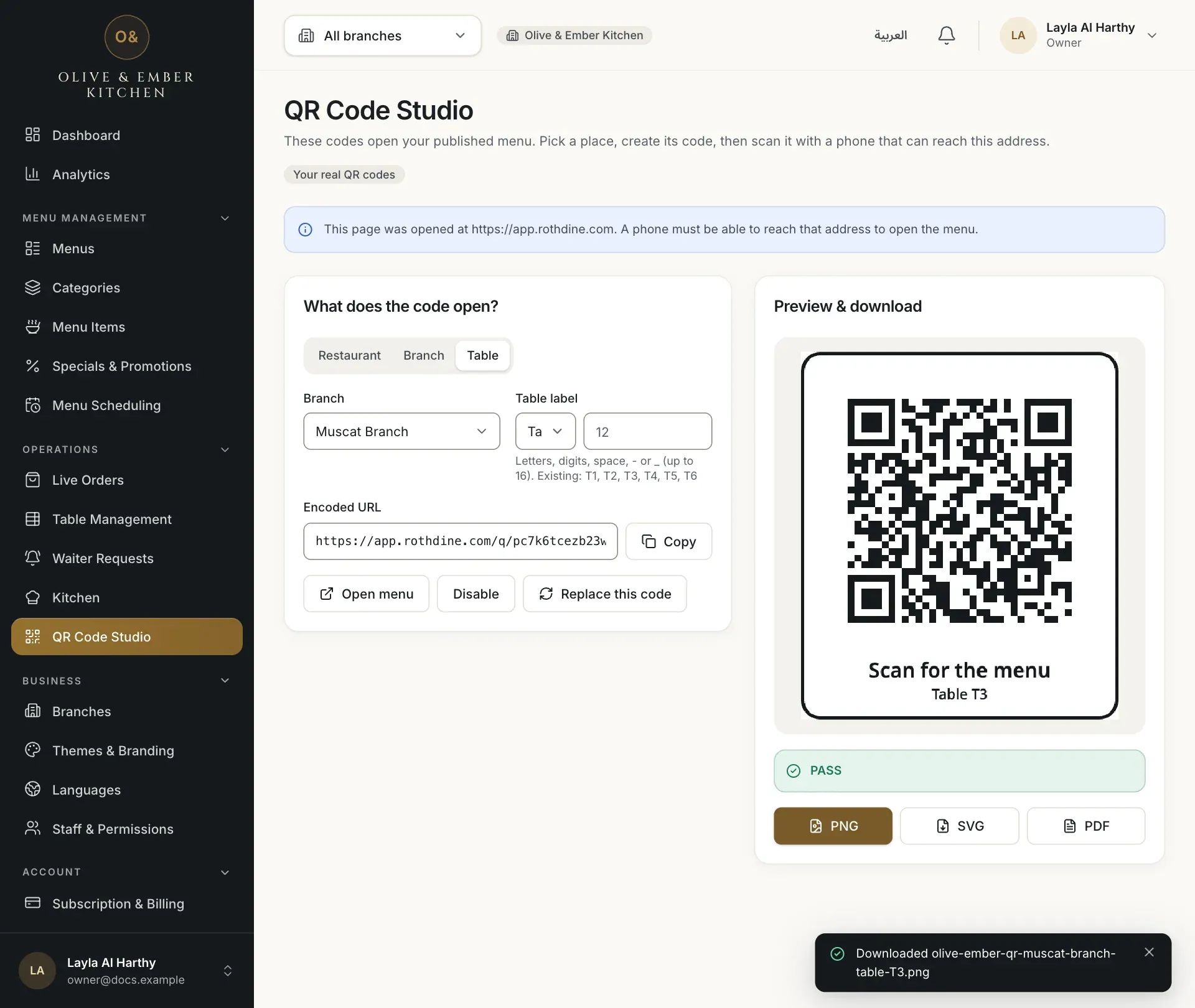
- The PNG button
Download the SVG
Click SVG if your print shop asks for a vector file. The browser saves a file ending in .svg.
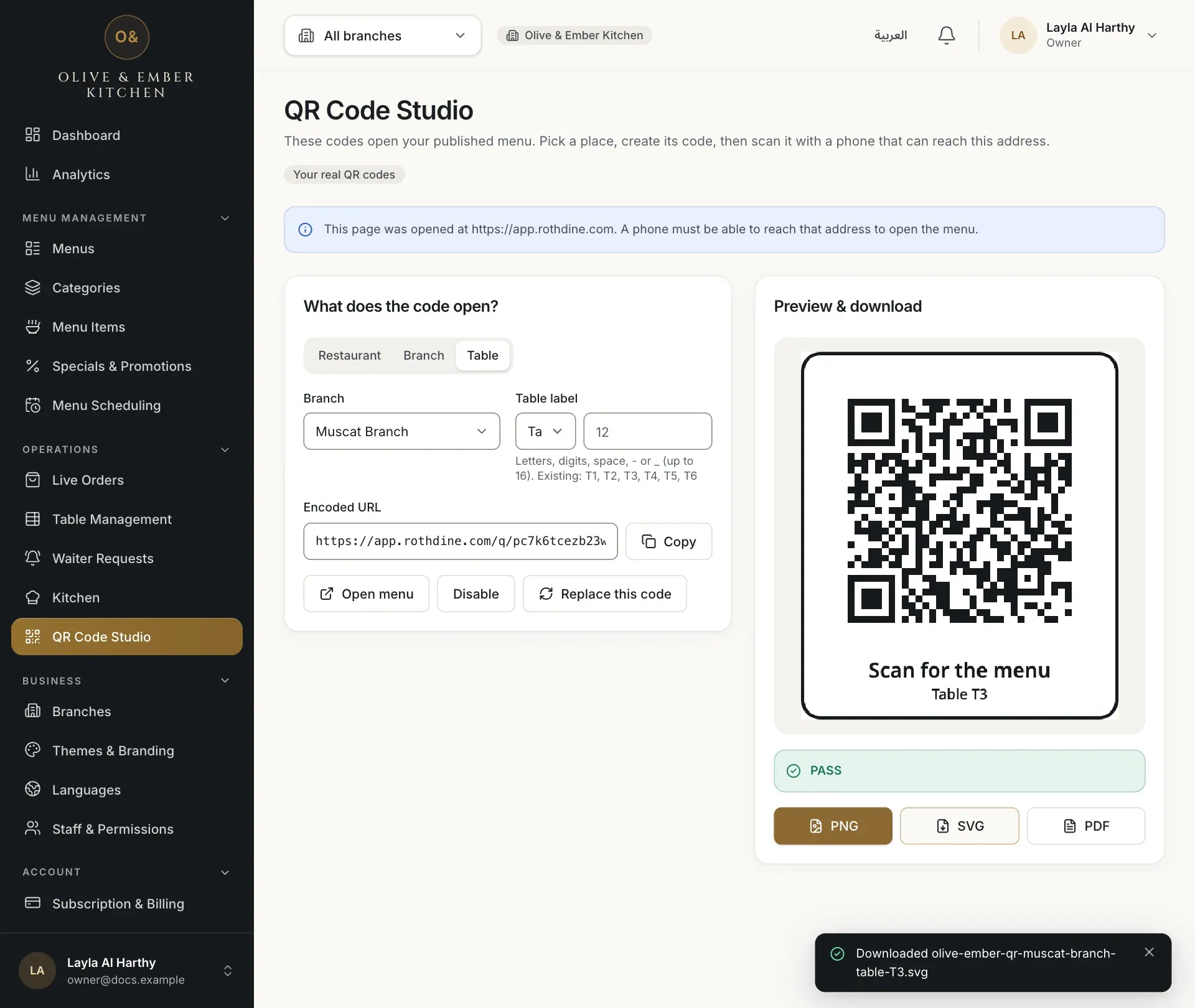
- The SVG button
Download the PDF table card
Click PDF for the A5 table card. A few seconds later the browser saves a file ending in .pdf.
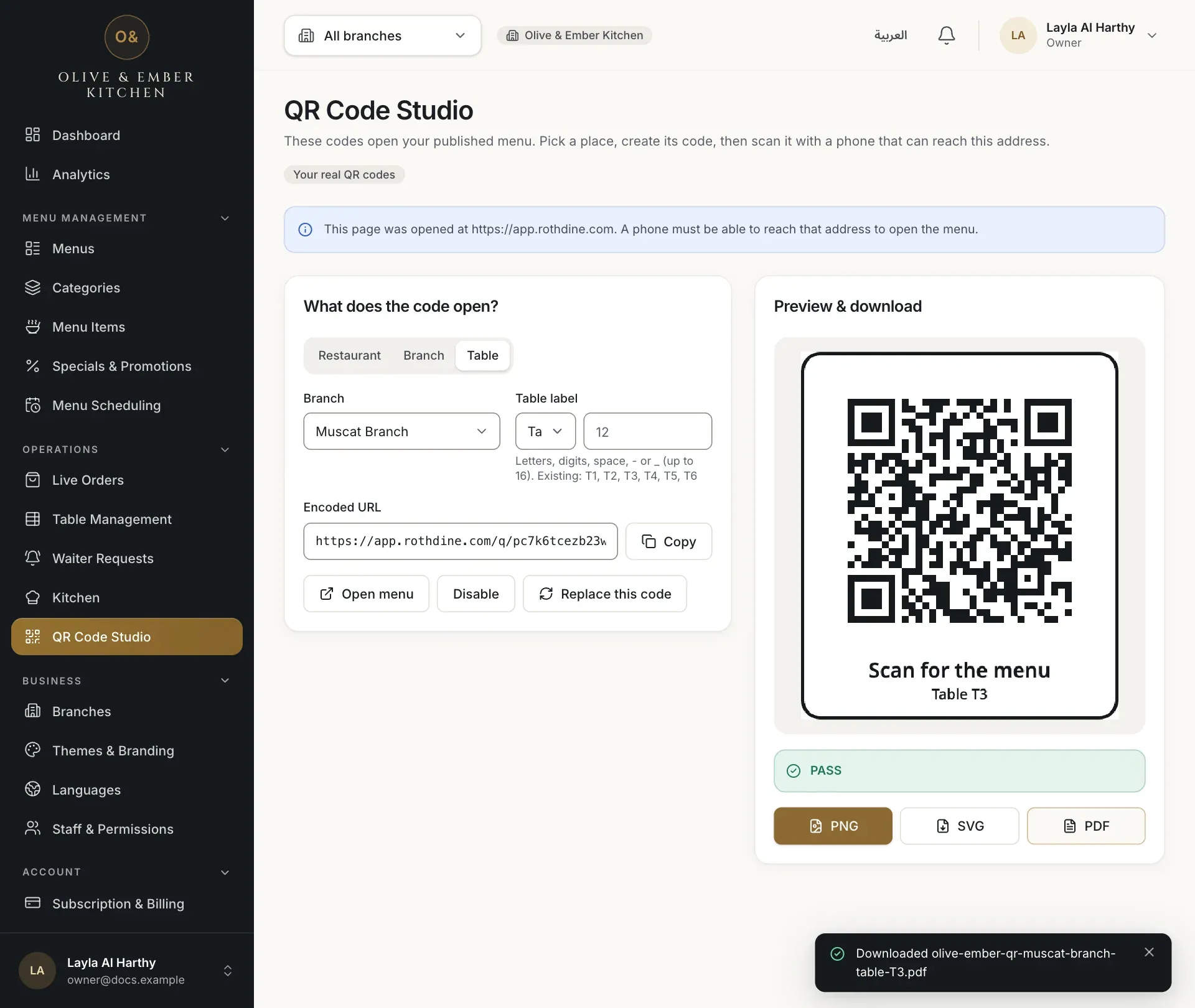
- The PDF button
Open the file and print it
Open the downloaded file from your download folder. This is the artwork you print. Print it at its real size, do not stretch it, and use plain white paper. Cut or fold the card as you like, or put it in a stand or a frame. Before you copy it many times, scan the printed page with a phone and check that the menu opens.
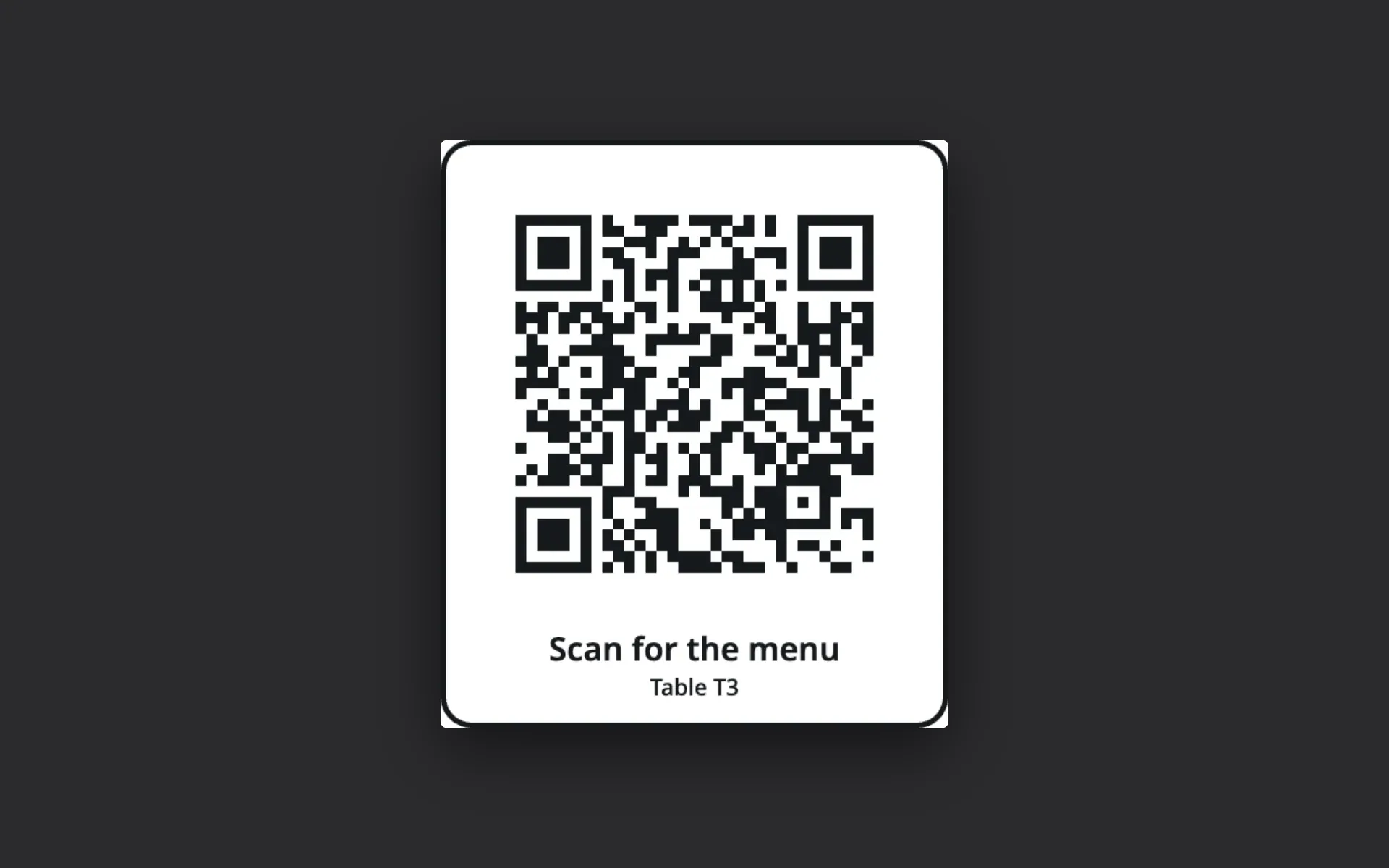
One code, one table
Print each table code only for its own table. If a printed code is lost or copied, replace it in QR Code Studio. The old code stops working at once, and you print the new file.
Troubleshooting
Studio downloads only a code that has passed the check. Wait for PASS. If there is no code yet, create it first. A disabled code cannot be downloaded: click Enable.
The code could not be read back. Reload the page and open the code again. If it stays on FAIL, replace the code with Replace this code and try again.
The browser could not build the PDF. Try again. If it still fails, download the PNG and print it.
The code was disabled or replaced after you downloaded the file. Download the current code and print it again.
Related guides
- Tables & QR codesCreate QR codesCreate a QR code for your restaurant, a branch or a single table, and see what a guest gets when scanning it.
- Tables & QR codesAdd tablesAdd the tables of your branch, give each one a short code and a number of seats, then edit or remove them.
- OrdersHow guests orderWhat your guests do on their phone, from scanning the table QR code to sending an order, following it and calling the waiter.