
Create QR codes
Create a QR code for your restaurant, a branch or a single table, and see what a guest gets when scanning it.
- Goal
- You have a QR code for the right place, and you know what a guest sees after scanning it.
- Before you start
- A published menu
- For table codes: your tables added in Table Management
- A role that can manage QR codes: owner, admin or branch manager
A QR code opens your published menu on the guest's phone. There is no app to install. You choose what the code is for: the whole restaurant, one branch, or one table. Only a table code lets guests order, because it tells RothDine which table the order is for.
Open QR Code Studio
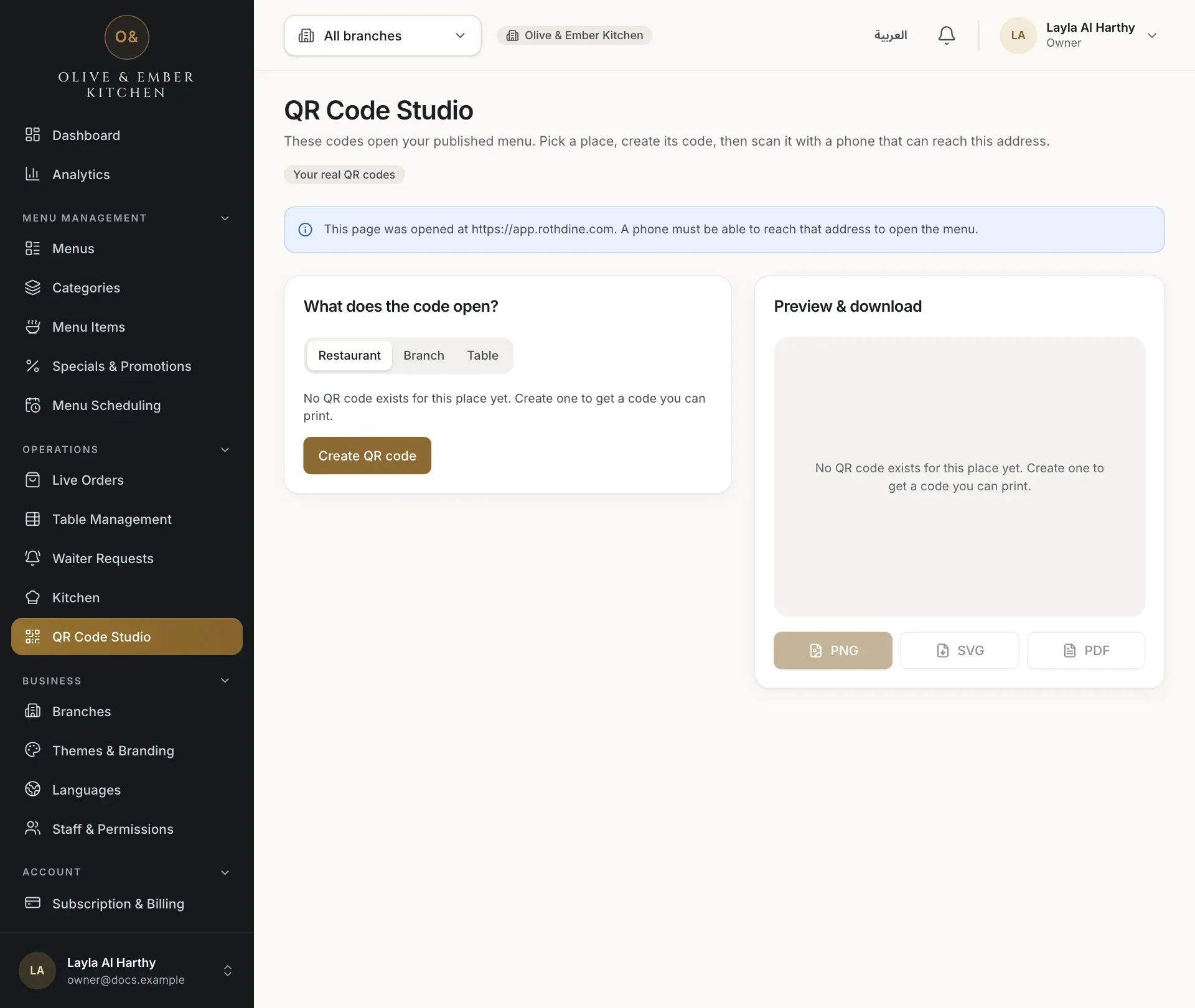
In the sidebar, under Operations, choose QR Code Studio. The box What does the code open? lets you pick the Scope: Restaurant, Branch or Table. The preview and the downloads are on the right.
- QR Code Studio in the sidebar
- The Restaurant scope
Create the restaurant code
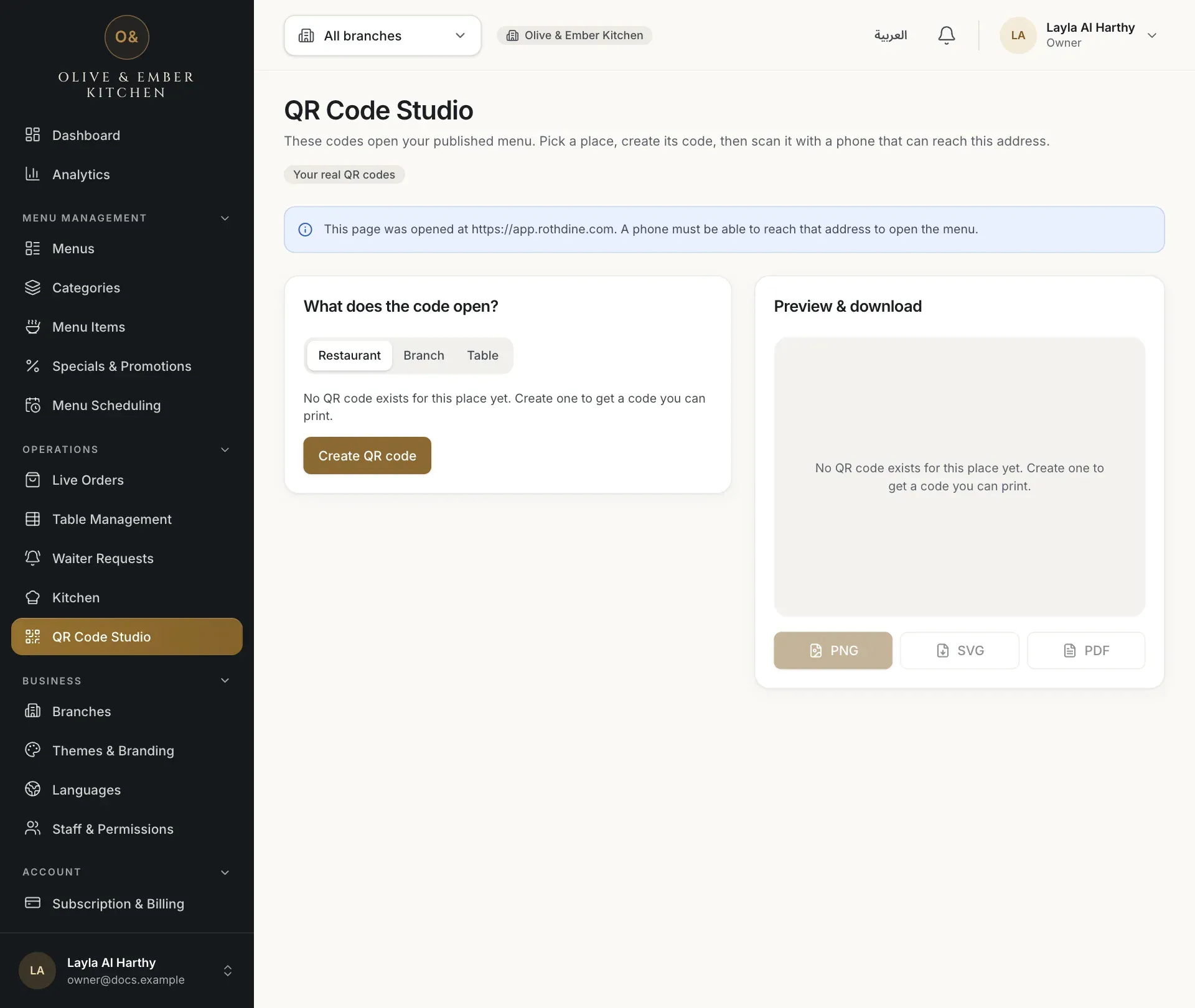
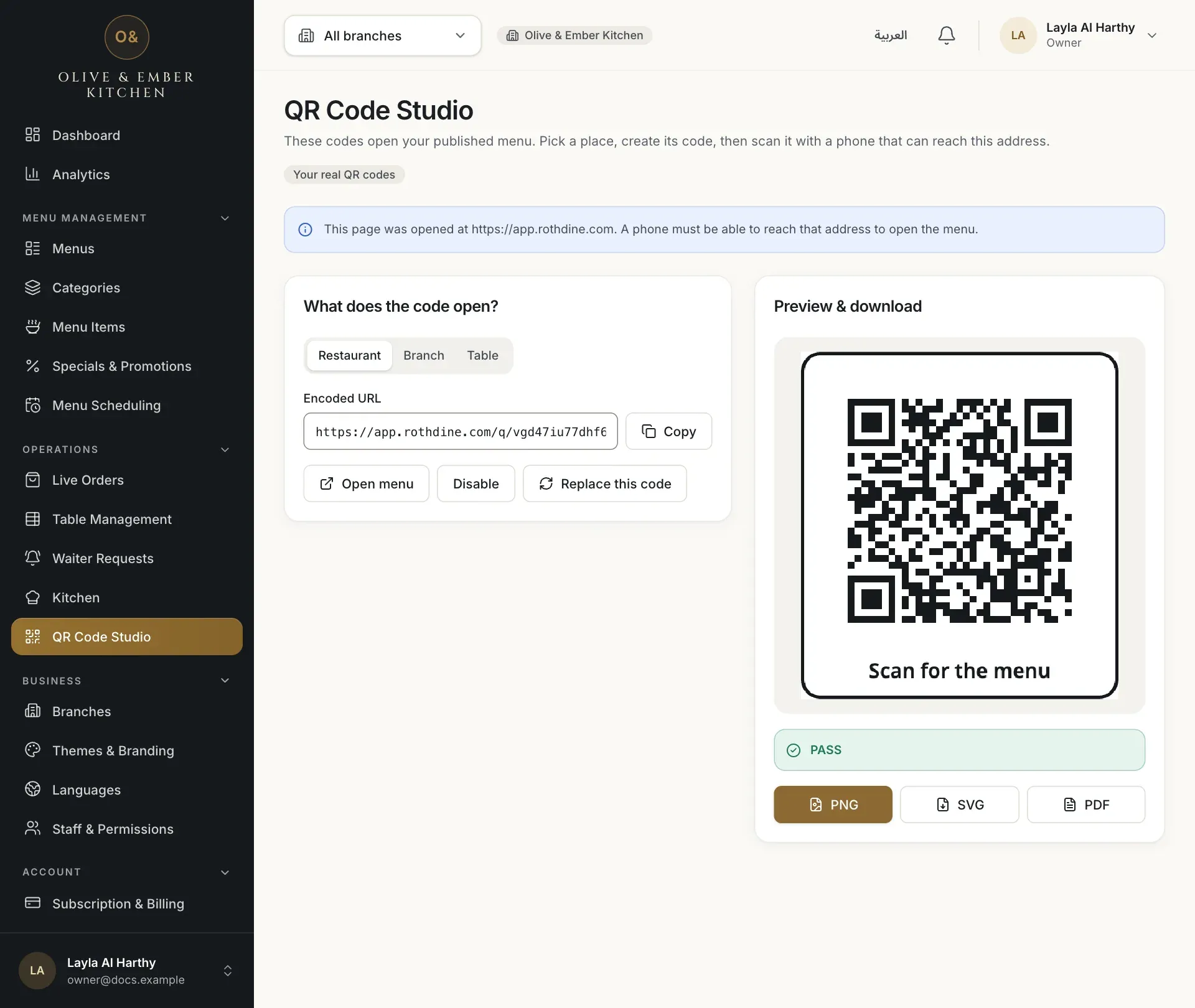
Keep Restaurant and click Create QR code. The code appears with the message QR code created. Its address is shown under Encoded URL. A restaurant code opens the menu for browsing only, with no table and no cart.
- The Restaurant scope
- The Create QR code button
- The encoded address of the code
- The preview of the QR code
- The Open menu button
Create a branch code
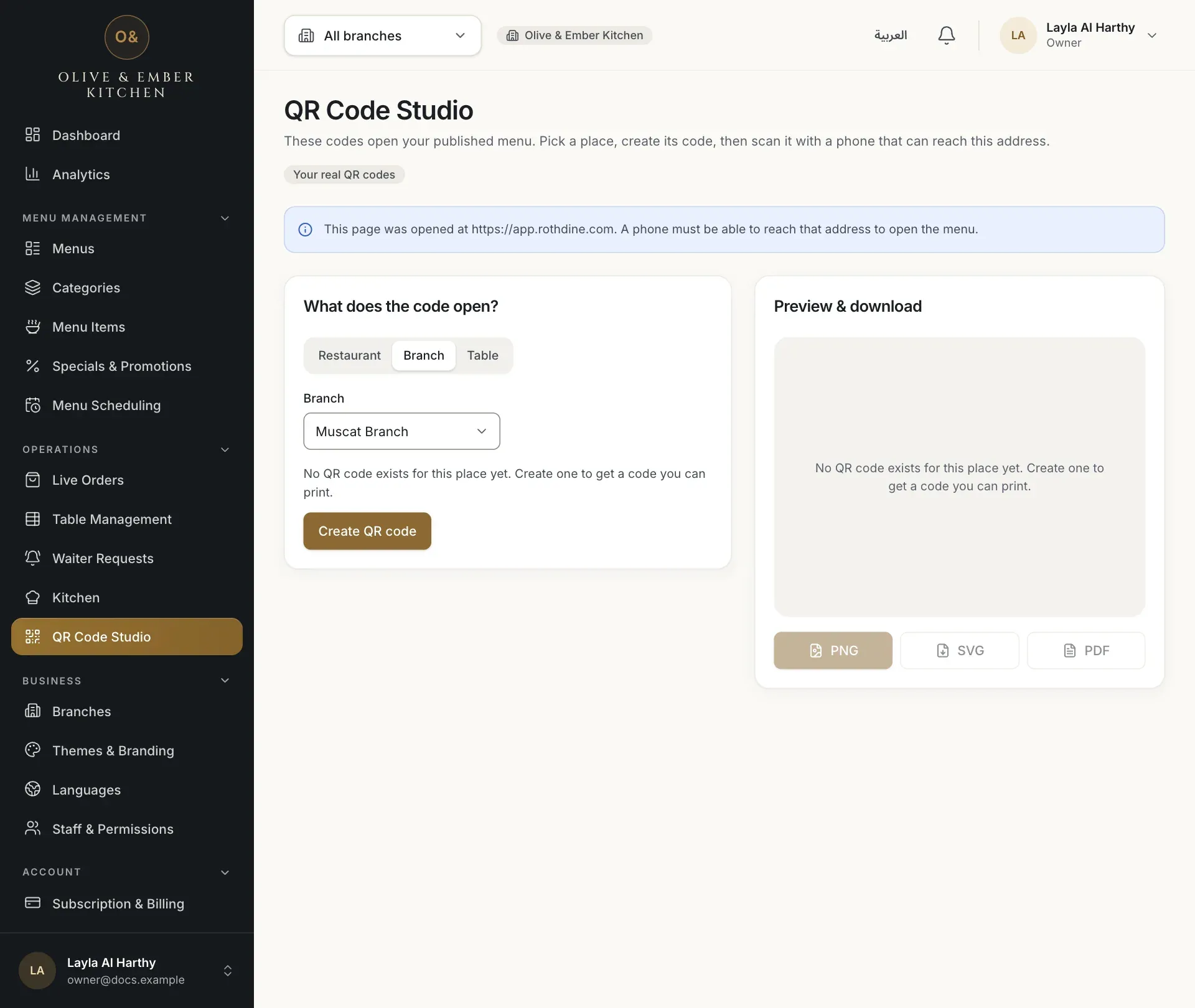
Choose Branch, pick the branch in the Branch list and click Create QR code. A branch code opens the menu of that branch. Like the restaurant code, it is for browsing only.
- The Branch scope
- The branch list
- The Create QR code button
Create a table code
Choose Table and pick the branch. In the Table label row, pick one of your tables from the list, or type a label of up to 16 characters. Click Create QR code. Make one code per table. When the guest scans a table code, the menu opens for that table and the guest can order.
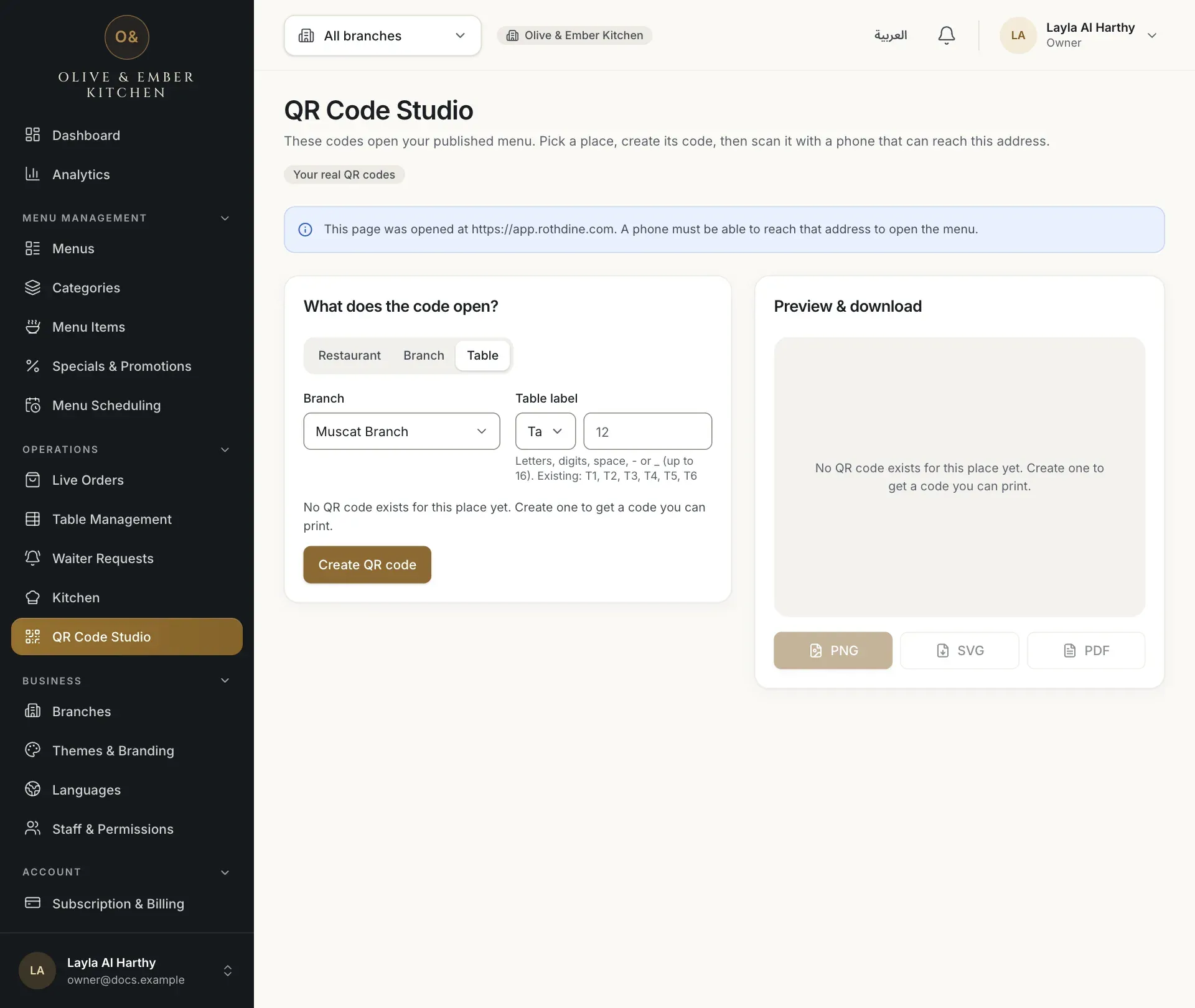
- The Table scope
- The list of your tables
- The Create QR code button
The page shows the code. Use Copy to copy its address. Open menu opens the same page a guest would see.
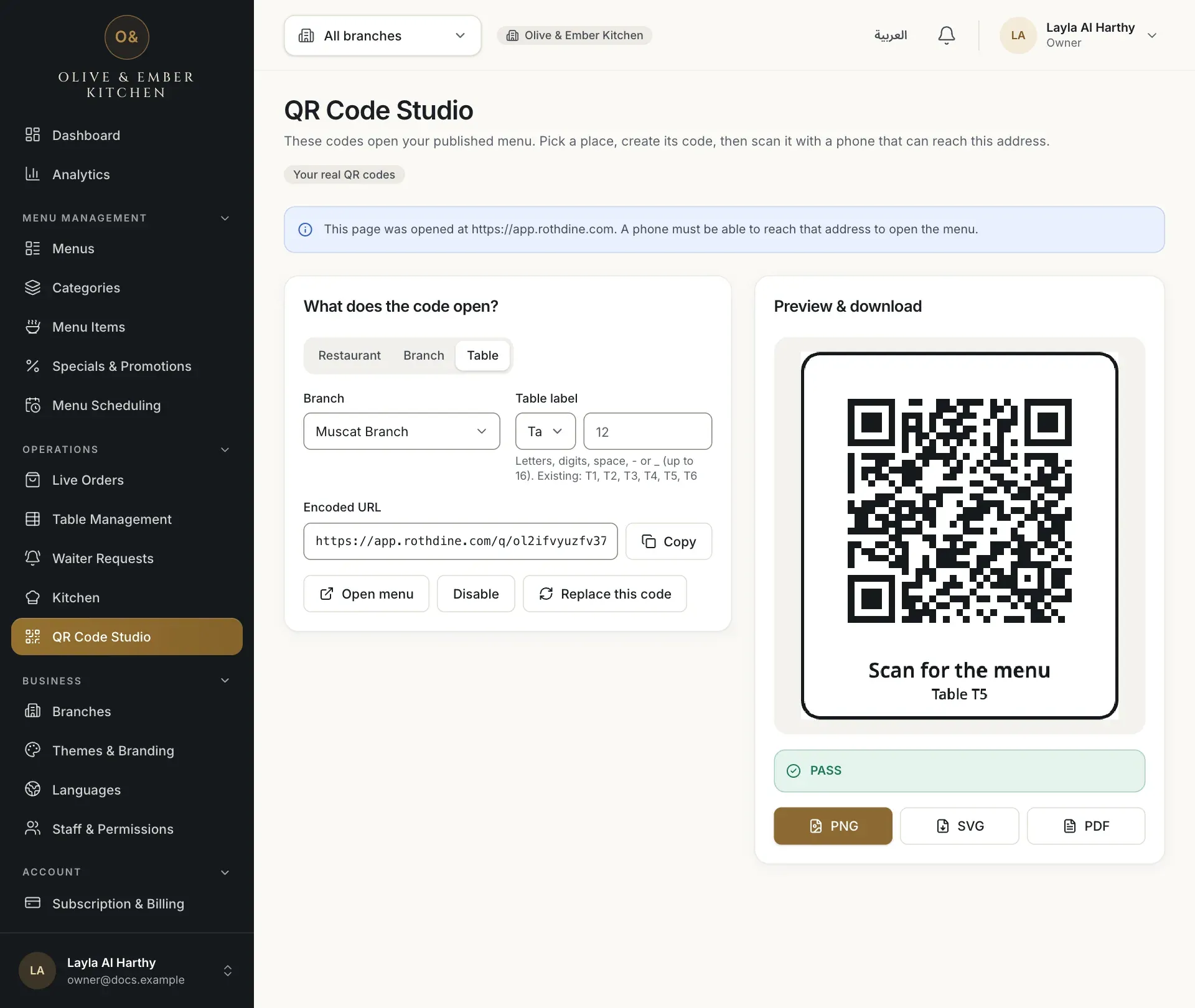
- The encoded address
- The Open menu button
- The Disable button
- The Replace this code button
Scan it with a phone
Scan the code with a phone camera. The menu opens in the phone browser and shows the table at the top, for example Table T5, with the Cart in the bottom bar. If your restaurant asks staff to confirm each table, the guest waits for a confirmation first.
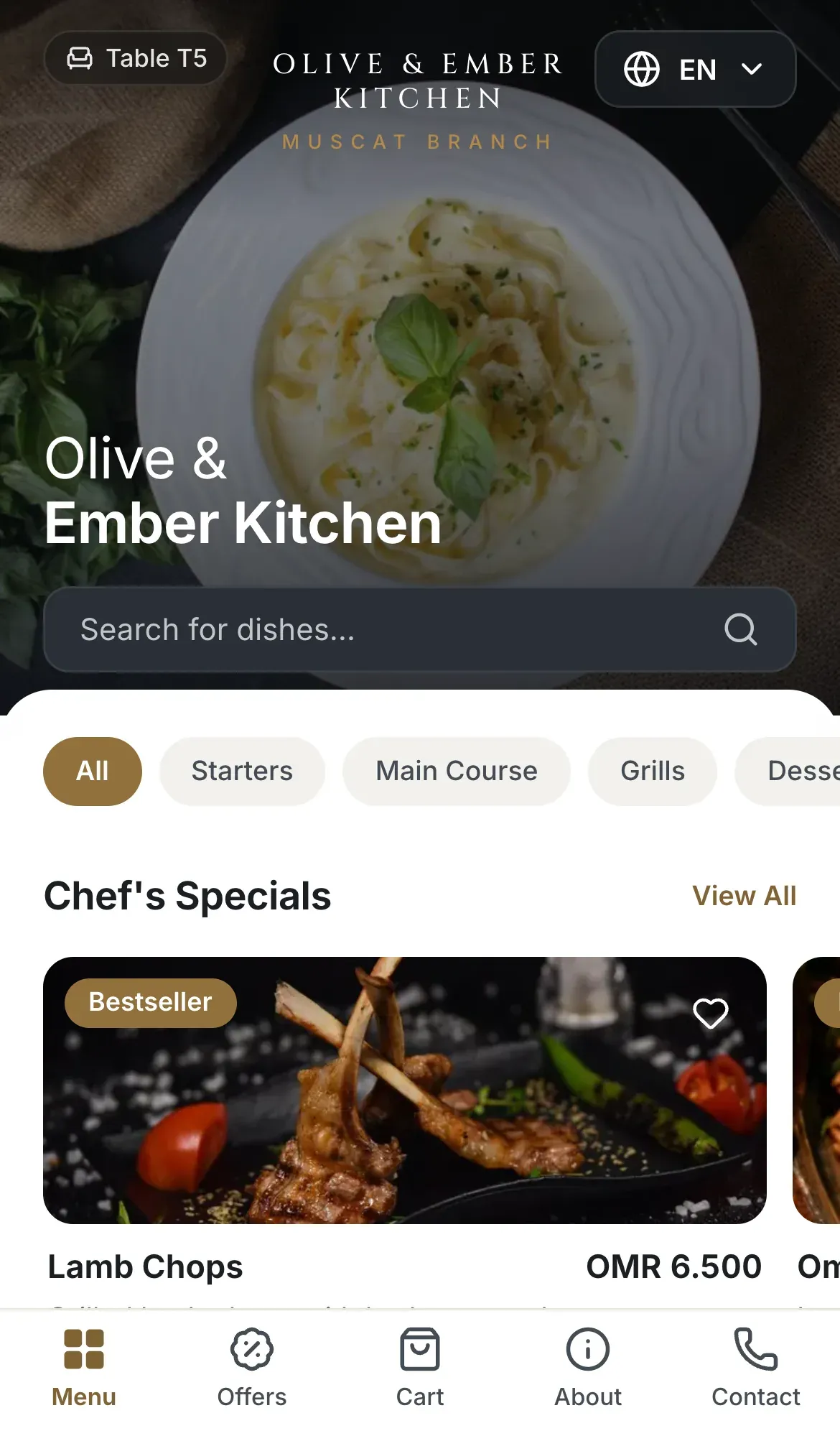
- The table the guest is sitting at
- The Cart tab
Disable or enable a code
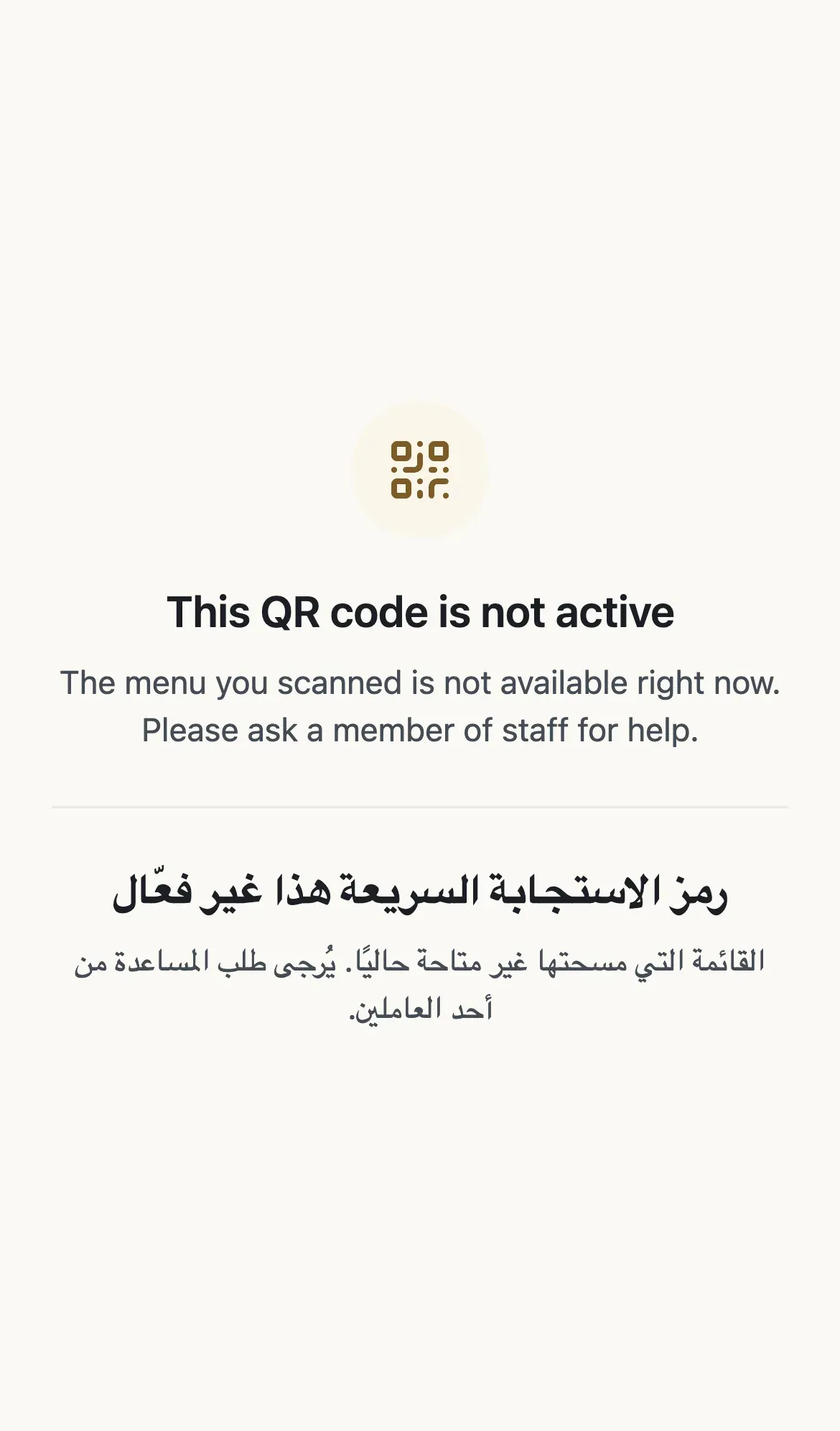
Click Disable to stop a code for a while. A warning says that anyone who scans it sees a page saying the code is not active. Click Enable to turn it on again.
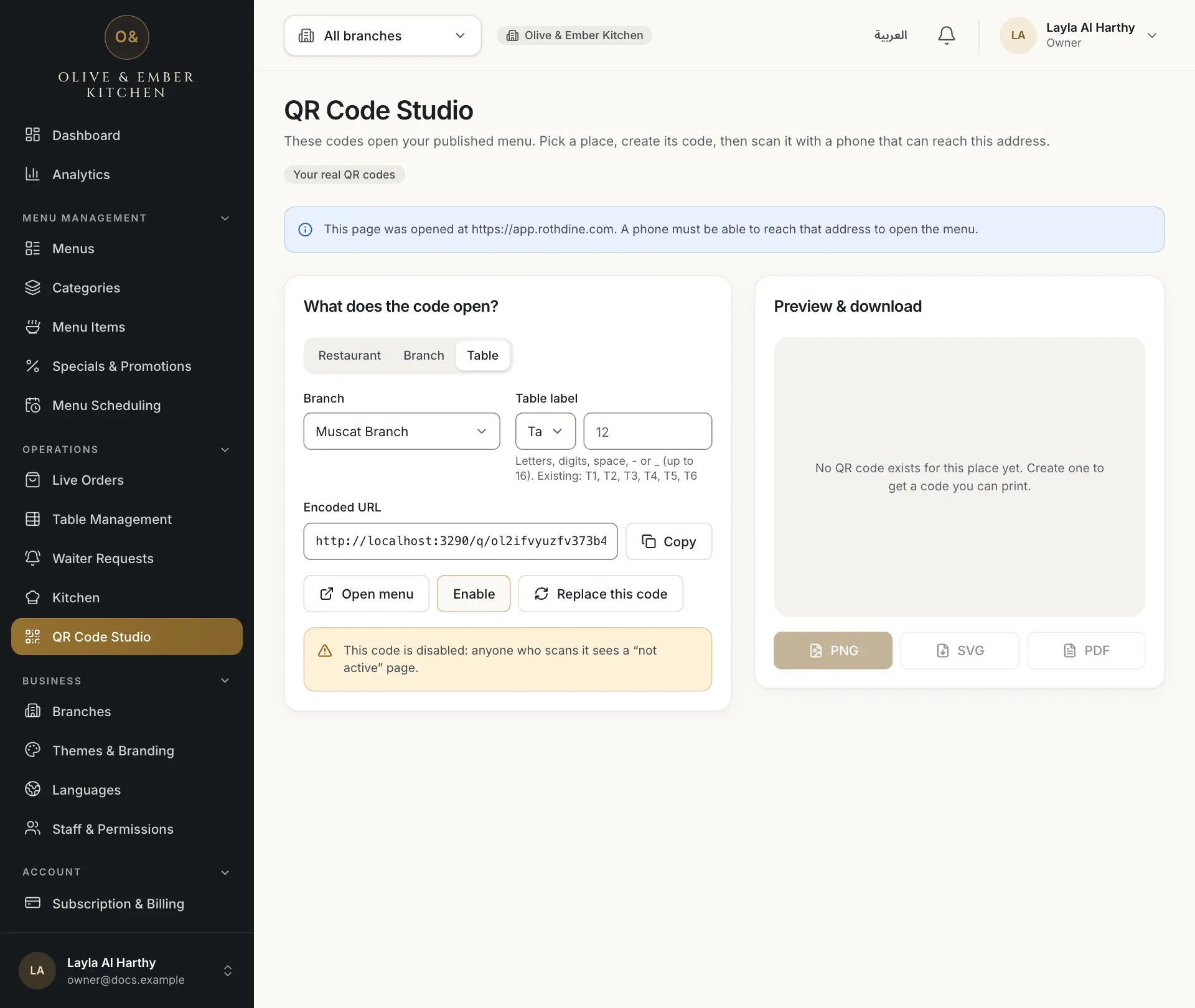
- The warning that the code is disabled
- The Enable button
Replace a code
If a printed code was copied or damaged, click Replace this code. RothDine creates a new code for the same place and the old one stops working at once. Print the new one and remove the old one from the table.
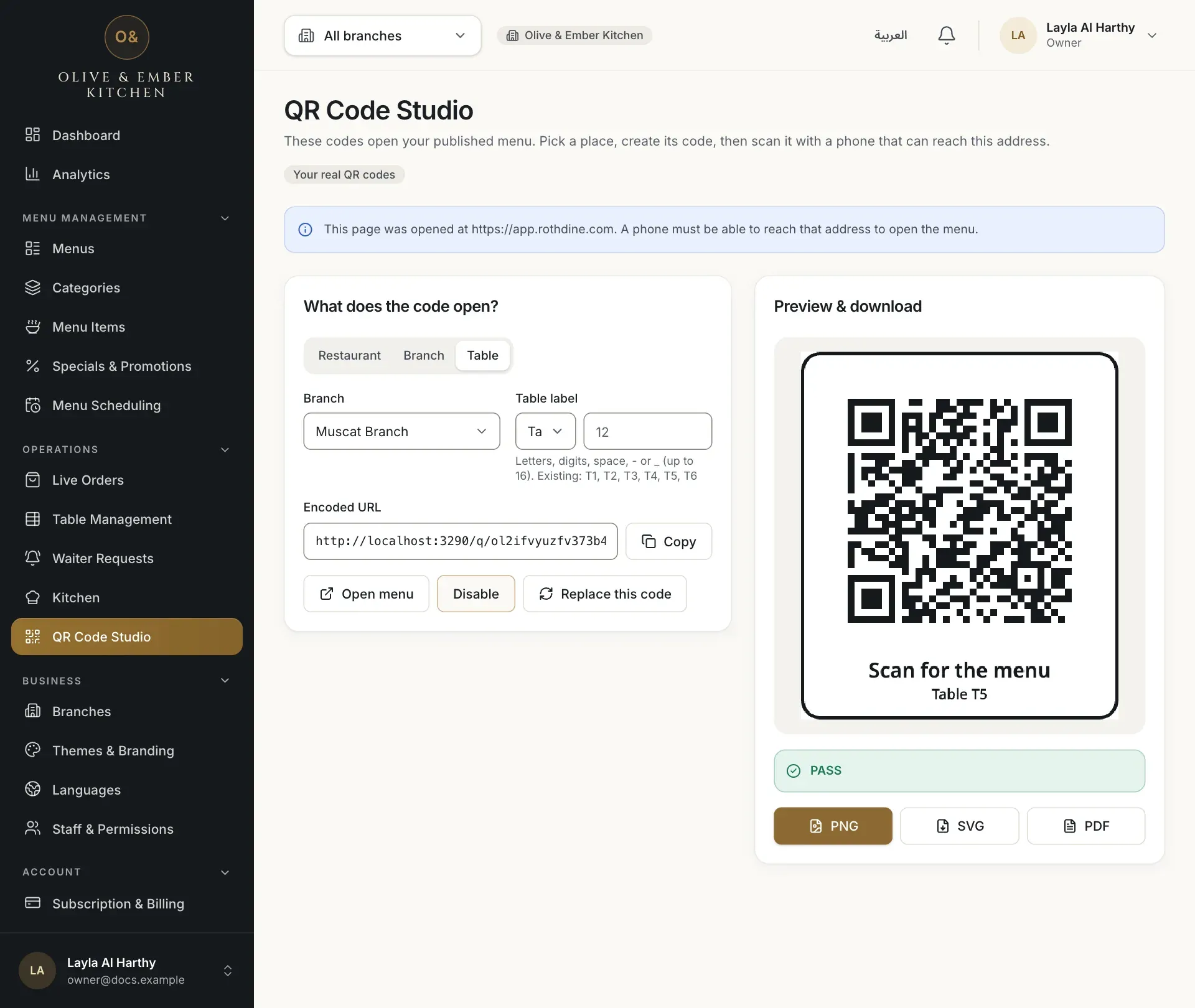
- The Replace this code button
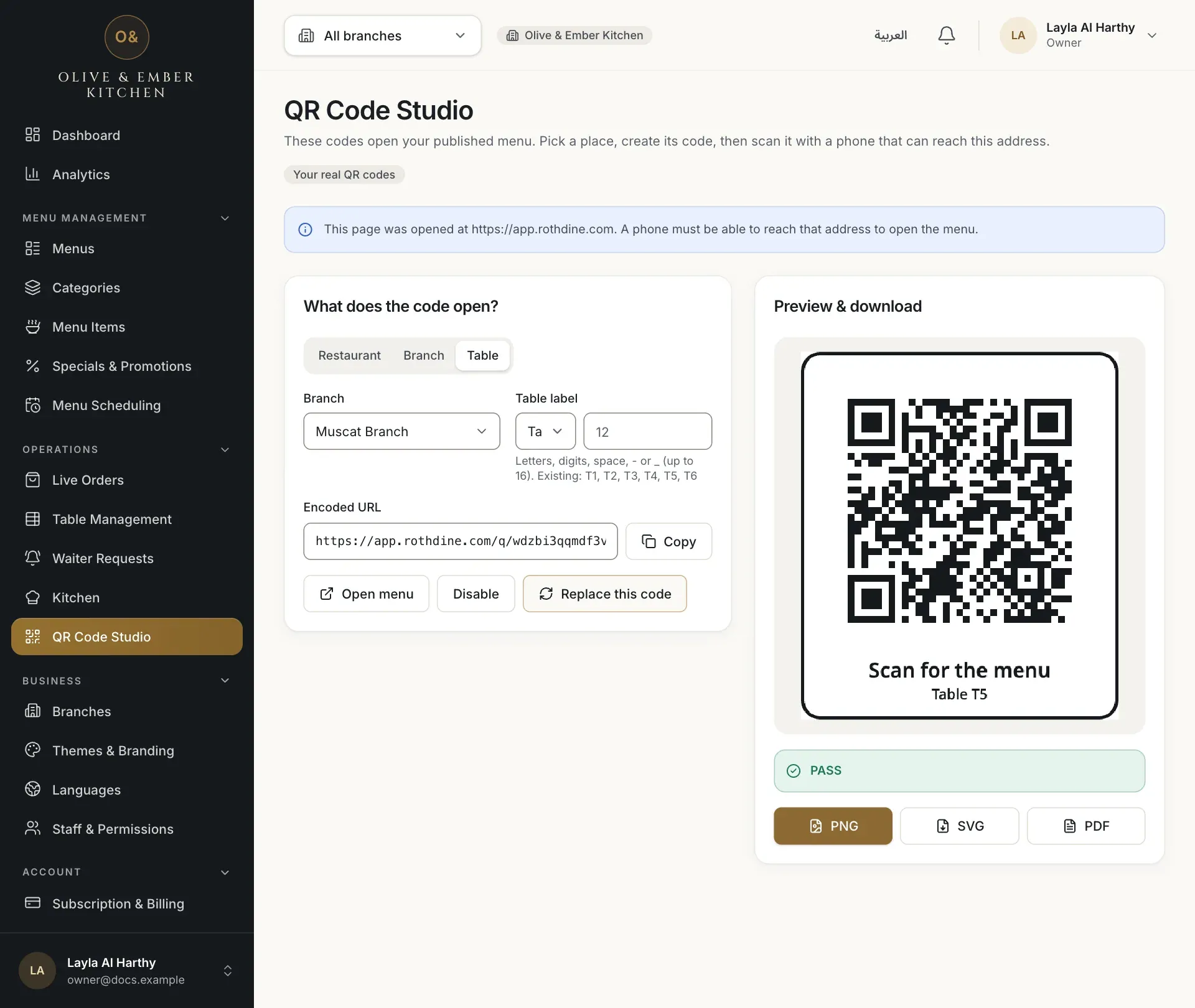
- The new address of the code
Create codes on app.rothdine.com
A code contains the address of the page where you created it. Create your real codes while you are signed in at app.rothdine.com. A code made from another address will not open for your guests.
Troubleshooting
The guest scanned a code that is disabled, replaced or removed, or the restaurant is not available. Open QR Code Studio, find the code and click Enable, or print the current code.
The guest used a restaurant or branch code, which is for browsing only. Give each table its own table code.
Branch and table codes need a branch. Add one under Branches, then come back.
The code was not created. Check your connection and try again. If you reached the number of codes in your plan, the app tells you a limit has been reached.
Related guides
- Tables & QR codesAdd tablesAdd the tables of your branch, give each one a short code and a number of seats, then edit or remove them.
- Tables & QR codesPrint and download QR codesDownload a QR code as a PNG, SVG or PDF file, then print it for your tables.
- OrdersHow guests orderWhat your guests do on their phone, from scanning the table QR code to sending an order, following it and calling the waiter.
- MenuPublish your menuCheck the draft, assign the menu to a branch, publish it, read the version history, roll back, discard changes or take a menu away.