
How guests order
What your guests do on their phone, from scanning the table QR code to sending an order, following it and calling the waiter.
- Goal
- You know every screen your guest sees, so you can help them and train your staff.
- Before you start
- A branch in the mode Full table ordering (C) with a published menu
- A QR code for each table
- A phone to try it yourself
Guests need no app and no account. They scan the code on their table, and the menu opens in the phone browser. They pick dishes, send the order, and follow it until it is served. No payment is taken in RothDine: guests pay at the table. Every screen below is the phone view in English. The guest can switch to Arabic at any time.
The guest scans the QR code on the table
The menu opens and shows the table at the top, for example Table T1, next to the language button. The bottom bar has Menu, Offers, Cart, About and Contact. The Cart tab shows only when the branch takes orders. A guest who scans a restaurant or branch code can browse, but cannot order and is told to scan the code on the table.
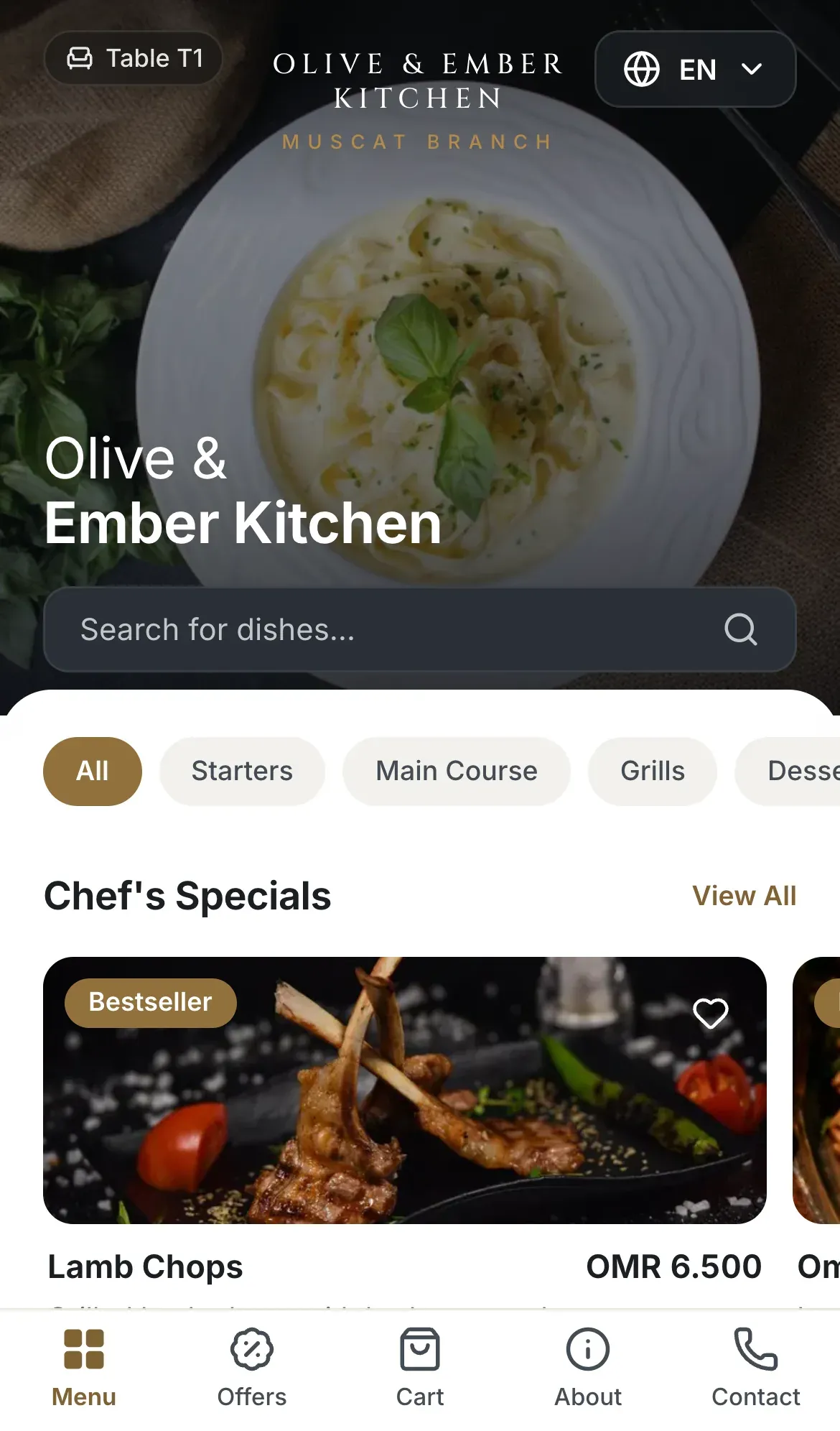
- The table of the guest
- The language button
Wait for staff to confirm, if your restaurant asks for it
You can ask staff to confirm each table session. The guest then sees A staff member needs to confirm your table. This page updates by itself. and cannot order yet. Staff see Guests are waiting for you on Live Orders and click Confirm guests. The guest's page then updates by itself and ordering opens.
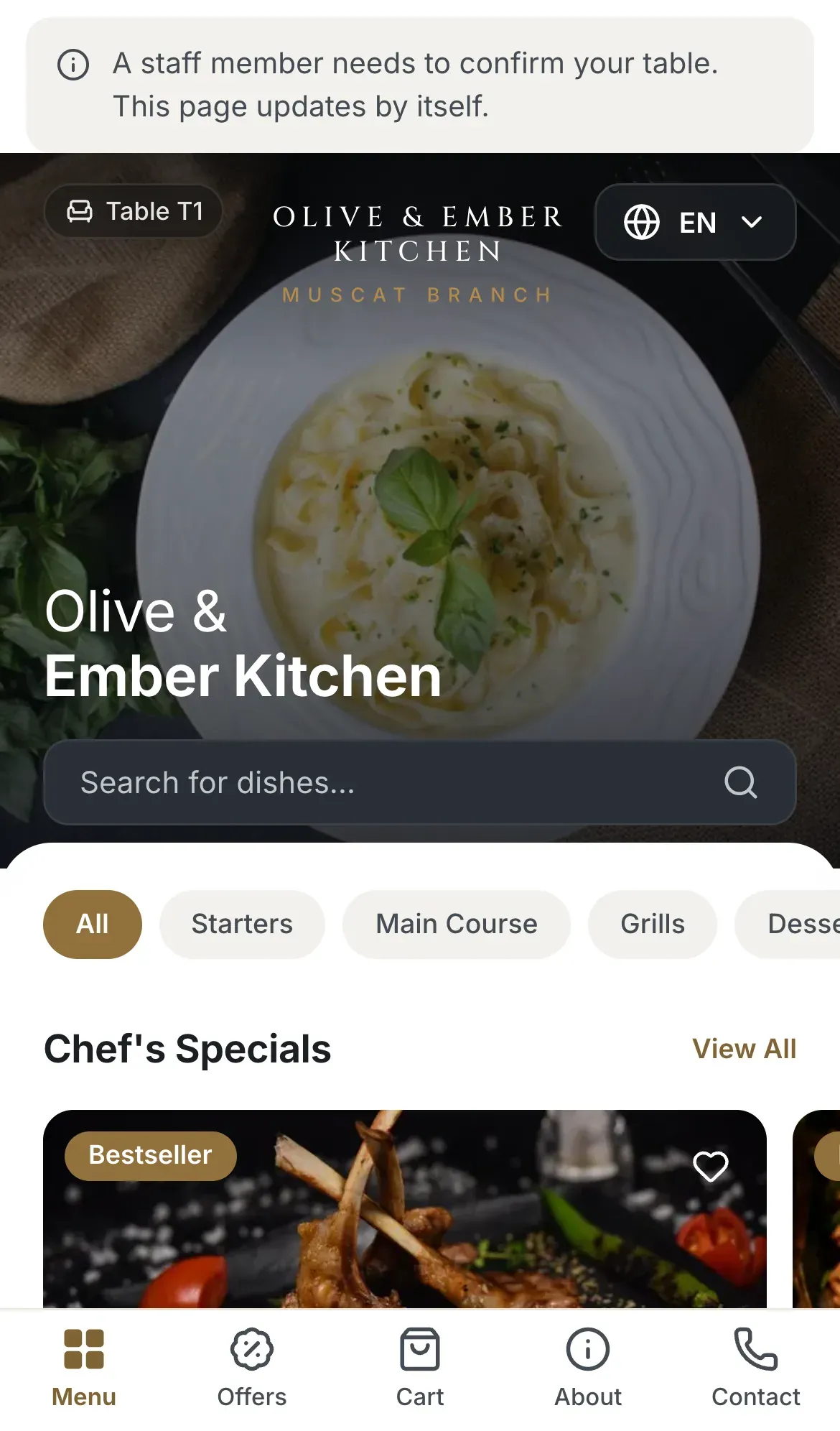
- The message waiting for confirmation
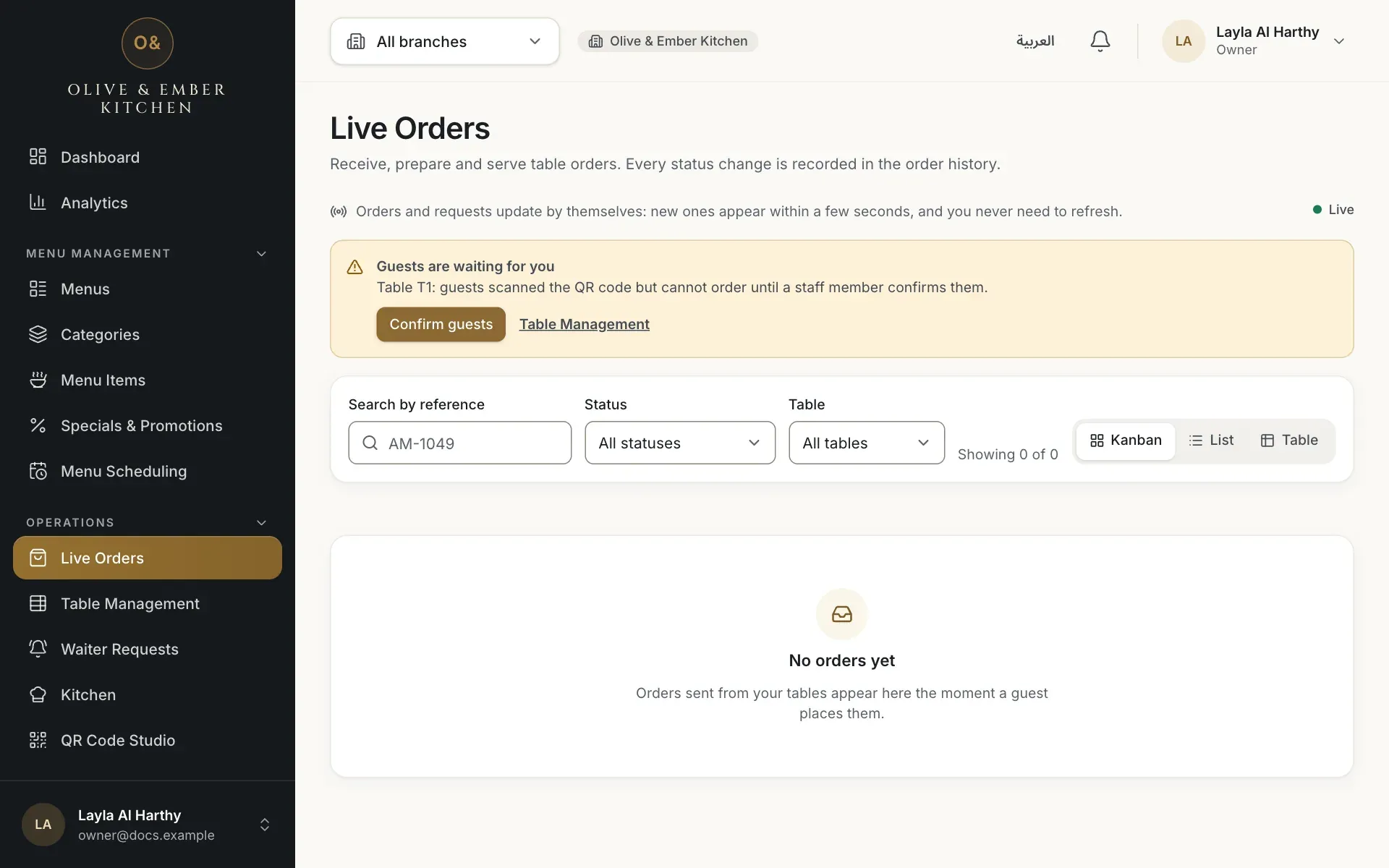
- The Confirm guests button
Browse the menu and search
Tap a category to see its dishes, or use Search for dishes…. Search finds dishes by name and has filters for dietary needs and allergens. A dish that is not available is marked, and cannot be added.
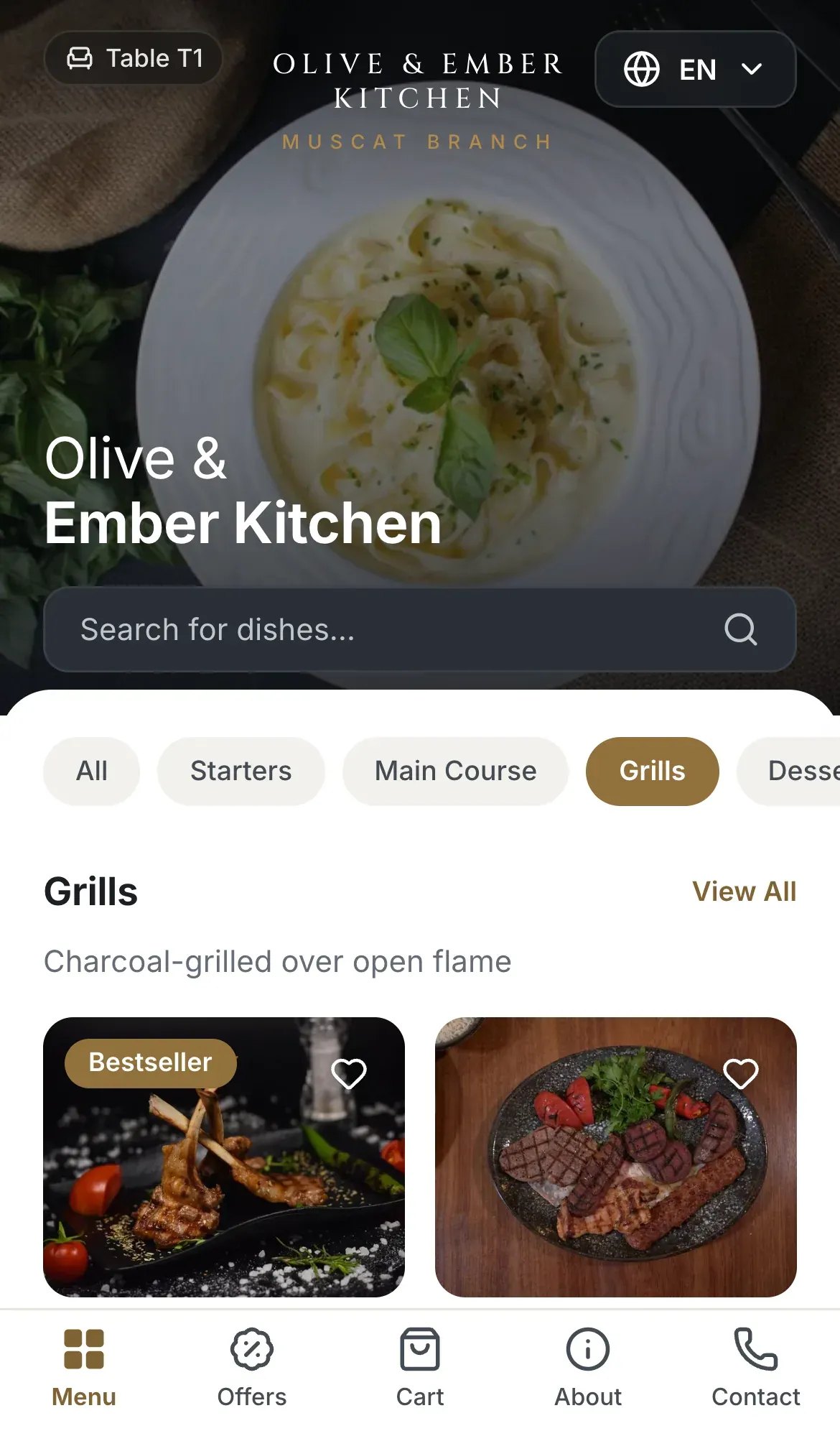
- The Grills category
- A dish card
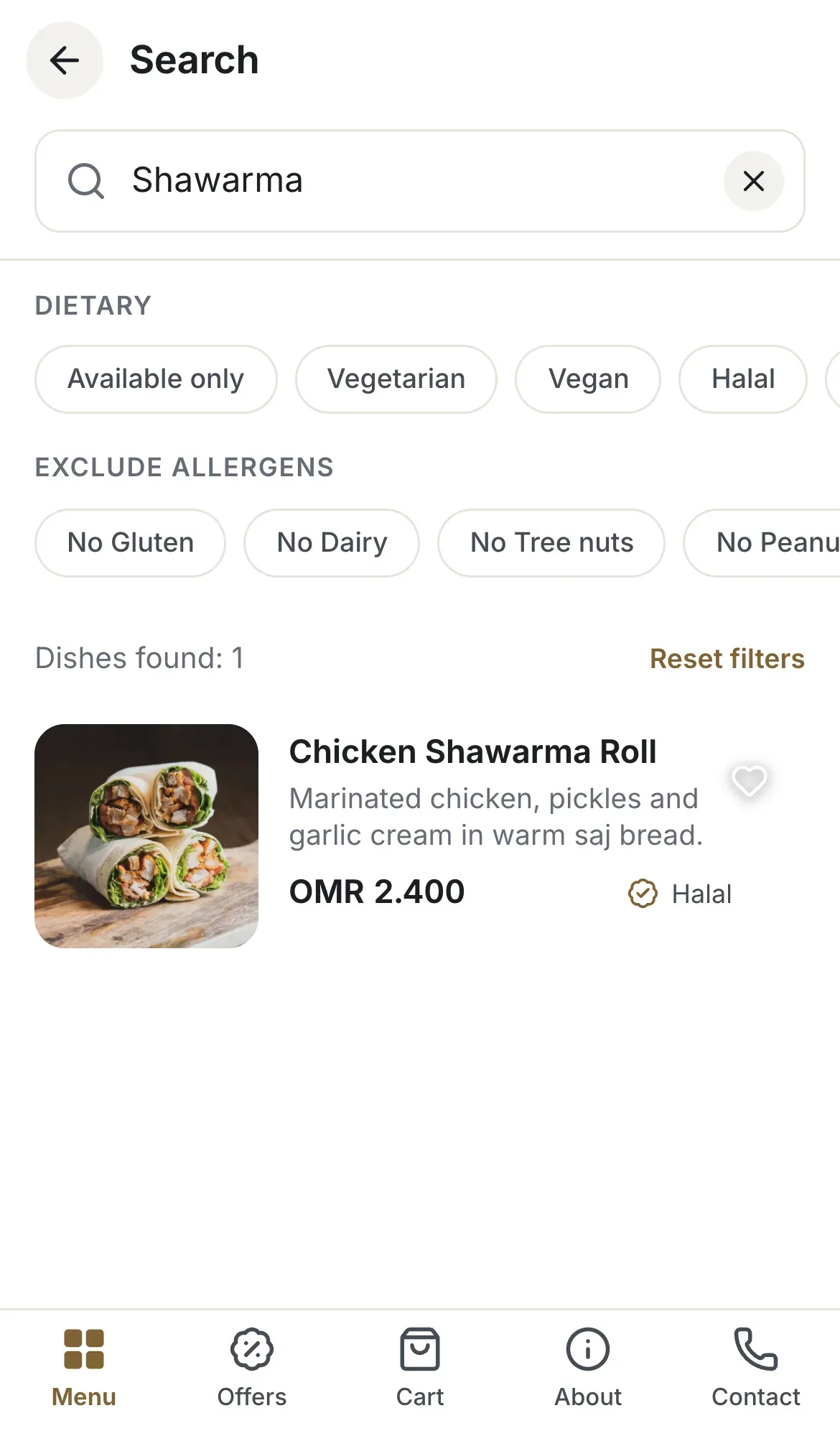
- The search box
- The dishes found
Open a dish and choose size and extras
Tapping a dish opens its page with the photo, the price, the ingredients and the allergens. If the dish has sizes, the guest picks one under Choose your size. Extras are optional additions, some with a price. The guest can write Special instructions of up to 200 characters and set the quantity, from 1 to 20. The button Add to cart shows the price including the choices.
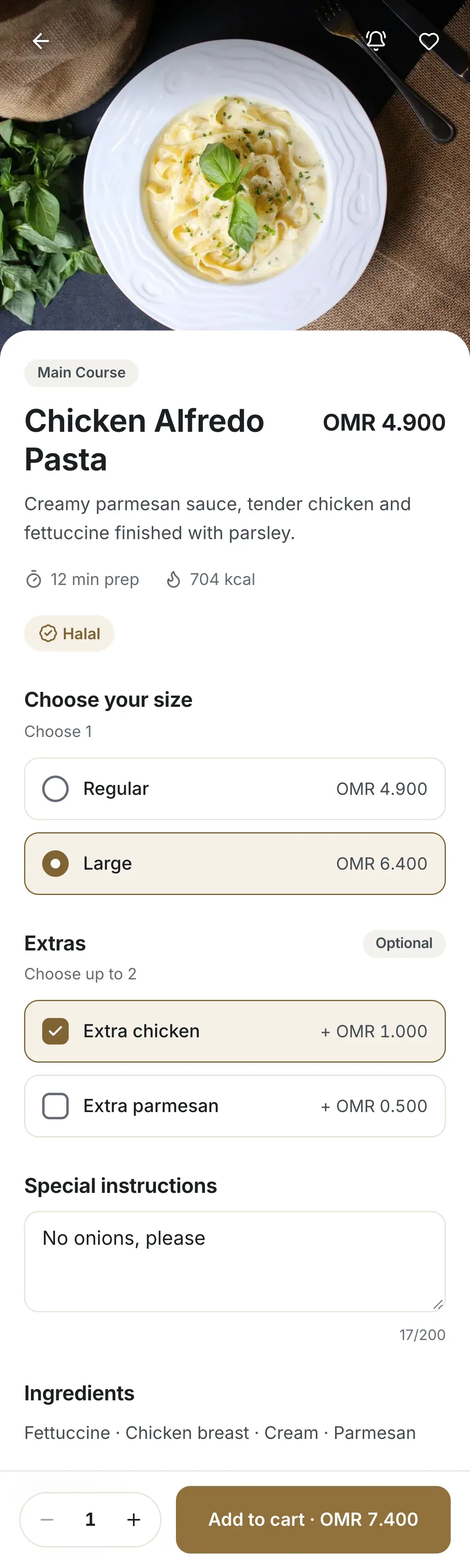
- The size choice
- The extras
- The Add to cart button
Review the cart and send the order
In Cart the guest sees every dish with its choices, the subtotal, the VAT and the total. Place order opens a confirmation, Confirm order for Table T1. The note says that the order goes straight to the kitchen team and that no payment is taken here. Confirm order sends it. If the guest taps twice or the connection drops, the order is not created twice.
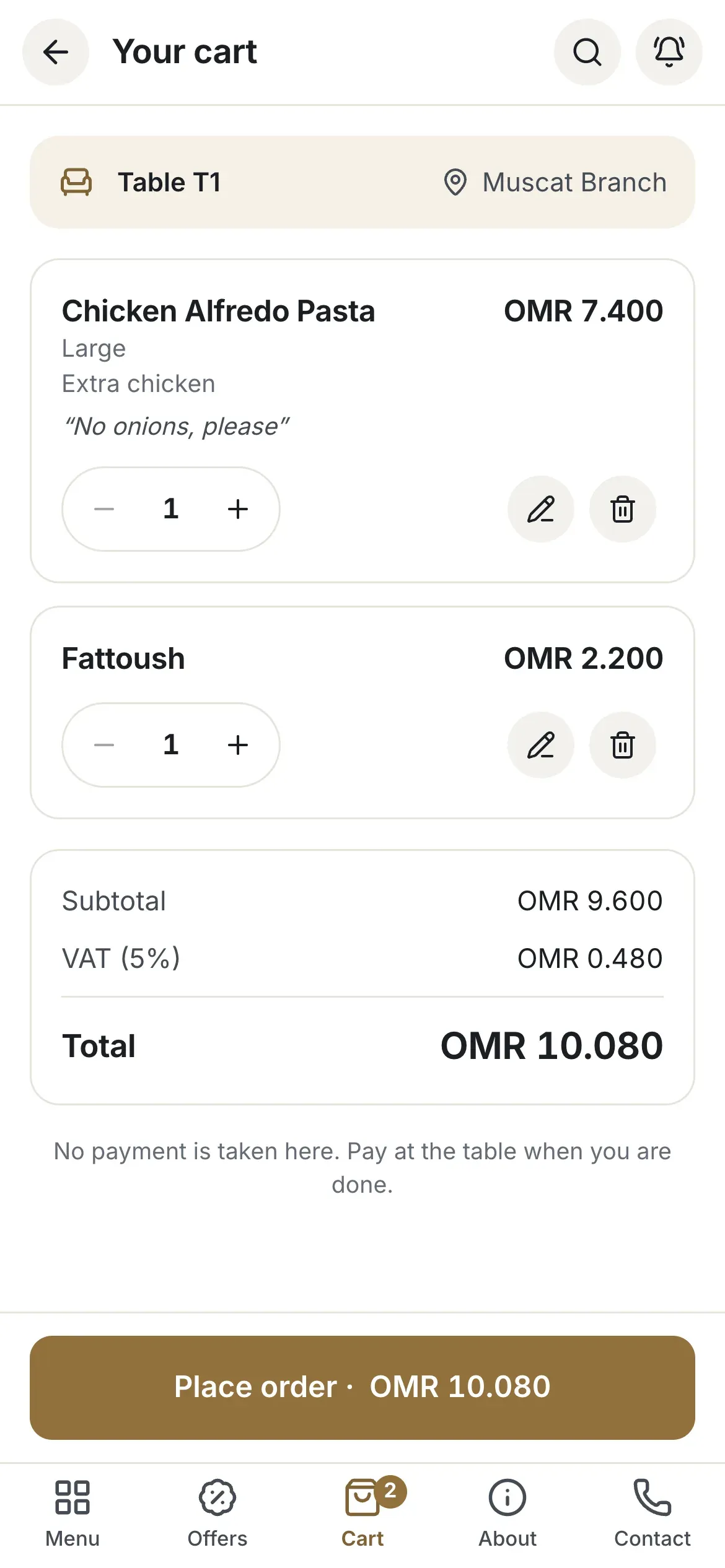
- The totals
- The Place order button
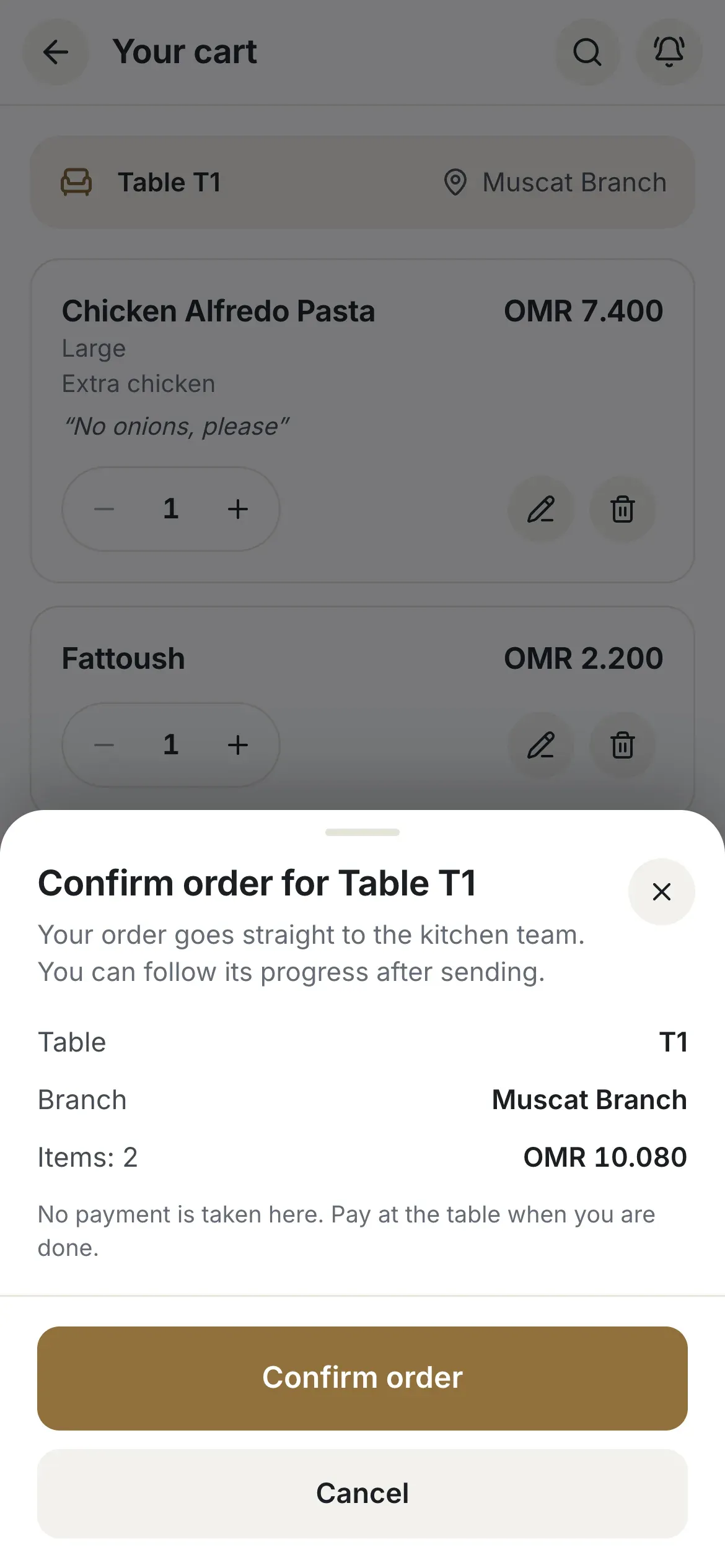
- The Confirm order button
Follow the order
The page Order sent shows the Order reference, for example MCT-0001. Track your order opens the tracking page with the current status and the steps. It updates by itself every few seconds when staff move the order forward. The statuses are New, Accepted, Preparing, Ready, Served and Completed.
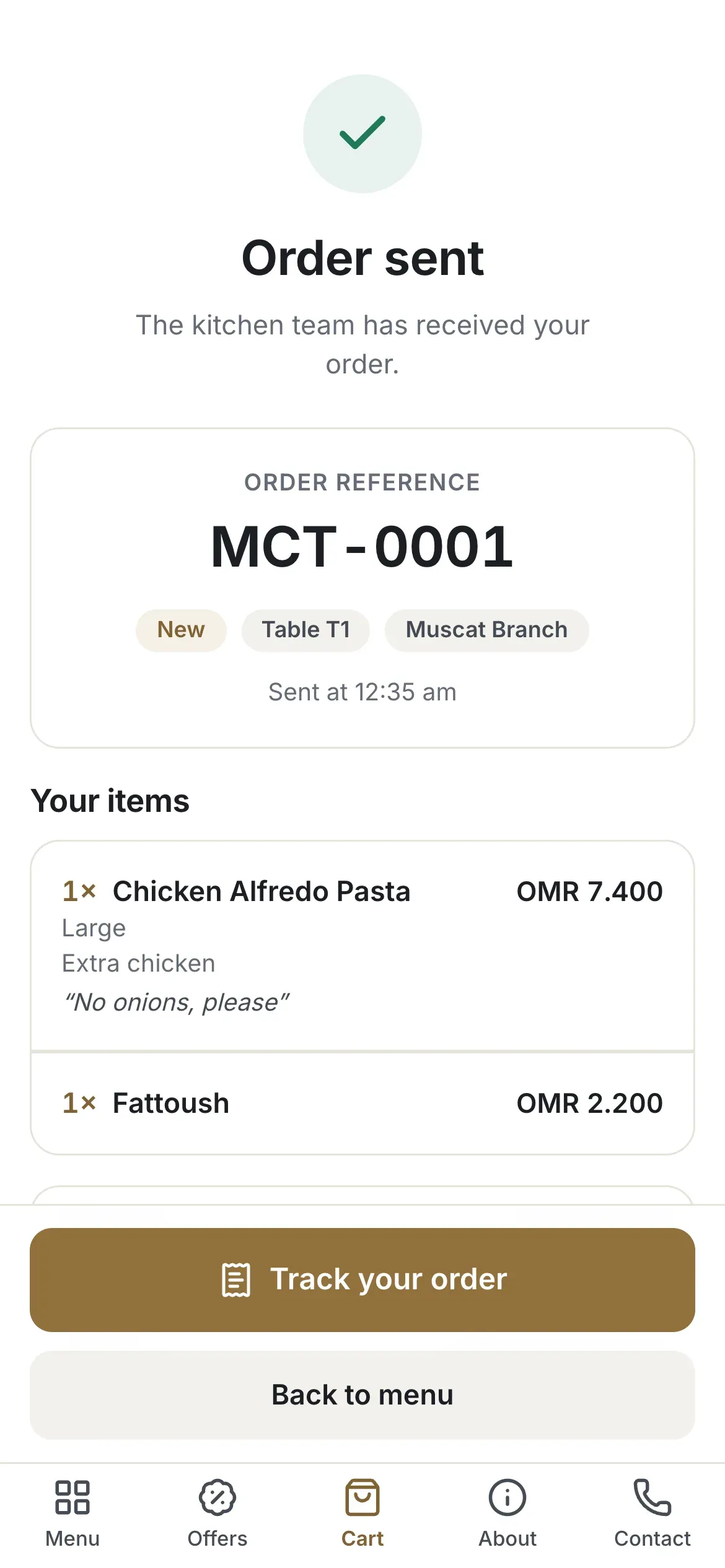
- The order reference
- The Track your order button
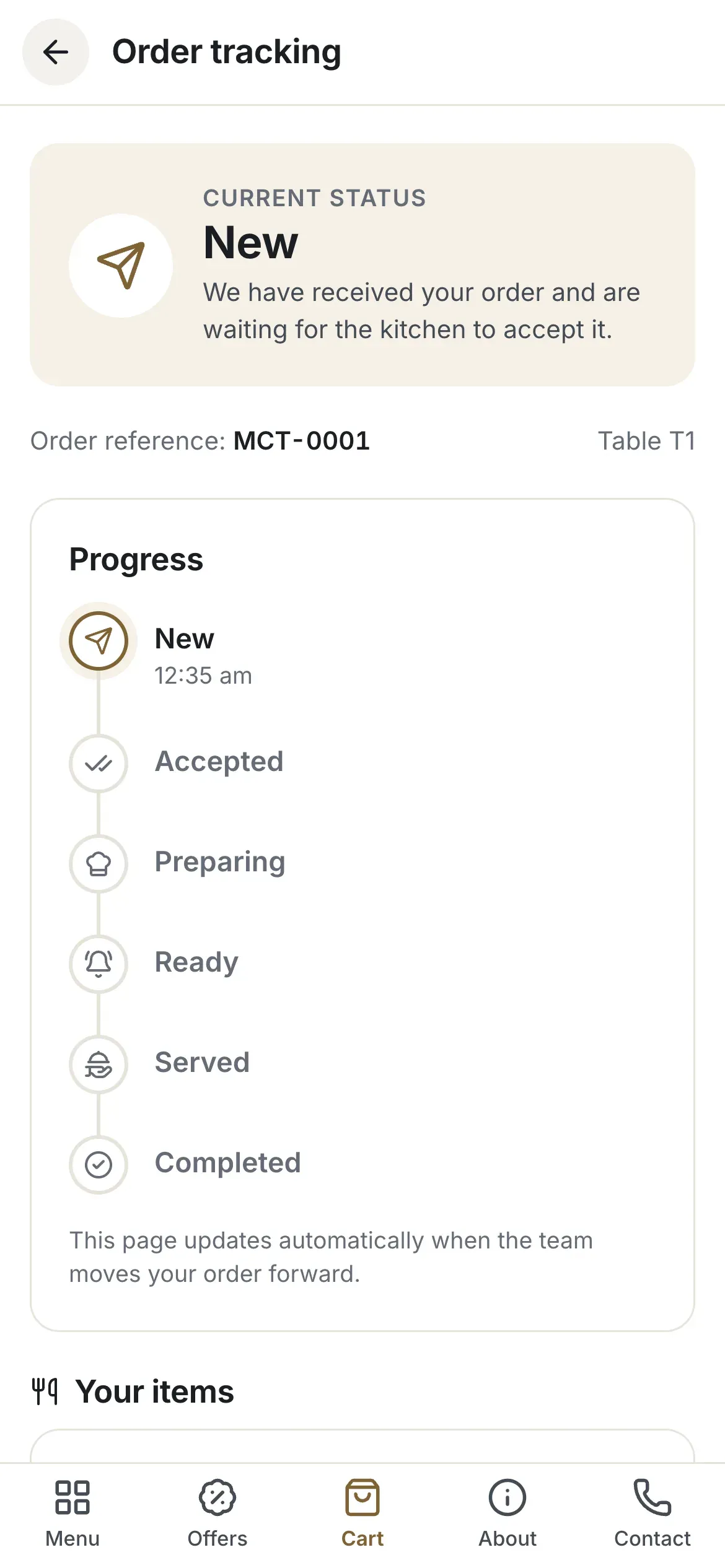
- The current status
- The progress steps
See all orders, or cancel one
My orders lists the orders sent from this phone, those In progress and those Earlier. A guest can send more orders, up to 3 open orders at a time. A guest can cancel an order while it is still New, for up to 2 minutes. After the kitchen accepts it, only staff can cancel. The guest taps Cancel order, then Yes, cancel order. The order shows Cancelled and the guest sees You cancelled this order.
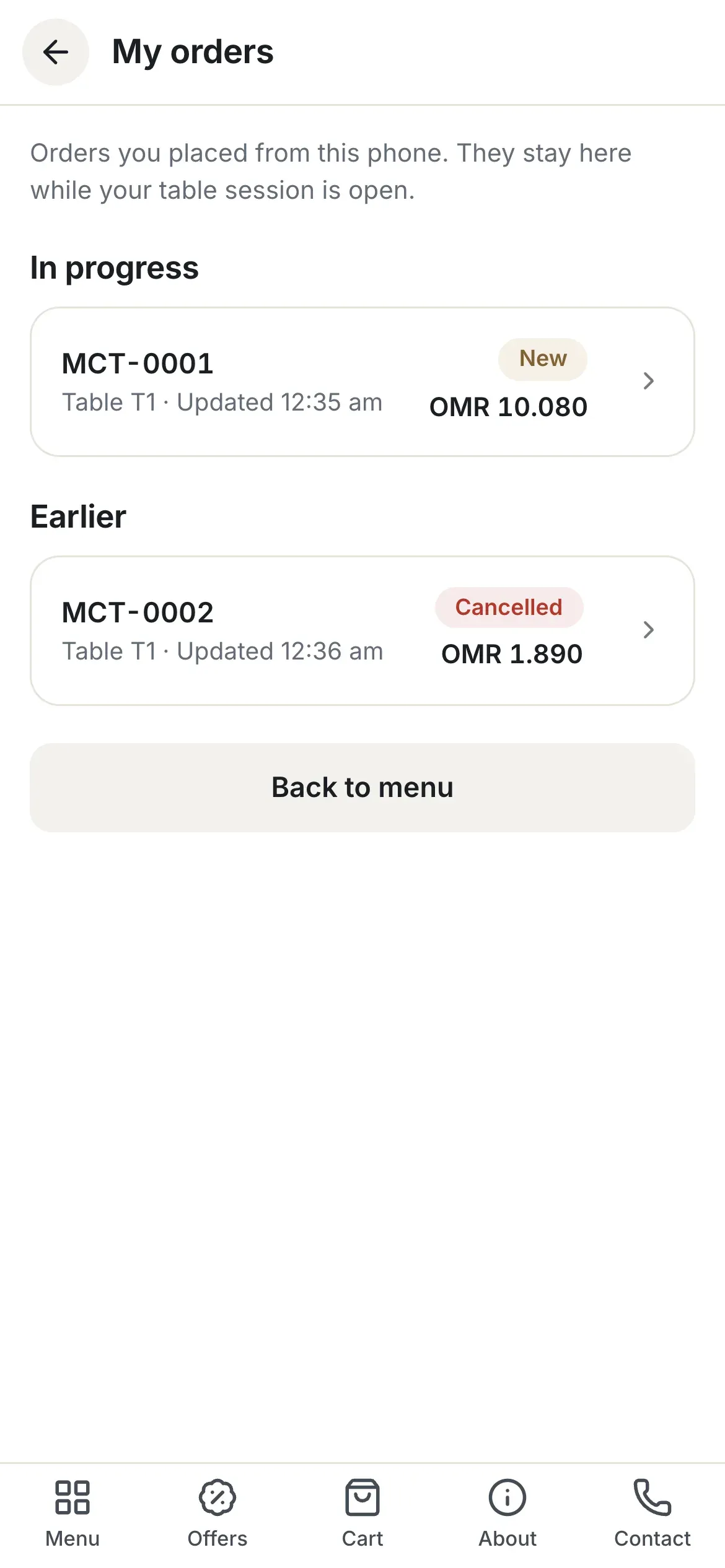
- Orders in progress
- Earlier orders
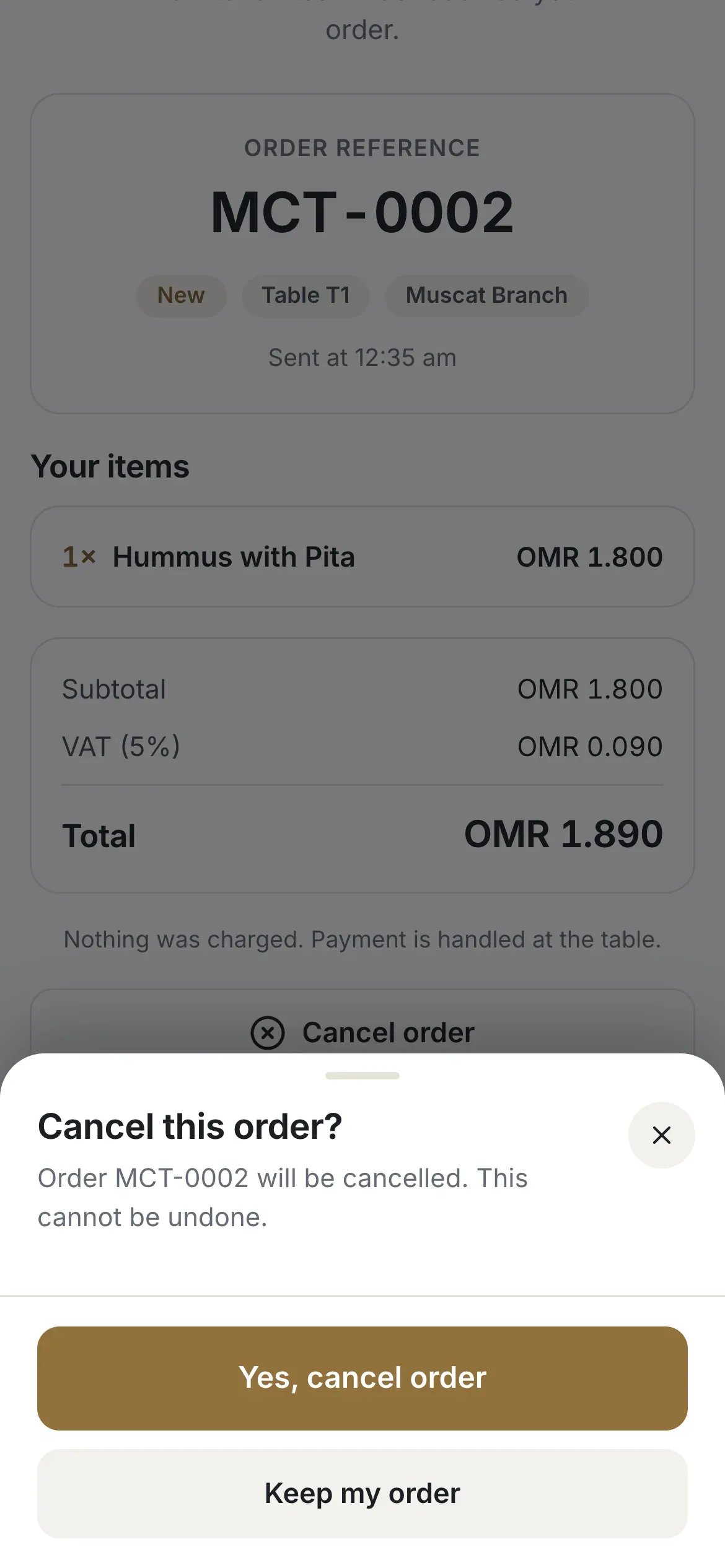
- The Yes, cancel order button
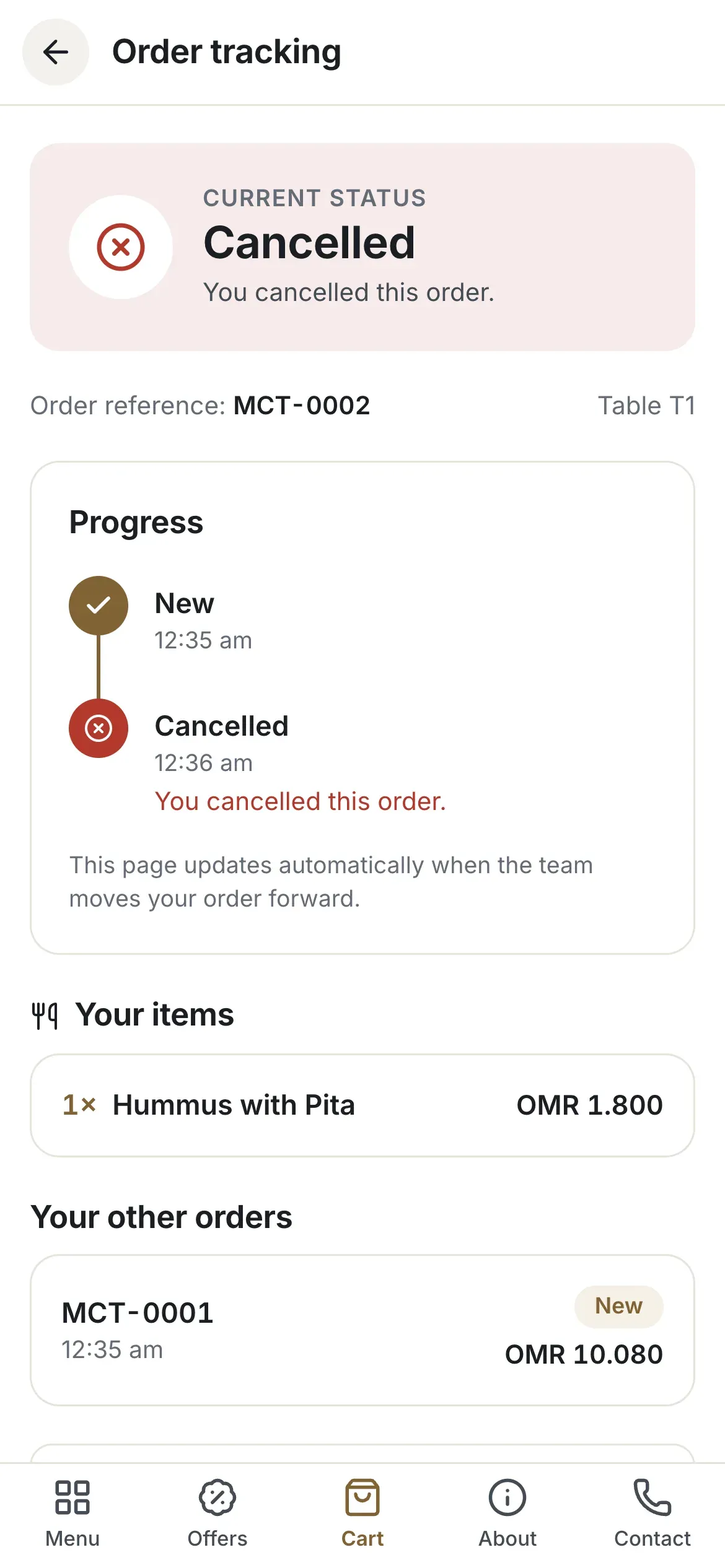
- The status Cancelled
Call the waiter, ask for help or for the bill
The Waiter page has three buttons: Call waiter, Need assistance and Request bill. A request goes to your staff. Request bill does not take payment: it asks a waiter to bring the bill. Under Your requests the guest sees the state: Waiting for staff to respond, then A team member has seen your request. The guest can cancel an open request. On the bill page Your orders so far adds up the orders of this table session, for information only.
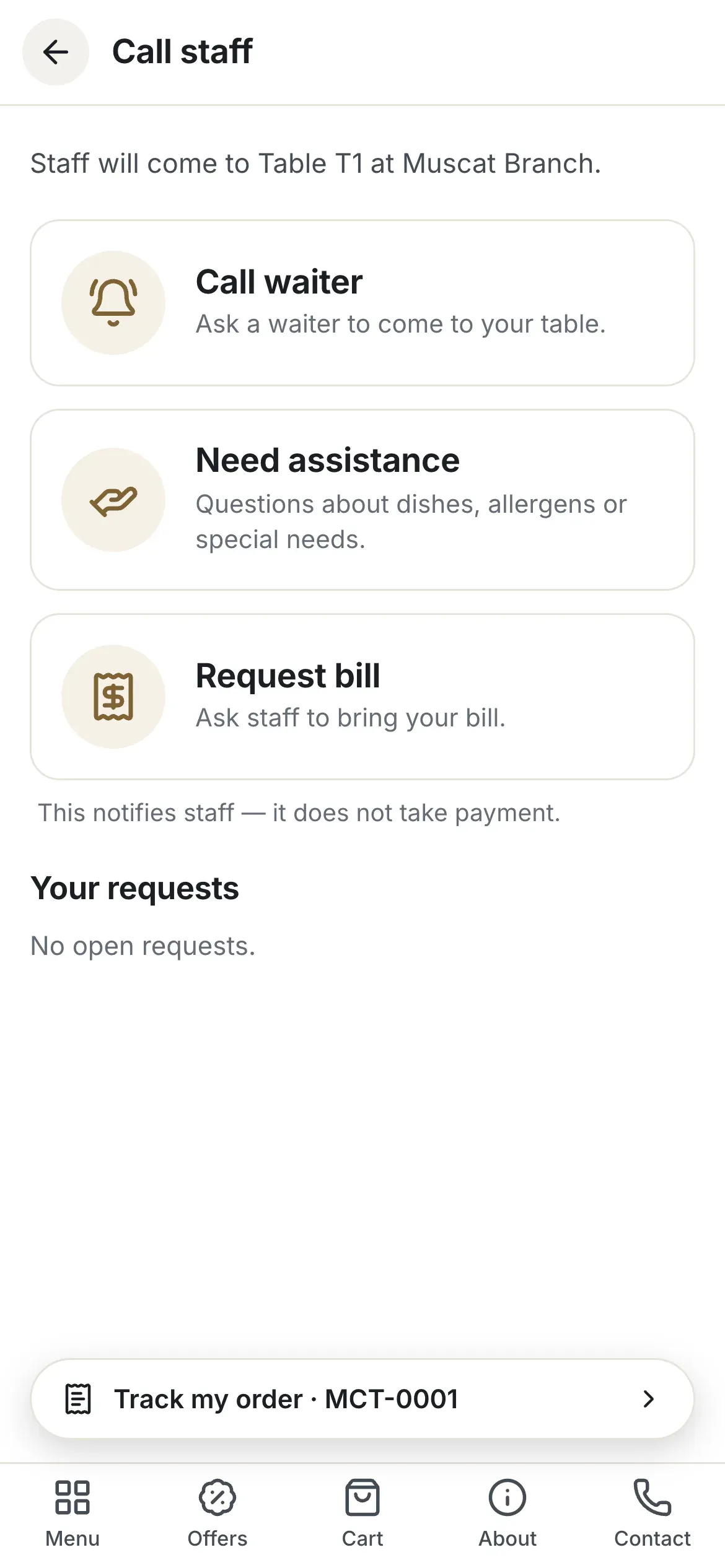
- Call waiter
- Need assistance
- Request bill
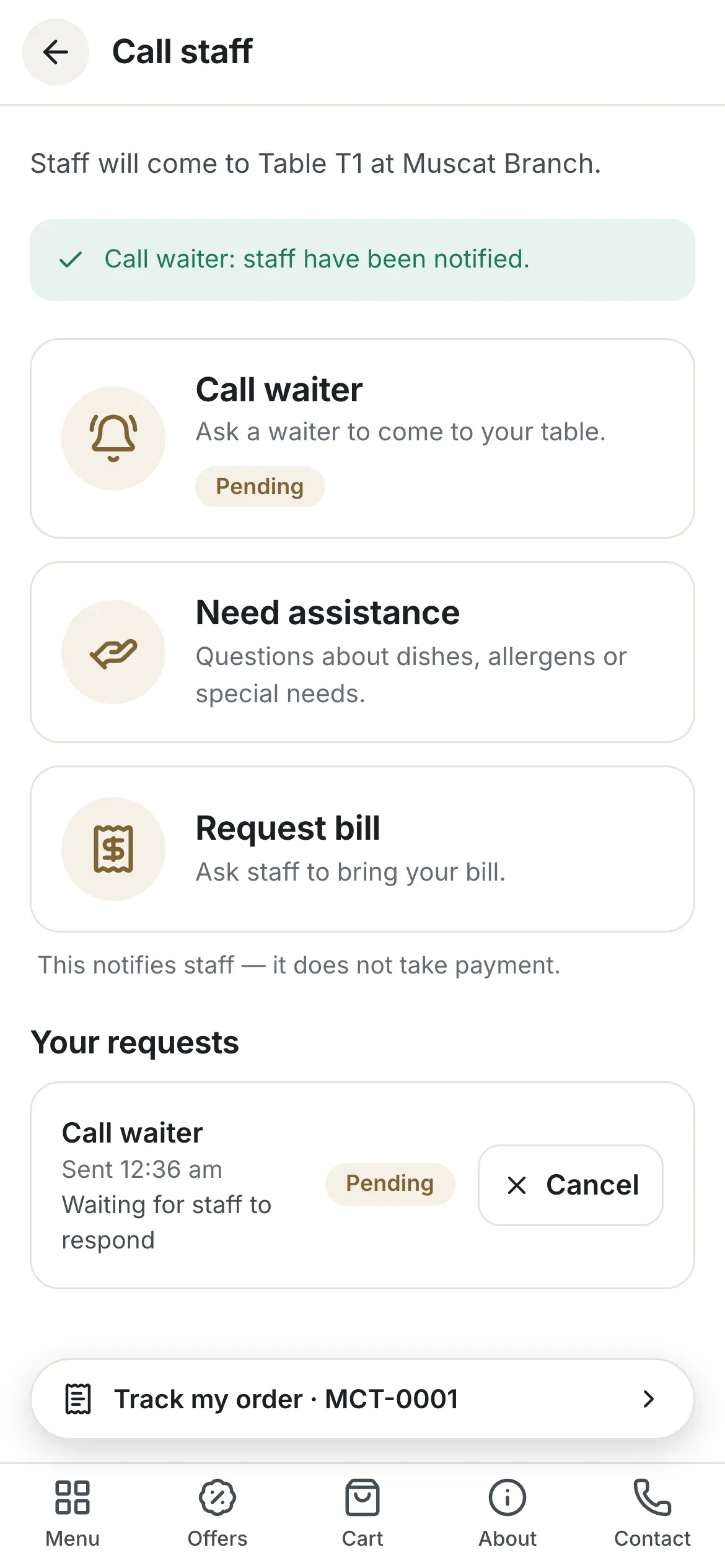
- The confirmation message
- The open request with its state
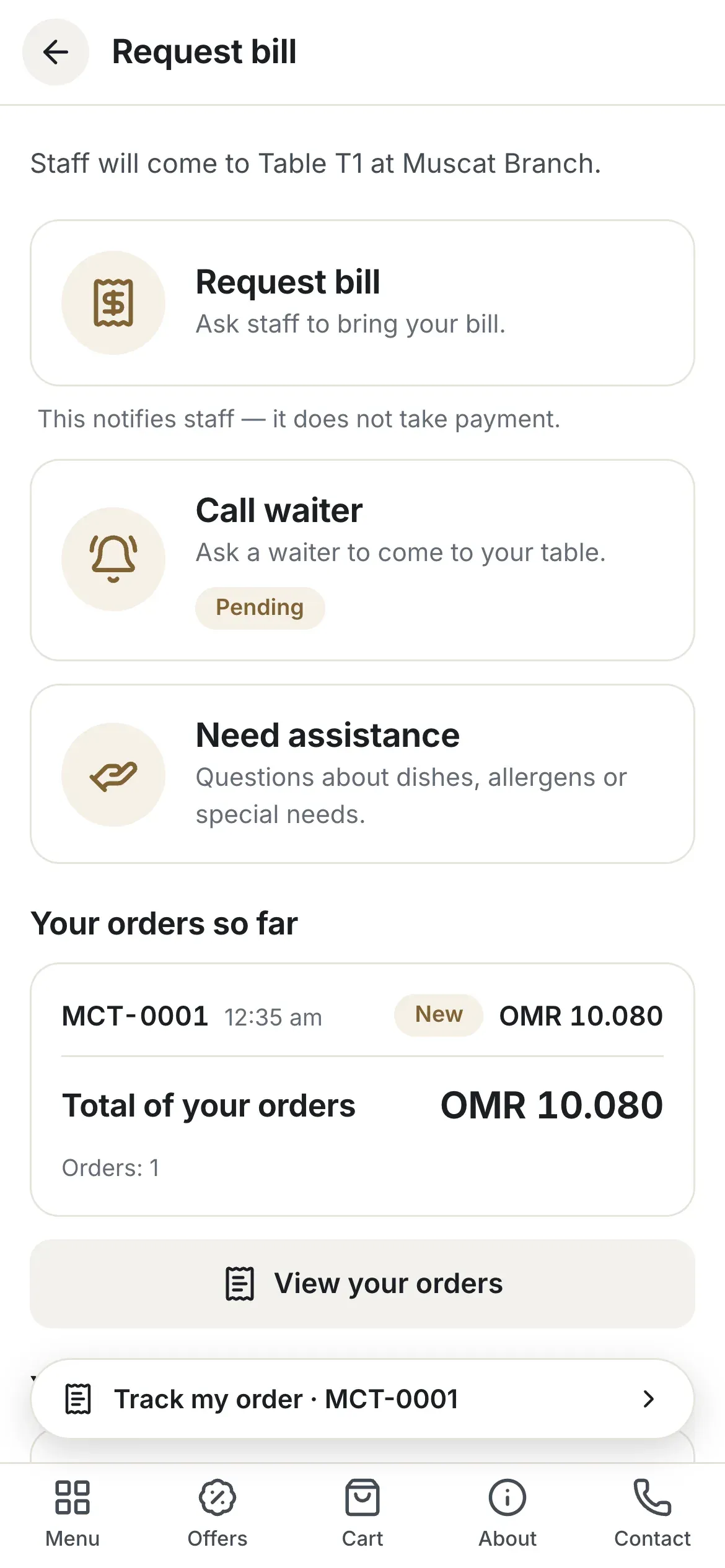
- The orders so far and the total
- The Request bill button
Switch the language
The language button at the top of the menu opens English and العربية. The choice is kept on that phone. The whole menu and all the order screens change, and Arabic reads from right to left. Dishes show their Arabic text, or the English text if you have not written an Arabic one.
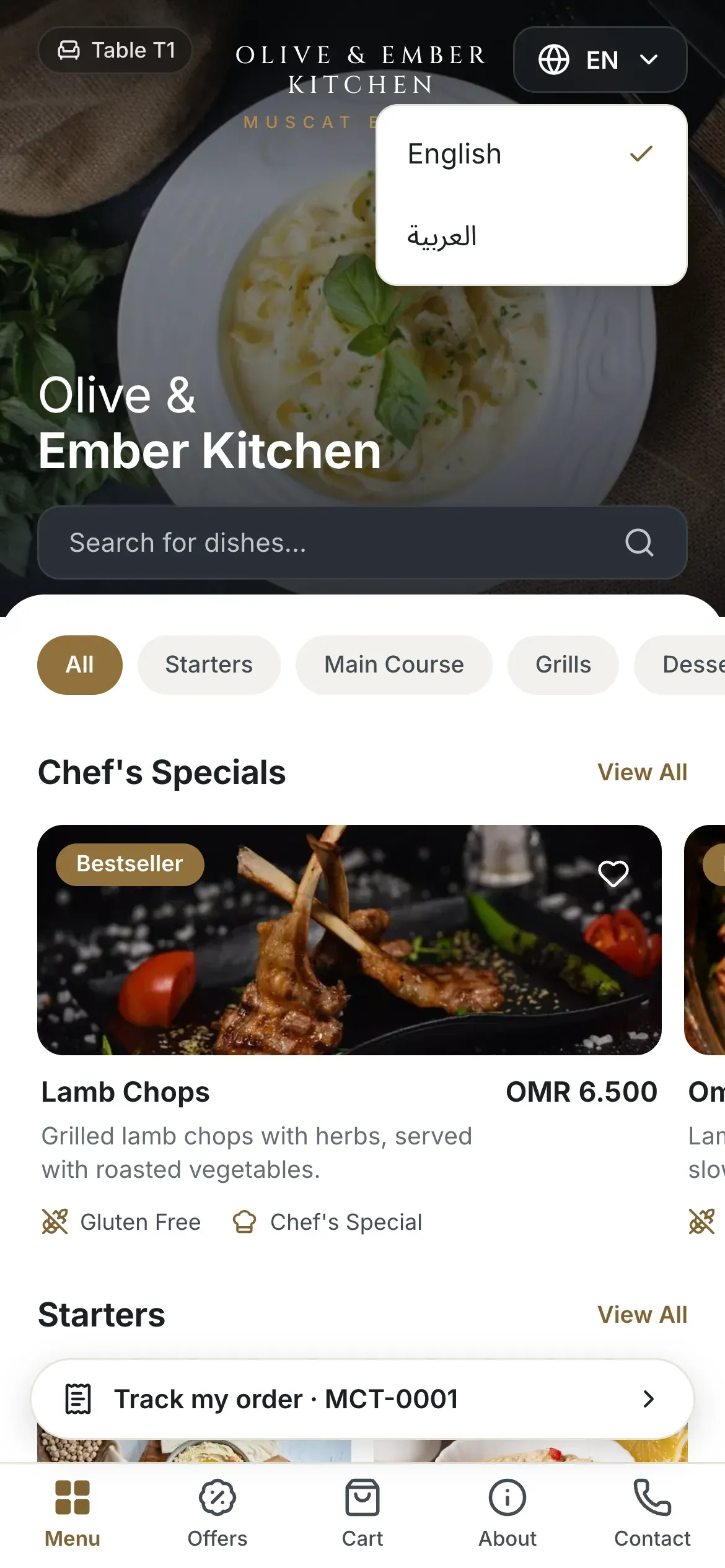
- The language button
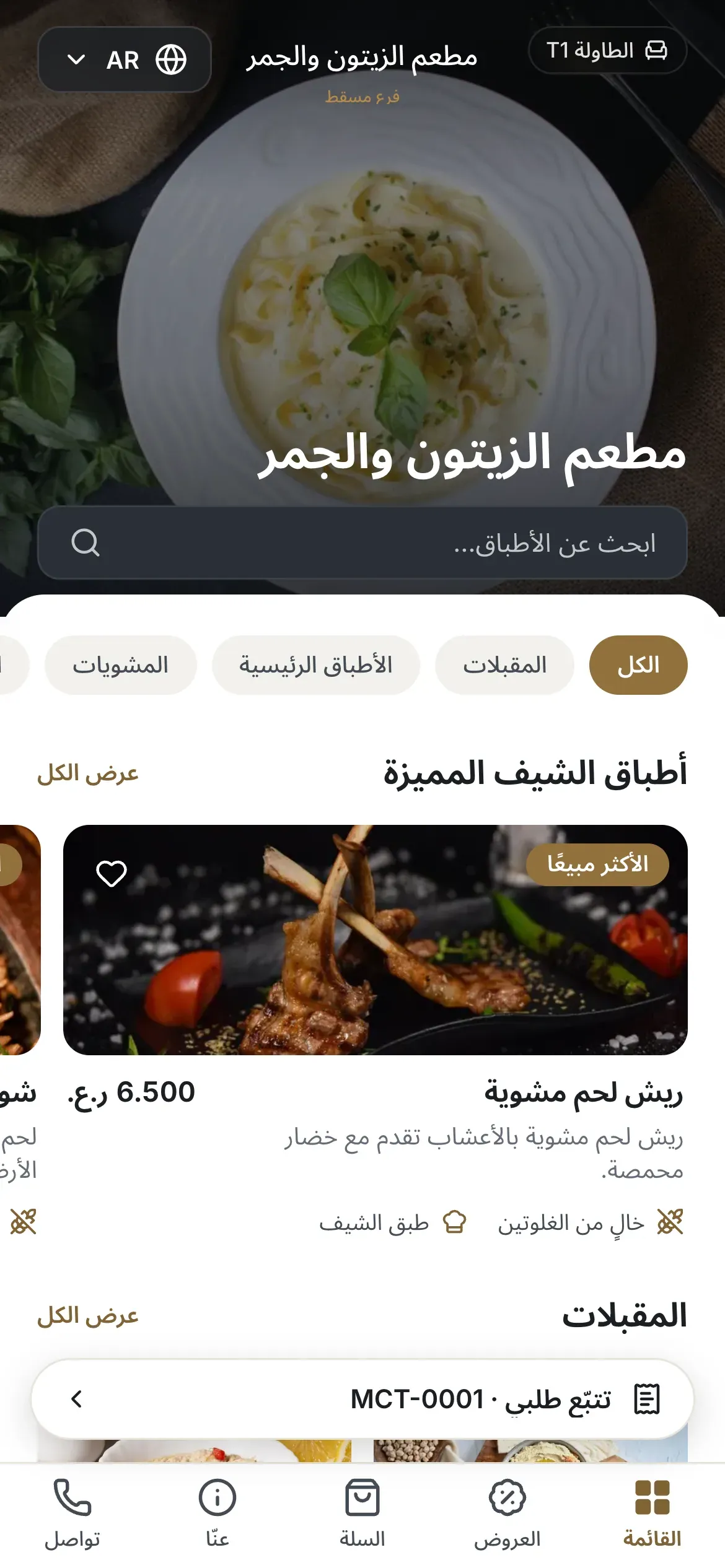
- The language button, now showing AR
Orders stay on the guest's phone
A guest sees only the orders sent from their own phone, and only while the table session is open. When the session ends, the earlier orders disappear from the phone. Staff still see them in Live Orders.
Check the mode of the branch
Cart and order buttons appear only when the branch runs Full table ordering. In Menu + waiter guests can call the waiter but not order. In Menu viewer only they can only browse.
Troubleshooting
The guest opened the menu from a restaurant or branch code, or without a table. Ask them to scan the code on their table.
The table session ran out, which happens after the session time of the branch, 2 hours by default. The guest scans the table code again.
One table session can have 3 open orders at a time. The guest waits until one is served, then orders again.
You published a new version of the menu, or a price changed, while the guest was choosing. The cart is updated. The guest checks the dishes and the total and confirms again.
Orders are switched off for the restaurant, or the mode of the branch does not allow ordering. Turn on Accept orders in Restaurant Settings, or check the operating mode.
The 2 minutes have passed, or the kitchen has accepted the order. Only staff can cancel it now, from Live Orders.
Related guides
- OrdersLive OrdersReceive guest orders, accept or reject them, move them to served, and see who on your team can do what.
- OrdersOrder statusesWhat New, Accepted, Preparing, Ready, Served, Completed, Rejected and Cancelled mean for your guest and for your team, and who can set each one.
- OrdersWaiter requestsSee when a guest calls the waiter, asks for help or asks for the bill, and answer each request from the Waiter Requests screen.
- Tables & QR codesCreate QR codesCreate a QR code for your restaurant, a branch or a single table, and see what a guest gets when scanning it.