
Change or revoke access
Change a member's role or branches, pause their access, or remove it, and see what the person sees when access ends.
- Goal
- You can change what a team member may do, pause their access, or remove it for good.
- Before you start
- You are the owner or an administrator
- The person is already an active member of your team
People change jobs and leave. Every change below takes effect at once. You can change someone's role or branches, pause their access with Suspend (you can undo it), or remove it with Revoke access (permanent). You cannot change yourself or a person whose role is equal to or higher than yours. The owner cannot be demoted or removed.
Open the member's menu
In Staff & Permissions find the person in the Team tab. Click the three dots at the end of their row. For an active member the menu offers Change role, Suspend and Revoke access.
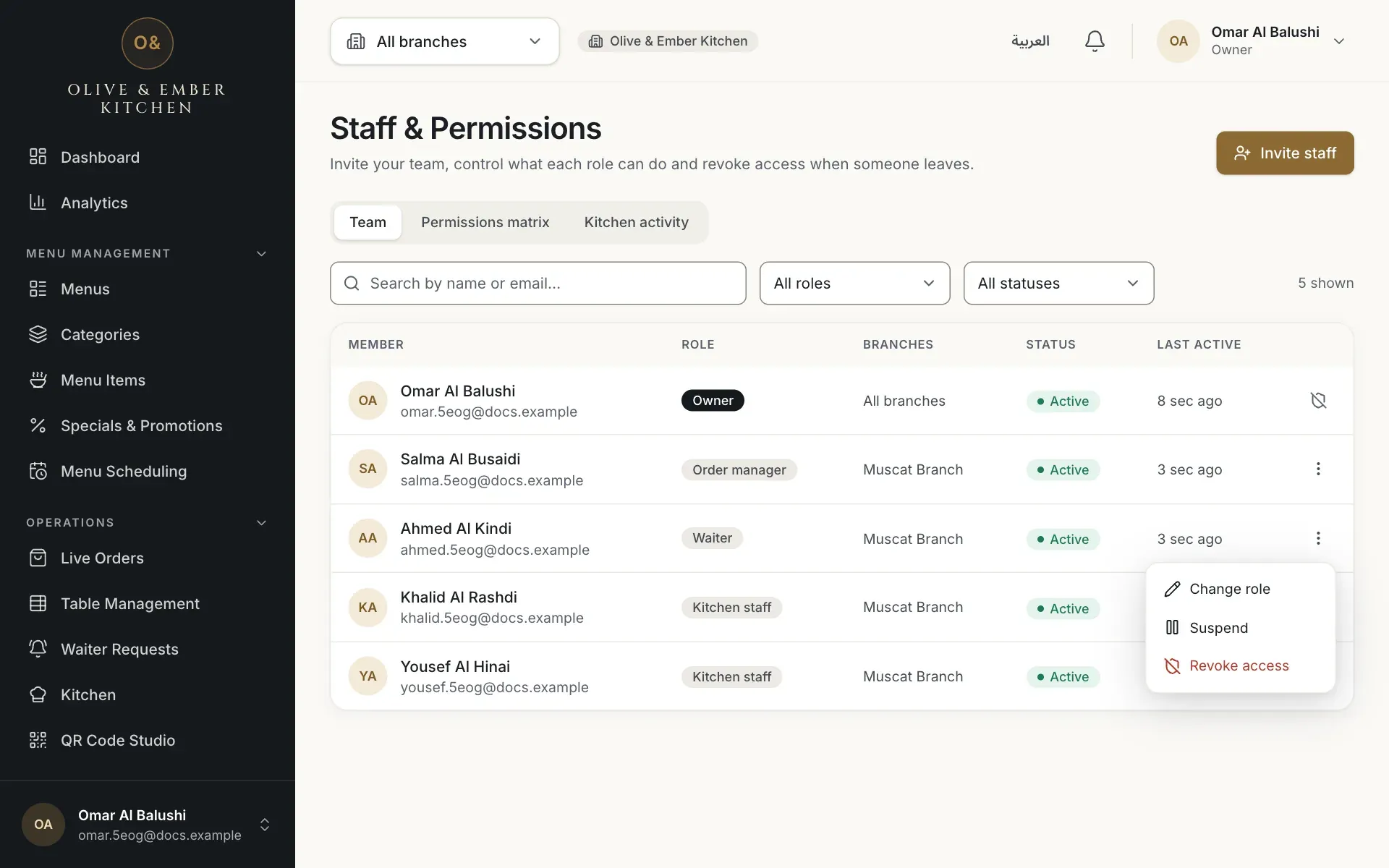
- The Change role choice
- The Suspend choice
- The Revoke access choice
Change the role or the branches
Choose Change role. In the window Change role for … pick the new Role and, for branch roles, tick the branches under Branch access. At least one branch is required for Branch manager, Order manager, Waiter and Kitchen staff. To change only the branches, keep the same role and change the ticks. Click Save changes. The new permissions apply immediately.
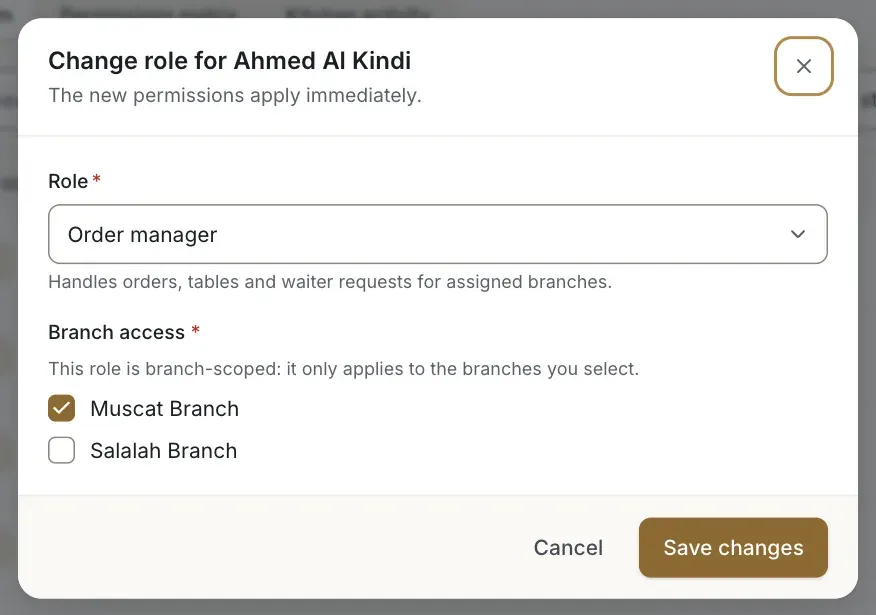
- The Role list
- The branch the person works in
- The Save changes button
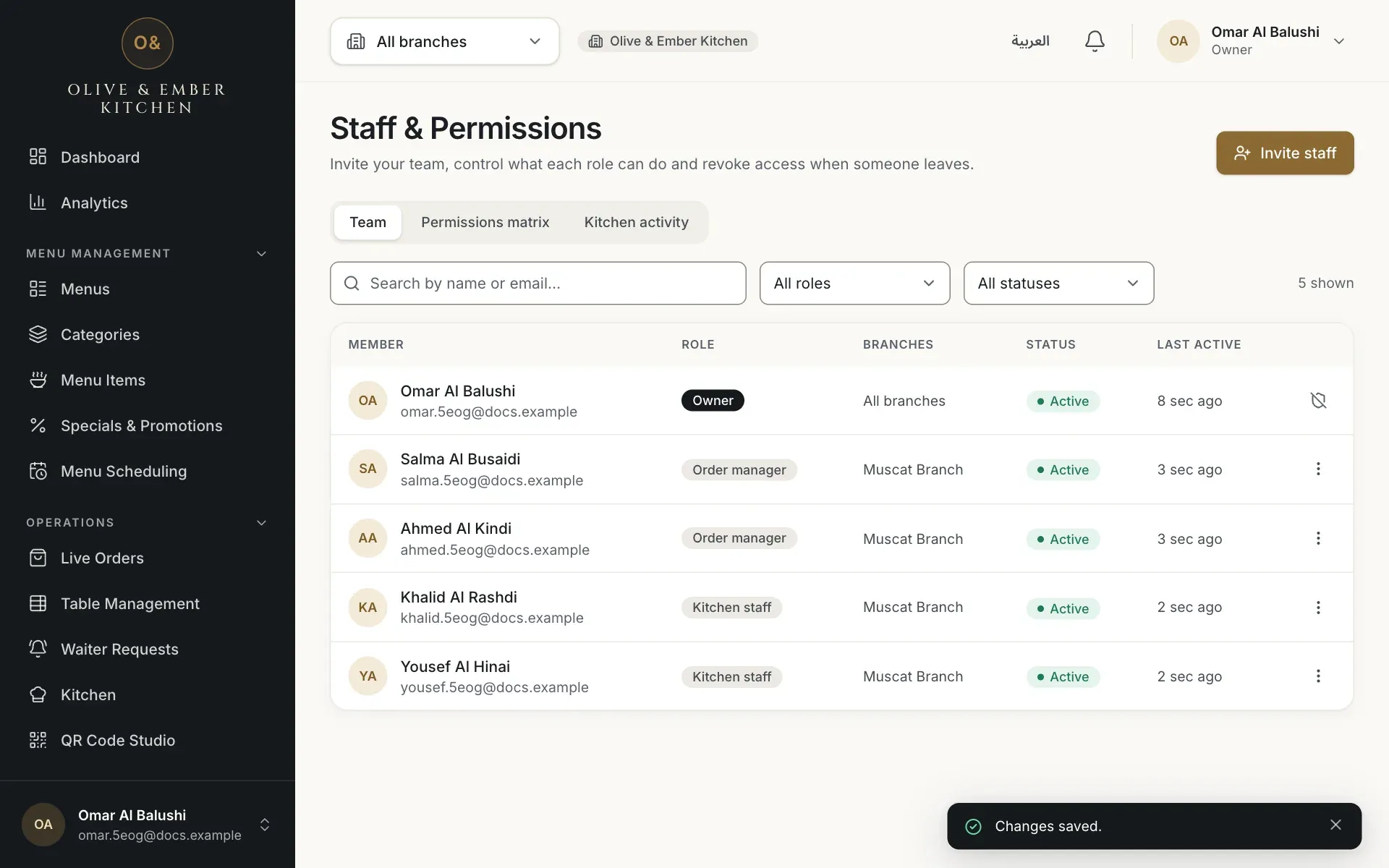
- The new role in the row
Pause access with Suspend
To block someone for now, open the menu and choose Suspend. The status changes to Suspended. The person keeps their place in the team and the role is kept. To give access back, open the menu and choose Restore access. A suspended member has no Change role choice until you restore them.
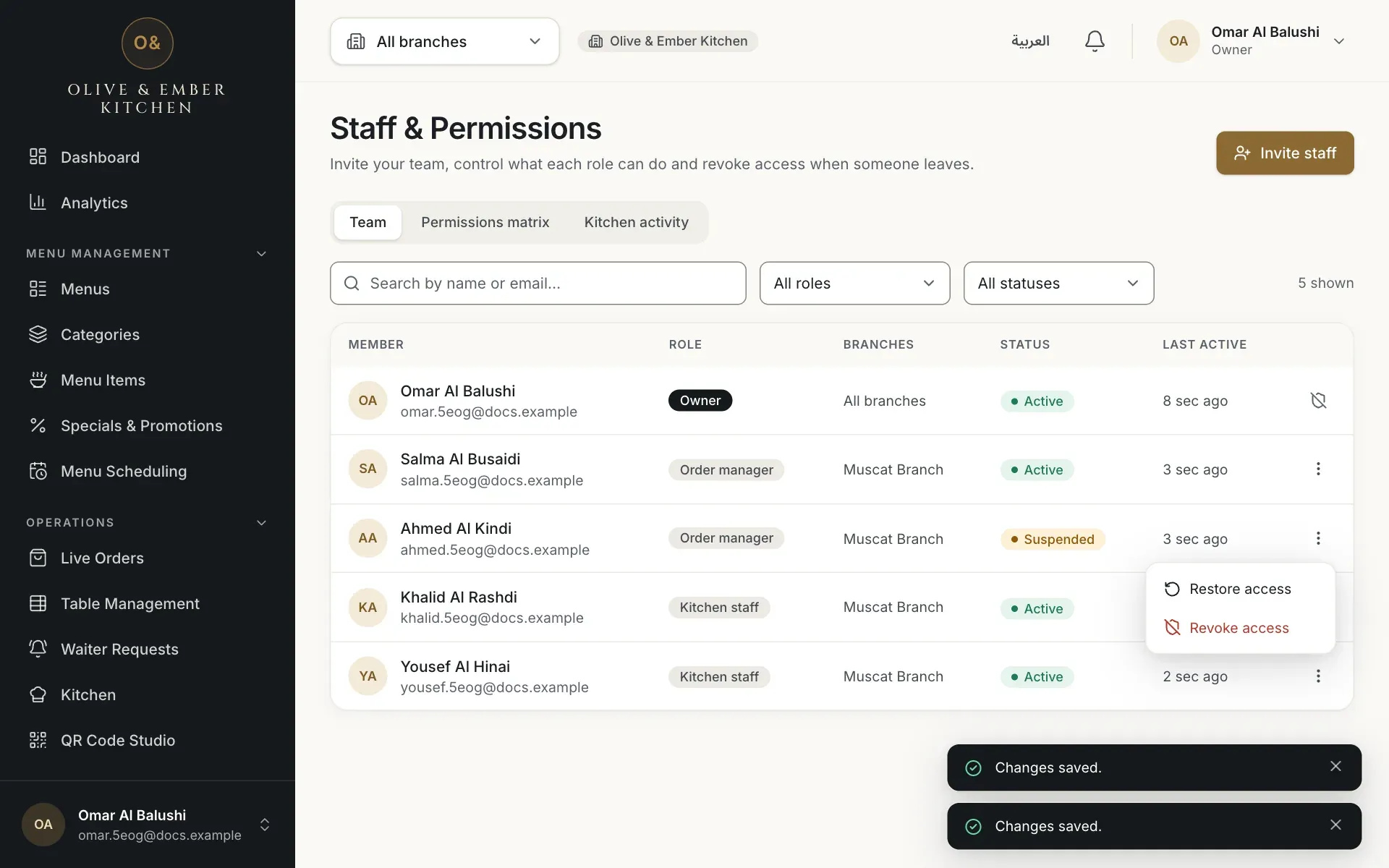
- The Suspended status
- The Restore access choice
See what a suspended member sees
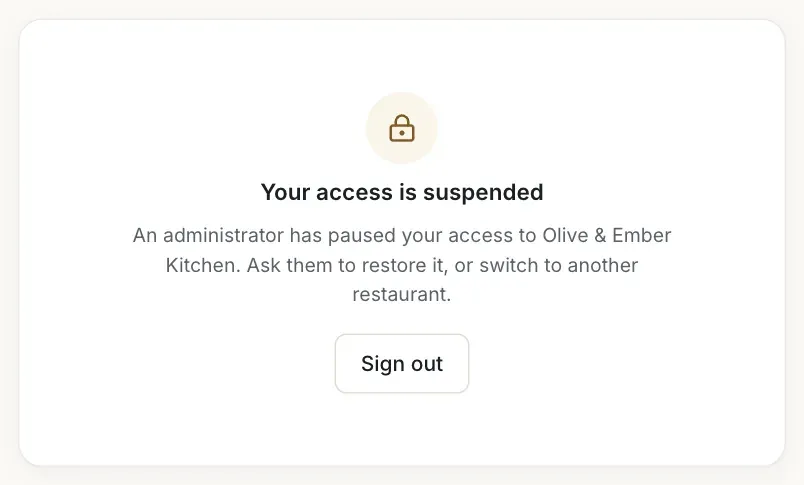
When a suspended person opens RothDine, they see Your access is suspended and a Sign out button. The page says that an administrator has paused their access and that they should ask to have it restored. Nothing else is available to them until you restore access.
Revoke access for good
Open the menu and choose Revoke access. The window Revoke access for …? explains that this is permanent. The person loses access immediately and disappears from the list. To give access again you must invite them again. If you only want to pause access, use Suspend instead. Click Revoke access to confirm.
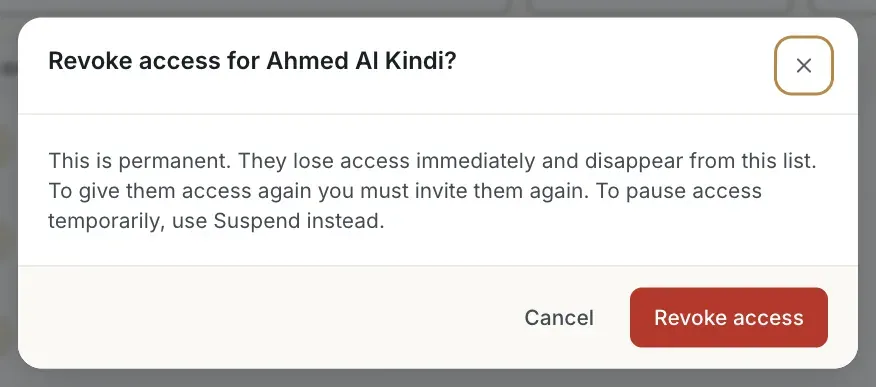
- The explanation that this is permanent
- The Revoke access button
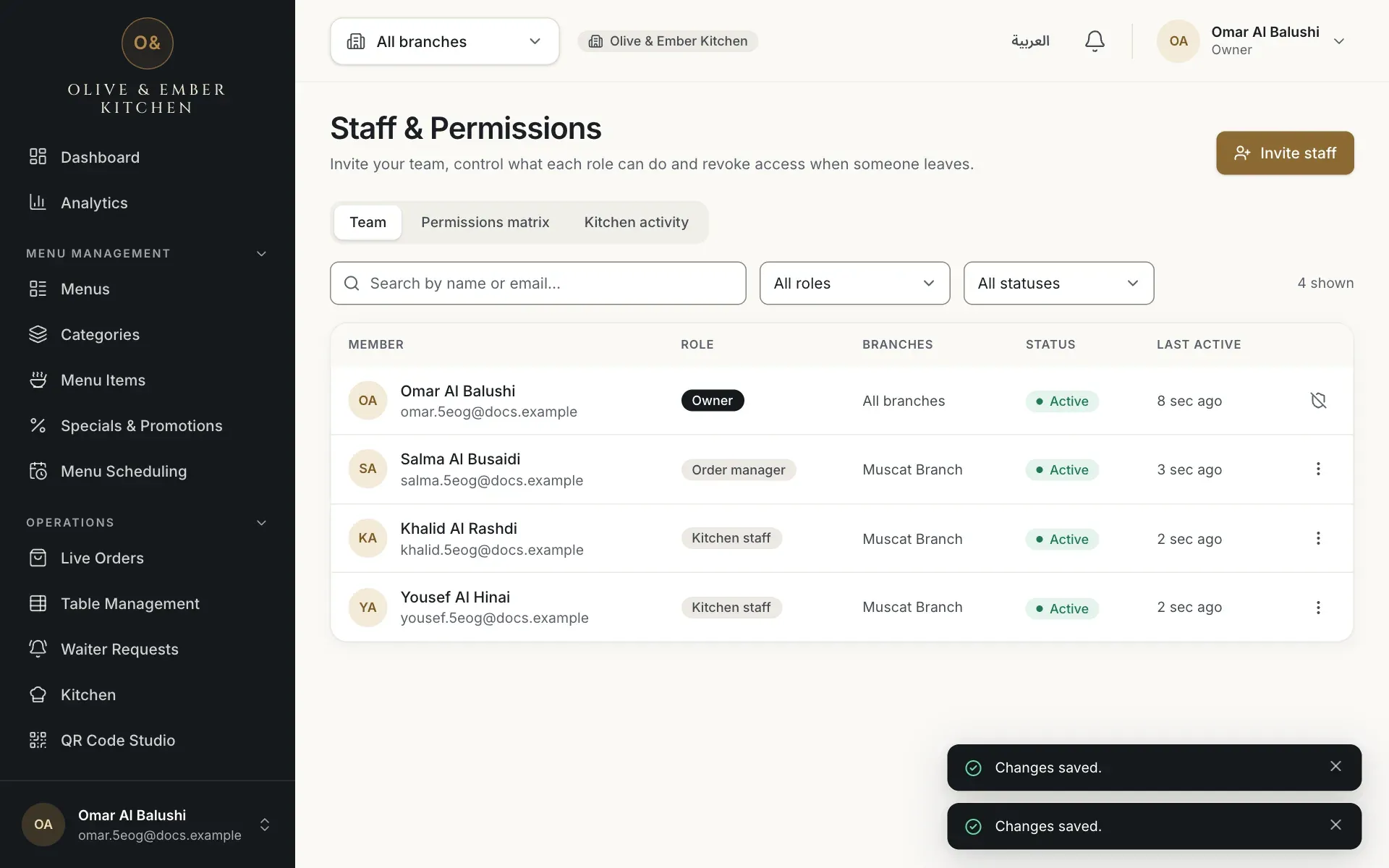
- The team list without the revoked member
See what a removed person sees
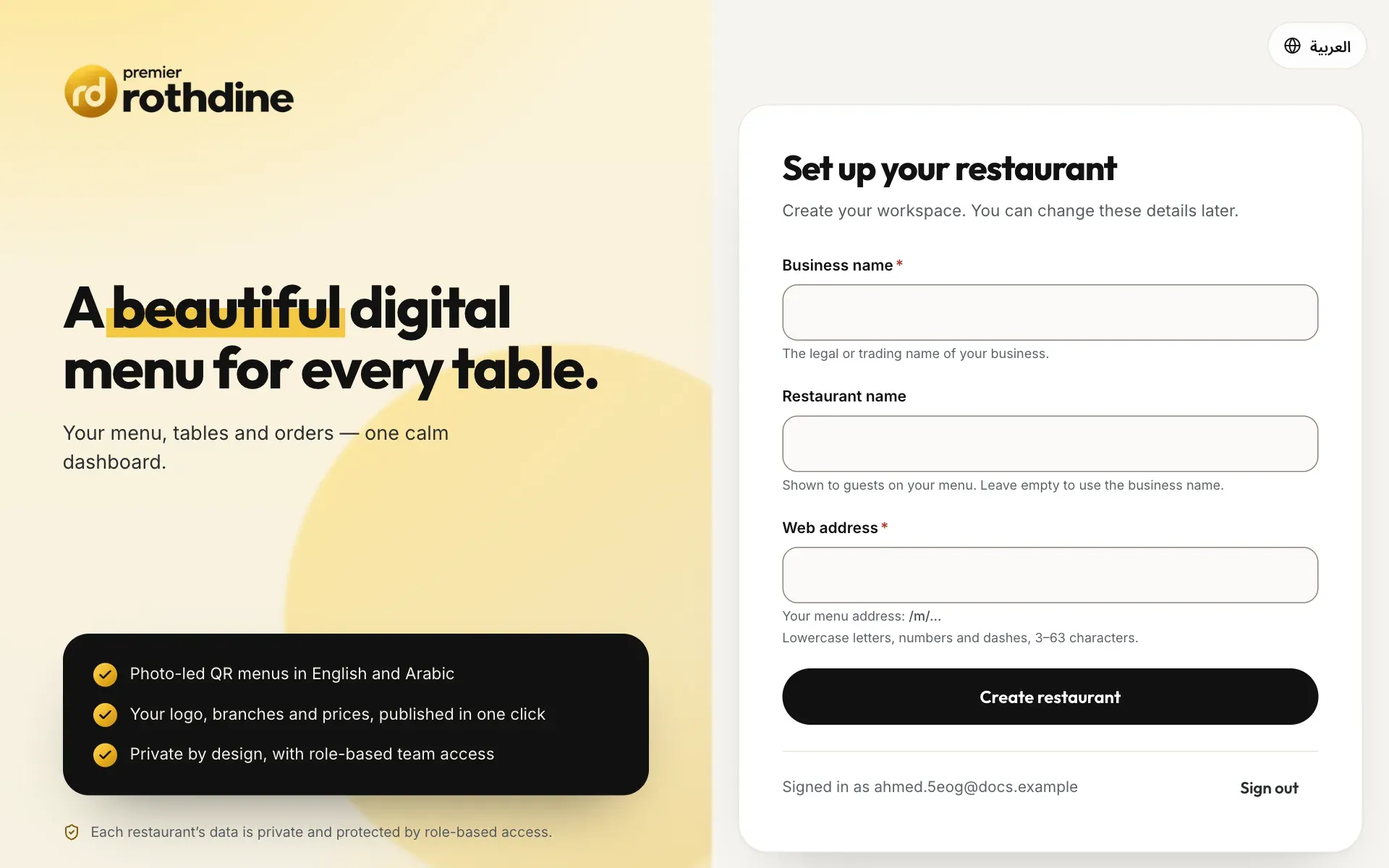
A person whose access was revoked can still sign in to RothDine, but your restaurant is no longer listed for them. If they have no other restaurant, they see the page Set up your restaurant. A cook who has the kitchen board open sees Your access to this kitchen has ended shortly after, with a button Back to sign in.
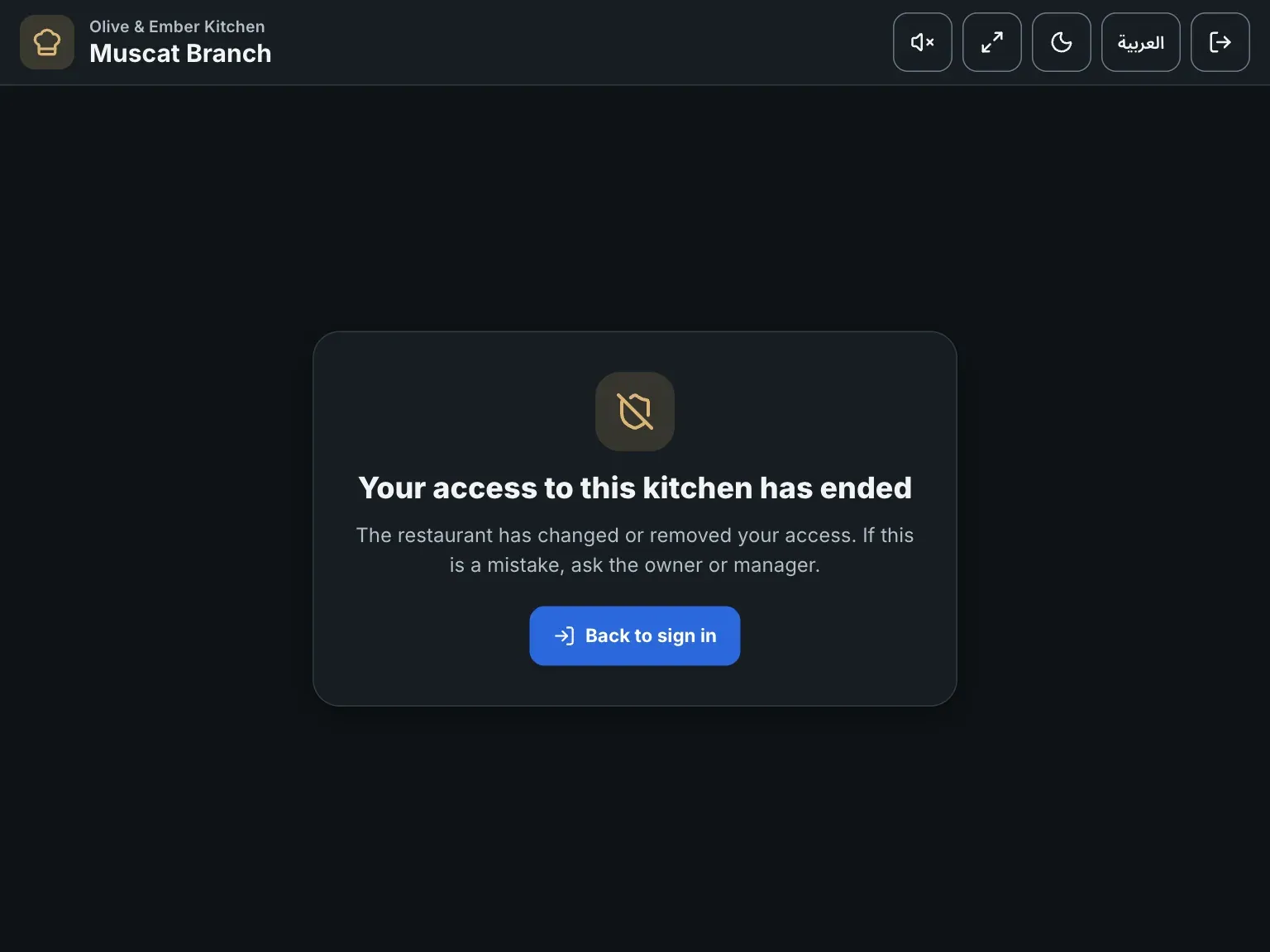
- The Back to sign in button
Revoking cannot be undone
Revoke access is permanent. The person disappears from the list and you must send a new invitation to bring them back. Use Suspend when the person might return.
Troubleshooting
You cannot change yourself, the owner, or a person with the same or a higher role. The row shows a shield icon instead of the three dots. Ask the owner.
The owner keeps full control. There must always be at least one owner, and ownership cannot be transferred from the app.
Branch manager, Order manager, Waiter and Kitchen staff need at least one branch. Tick a branch in the window Change role for …, then click Save changes.
This is what the member sees. Open the member's menu and choose Restore access.
A cook sees this when the role or the branch was changed or removed. If it is a mistake, check the person in Staff & Permissions and invite them again if they were revoked.
Related guides
- Team & permissionsRoles and permissionsCompare the eight roles in RothDine and read the permissions matrix that shows what each role can do.
- Team & permissionsInvite your teamInvite a manager, waiter or other member by e-mail, choose their role and branches, and resend or cancel invitations.
- Kitchen staffReview kitchen activitySee who started preparing and who marked each order ready, with the time and the branch.