
Invite your team
Invite a manager, waiter or other member by e-mail, choose their role and branches, and resend or cancel invitations.
- Goal
- A new team member has an invitation with the right role and branches, and you know how to resend or cancel it.
- Before you start
- You are the owner or an administrator of the restaurant
- The e-mail address of the person you want to invite
- Your branches are already created (see Add a branch)
People join your restaurant through an invitation. RothDine sends them an e-mail with a personal link. The link works once, only for that e-mail address, and expires after 7 days. You choose a role for the person, and for some roles also the branches they may work in. You can give roles that are below your own. The owner role cannot be given, and ownership cannot be transferred from the app.
Open Staff & Permissions
In the sidebar choose Staff & Permissions and click Invite staff. The page lists your team, including people who were invited and have not joined yet.
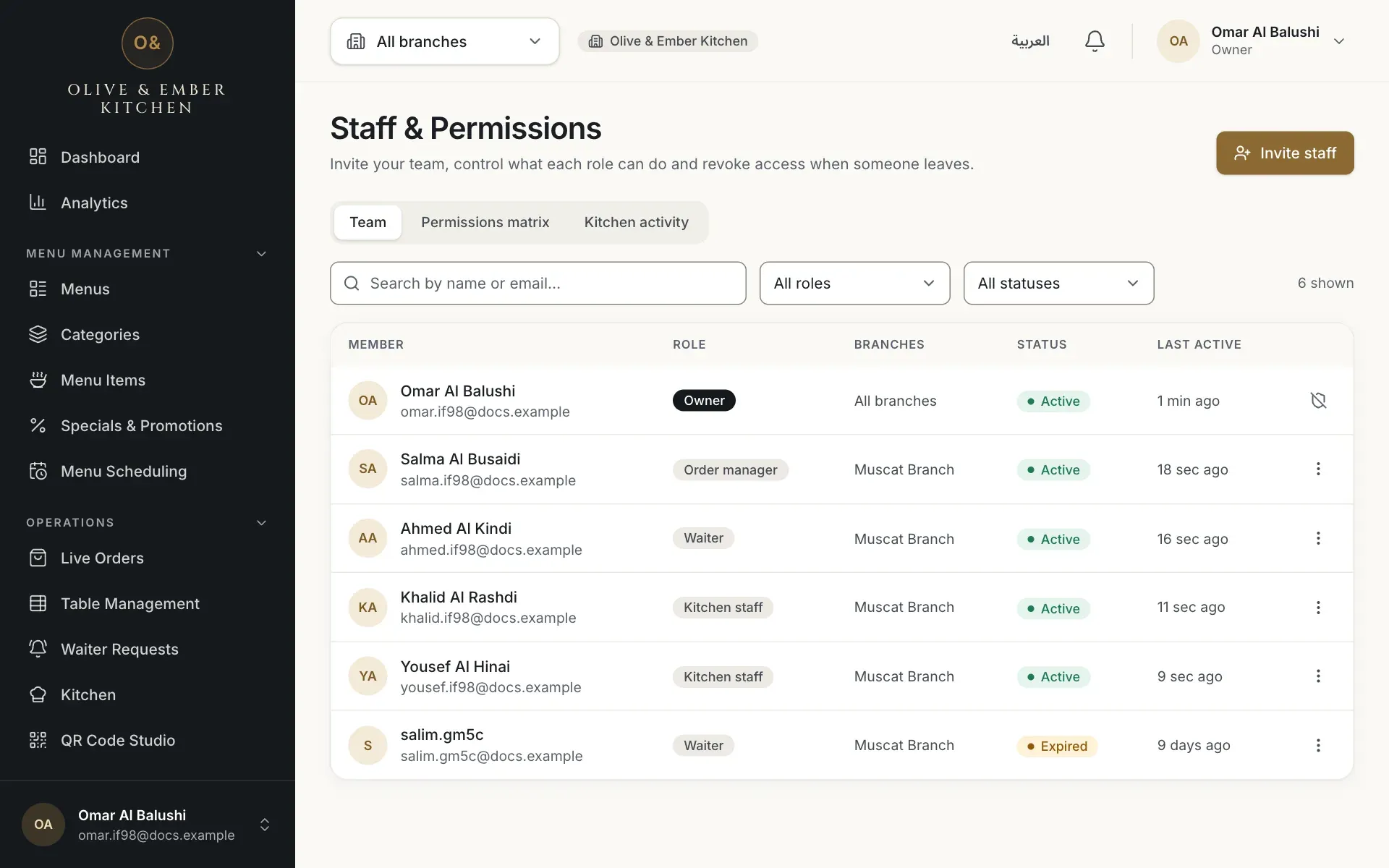
- The Invite staff button
Enter the e-mail address and choose the role
In the window Invite a team member type the person's address in Email. Then open Role and pick one. The sentence under the list explains what the role can do. You can choose Admin, Branch manager, Menu editor, Order manager, Waiter, Kitchen staff or Viewer. An administrator cannot invite another administrator. Read Roles and permissions to compare them.
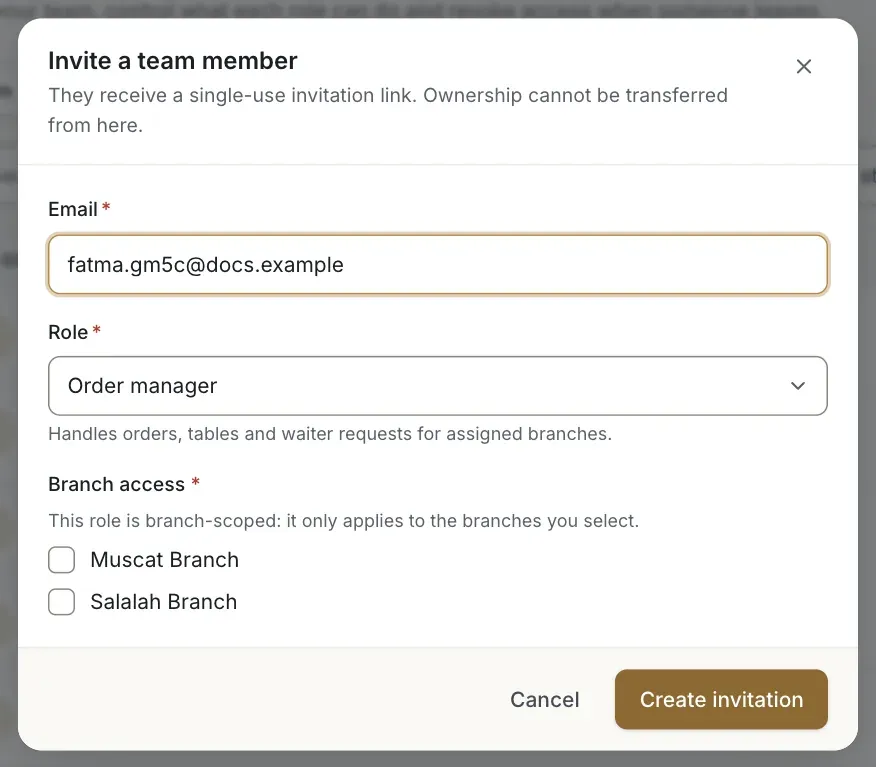
- The Email field
- The Role list with its explanation
Choose the branches
Branch manager, Order manager, Waiter and Kitchen staff work at specific branches. Under Branch access tick every branch the person may work in. You must tick at least one. Admin, Menu editor and Viewer cover all branches, so the window shows This role always applies to every branch. instead of the list.
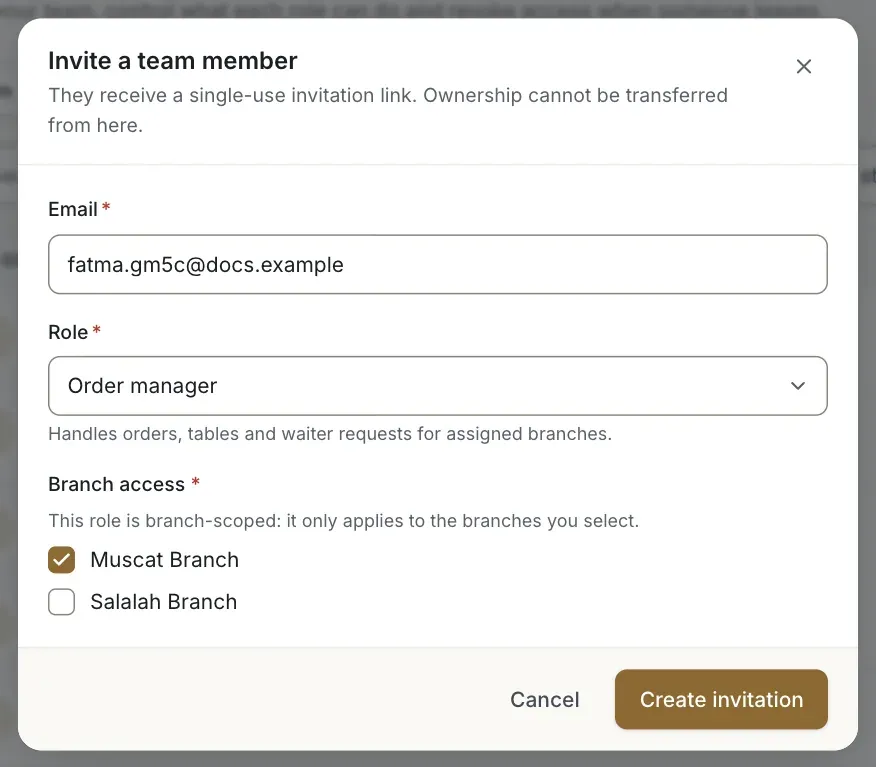
- The branch the person may work in
- The Create invitation button
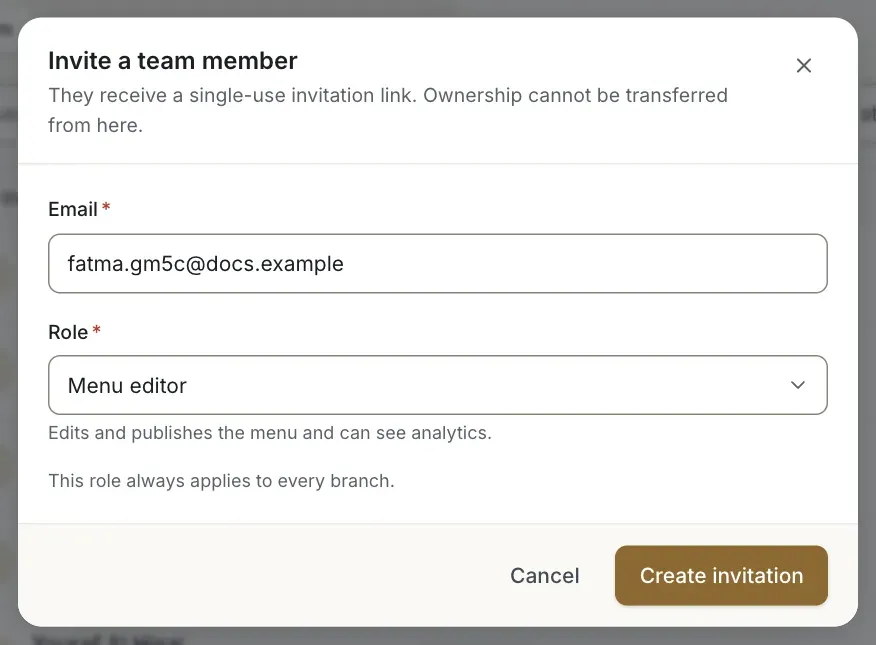
- The Role list set to Menu editor
- The note that the role applies to every branch
Create the invitation
Click Create invitation. The window says that the invitation was sent by e-mail to the address and shows the date and time when the link expires, 7 days from now. Click Done. The e-mail comes from RothDine. Its subject starts with "You have been invited to RothDine".
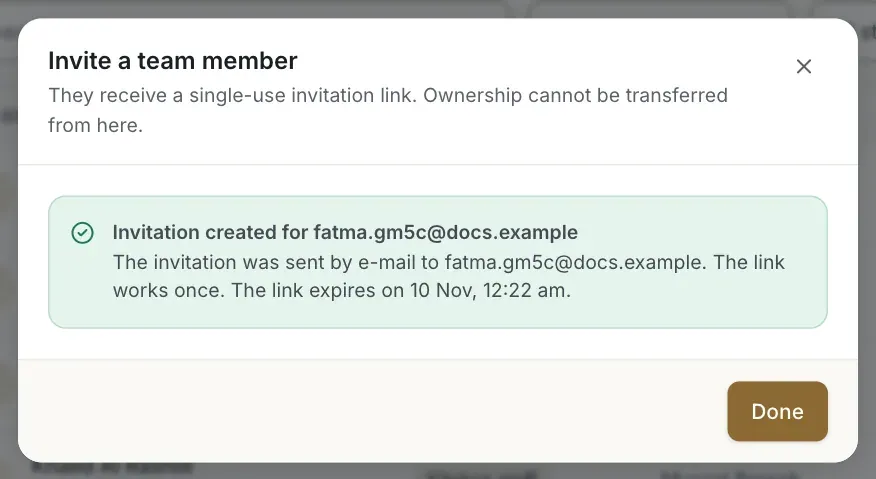
- The confirmation and the expiry date
- The Done button
Follow the invitations in the list
The new person appears in the team list with the status Invited. If they do not join within 7 days the status becomes Expired. When the person joins, the status becomes Active. The person must sign in, or create an account, with the same e-mail address. What they do is described in Invite kitchen staff.
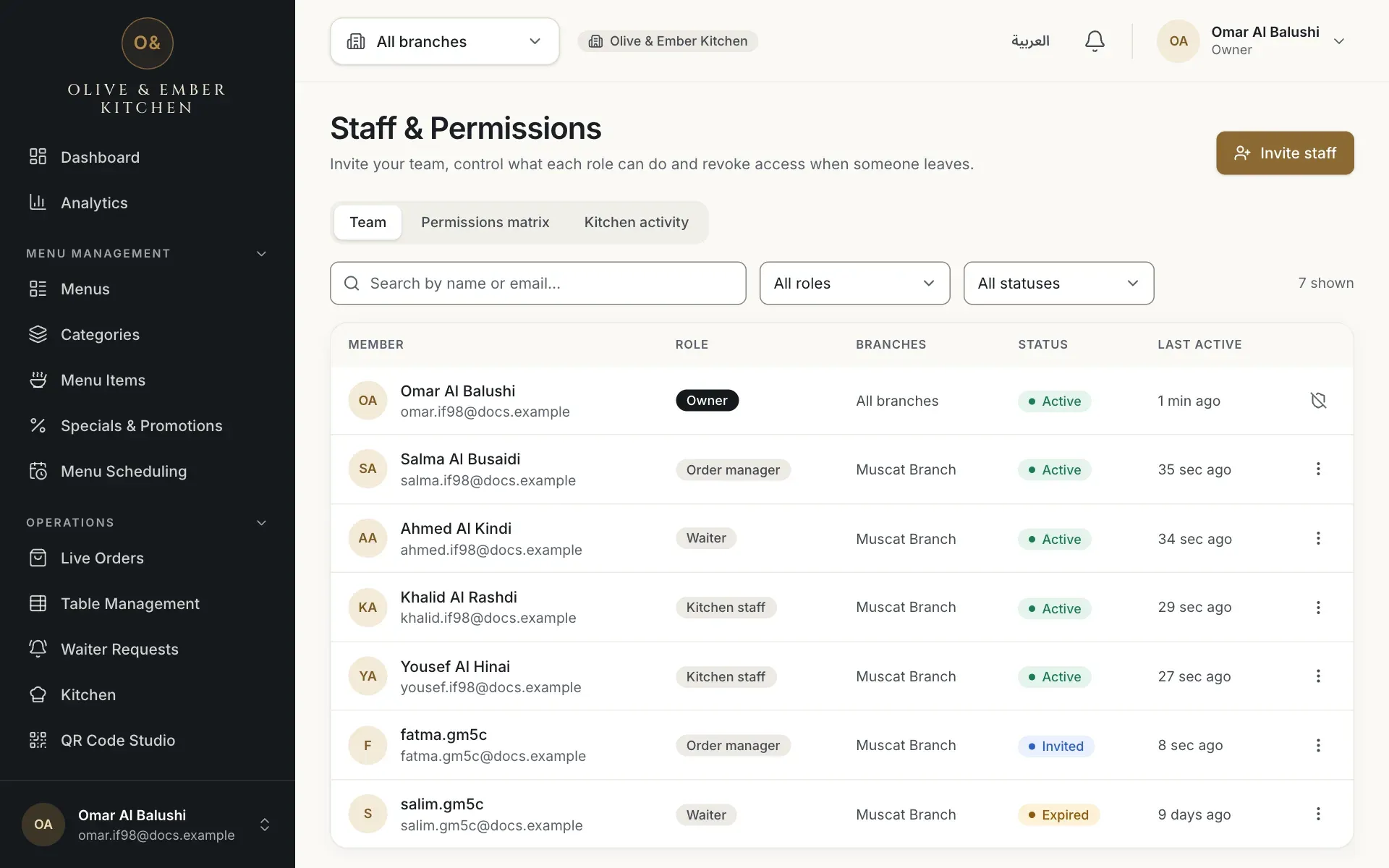
- An invitation that is waiting
- An invitation that has expired
Cancel an invitation you do not need
Click the three dots at the end of the row and choose Cancel invitation. Confirm with Cancel invitation in the window Cancel the invitation for …?. The link stops working at once and the row disappears. You can invite the person again later.
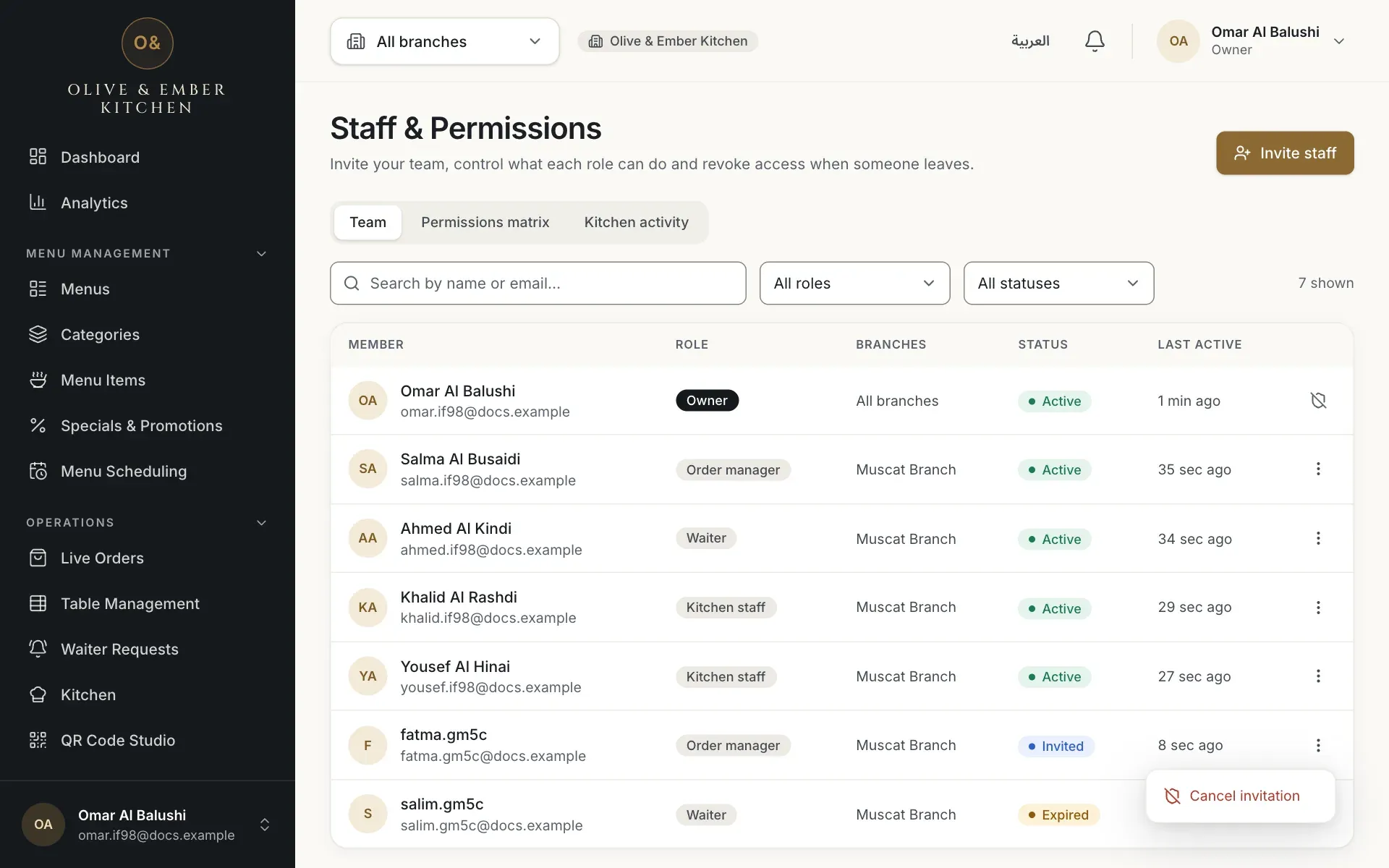
- The three dots button of the row
- The Cancel invitation choice
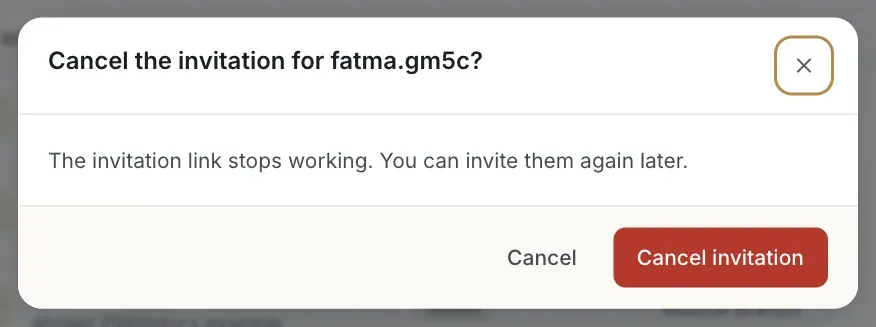
- The Cancel invitation button
Resend an expired invitation
For an expired invitation the row menu offers Resend invitation and Revoke invitation. Choose Resend invitation and confirm. The old invitation is revoked and a new one with a fresh link is e-mailed to the person for another 7 days. A waiting invitation cannot be resent. Cancel it first and invite the person again.
Ignore the line about a development link
The window Resend invitation to …? still mentions a development-only link. This does not apply. The confirmation that follows says that the invitation was sent by e-mail.
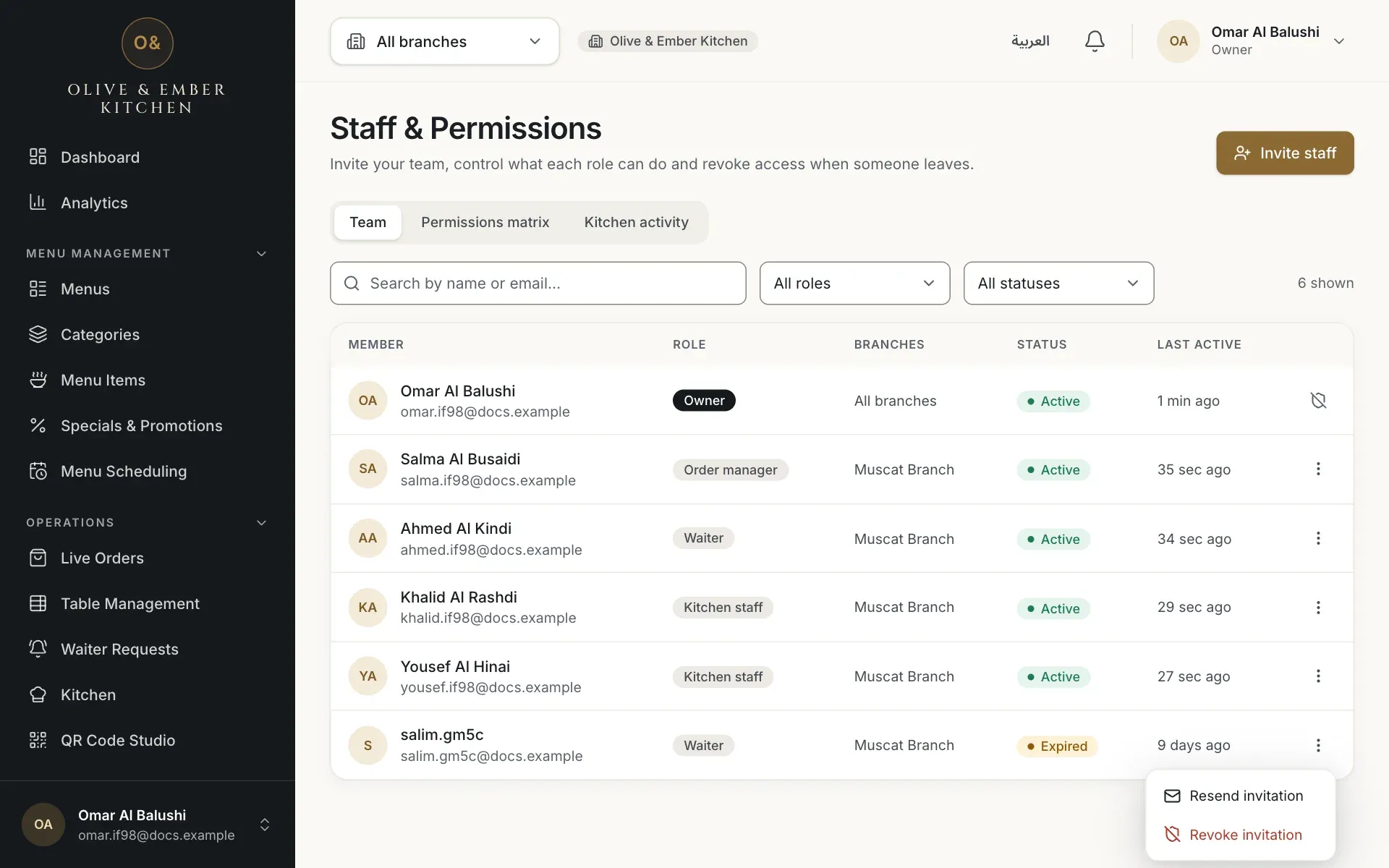
- The Resend invitation choice
- The Revoke invitation choice
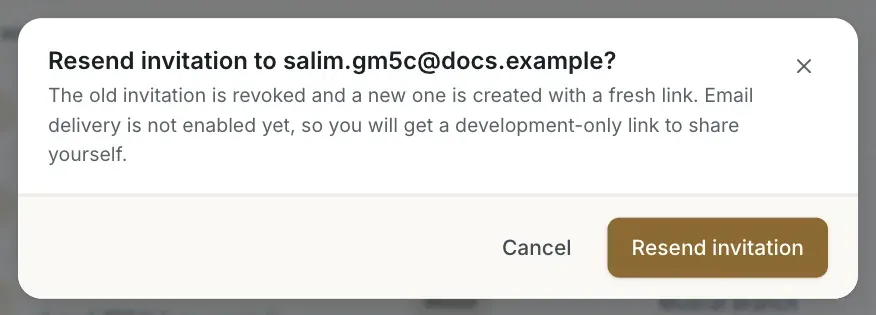
- The Resend invitation button
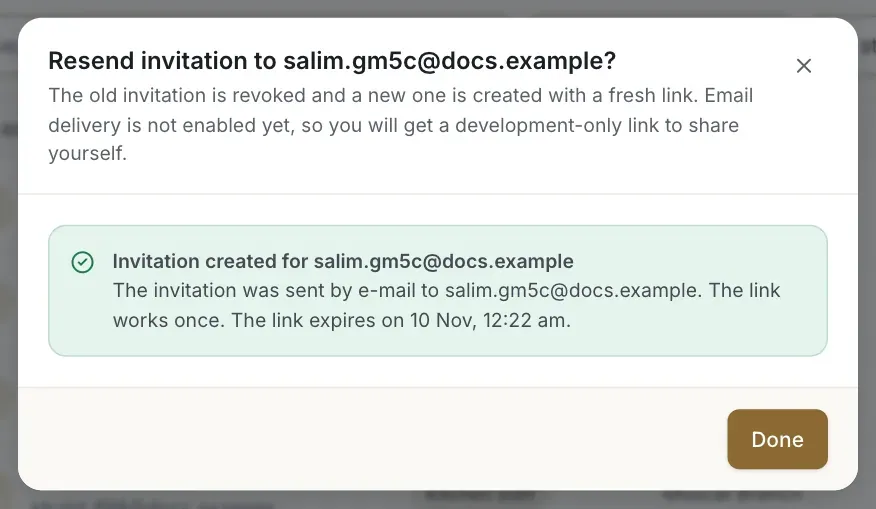
- The confirmation with the new expiry date
Team seats include invitations
Your plan has a number of team seats, and pending invitations use a seat like members do. Cancel invitations that you do not need to free a seat. See Plans and limits.
Troubleshooting
The role you picked works at specific branches. Tick at least one branch under Branch access, or choose a role that covers all branches.
The address is already a member or has a waiting invitation. Search for it in the team list. To start again, cancel the old invitation first.
The e-mail could not be sent, so nothing was created. Try again later. If it continues, write to support@rothdine.com.
You used all team seats of your plan, members and waiting invitations together. Cancel an invitation, remove a member, or choose a bigger plan.
Your role does not include access to staff. Ask an owner or an administrator if you need it. Only they can invite people.
Related guides
- Team & permissionsRoles and permissionsCompare the eight roles in RothDine and read the permissions matrix that shows what each role can do.
- Team & permissionsChange or revoke accessChange a member's role or branches, pause their access, or remove it, and see what the person sees when access ends.
- Kitchen staffInvite kitchen staffInvite a cook by e-mail, give the person the Kitchen staff role for a branch, and see them join your team.
- Getting startedCreate your accountSign up with your name, e-mail and password, accept the two required consents and confirm your e-mail address.