
Review kitchen activity
See who started preparing and who marked each order ready, with the time and the branch.
- Goal
- You can see which cook started and finished which order, and when.
- Before you start
- You are the owner or an administrator
- Your kitchen staff have used the kitchen board at least once
Every time a cook taps Start preparing or Mark ready on the kitchen board, RothDine records who did it, when, and at which branch. The owner and administrators can read this list in Staff & Permissions. Use it to answer questions such as "who cooked order 3 on table 7?".
Open the Kitchen activity tab
In the sidebar choose Staff & Permissions. Above the team list, click the tab Kitchen activity. The tab is shown only to people who may view the activity, which means the owner and administrators.
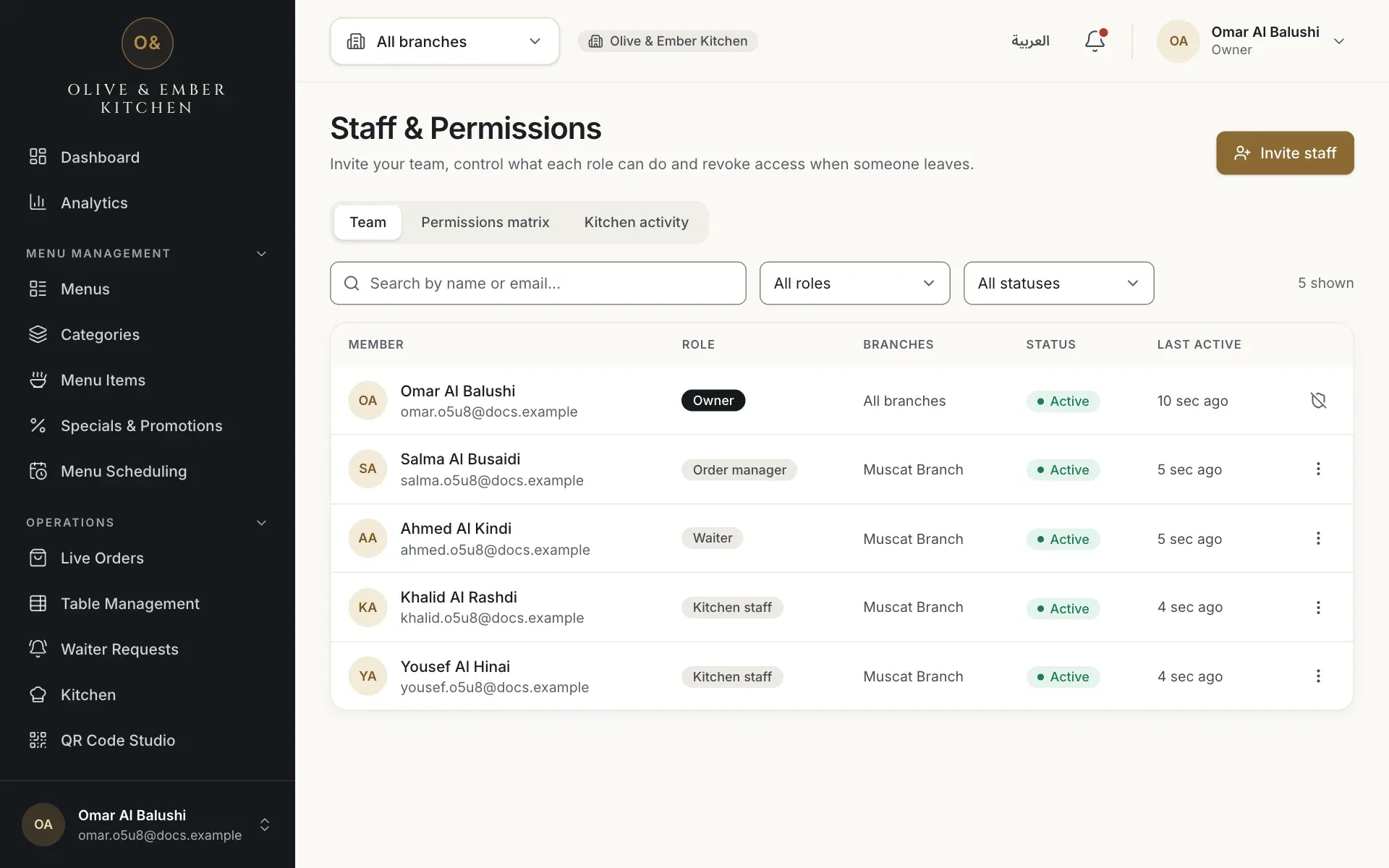
- The Kitchen activity tab
Read the table
Each row is one move. The newest move is at the top. The columns are:
- When: the date and the time.
- Order: the order reference and the table, for example
ORD-0002 · 06. - Action: Started preparing or Marked ready.
- By: the cook who tapped the button.
- Branch: the branch where it happened.
To follow one order, look for its reference in two rows: one Started preparing and one Marked ready. The list shows the latest moves only, up to 25 rows. Accepting, serving and cancelling an order by managers are not listed here.
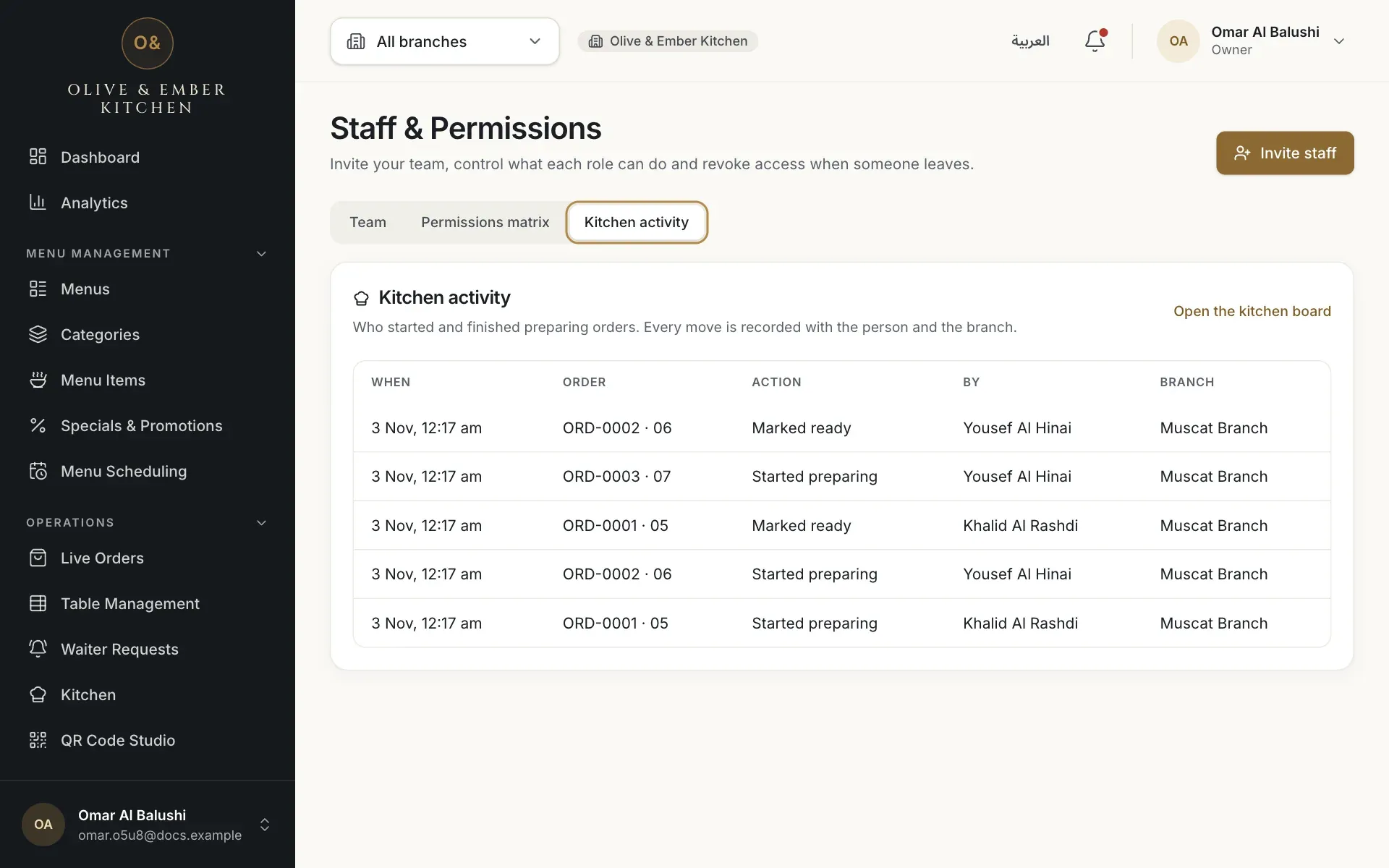
- The column titles
- The action: started preparing or marked ready
- The cook who did it
- The branch
Open the kitchen board from here
Click Open the kitchen board at the top right of the card to look at the live board. Owners, administrators and managers see the board as a station, with Back to dashboard to return.
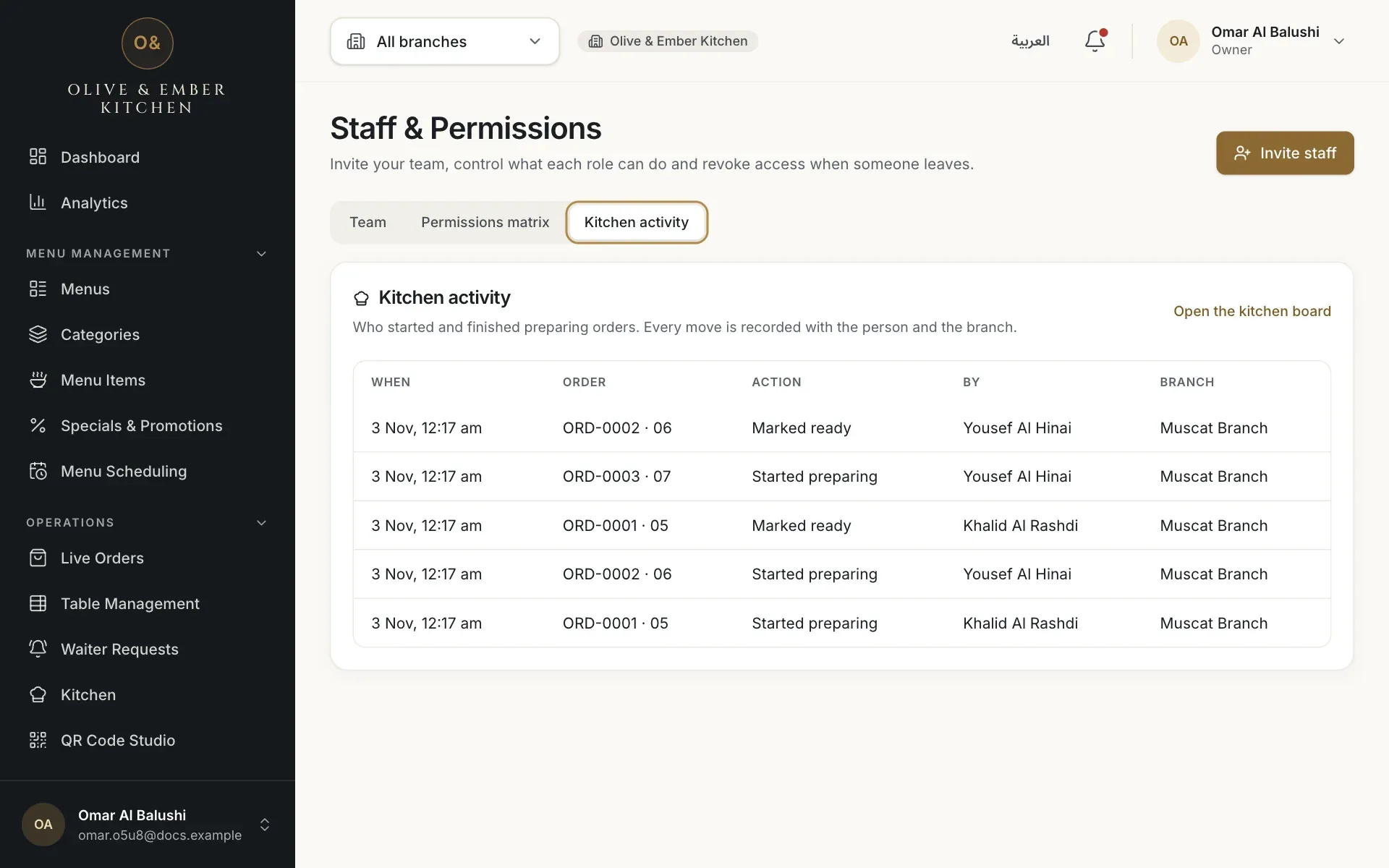
- The Open the kitchen board link
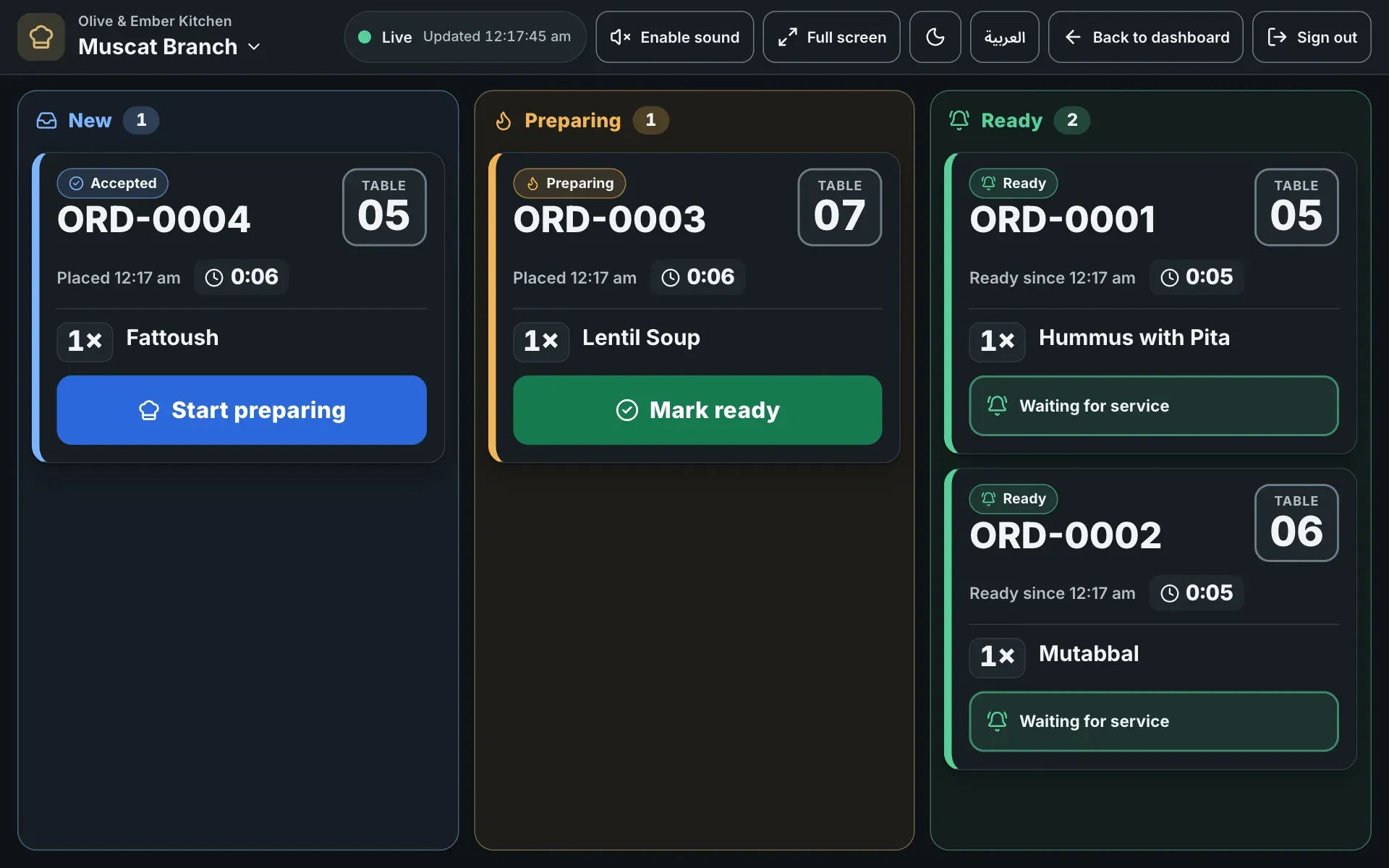
- The Back to dashboard button
Troubleshooting
Nobody has tapped Start preparing or Mark ready yet. The list fills in as soon as your cooks use the board.
The cook who did this move is no longer part of your team, for example because you revoked their access. The move stays in the list.
Check your connection and open the tab again. If it keeps failing, reload the page.
Only the owner and administrators see it. Branch managers, order managers and other roles do not. Ask the owner if you need access.
Related guides
- Kitchen staffUse the kitchen boardRead the New, Preparing and Ready columns, understand an order card, and move orders with Start preparing and Mark ready.
- Team & permissionsRoles and permissionsCompare the eight roles in RothDine and read the permissions matrix that shows what each role can do.
- Team & permissionsChange or revoke accessChange a member's role or branches, pause their access, or remove it, and see what the person sees when access ends.