
Waiter requests
See when a guest calls the waiter, asks for help or asks for the bill, and answer each request from the Waiter Requests screen.
- Goal
- You can see a guest request the moment it is sent, acknowledge it and mark it as done.
- Before you start
- A branch in the mode Menu + waiter (B) or Full table ordering (C)
- A role that can respond to requests: owner, admin, branch manager, order manager or waiter
Guests have three buttons on their phone: Call waiter, Need assistance and Request bill. Each one sends a request to your staff. Request bill does not take a payment. It only asks a waiter to bring the bill, and payments are not handled in RothDine. A viewer can look at the screen but cannot answer.
A guest sends a request
The guest opens the Waiter tab and taps one of the three buttons. The guest sees Waiting for staff to respond under Your requests. A guest can have one open request of each kind at a time. Sending the same kind again shows the open one instead of a second request.
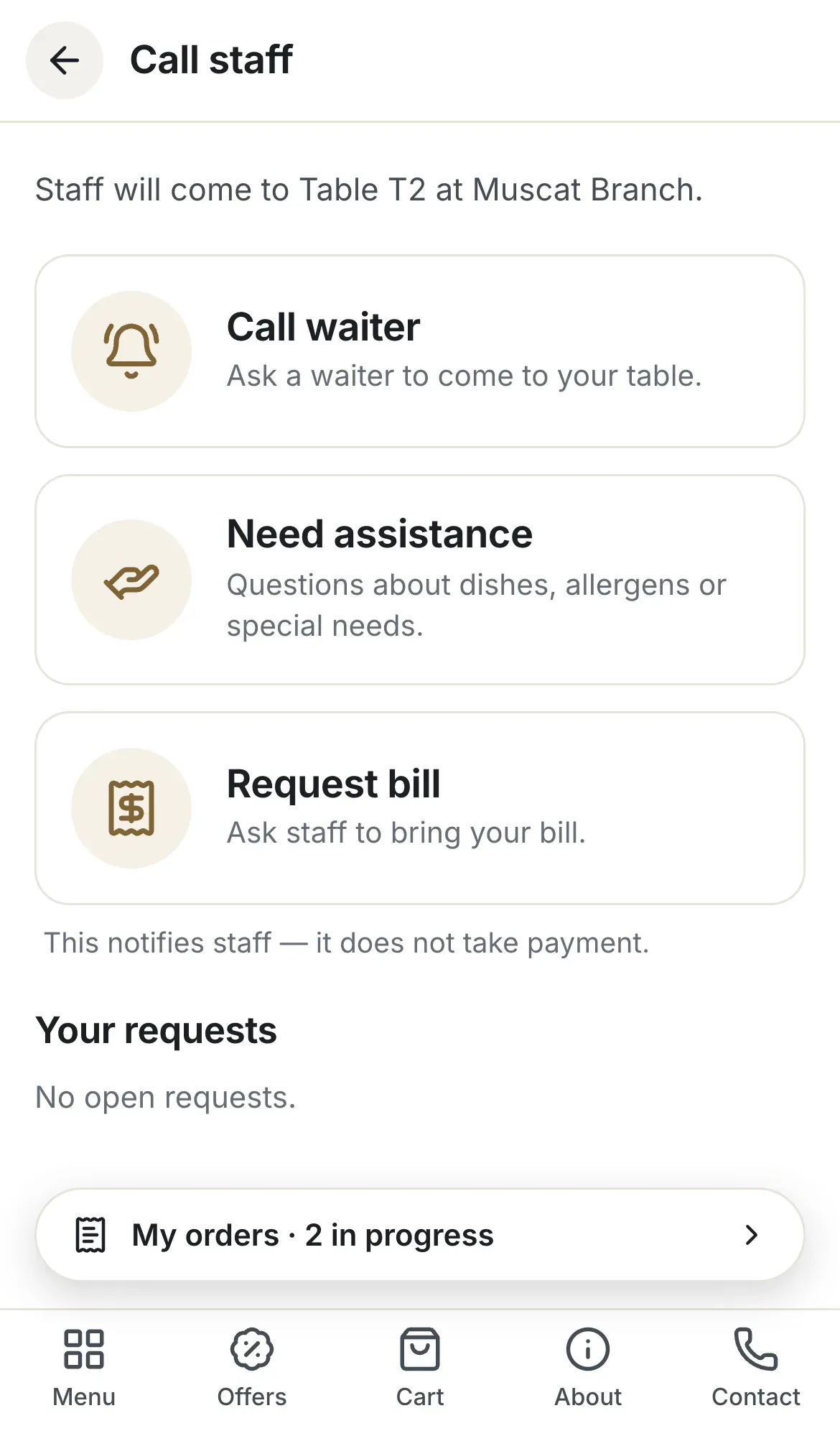
- Call waiter
- Need assistance
- Request bill
Open Waiter Requests
In the sidebar, under Operations, choose Waiter Requests. Each request is a card with its type, the table, the branch and how long it has waited. After a few minutes the card says Urgent: waiting with the minutes. The tabs Pending, Acknowledged, Resolved and Cancelled group the requests by status and show how many each holds. Use Request type and Table to narrow the list.
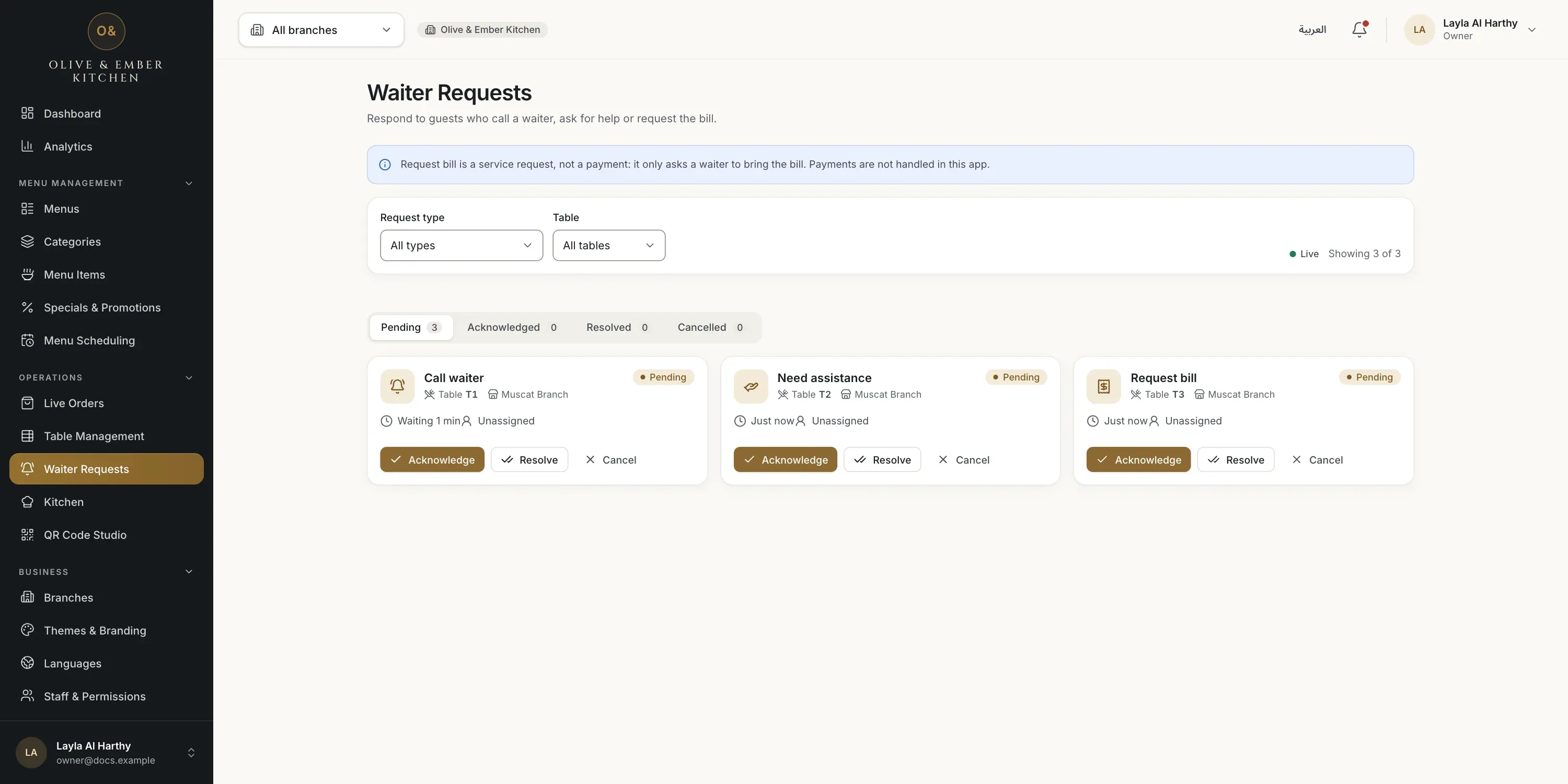
- The Pending tab
- The Request type filter
- The Acknowledge button
Read what a bill request means
A note at the top of the screen reminds you that Request bill is a service request, not a payment. When you handle it, bring the bill to the table and take payment the way you do today.
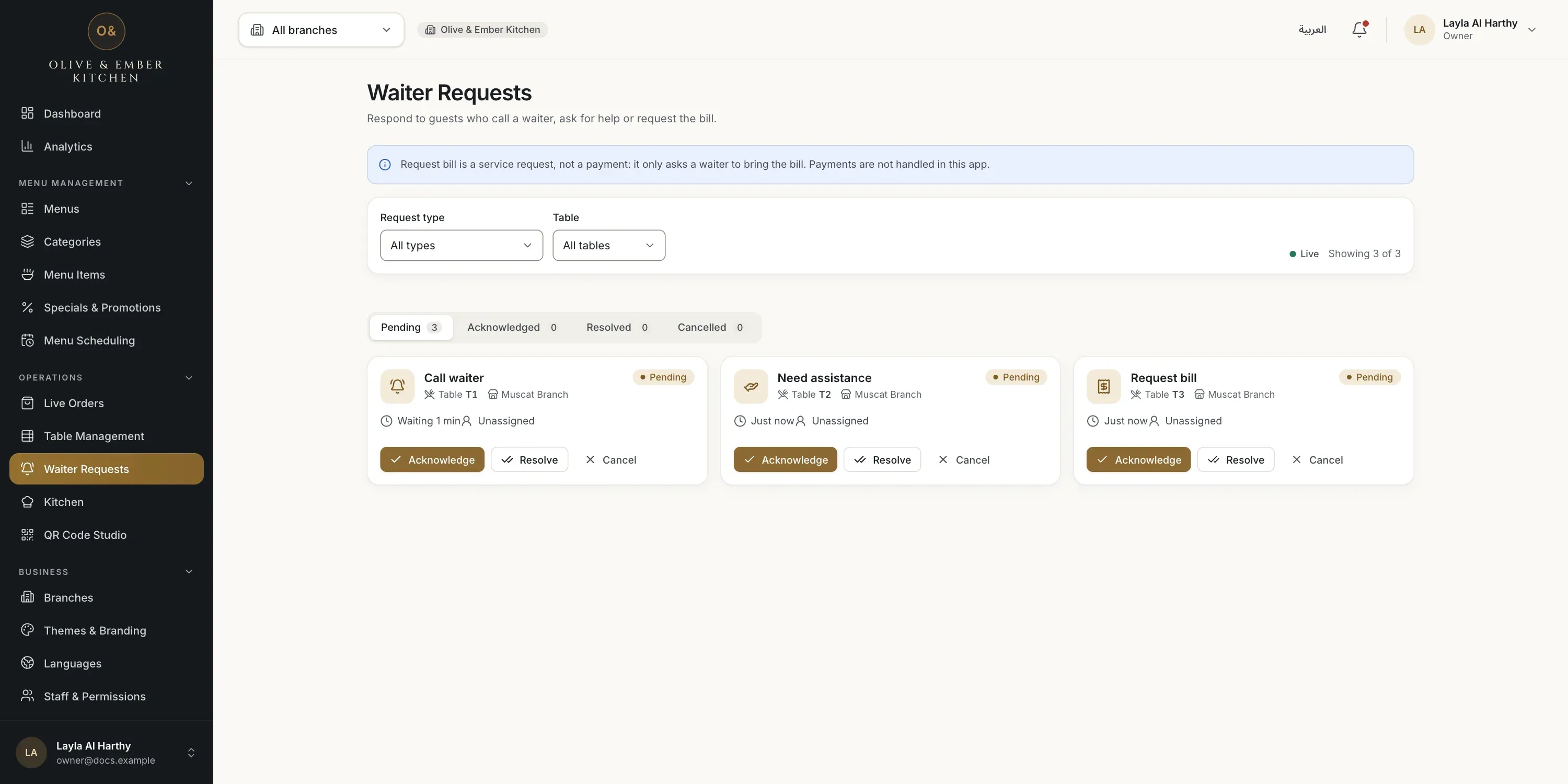
- The note about bill requests
Acknowledge the request
Click Acknowledge on a request when you are on your way. The request moves to the Acknowledged tab with your name on it. The guest's phone changes by itself to Acknowledged and A team member has seen your request.
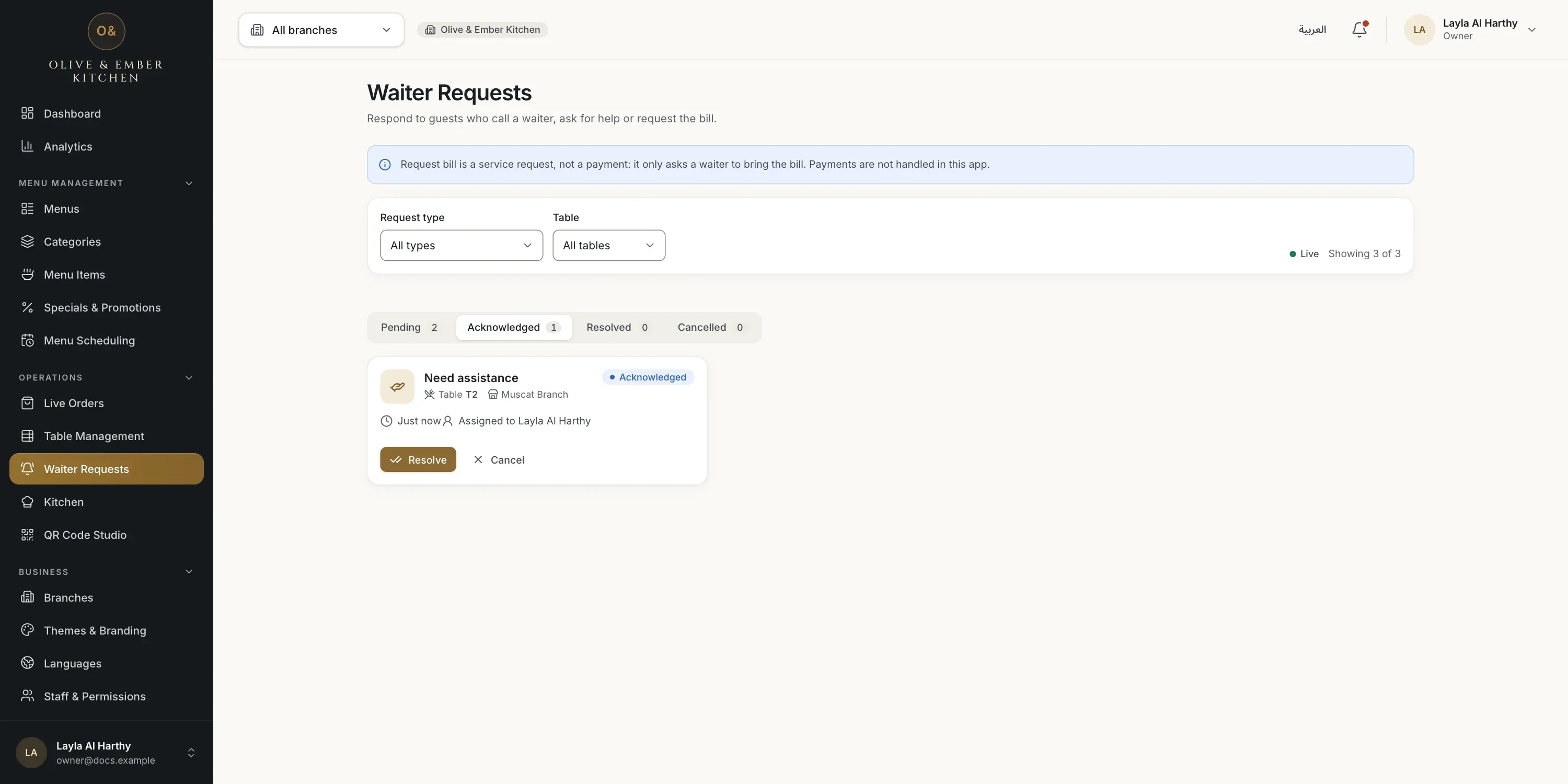
- The Acknowledged tab
- The Resolve button
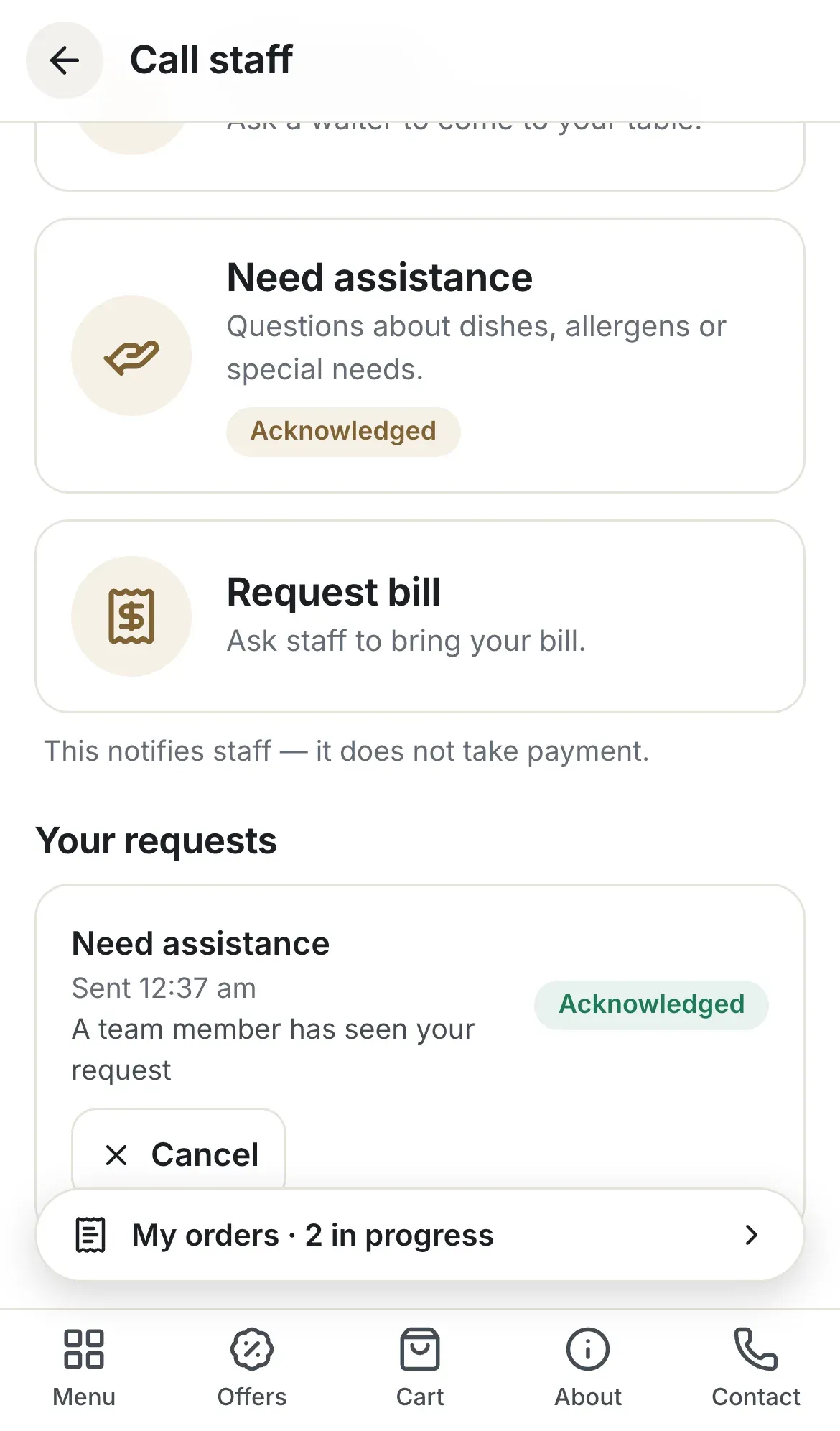
- The state of the request
- The message for the guest
Resolve it
When you have helped the guest, click Resolve. The request moves to the Resolved tab, and it disappears from the guest's list of open requests. The Resolved tab keeps the record.
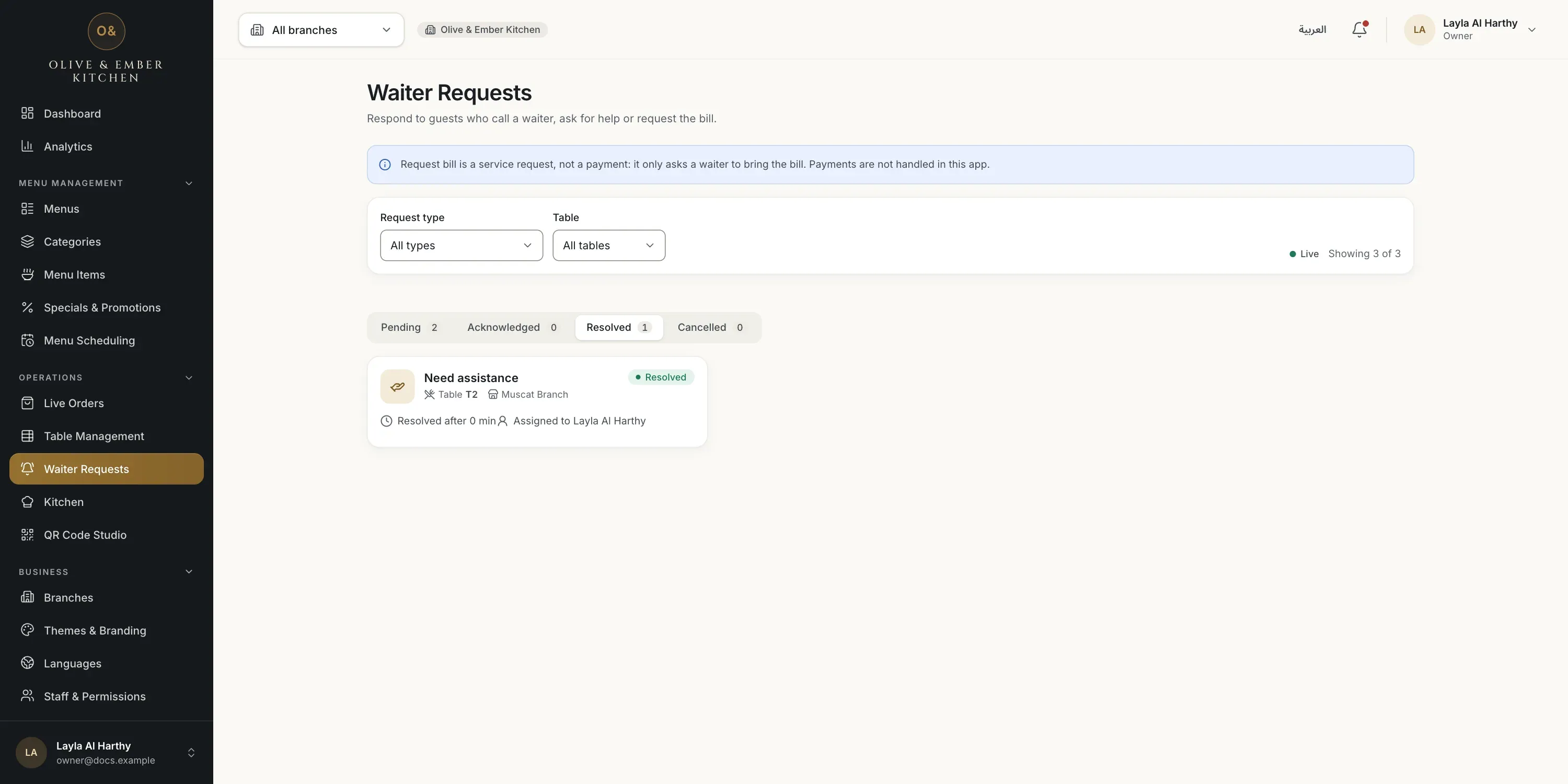
- The Resolved tab
You do not have to watch the screen
The bell in the top bar shows a notification for every new request, for example Table T1 is calling the waiter. You can also switch on a sound. See the guide on staff notifications.
Troubleshooting
The branch is in the mode Menu viewer only. Waiter requests need Menu + waiter or Full table ordering. Change the mode in Restaurant Settings or in Branches.
Your role has no access to orders, tables or requests. Ask the restaurant owner if you need to see them.
Your role can look at the requests but not use Acknowledge or Resolve. Ask the owner for a role that can respond, such as waiter.
The guest tried to send a second request of the same kind. Nothing is wrong. Acknowledge the request that is already open.
No guest has sent a request yet. When one does, it appears here by itself within a few seconds.
Related guides
- OrdersHow guests orderWhat your guests do on their phone, from scanning the table QR code to sending an order, following it and calling the waiter.
- OrdersStaff notificationsSee new orders, guest cancellations and waiter requests in the notification bell, and turn on a sound for new orders.
- OrdersLive OrdersReceive guest orders, accept or reject them, move them to served, and see who on your team can do what.