
Order statuses
What New, Accepted, Preparing, Ready, Served, Completed, Rejected and Cancelled mean for your guest and for your team, and who can set each one.
- Goal
- You know what your guest reads at each status of an order and who on your team moves it there.
- Before you start
- The branch runs the mode Full table ordering (C)
- At least one order, to see the statuses on the board
Every order has one status at a time. The status shows on your Live Orders board and on the guest's tracking page, and both update by themselves. An order normally goes through six statuses, from New to Completed. Two more statuses end an order early: Rejected and Cancelled. The pictures in this guide are the tracking page on the guest's phone.
See the statuses on the staff board
On Live Orders, each status is a column: New, Accepted, Preparing, Ready, Served and Completed. Rejected and cancelled orders are listed in their own section under the board. A card moves to the next column when someone clicks its button.
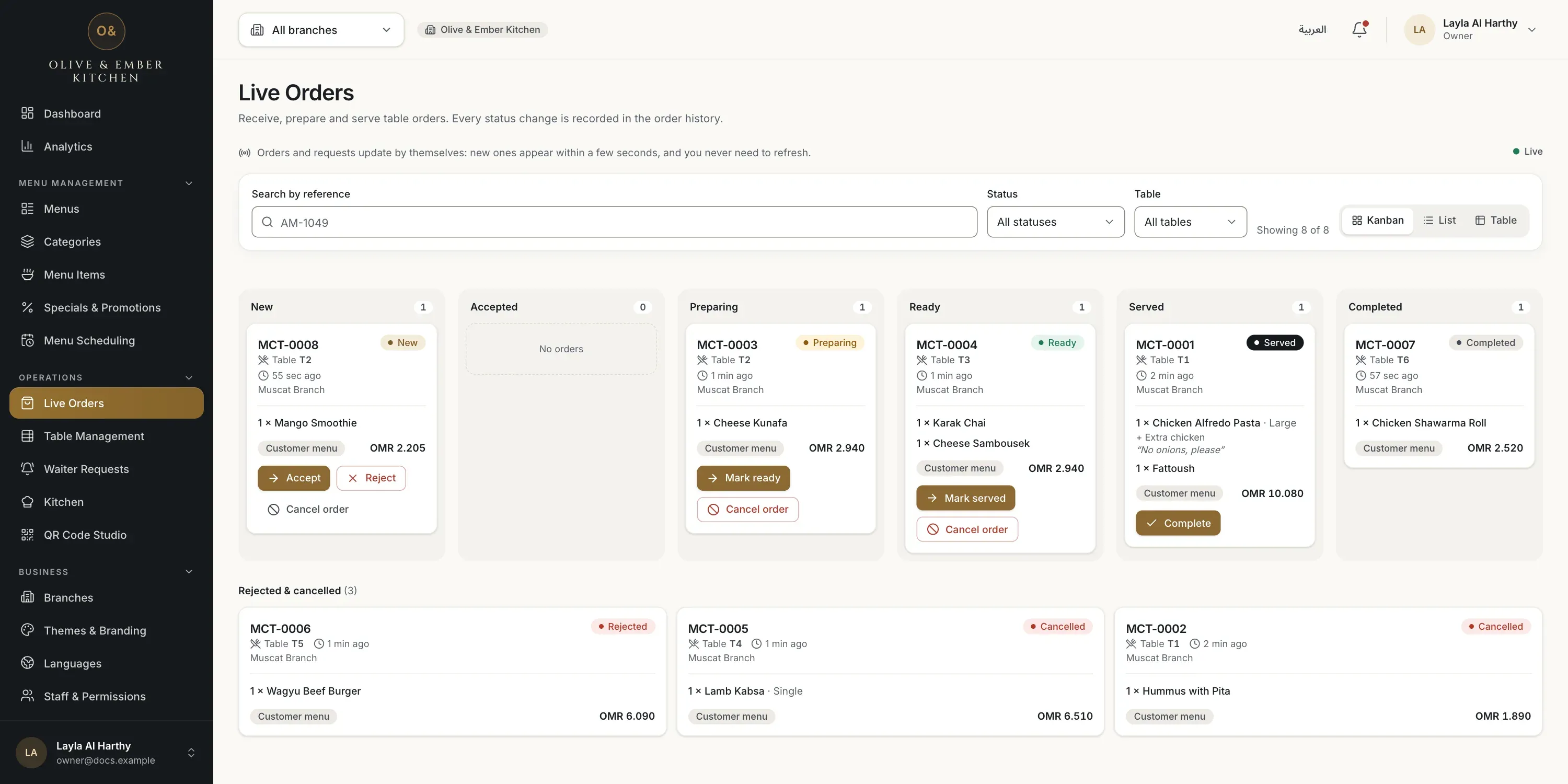
- A New order
- An order being prepared
- A Ready order
- A Served order
- A Completed order
New
The guest has sent the order. The guest reads New and We have received your order and are waiting for the kitchen to accept it. Staff see the order in the New column with the buttons Accept and Reject. Only people who manage orders can accept or reject. While the order is New, the guest can still cancel it for up to 2 minutes.
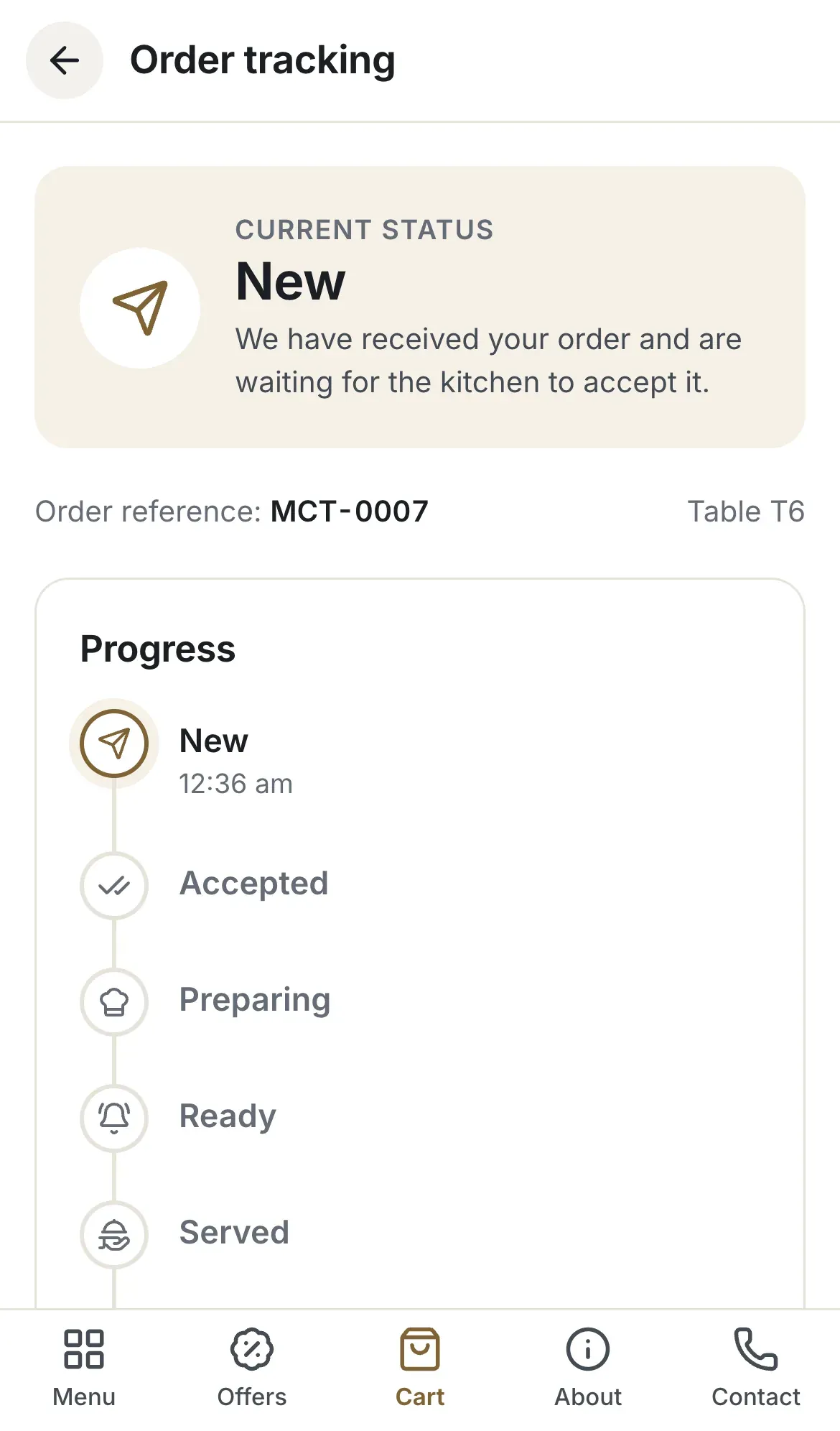
- The status New
- The progress steps
Accepted
Staff accepted the order. The guest reads Accepted and The kitchen has accepted your order. From now on the guest can no longer cancel the order alone. The next button is Start preparing.
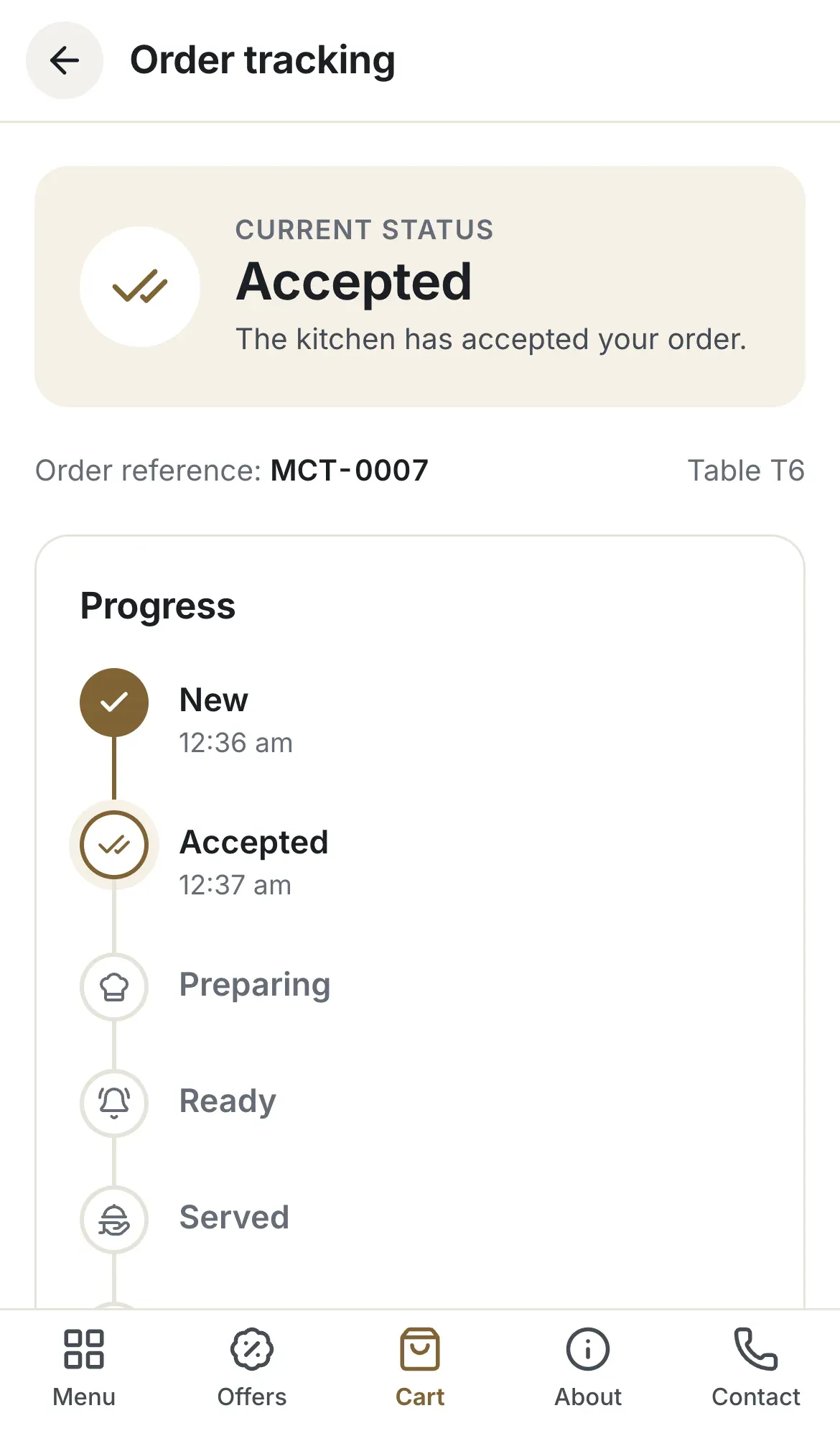
- The status Accepted
- The progress steps
Preparing
The kitchen started the order. The guest reads Preparing and Your dishes are being prepared. Managers use Start preparing on Live Orders, and kitchen staff use the same button on the Kitchen board. The next button is Mark ready.
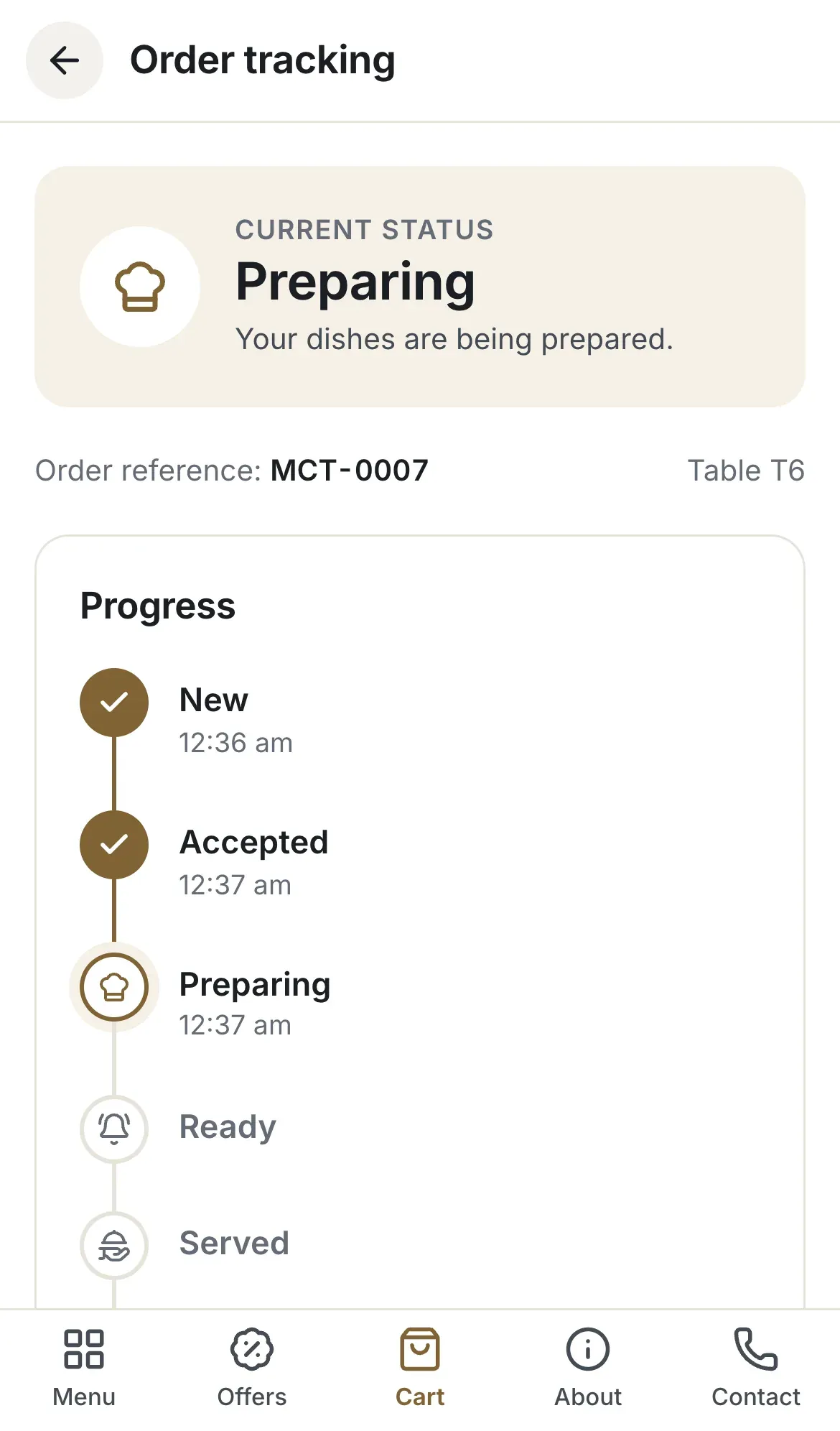
- The status Preparing
- The progress steps
Ready
The food is ready to leave the kitchen. The guest reads Ready and Your order is ready and on its way to your table. Managers and kitchen staff set this with Mark ready. A waiter then carries the order to the table and clicks Mark served.
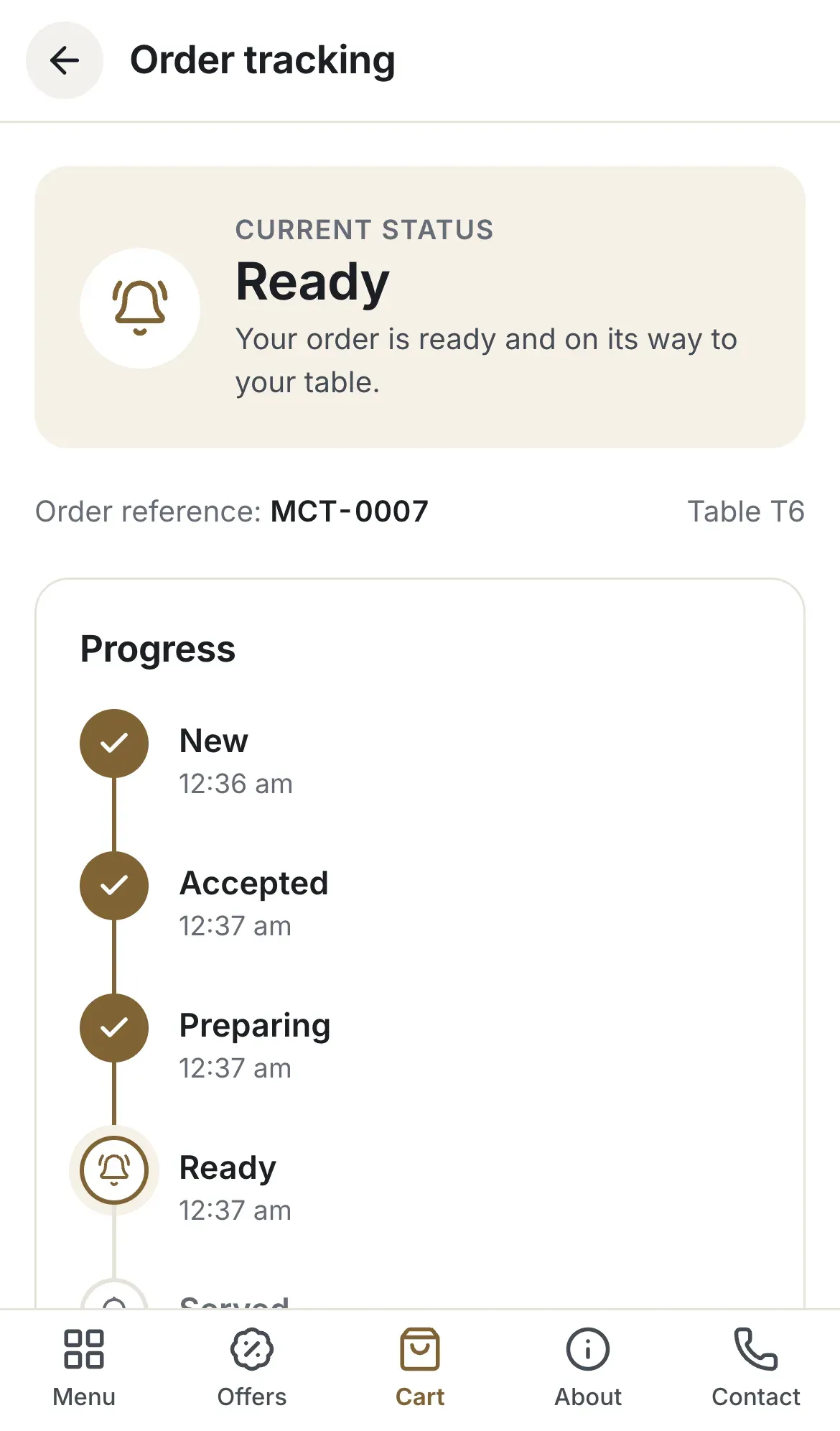
- The status Ready
- The progress steps
Served
The order is at the table. The guest reads Served and Your order has been served. Enjoy your meal! Managers and waiters can set this, and only for an order that is Ready. After this status an order can no longer be cancelled.
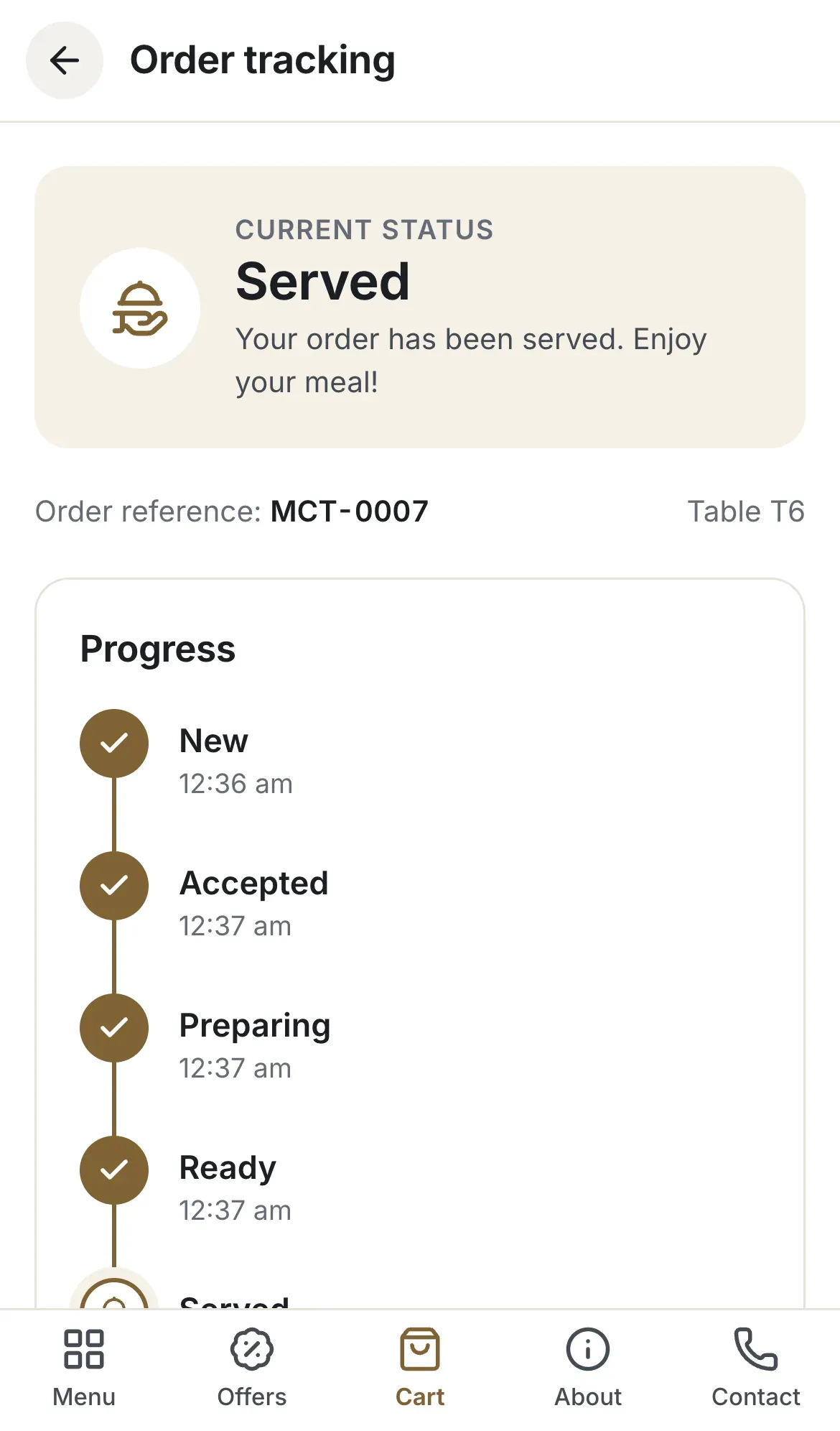
- The status Served
- The progress steps
Completed
The order is finished. The guest reads Completed and This order is complete. Thank you for dining with us. Managers set it with Complete. A completed order stays in the history of your restaurant.
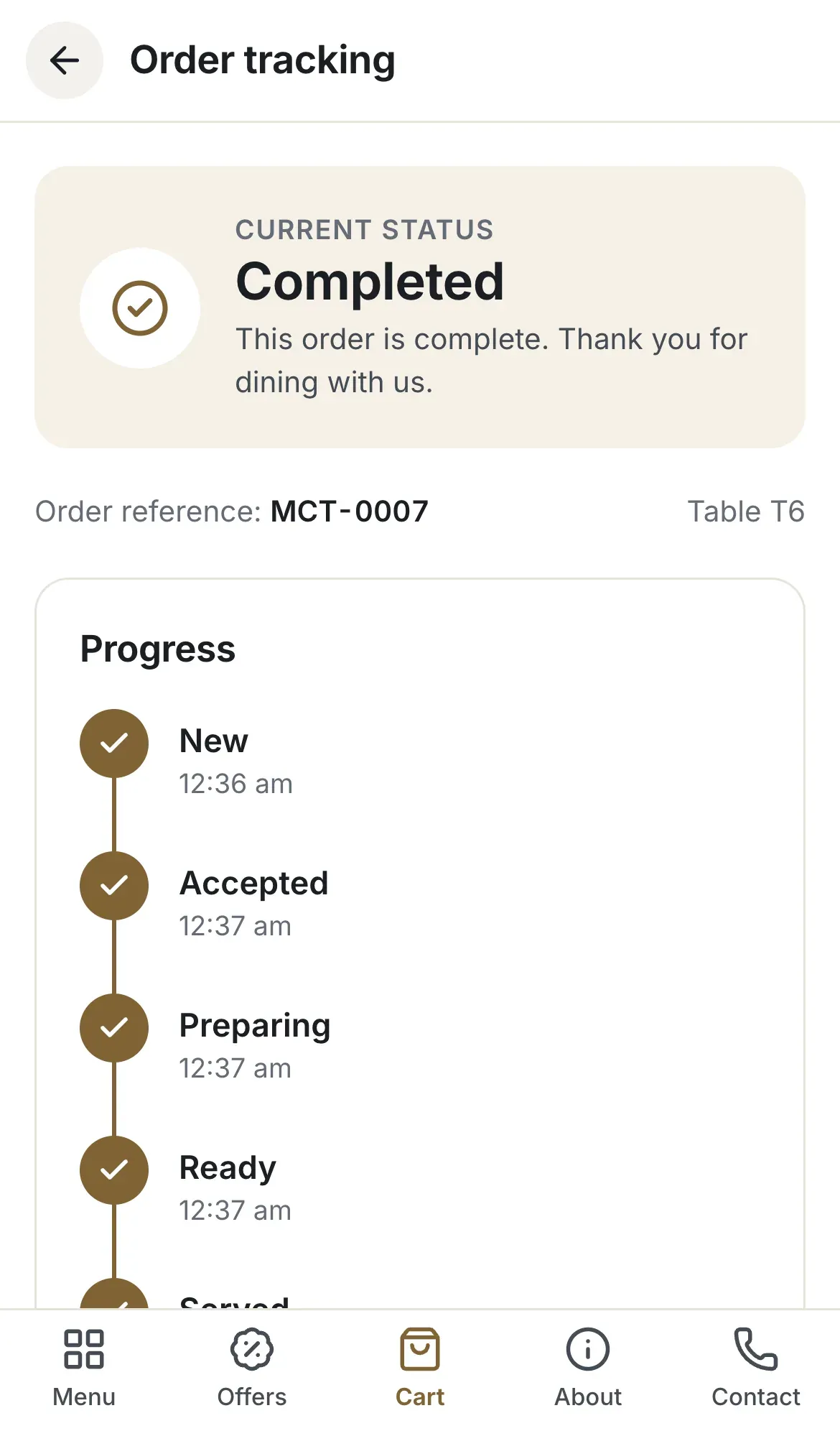
- The status Completed
- The progress steps
Rejected
Staff refused a New order, for example because a dish is out of stock. Only a New order can be rejected, and a reason of 3 to 240 characters is required. The guest reads Rejected with the reason. If no reason is shown, the page says No reason was given. Please ask your waiter.
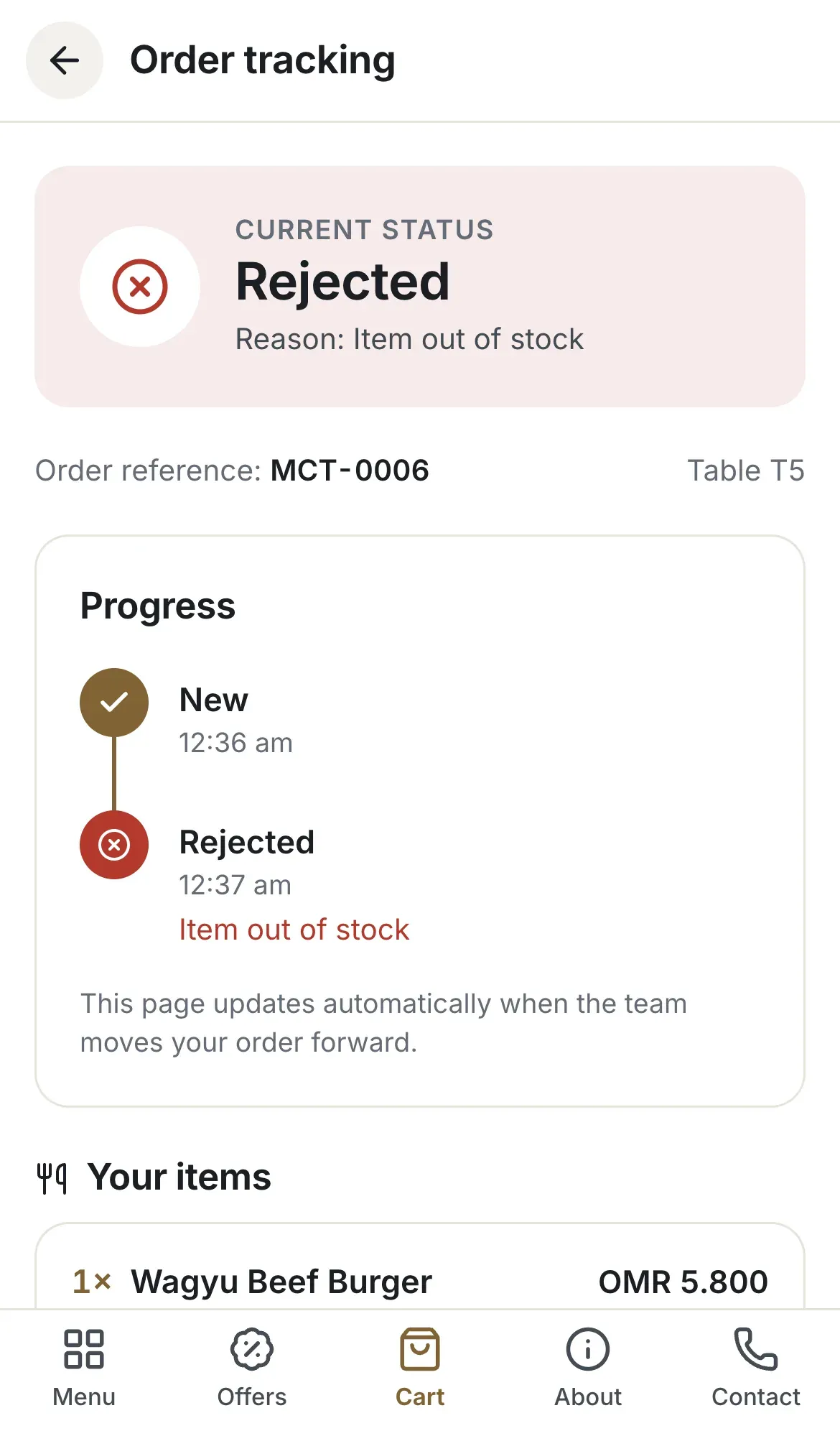
- The status Rejected
- The reason
Cancelled
An order can be cancelled at any time before it is served. The guest can cancel a New order alone, within 2 minutes, and then reads You cancelled this order. Staff who manage orders can cancel at any earlier step, with a reason that the guest reads on the tracking page.
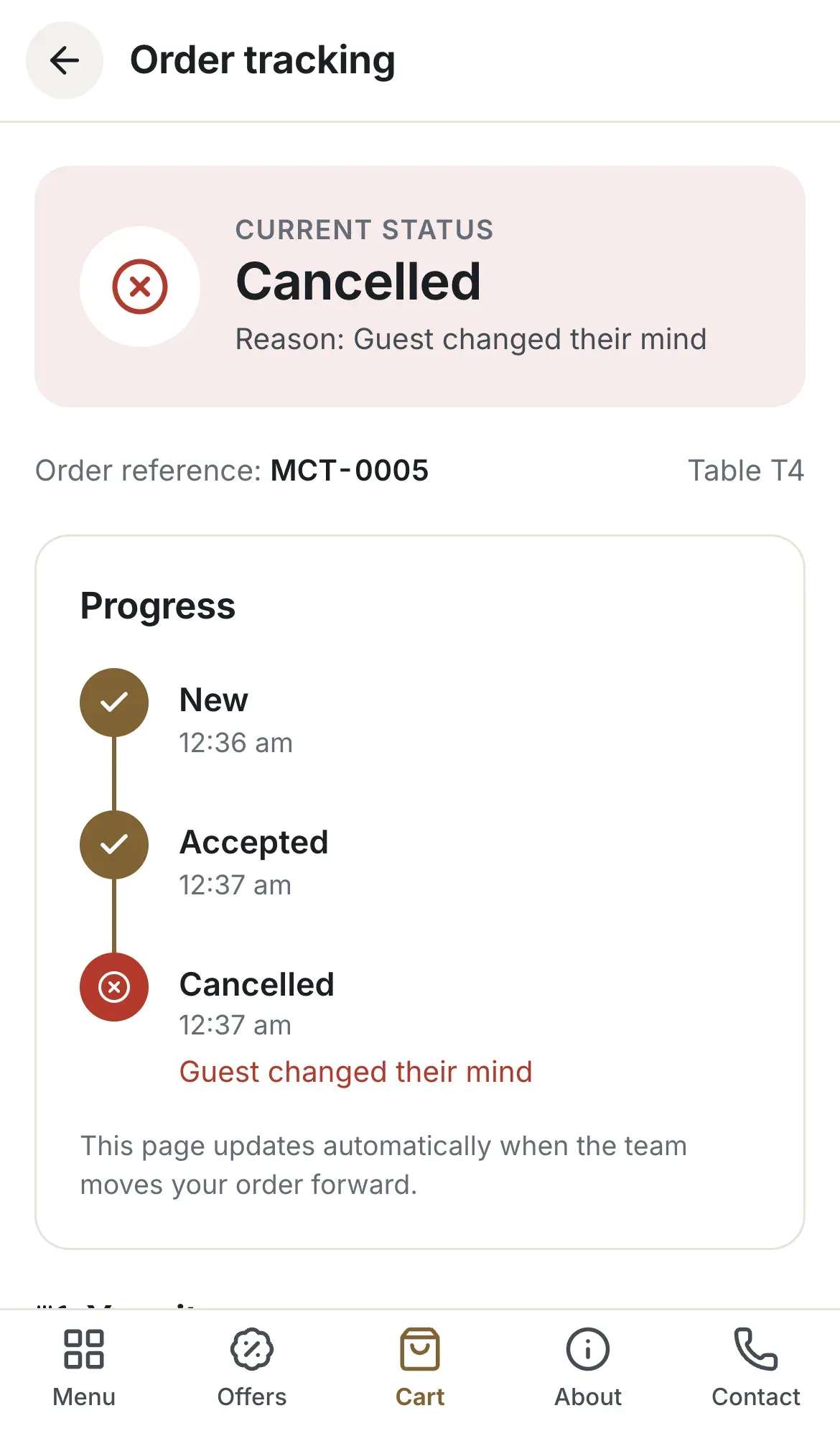
- The status Cancelled
- The reason
| Move | Who can do it |
|---|---|
| New to Accepted, or Reject | Owner, admin, branch manager, order manager |
| Accepted to Preparing, Preparing to Ready | The same roles, and kitchen staff on the Kitchen board |
| Ready to Served | The same roles and waiters |
| Served to Completed | Owner, admin, branch manager, order manager |
| Cancel before Served | Owner, admin, branch manager, order manager. The guest, only while New and within 2 minutes |
A status cannot go back
An order only moves forward. If someone moves it just before you, the board refreshes and tells you that the order has already moved on. Every change is recorded in the status history of the order.
Troubleshooting
The order already has a newer status, for example the guest cancelled it a moment before you clicked. Read the new status on the board.
Two people changed the same order at nearly the same time. The board shows the latest status. Repeat your step only if it is still needed.
Rejecting and cancelling an order need a reason of 3 to 240 characters. Write one or click a quick reason.
The guest sees this when an order was closed without a reason. Always write a short reason, so the guest understands.
The guest tried to cancel after the 2 minutes, or after the kitchen accepted the order. Staff can still cancel it from Live Orders before it is served.
Related guides
- OrdersLive OrdersReceive guest orders, accept or reject them, move them to served, and see who on your team can do what.
- OrdersHow guests orderWhat your guests do on their phone, from scanning the table QR code to sending an order, following it and calling the waiter.
- Kitchen staffUse the kitchen boardRead the New, Preparing and Ready columns, understand an order card, and move orders with Start preparing and Mark ready.
- Help & troubleshootingGlossaryPlain-language meanings of the words used in RothDine, from A to Z.