
Live Orders
Receive guest orders, accept or reject them, move them to served, and see who on your team can do what.
- Goal
- You can take an order from New to Completed, and you know which of your staff can do each step.
- Before you start
- The branch runs the mode Full table ordering (C)
- A role with access to orders: owner, admin, branch manager, order manager, waiter or viewer
Live Orders shows the orders that guests send from their tables. New orders appear within a few seconds, and you never need to reload the page. RothDine does not accept orders by itself: every new order waits until a person with the right role accepts it.
Open Live Orders
In the sidebar, under Operations, choose Live Orders. The entry shows only when the branch runs Full table ordering, and only for roles that may see orders. The note under the title says that orders update by themselves, and a green Live mark shows that the connection works. The board has one column for each status. Kanban, List and Table switch the way orders are shown.
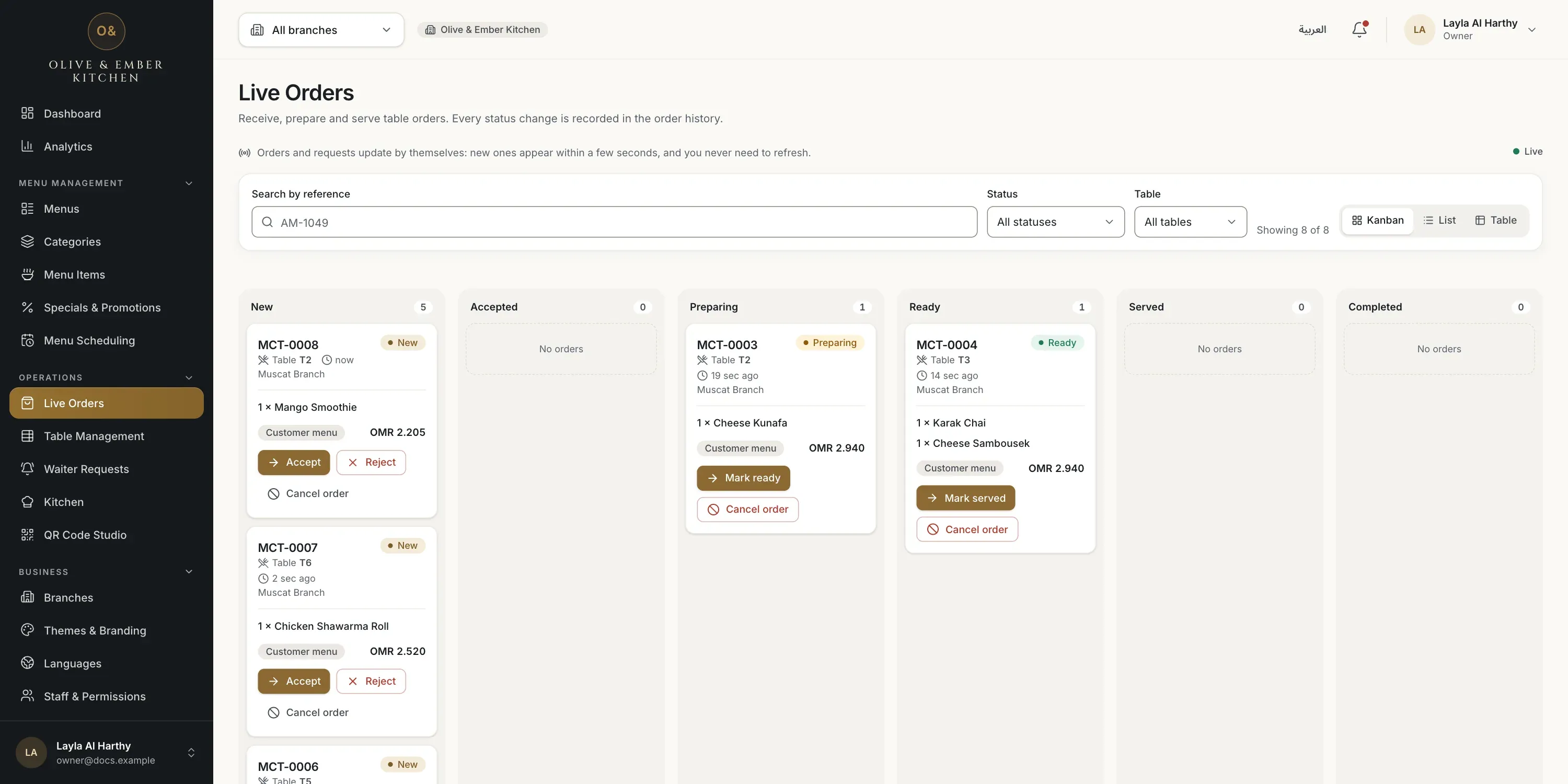
- Live Orders in the sidebar
- The switch between Kanban, List and Table
Spot a new order
A new order is a card in the New column. It shows the order reference, the table, how long ago it was sent, the dishes with their size, extras and instructions, and the total. The label Customer menu says it came from a guest. The bell in the top bar rings, and plays a sound if you turned it on. See the guide on notifications.
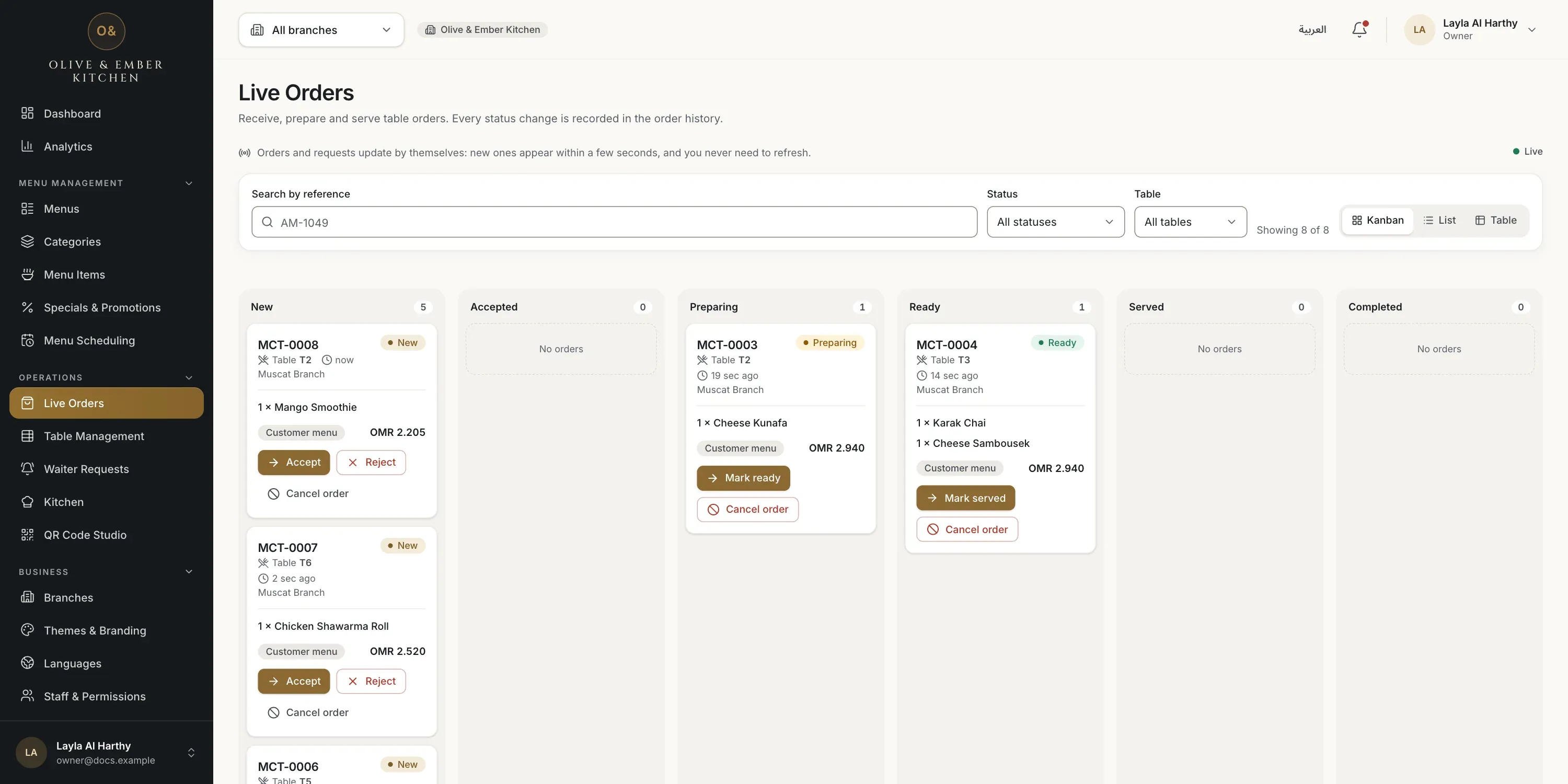
- A new order card
Open an order to see the details
Click the order reference. A panel opens with the table and branch, every dish with its size, extras and instructions, the note of the guest, the subtotal, the VAT and the total. At the bottom, Status history lists when the order was placed and every change. It is a fixed record: entries are only added, never changed. Press Esc to close the panel.
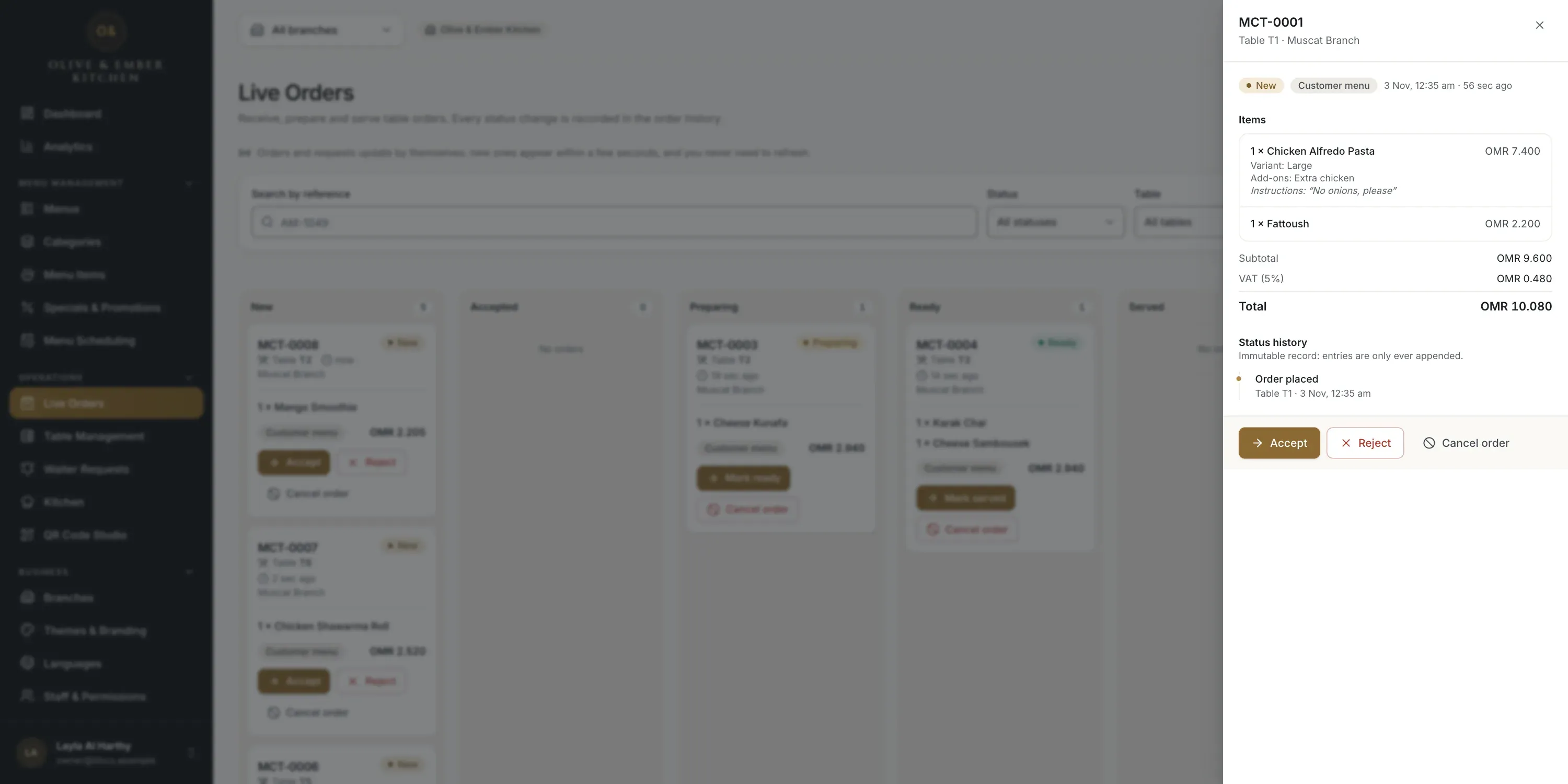
- The order panel
- The status history
Accept the order
Click Accept on the card. The card moves to the Accepted column and the guest's tracking page shows Accepted. The kitchen can now start. In this picture the search box holds the reference, so that only this order is shown.
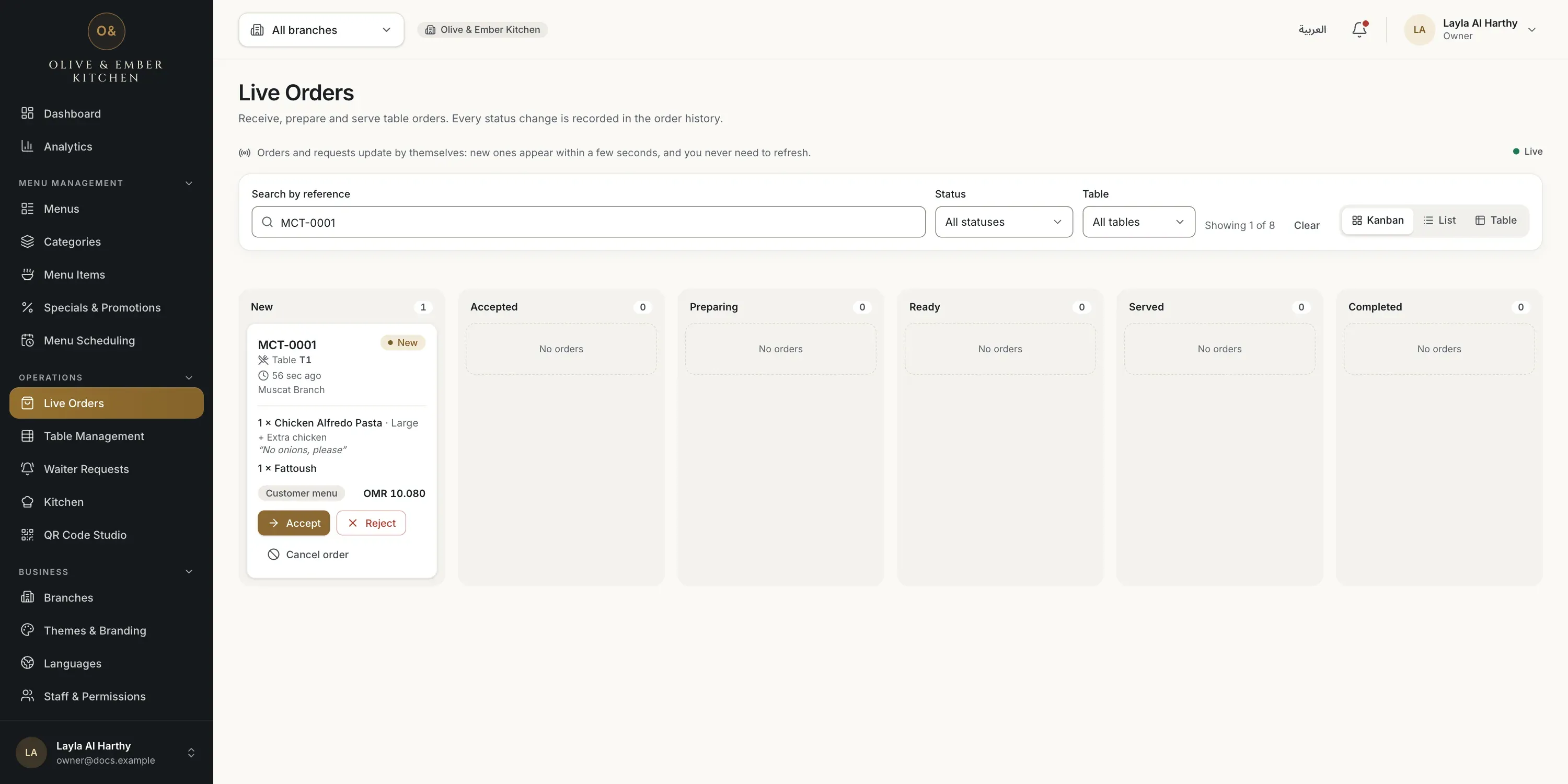
- The search by reference
- The Accept button
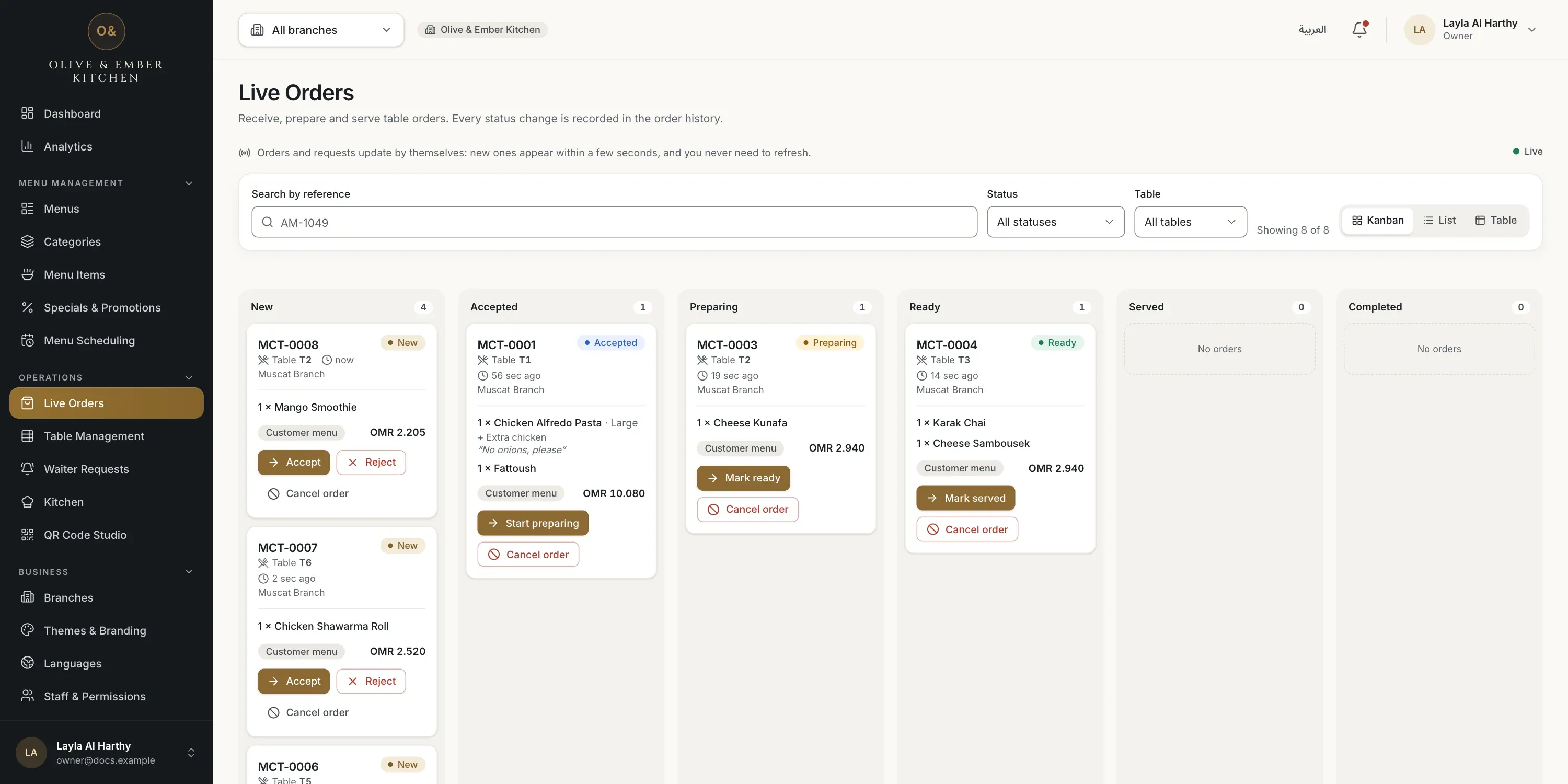
- The accepted order
Move the order along
Each card shows the next step as its main button: Start preparing, then Mark ready, then Mark served, then Complete. Click the button when the step is done. The kitchen team can do Start preparing and Mark ready on the Kitchen board too. Every click is saved in the status history and the guest sees the new status.
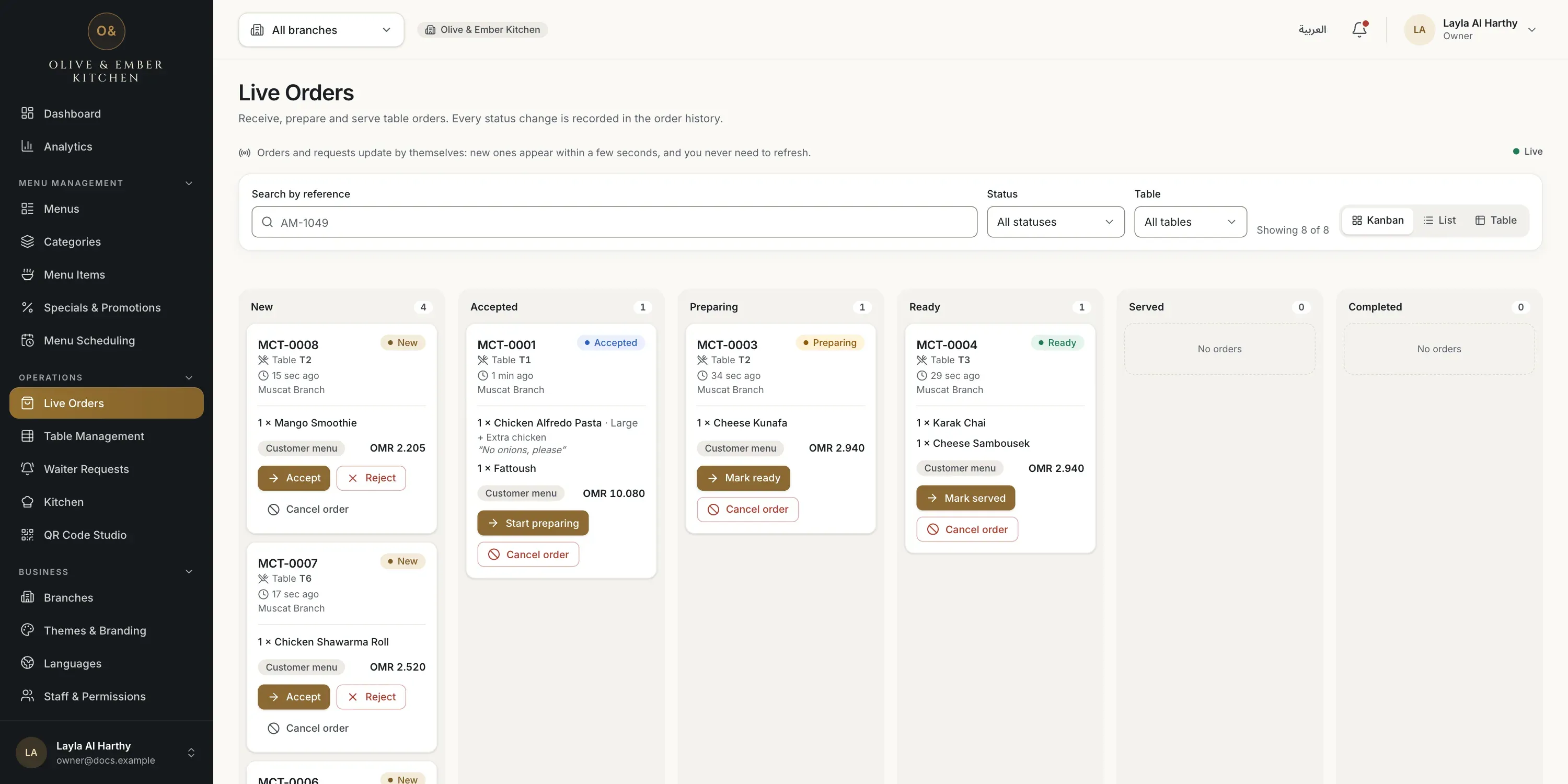
- Start preparing
- Mark ready
- Mark served
Reject or cancel with a reason
Reject is available only while an order is New. Cancel order is available until the order is served. Both ask for a reason of 3 to 240 characters. Click a quick reason, such as Item out of stock, or write your own. The reason is saved in the history and the guest reads it on the tracking page. Then click Reject order or Cancel order.
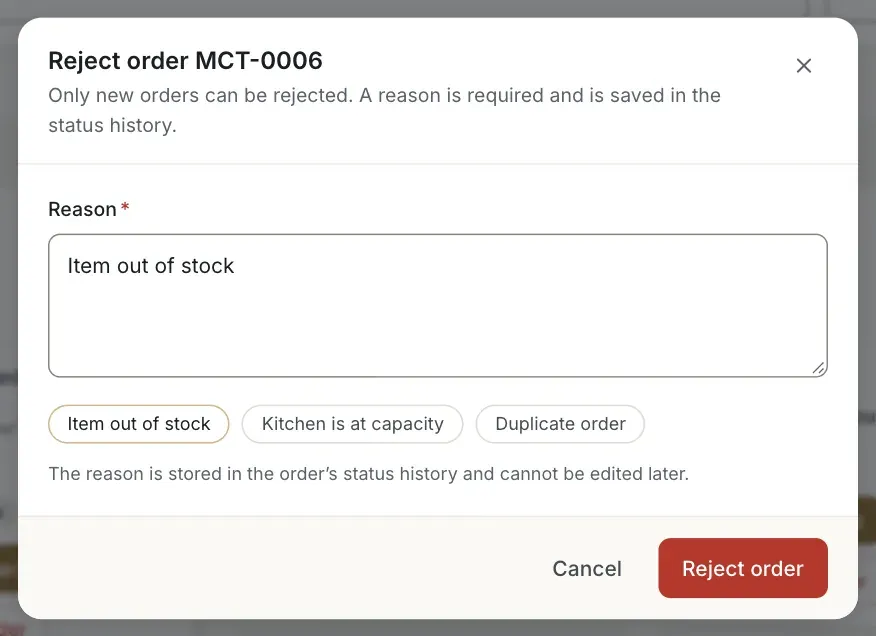
- A quick reason
- The reason
- The Reject order button
Find an order
Type a reference in Search by reference, or filter by Status and by Table. Use List or Table when you prefer rows to columns. Rejected and cancelled orders are listed in their own section under the board.
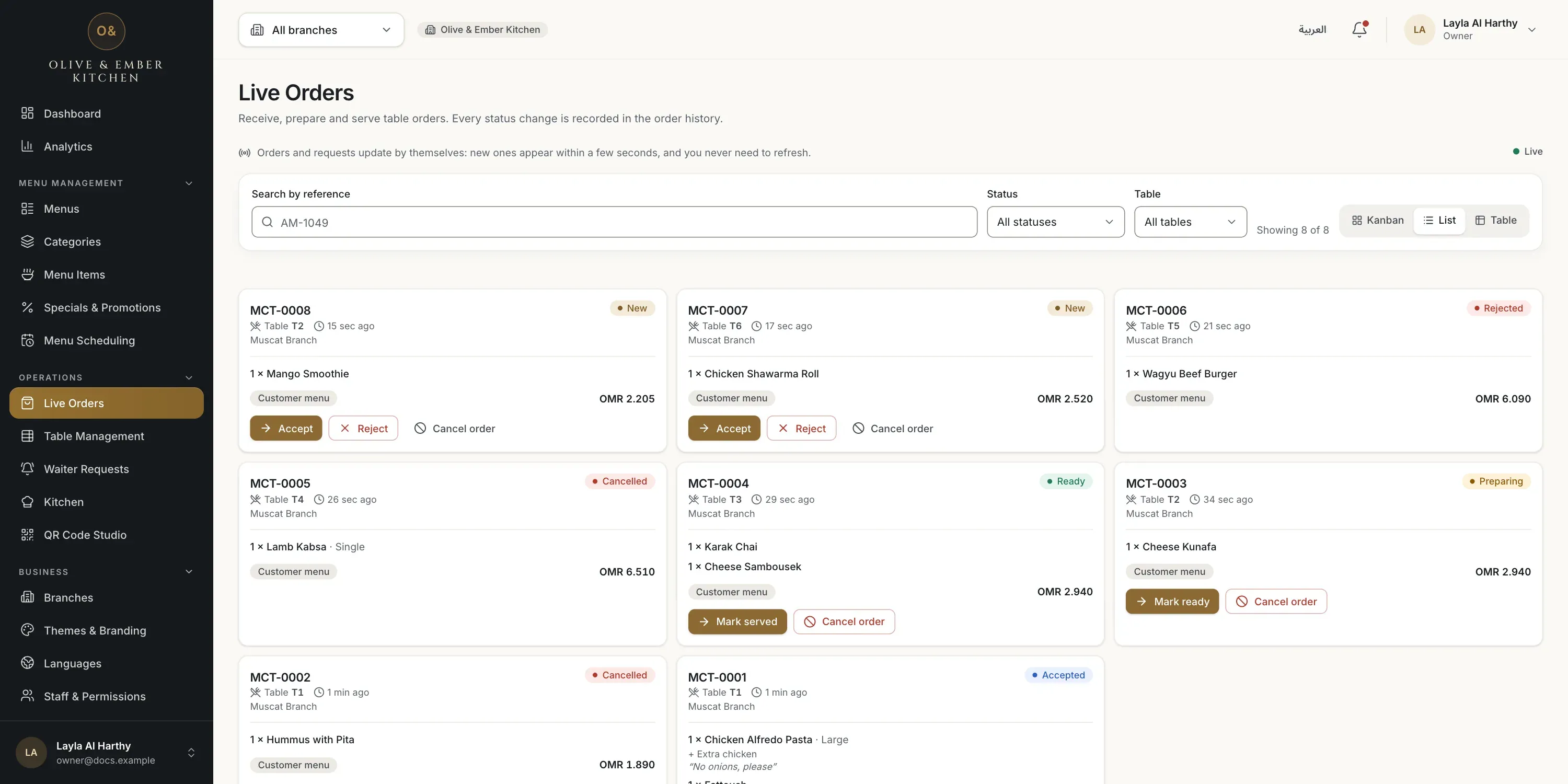
- The search box
- The Status filter
- The Table filter
- The view switch
Know who can do what
Your role decides what you can change on this screen. The table below lists the roles. Waiters see a notice at the top of the screen and a Mark served button on orders that are ready. Viewers can only look.
| Role | What they can do |
|---|---|
| Owner, admin, branch manager, order manager | Accept, reject, move to every status, cancel |
| Waiter | Follow orders and mark a ready order as served |
| Viewer | Look only |
| Kitchen staff | No access to Live Orders. They use the Kitchen board |
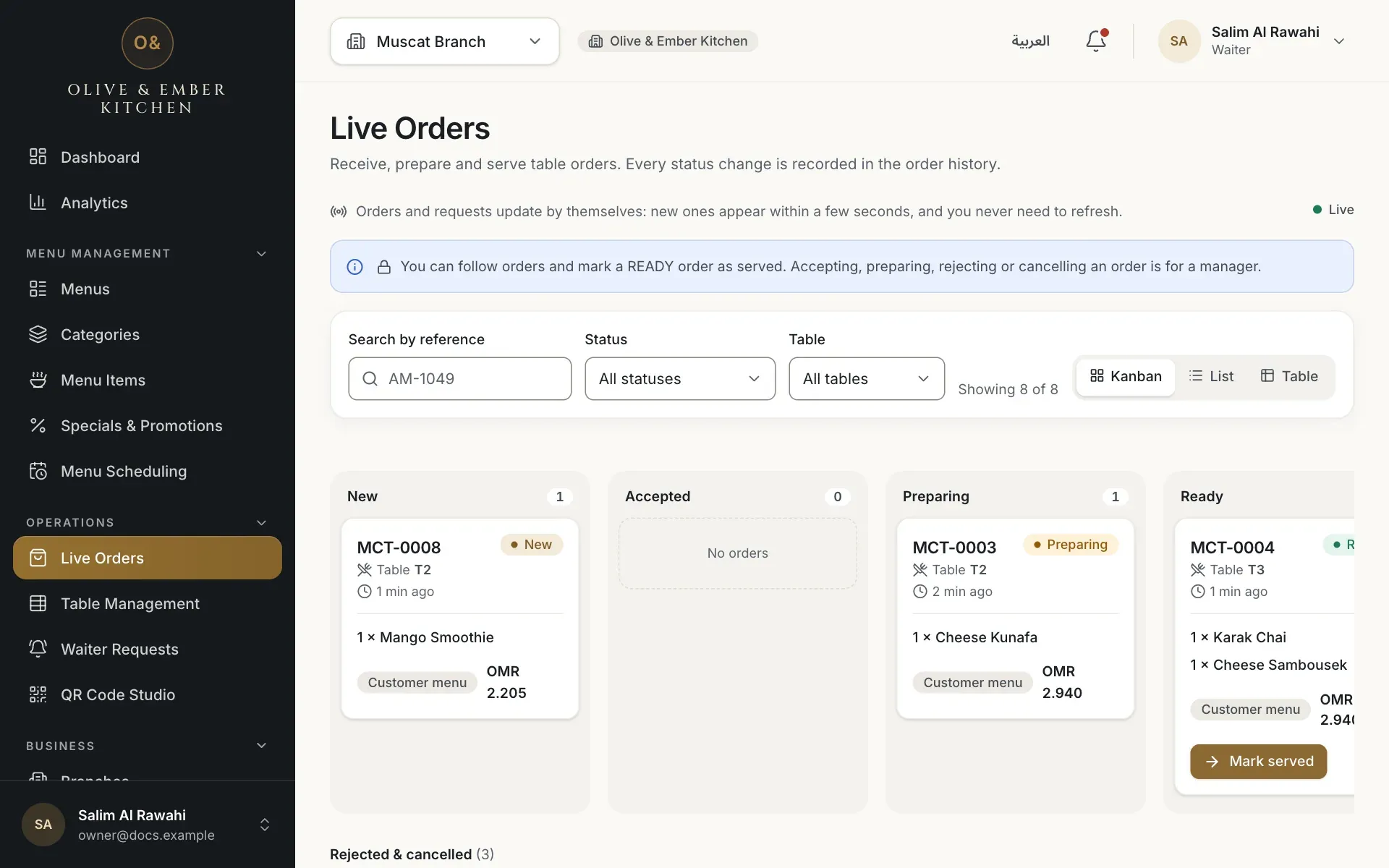
- The notice for the waiter role
- The Mark served button
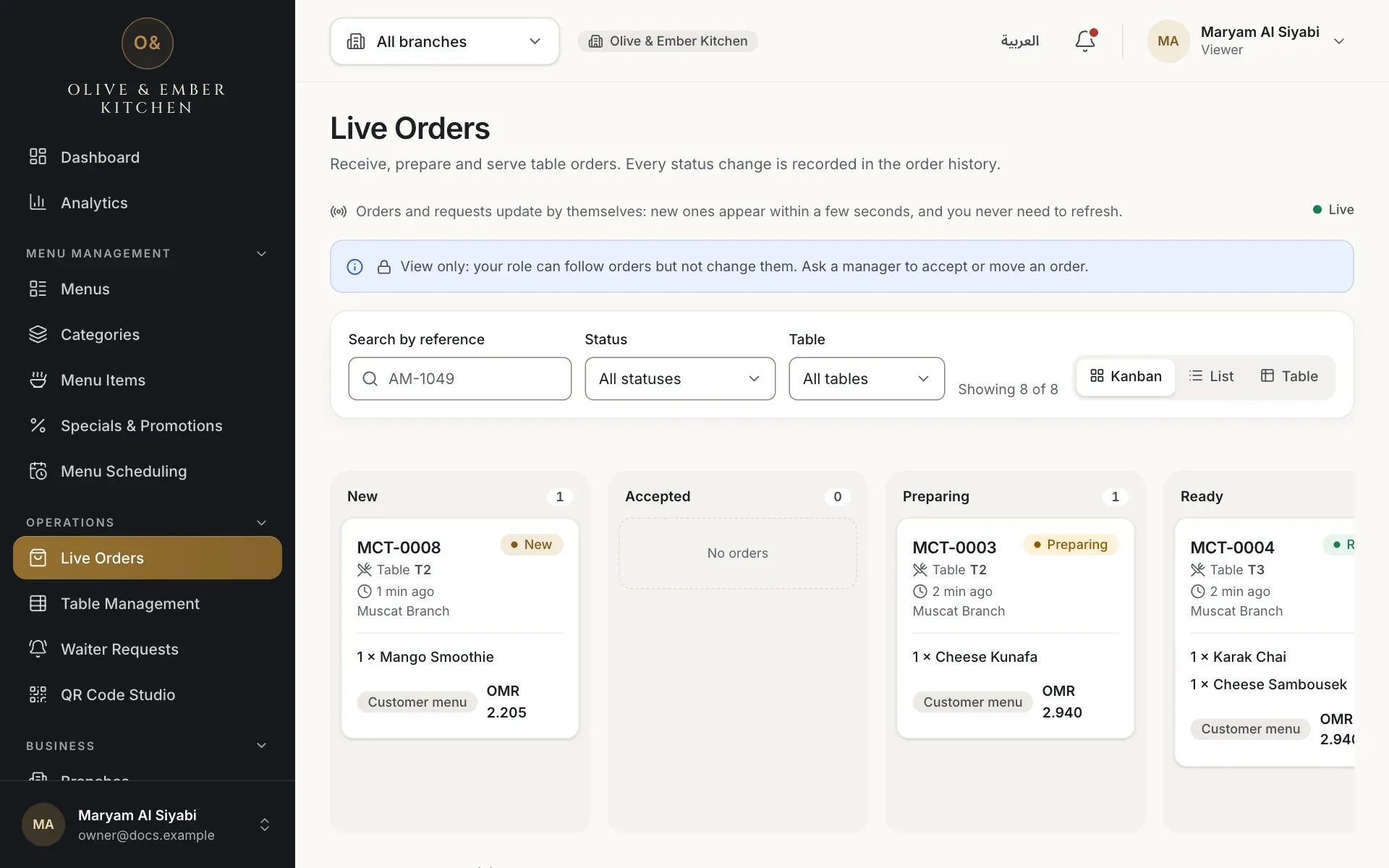
- The notice View only
Guests waiting for confirmation
If your restaurant asks staff to confirm each table, a notice at the top of Live Orders says Guests are waiting for you. Click Confirm guests so they can order.
Troubleshooting
Another person or device moved the same order a moment before you. Look at the order again and repeat your step if it is still needed.
The order was already moved, for example served by a waiter or cancelled by the guest. Check its new status on the board.
Rejecting and cancelling need a reason. Write at least 3 characters, up to 240, or click a quick reason.
The branch is not in the mode Full table ordering. Open Branches or Restaurant Settings and change the operating mode. The button Go to Branches takes you there.
The page could not reach RothDine. Check your connection. Nothing was lost, and the screen updates by itself when the connection is back.
The live connection is lost, so the board shows the last known orders. Do not rely on it for new orders until it says Live again.
Related guides
- OrdersOrder statusesWhat New, Accepted, Preparing, Ready, Served, Completed, Rejected and Cancelled mean for your guest and for your team, and who can set each one.
- OrdersStaff notificationsSee new orders, guest cancellations and waiter requests in the notification bell, and turn on a sound for new orders.
- OrdersHow guests orderWhat your guests do on their phone, from scanning the table QR code to sending an order, following it and calling the waiter.
- Kitchen staffUse the kitchen boardRead the New, Preparing and Ready columns, understand an order card, and move orders with Start preparing and Mark ready.