
Staff notifications
See new orders, guest cancellations and waiter requests in the notification bell, and turn on a sound for new orders.
- Goal
- You see every new order and request in the bell, and your browser plays a short sound when one arrives.
- Before you start
- You are signed in to the restaurant dashboard
- For sound: a computer or tablet with the volume on
The bell sits in the top bar of every dashboard page. It tells you about new orders, orders that a guest cancelled, and waiter requests, so you do not need to stay on Live Orders. The sound is optional and is kept per browser. Notifications are kept for 30 days.
Look for the red dot on the bell
When something new arrives, a red dot appears on the bell. You see it on every page of the dashboard.
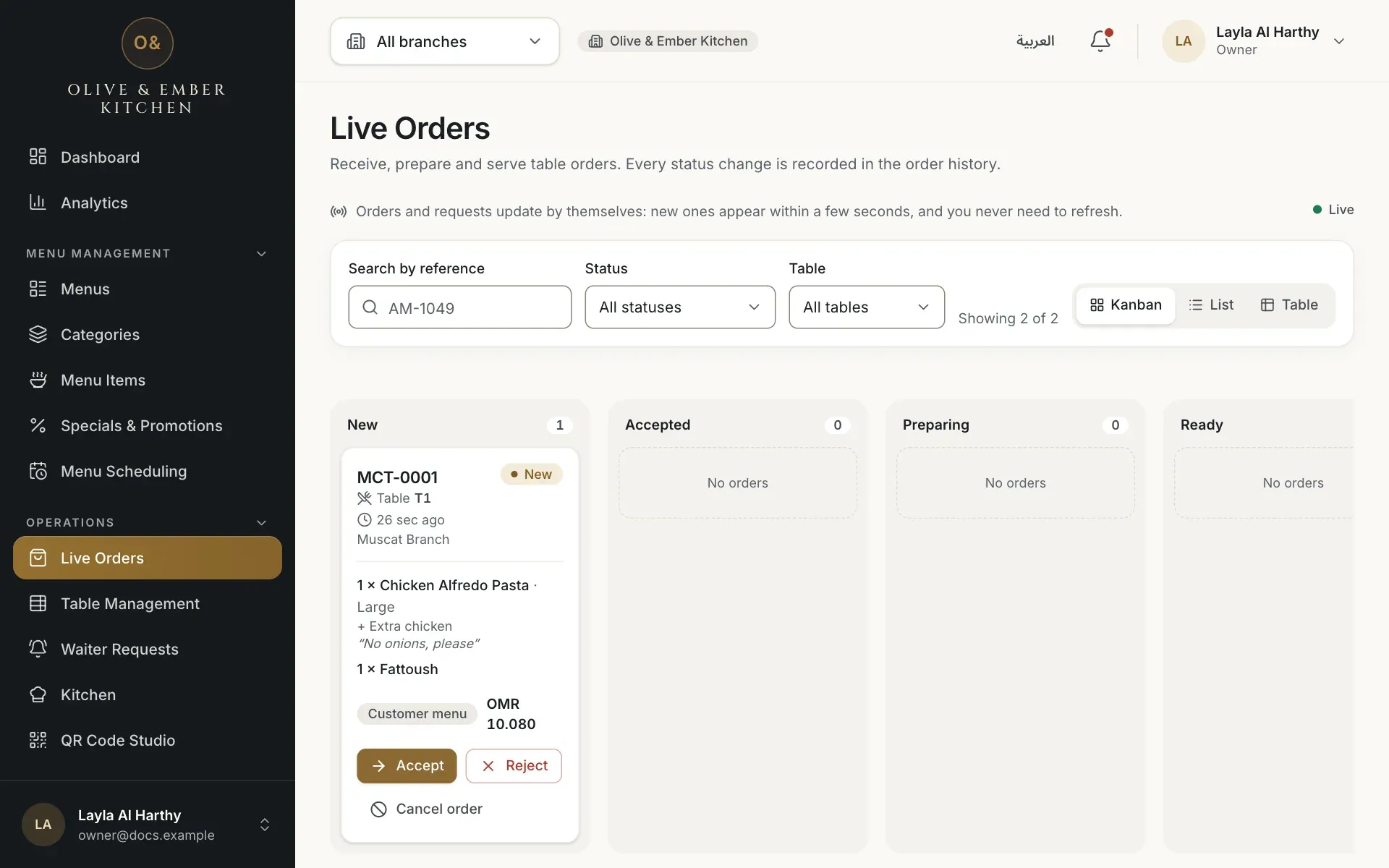
- The bell with the red dot
Open the notifications
Click the bell. The list shows the newest first, with how long ago each one arrived. A notification can say New order MCT-0001 from table T1, Order MCT-0002 was cancelled by the guest · table T1, Table T1 is calling the waiter or Request bill · Table T1. Click one to open Live Orders or Waiter Requests. Opening the list marks the notifications as read, and the ones that were new stay highlighted until you close it. If some stay unread, Mark all as read appears next to the sound button.
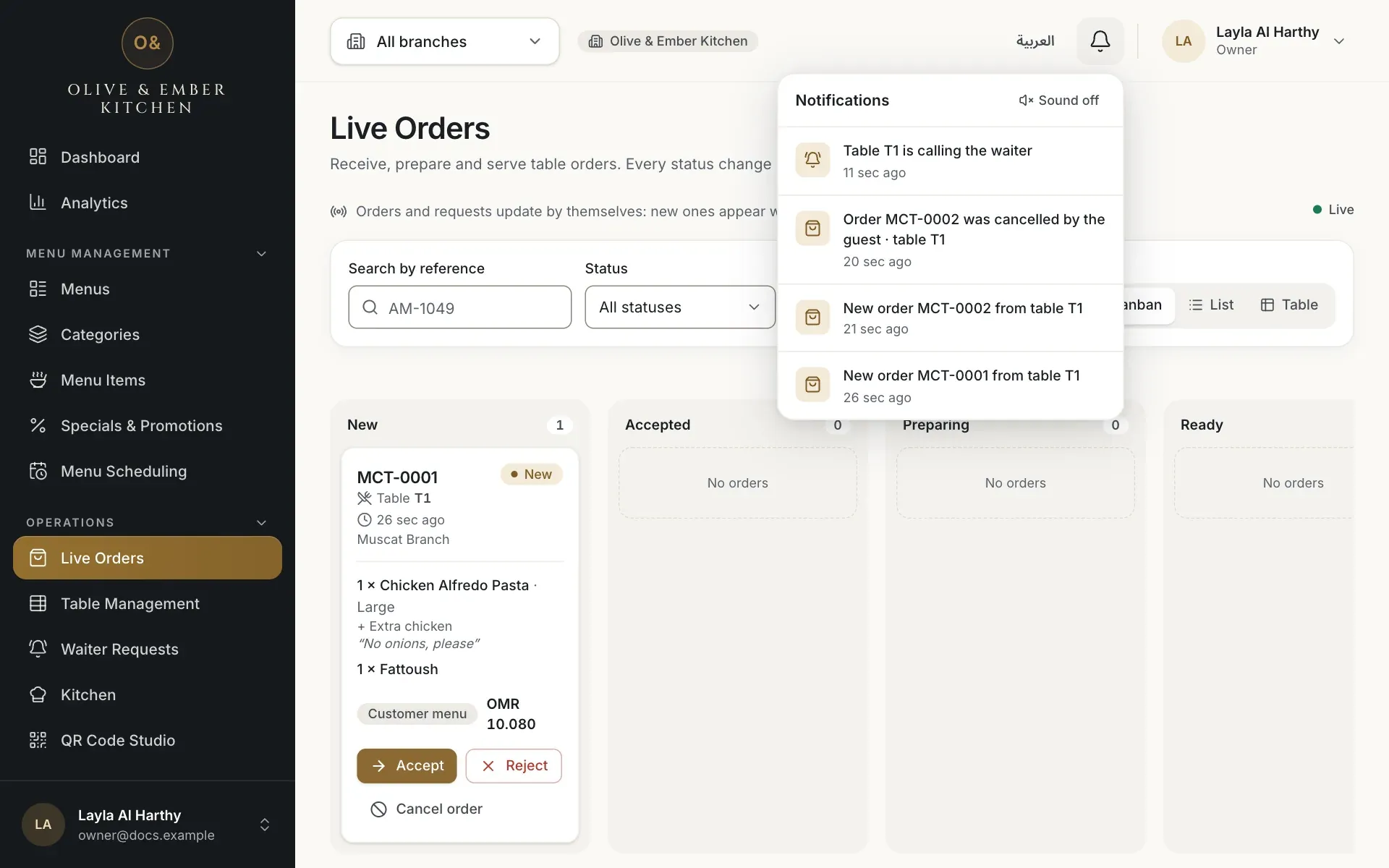
- The list of notifications
- The sound button
Turn the sound on
Click Sound off in the notification panel. It changes to Sound on. From now on the browser plays a short tone when a new order or request arrives. The browser may ask you to click on the page first, and the sound only plays while the dashboard is open. The choice is saved on this device, so set it on each device you use. The sound is off until you turn it on.
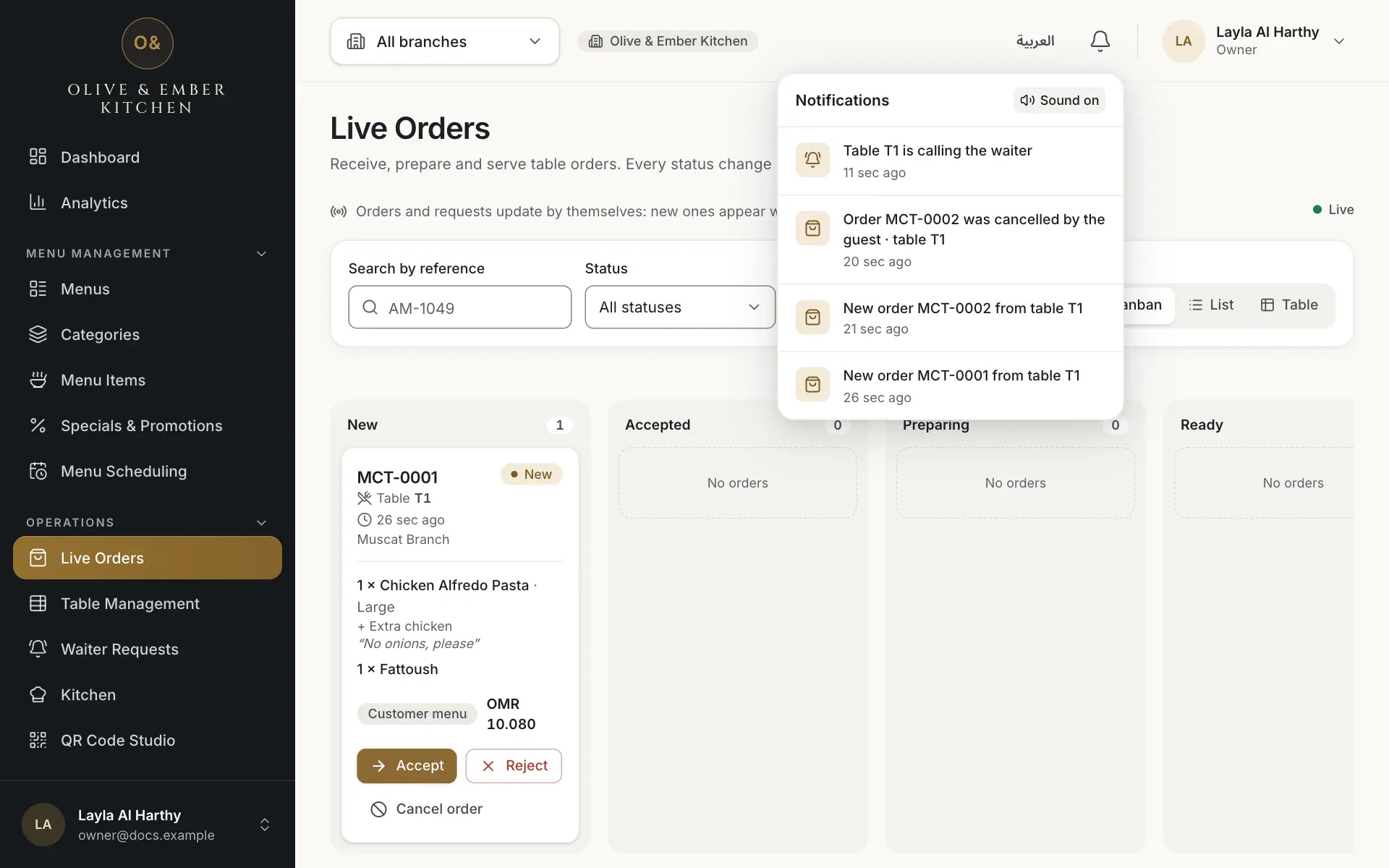
- The Sound on button
Check that everything is read
After you close the panel, the red dot is gone. The next order or request brings it back.
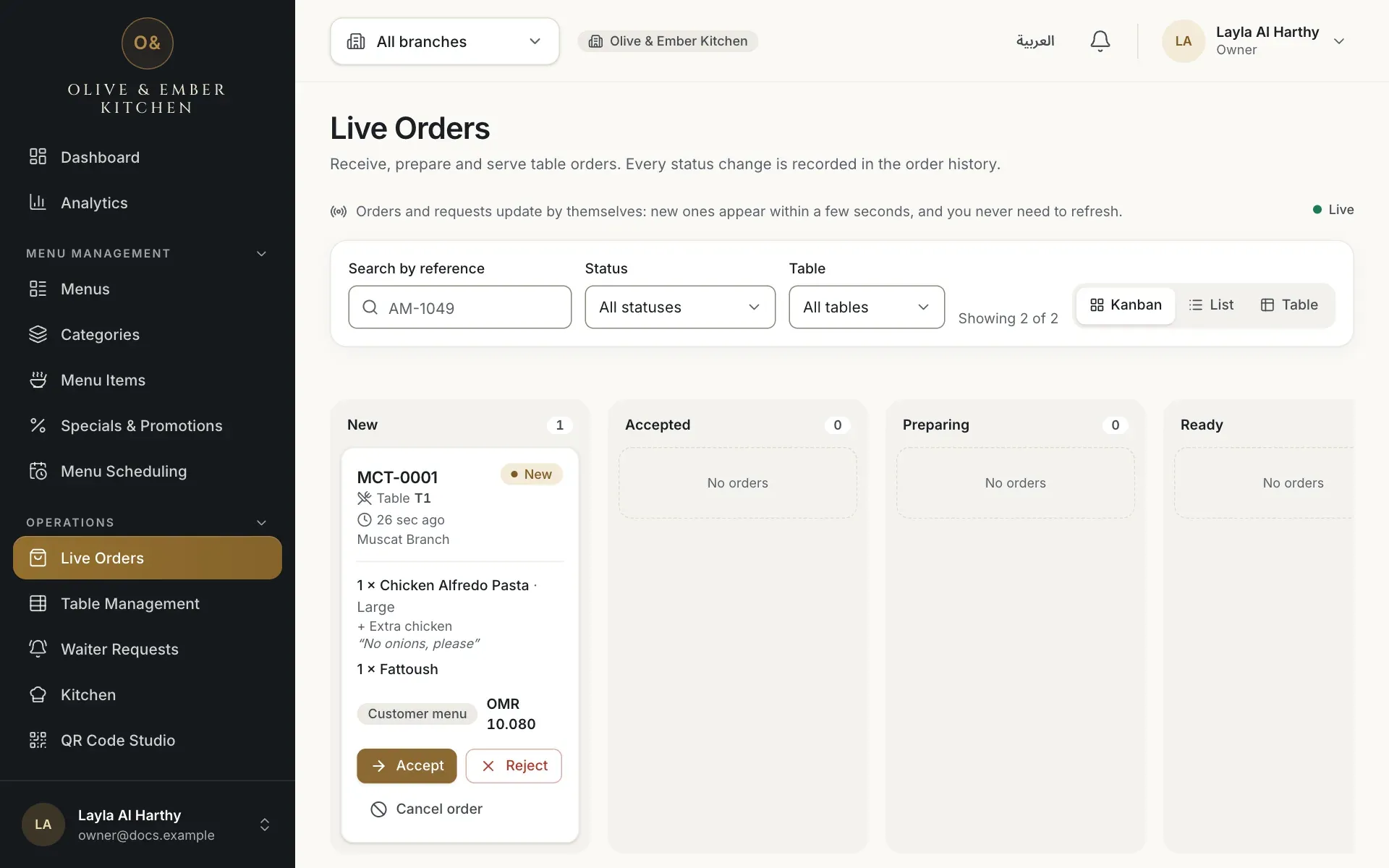
- The bell without a red dot
The kitchen screen has its own sound
The Kitchen board has its own alert sound, set separately. See the guide on kitchen notifications.
Troubleshooting
The bell could not reach RothDine. Check your connection. The list loads again by itself.
There is nothing new. The message shows when the list is empty.
Check that you clicked Sound off so that it reads Sound on, that the volume is up, and that the dashboard is open in the browser. Click once on the page, because browsers do not play sound before a click. The sound is saved per device, so a second computer needs it turned on again.
Related guides
- OrdersLive OrdersReceive guest orders, accept or reject them, move them to served, and see who on your team can do what.
- OrdersWaiter requestsSee when a guest calls the waiter, asks for help or asks for the bill, and answer each request from the Waiter Requests screen.
- Kitchen staffAlerts, sound and connectionHear and see new orders, turn the alert sound on or off, and understand the connection indicator and the missed-orders banner.