
Sign in to the kitchen
How a cook signs in, lands on the kitchen board, what stays hidden, and what to do when the session ends.
- Goal
- You are signed in and looking at the kitchen board, and you know how to sign out or sign back in.
- Before you start
- You accepted the invitation to join the restaurant as Kitchen staff
- The e-mail address and password of your RothDine account
A person with only the Kitchen staff role has a very simple RothDine. After signing in, the kitchen board opens by itself. There is no dashboard, no menu editor and no billing to find, because those pages are not part of the role.
Open the sign-in page
Open the RothDine sign-in page in the browser of the kitchen tablet or phone. You can save it as a bookmark or add it to the home screen.
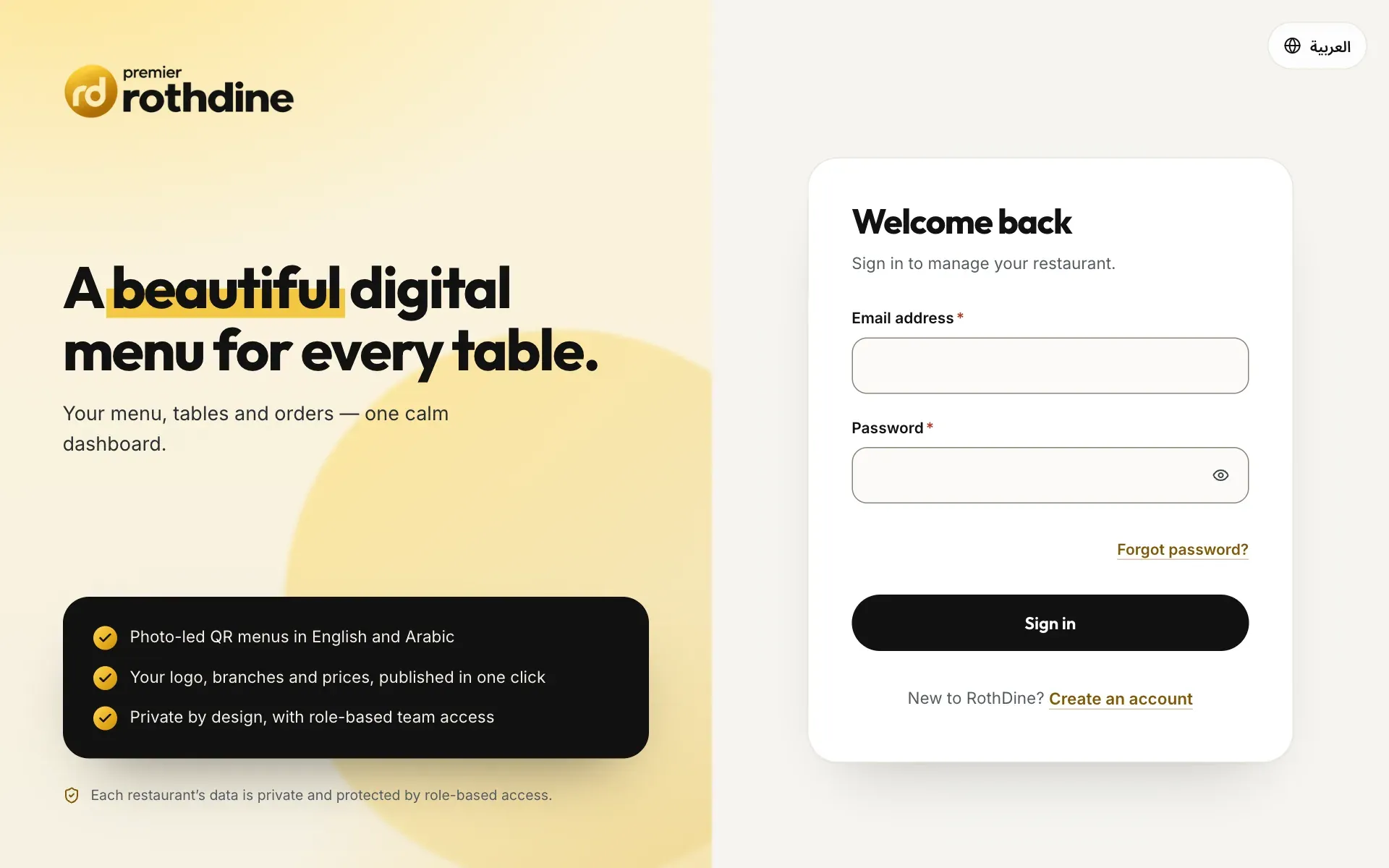
- The e-mail address field
- The password field
Sign in
Type the e-mail address you were invited with and your password, then click Sign in. If you forgot the password, use Forgot password? on the same page.
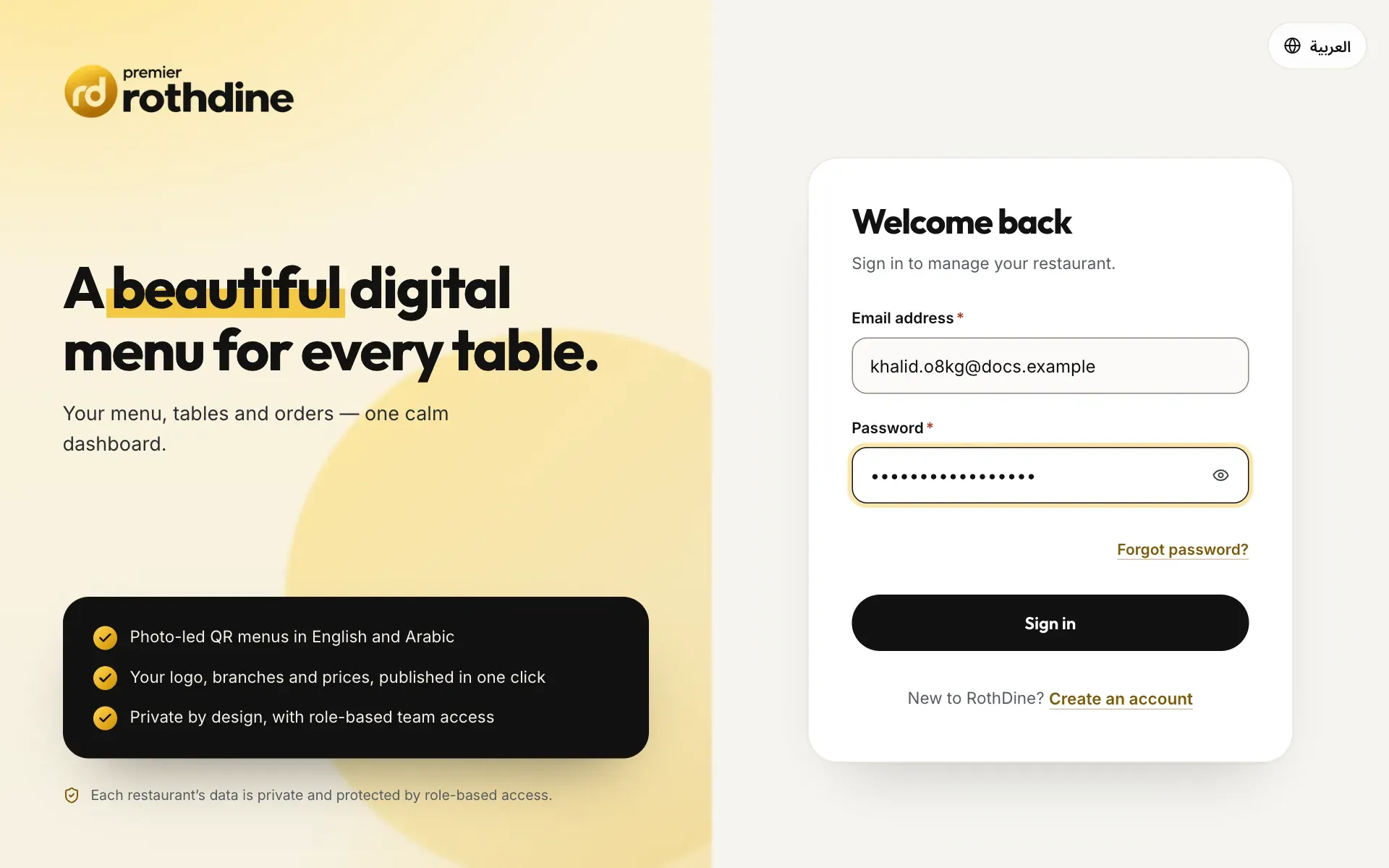
- The Sign in button
Land on the kitchen board
You go straight to the kitchen board of your branch. The header shows the restaurant name and the branch. Below it are the columns New, Preparing and Ready. Read Use the kitchen board to work with the orders.
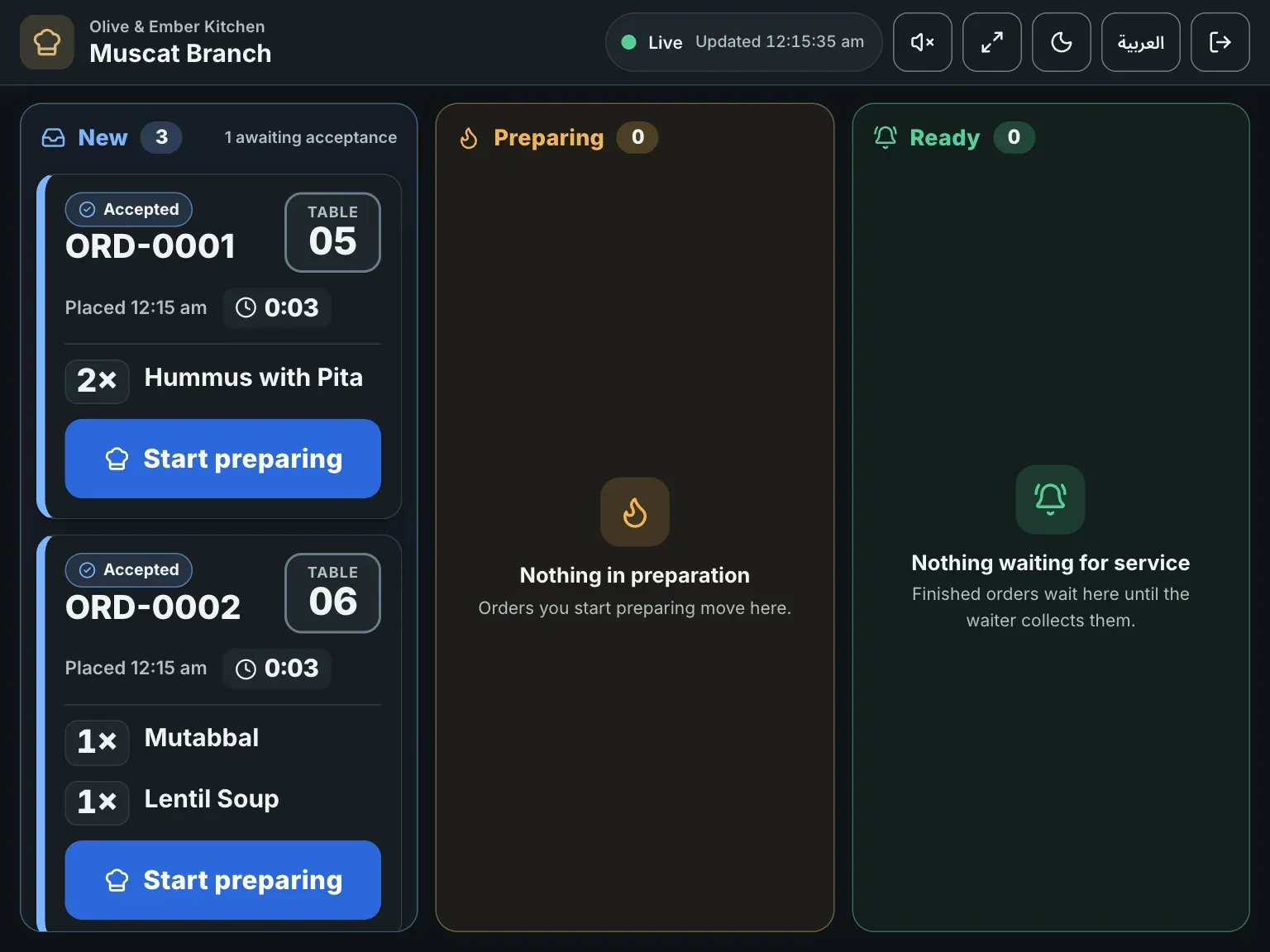
- The header with the restaurant, the branch and the tools
Know what stays hidden
If you type or open any other address of the dashboard, for example the billing page, you are sent back to the board with the notice That page is not part of your role. You work in the kitchen. Click Dismiss to close it. You never see prices, totals, payments, guest names, the menu editor, table setup, QR codes, staff, billing or settings. Orders on the board show items and notes only.
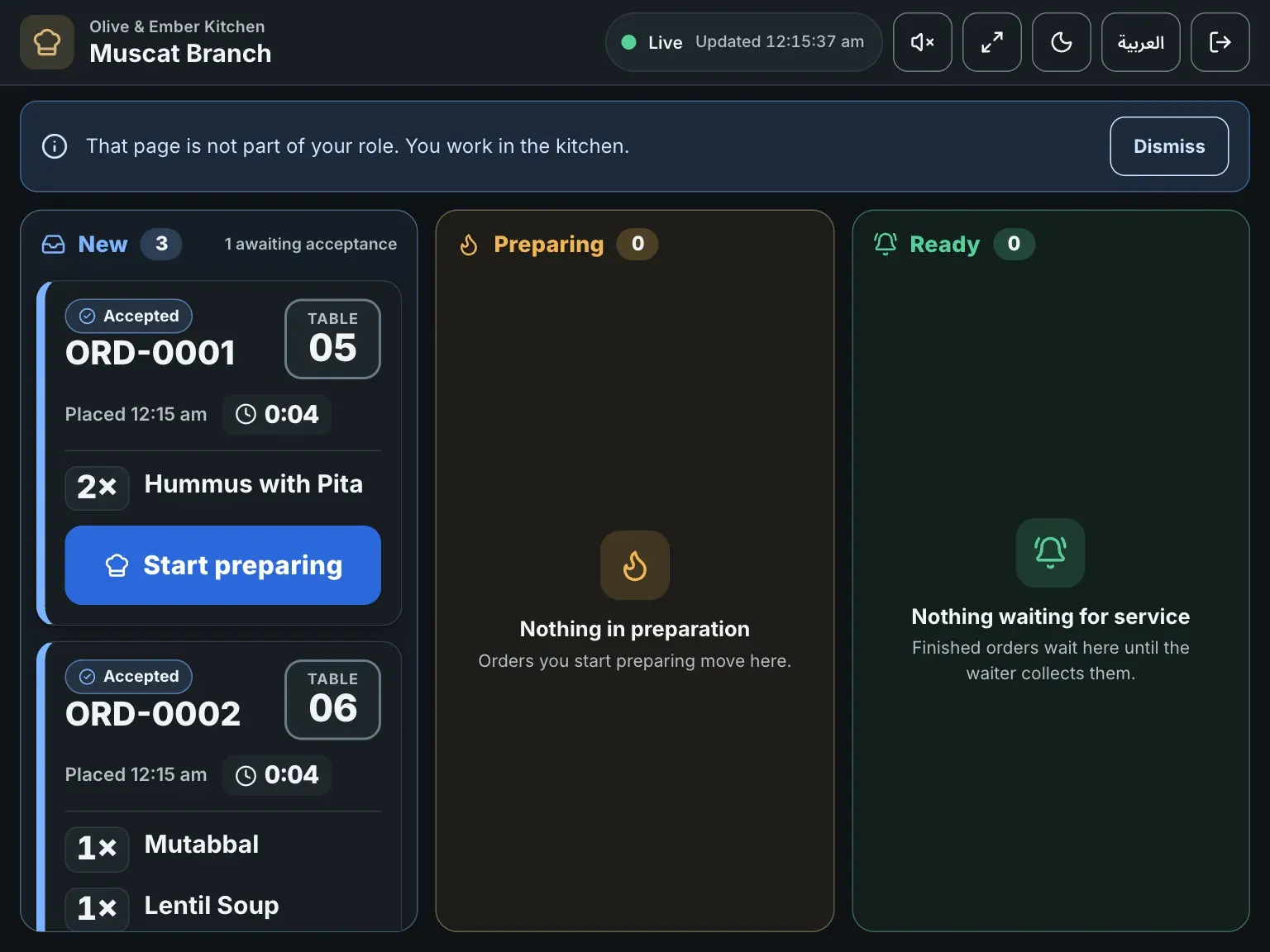
- The notice that the page is not part of your role
Sign out at the end of the shift
Click the sign-out button, the last button on the right of the header. You return to the sign-in page. Sign out on shared tablets so the next person signs in with their own account.
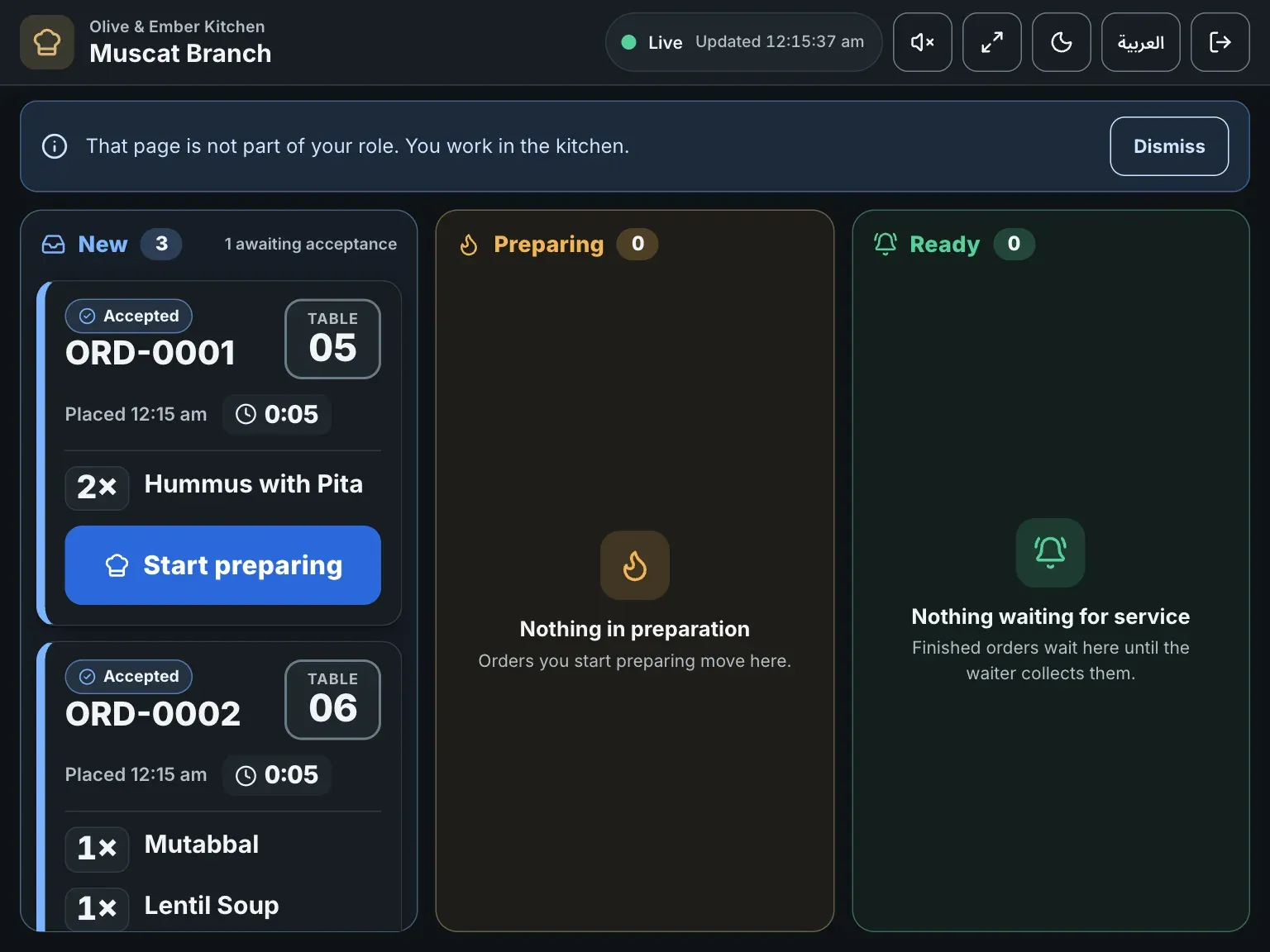
- The sign-out button
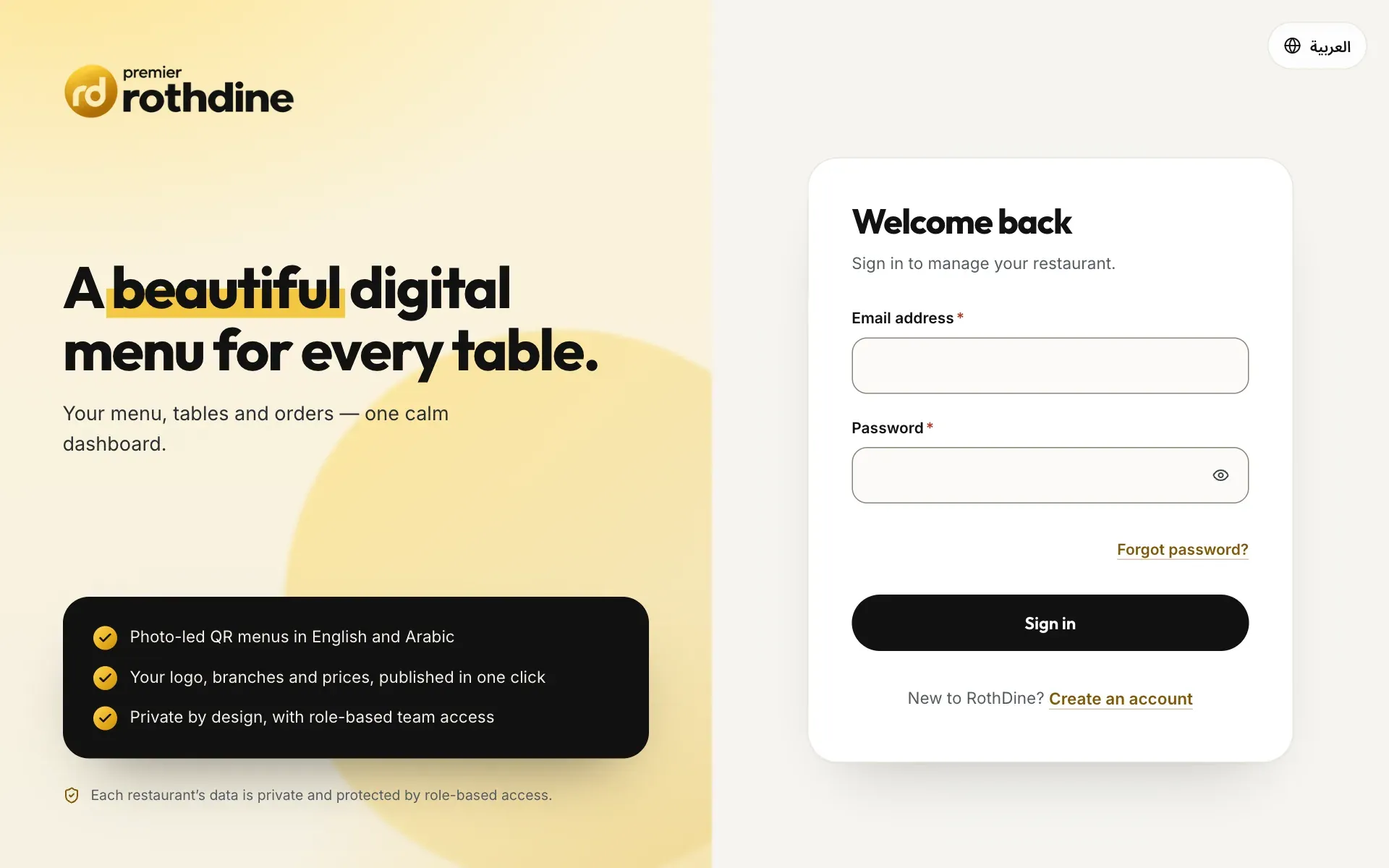
- The Sign in button
Sign in again when the session ends
If your sign-in expires while the board is open, the board says Your session has ended. Orders keep arriving while you are signed out and nothing is lost. Click Sign in again, sign in, and the board shows everything that happened meanwhile.
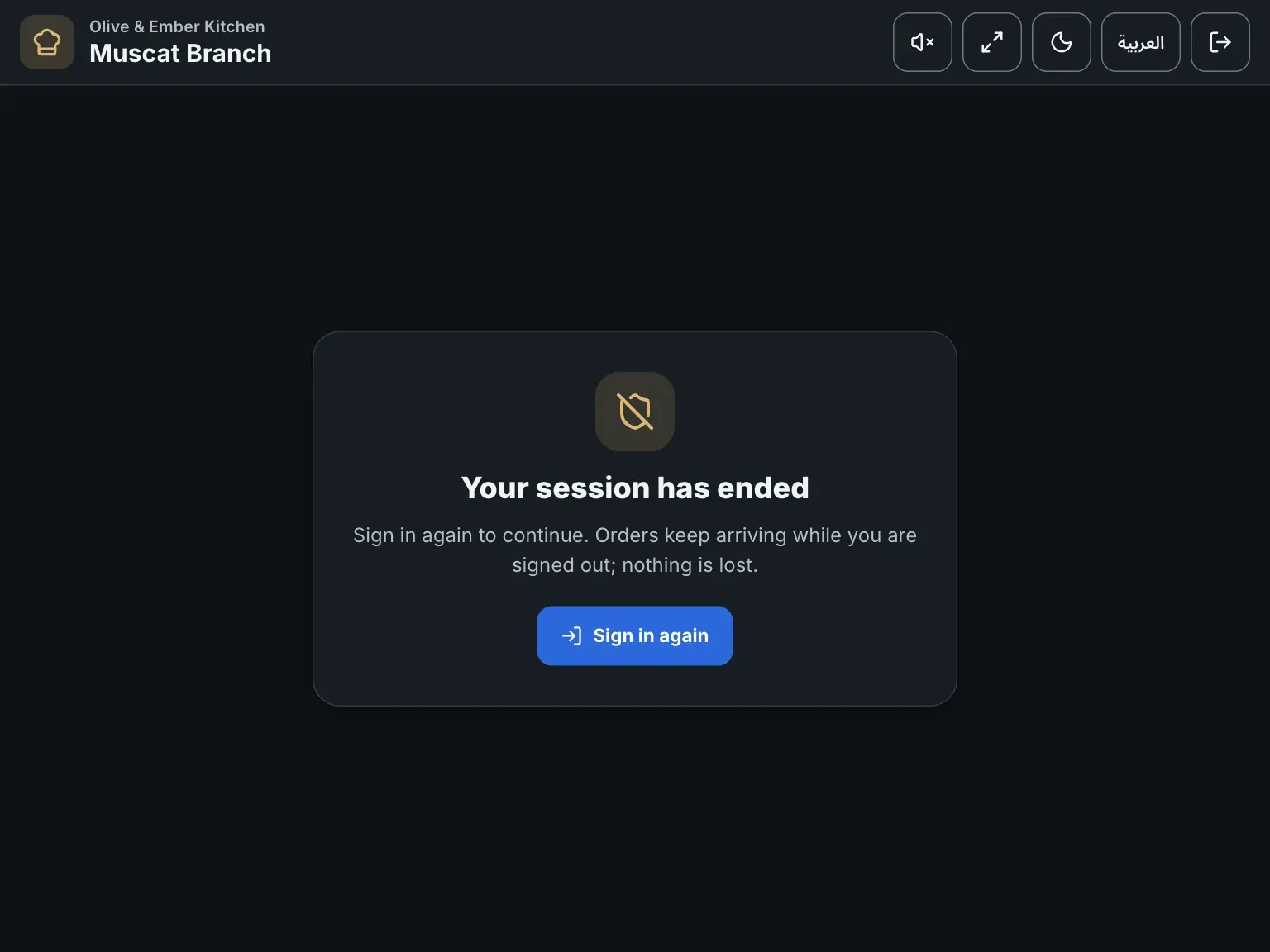
- The Sign in again button
Troubleshooting
Check the e-mail address (it must be the one you were invited with) and the password. Use Forgot password? to set a new password.
You created your account but did not confirm the e-mail address. Open the confirmation e-mail, click its link, then sign in.
Too many sign-in attempts were made in a short time. Wait one minute and try again.
The owner or a manager changed or removed your access. Ask them to check your role and branch in Staff & Permissions.
You are not assigned to a branch. Ask the restaurant owner to assign you to one.
Related guides
- Kitchen staffUse the kitchen boardRead the New, Preparing and Ready columns, understand an order card, and move orders with Start preparing and Mark ready.
- Kitchen staffInvite kitchen staffInvite a cook by e-mail, give the person the Kitchen staff role for a branch, and see them join your team.
- Kitchen staffAlerts, sound and connectionHear and see new orders, turn the alert sound on or off, and understand the connection indicator and the missed-orders banner.
- Help & troubleshootingTroubleshootingFind the message you see on screen, learn what it means and how to fix it, grouped by area.