
Alerts, sound and connection
Hear and see new orders, turn the alert sound on or off, and understand the connection indicator and the missed-orders banner.
- Goal
- The kitchen screen tells you about every new order, and you know what the connection indicator and the banners mean.
- Before you start
- The kitchen board is open in the browser of the kitchen screen
- Speakers or volume turned on, if you want to hear alerts
The kitchen board is meant to stay open on a screen in the kitchen. When a new order arrives, the board shows it at once. It can also play a short alert sound. Sound is optional and works only while the board is open.
Turn the alert sound on
Click the sound button in the header, then choose Enable sound. A short sound plays once for every new order. The menu reminds you that alert sounds only play while this screen is open, so keep the board open on the display.
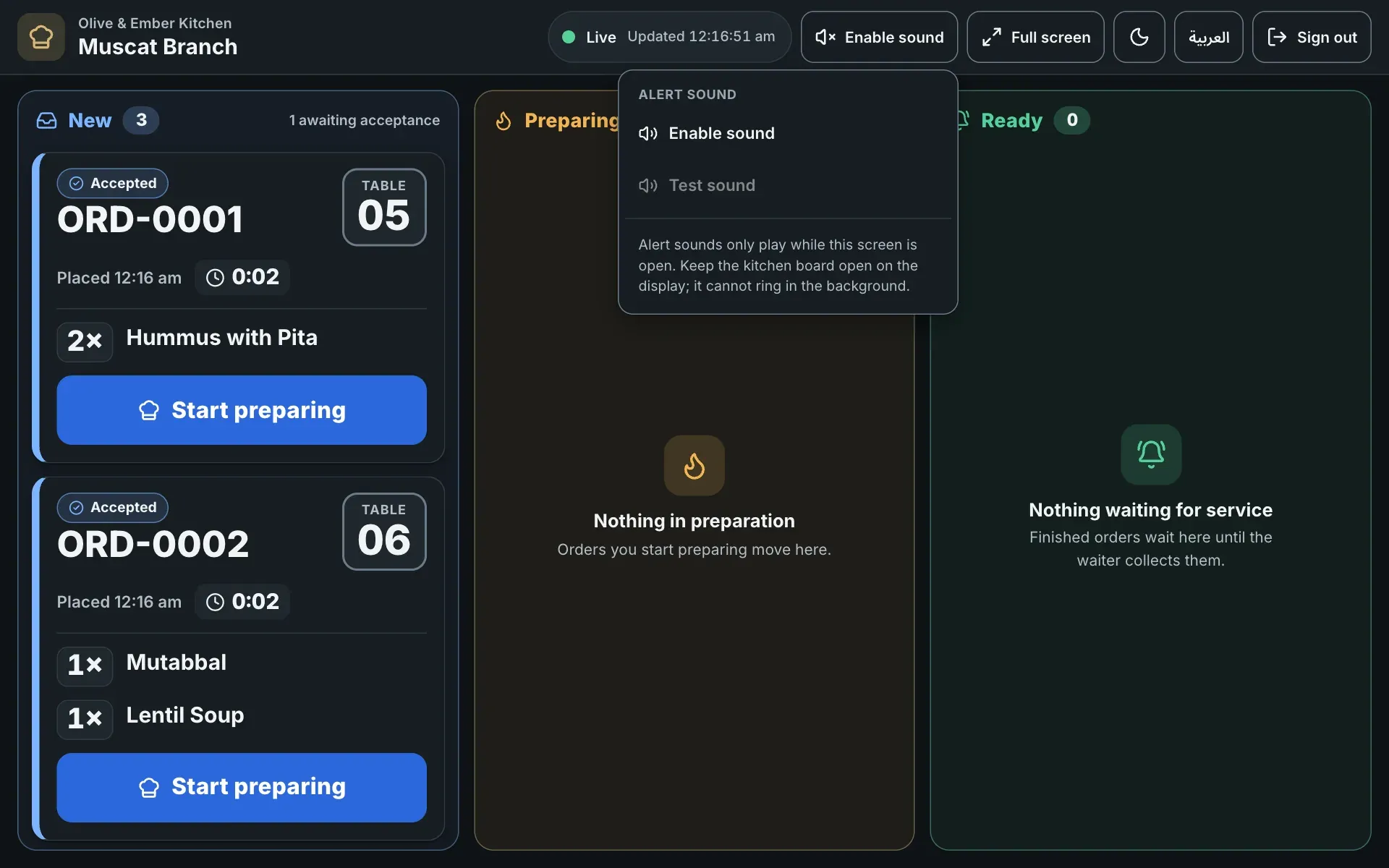
- The sound button
- The Enable sound choice

- The sound button, now showing Sound on
Test or turn off the sound
Click the sound button again. Test sound plays the alert so you can check the volume. Turn sound off silences the board. The new orders still appear. You can turn the sound on again at any time.
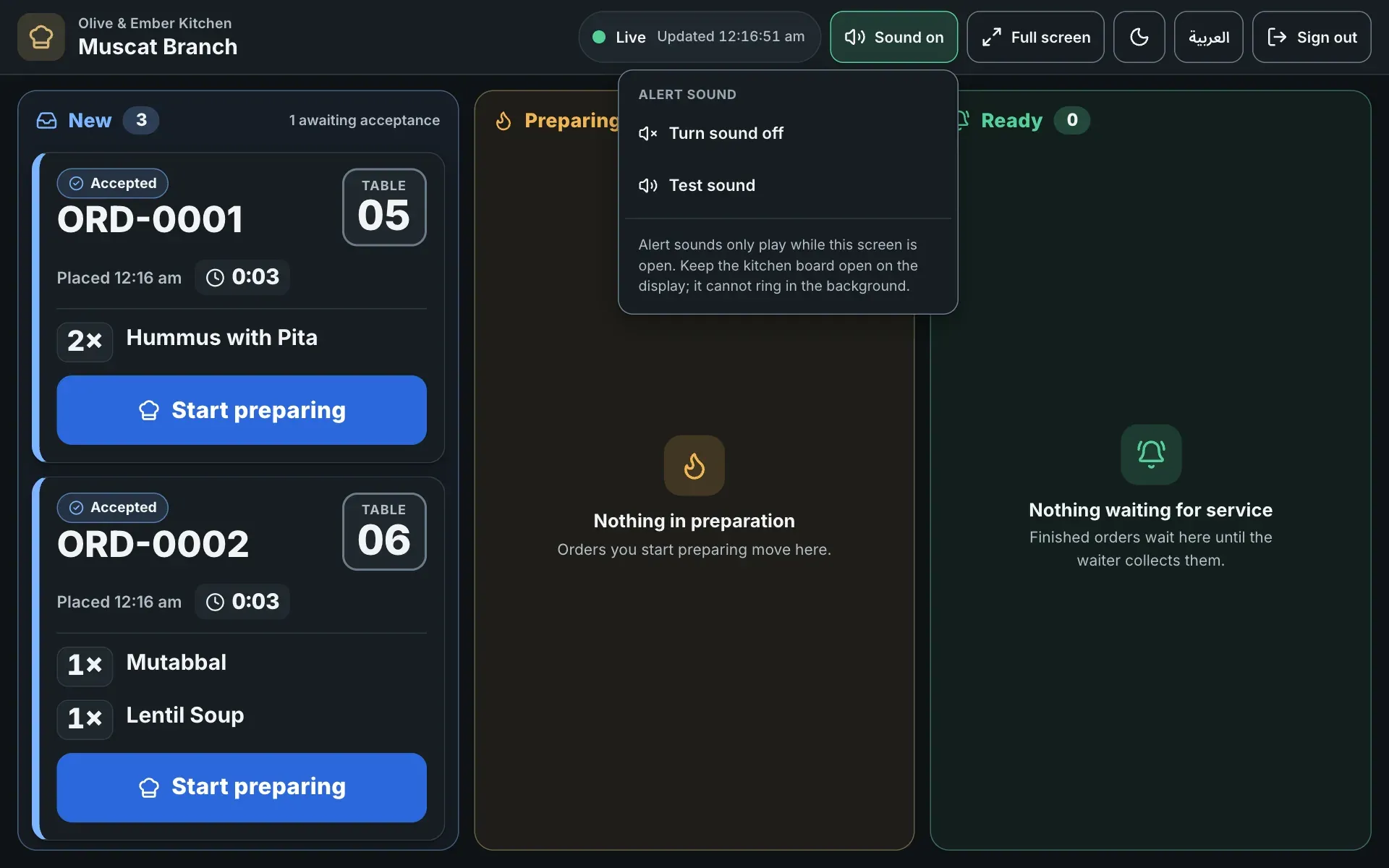
- Turn sound off
- Test sound
See a new order arrive
When a guest sends a new order, its card appears in the New column with a New badge and a bright outline, and the sound plays if it is on. Until a manager accepts the order, the card says Awaiting acceptance and has no button. You get one alert for each order on this screen, even if it also arrives through a reload or a slow connection. Start the order with Start preparing as usual.
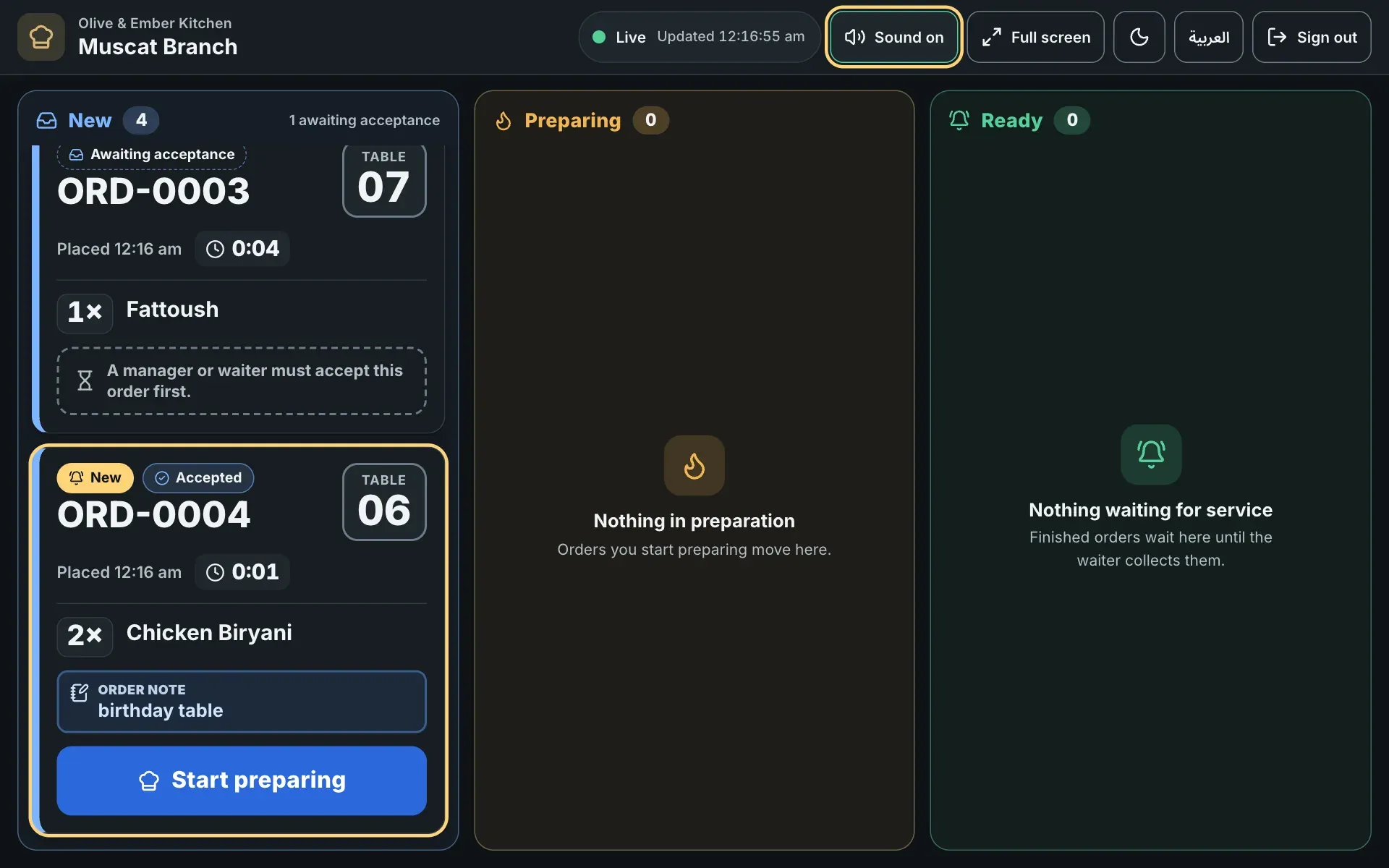
- The New badge
- The new order card
Tap again if the browser blocks the sound
Browsers do not play sound until someone touches the page. After you reload the board, the sound button reads Sound blocked by browser — tap to enable. Tap it once and the sound works again. On an iPad or iPhone you need this tap after every reload.

- The Sound blocked by browser button
Read the connection indicator
Next to the sound button, the indicator shows whether the board is up to date. Live with a green dot means new orders arrive the moment they happen. The time next to it is the last update.

- The connection indicator showing Live
Reconnecting… means the board is trying to set up the live connection again. Updating means the board is not using the live connection and asks for new orders by itself every few seconds. In both cases the board keeps working and no order is lost.

- The connection indicator showing Reconnecting

- The connection indicator showing Updating
When the connection is lost
If the screen loses the internet, the indicator turns to Offline and a banner says Connection lost. You keep looking at the last known board. It updates by itself the moment the connection returns. Click Retry now to try straight away. Do not rely on the board for new orders while it is offline.
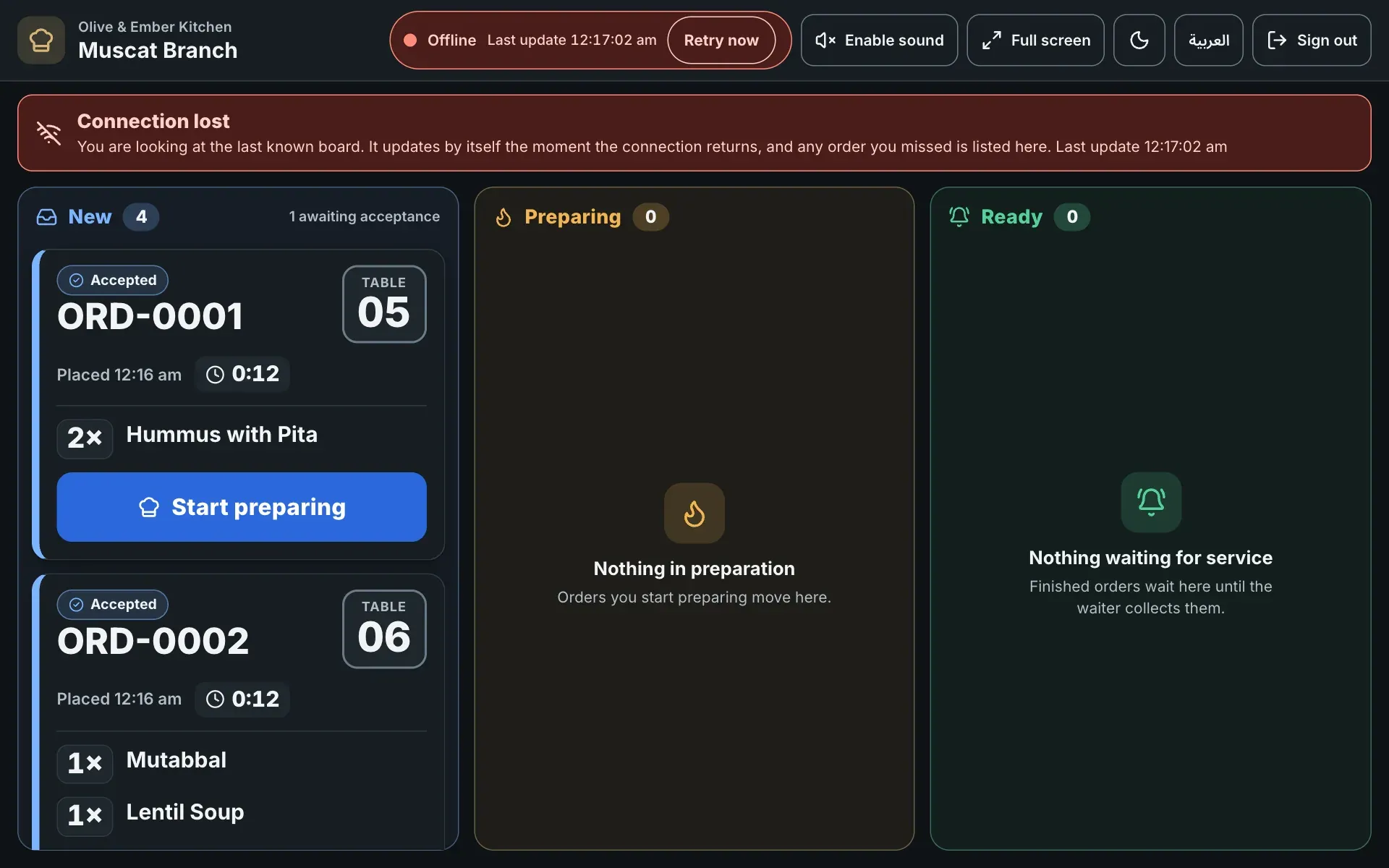
- The Offline indicator with Retry now
- The Connection lost banner
- The Retry now button
Check the orders you missed
When the connection returns, one banner tells you how many orders arrived meanwhile, for example 2 new orders while you were offline. If the screen was reloading, it says 3 new orders arrived while this screen was reloading. The orders are highlighted on the board. Click Show to jump to them and Got it to close the banner. You get one alert for the whole group, not one per order.
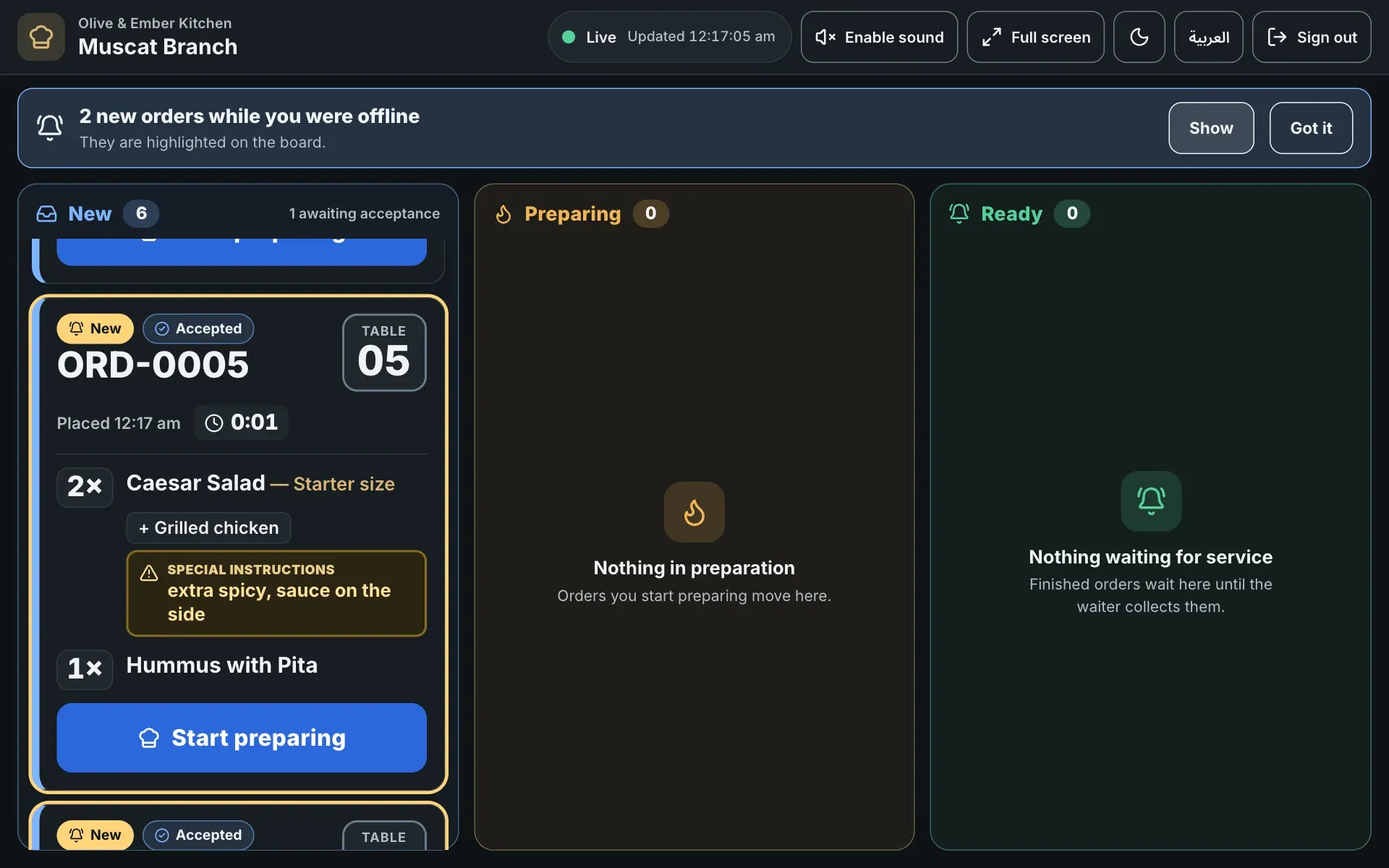
- The banner with the number of missed orders
- The Show button
- The Got it button
Sound needs an open screen
The alert sound cannot ring when the page is closed or the device is asleep. Keep the kitchen board open on the display and the screen awake.
Troubleshooting
The browser waits for a touch before it allows sound. Tap the button once. If you reload the page, you need to tap it again.
This browser has no support for the alert sound, so the sound button is not offered. The orders still appear on the board. Try a current version of your browser if you need the sound.
The screen cannot reach RothDine. Check the Wi-Fi of the device, then click Retry now. The board you see is the last known one.
The live connection is being set up again. The board still checks for new orders by itself, so wait a moment. If it stays like this for a long time, reload the page.
A manager or the guest cancelled an order that you had already started. Stop cooking it. The card leaves the board and is listed under Recently closed.
Related guides
- Kitchen staffUse the kitchen boardRead the New, Preparing and Ready columns, understand an order card, and move orders with Start preparing and Mark ready.
- Kitchen staffSign in to the kitchenHow a cook signs in, lands on the kitchen board, what stays hidden, and what to do when the session ends.
- OrdersStaff notificationsSee new orders, guest cancellations and waiter requests in the notification bell, and turn on a sound for new orders.
- Help & troubleshootingTroubleshootingFind the message you see on screen, learn what it means and how to fix it, grouped by area.