
Use the kitchen board
Read the New, Preparing and Ready columns, understand an order card, and move orders with Start preparing and Mark ready.
- Goal
- You can read every order on the board and move it from New to Preparing to Ready.
- Before you start
- You are signed in as kitchen staff, or as an owner, administrator, branch manager or order manager
- Your restaurant takes orders at the table (guests order from the table QR code)
The kitchen board shows the open orders of one branch in three columns. It needs no refresh: new orders and changes made by other people appear by themselves. Kitchen staff, branch managers, order managers, administrators and the owner can use it. The board never shows prices, totals, payments or guest names.
Open the board and read the columns
Kitchen staff land on the board after signing in. Others choose Kitchen in the sidebar. The first column is New: orders waiting to be started. Preparing holds the orders you started. Ready holds the finished orders that wait for the waiter. Each column shows how many orders it holds.
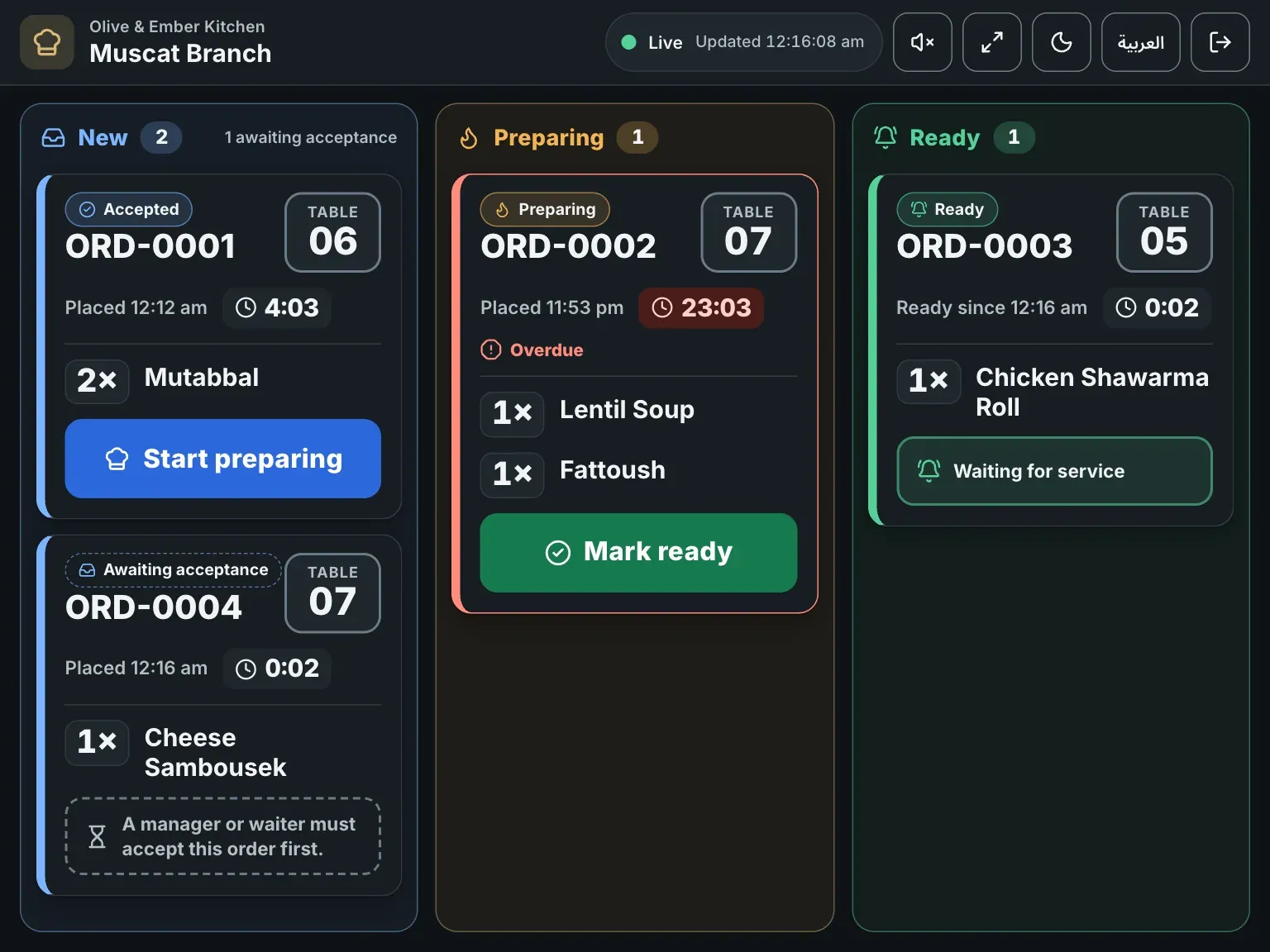
- The New column
- The Preparing column
- The Ready column
Read an order card
Every order is one card. At the top you see the order reference, for example ORD-0005, and the table number. The clock shows how long the order has been waiting. It turns amber after 10 minutes (Getting late) and red after 20 minutes (Overdue). In the Ready column the clock turns amber after 5 minutes and red after 10 minutes. Below are the items with the quantity, the size and the add-ons. A yellow box Special instructions belongs to one item. A blue box Order note belongs to the whole order. Always read both before you cook.
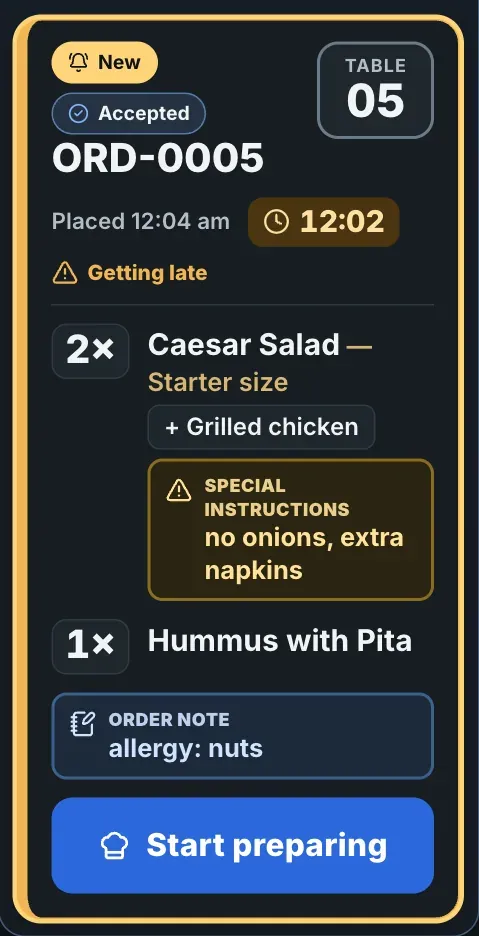
- The order reference
- The table number
- The clock
- An item with its quantity, size and add-on
- The special instructions for the item
- The note for the whole order
Wait for orders that are not accepted yet
A card with the chip Awaiting acceptance has no button. It says A manager or waiter must accept this order first. In practice a manager accepts new orders in Live Orders. The kitchen cannot accept, reject or cancel an order. As soon as the order is accepted, its chip changes to Accepted and the button Start preparing appears. The column title counts these orders, for example 1 awaiting acceptance.
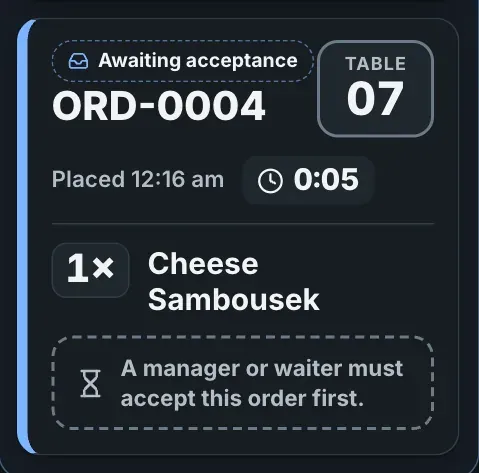
- The chip Awaiting acceptance
- The message that the order must be accepted first
Start preparing
When you start cooking an accepted order, click Start preparing on its card. The card moves to the Preparing column on your screen and on every other kitchen screen of the branch.
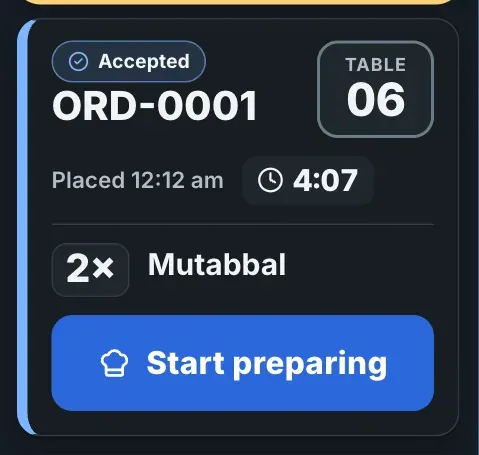
- The Start preparing button
Mark the order ready
When the food is finished, click Mark ready on the card in the Preparing column. If two people tap the same order at once, only the first tap counts and the board refreshes.
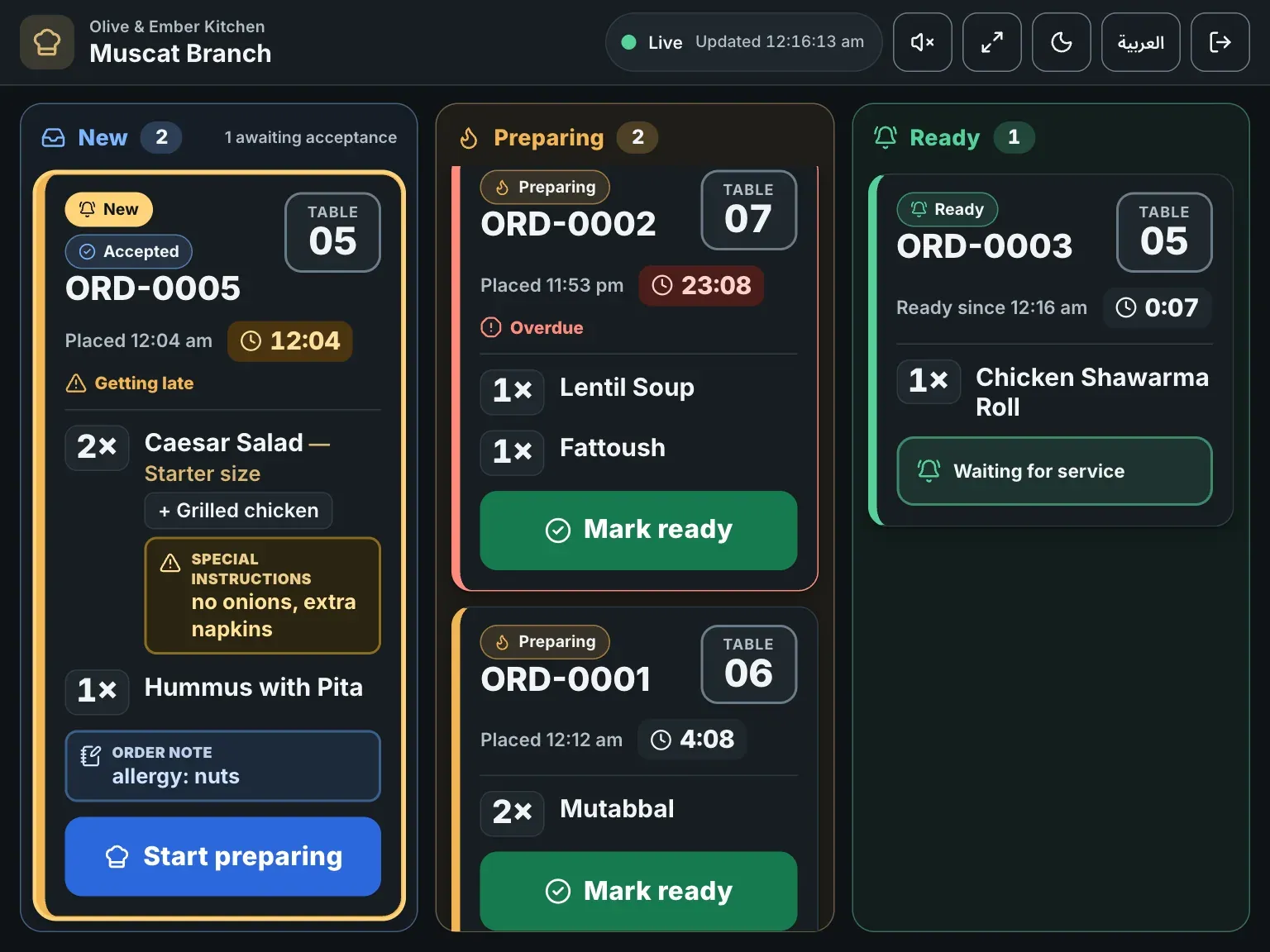
- The Mark ready button
- The Preparing column
Let service collect it
The card moves to Ready and shows Waiting for service. It stays there until the waiter serves it. Orders that are served, completed, cancelled or rejected leave the board after ten minutes, and you can see them for that time under Recently closed. If a guest cancels an order that is being prepared, the board shows a notice Order ORD-0005 was cancelled. Stop preparing it.
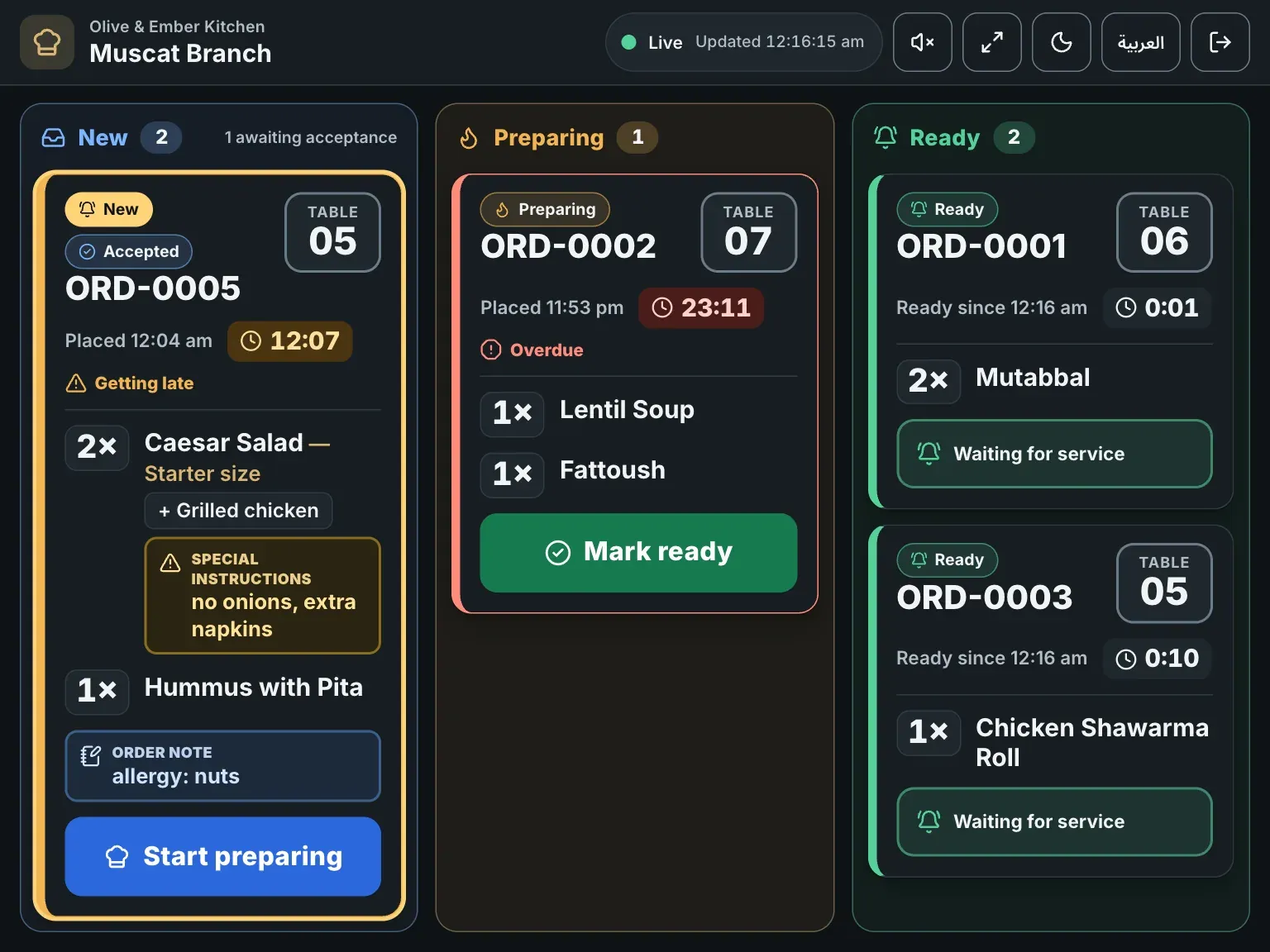
- The text Waiting for service
- The Ready column
Use the tools in the header
The header holds the tools. On a wide screen each button shows its name. From left to right:
- The branch name. If you work in more than one branch, click it and choose Switch branch.
- The connection indicator (see Notifications and connection).
- Enable sound or Sound on.
- Full screen, which uses the whole screen for the board.
- Appearance, to choose Dark, Light or Match device.
- The language button: it switches the board between English and Arabic.
- Sign out. Owners and managers also see Back to dashboard.

- The branch name and switcher
- The connection indicator
- The sound button
- The full screen button
- The appearance button
- The language button
- The sign-out button
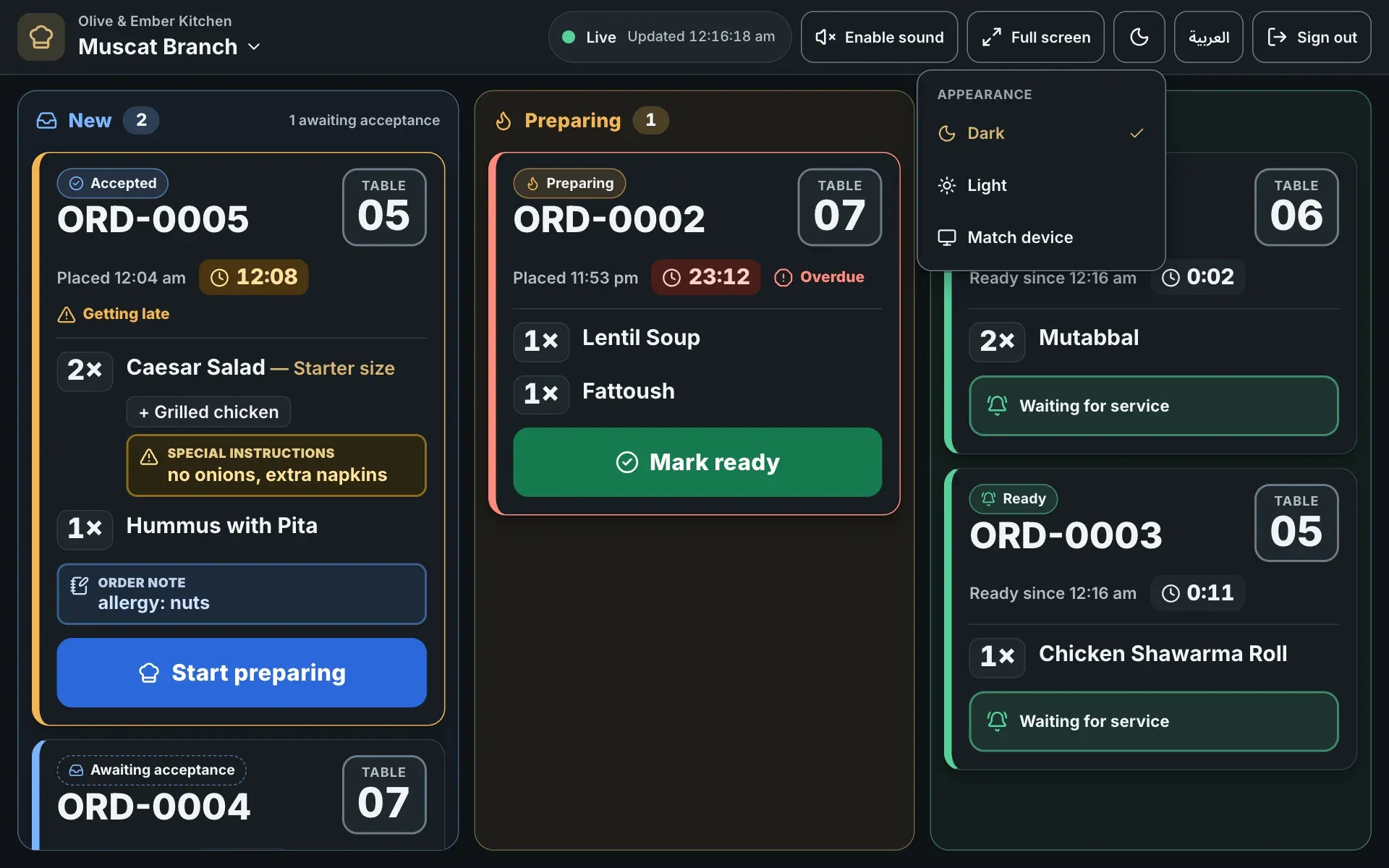
- Dark
- Light
- Match device
Use the board on a phone
On a phone only one column fits. Use the three buttons under the header to switch between New, Preparing and Ready. Each button shows how many orders its column holds. The cards work the same way.
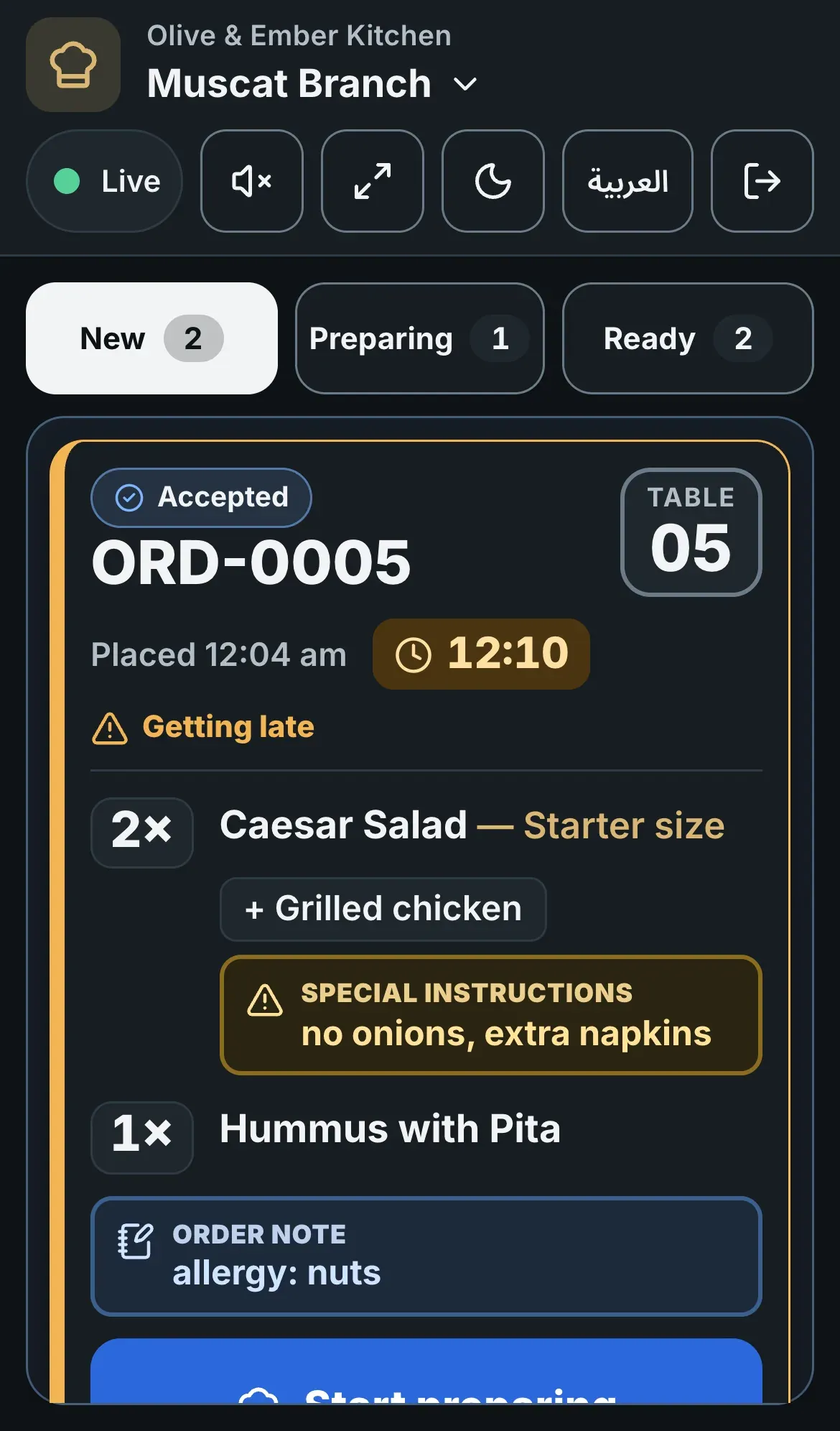
- The New button
- The Preparing button
- The Ready button
Prices stay out of the kitchen
The board never shows prices, totals, taxes, payments or guest names. It shows the table, the items, the notes and the times only.
Troubleshooting
Check the internet connection and click Retry now. Nothing is lost. The board loads by itself when the connection returns.
Someone else moved the same order a moment before you. The card now shows its latest status. Nothing is needed from you.
Your tap did not reach RothDine. The order is still where it was. Check the connection and tap the button again.
The order was closed or cancelled while you were looking at it. Look under Recently closed to see what happened.
Your access changed, or the order moved on and your role cannot change it any more. Ask the owner or a manager if you think this is a mistake.
Related guides
- Kitchen staffAlerts, sound and connectionHear and see new orders, turn the alert sound on or off, and understand the connection indicator and the missed-orders banner.
- Kitchen staffSign in to the kitchenHow a cook signs in, lands on the kitchen board, what stays hidden, and what to do when the session ends.
- OrdersLive OrdersReceive guest orders, accept or reject them, move them to served, and see who on your team can do what.
- OrdersOrder statusesWhat New, Accepted, Preparing, Ready, Served, Completed, Rejected and Cancelled mean for your guest and for your team, and who can set each one.