
Opening hours
Set the weekly opening hours of a branch, copy Sunday to every day, mark late closings and days off.
- Goal
- Each day of the week has its opening and closing time (or is marked closed), saved for the branch.
- Before you start
- A branch (see Add a branch)
- Owner or admin access, or the branch manager of this branch
Guests see Open now or Closed and the hours on the About page of your menu, based on what you set here. Times use the time zone of the branch, shown above the list (for a branch in Muscat: Asia/Muscat).
Open the hours of the branch
On the Branches page click Edit hours on the branch card. You can also open Manage branch and choose the tab Opening hours.
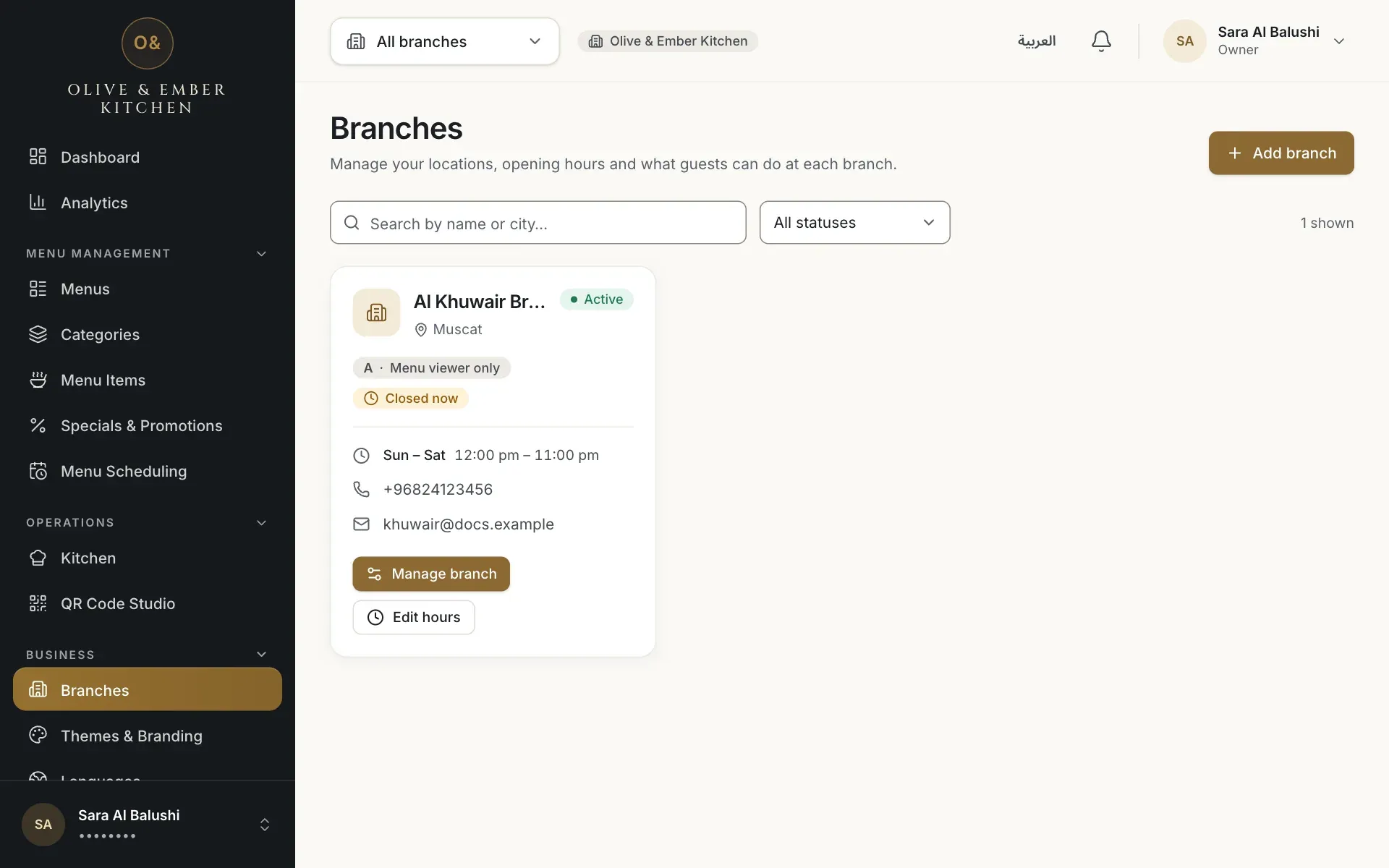
- The Edit hours button
Read the weekly list
The editor lists the seven days from Sunday to Saturday. Each day has Opens, Closes, a switch Closed all day and a box Closes after midnight. A new branch starts at 12:00 to 23:00 on every day.
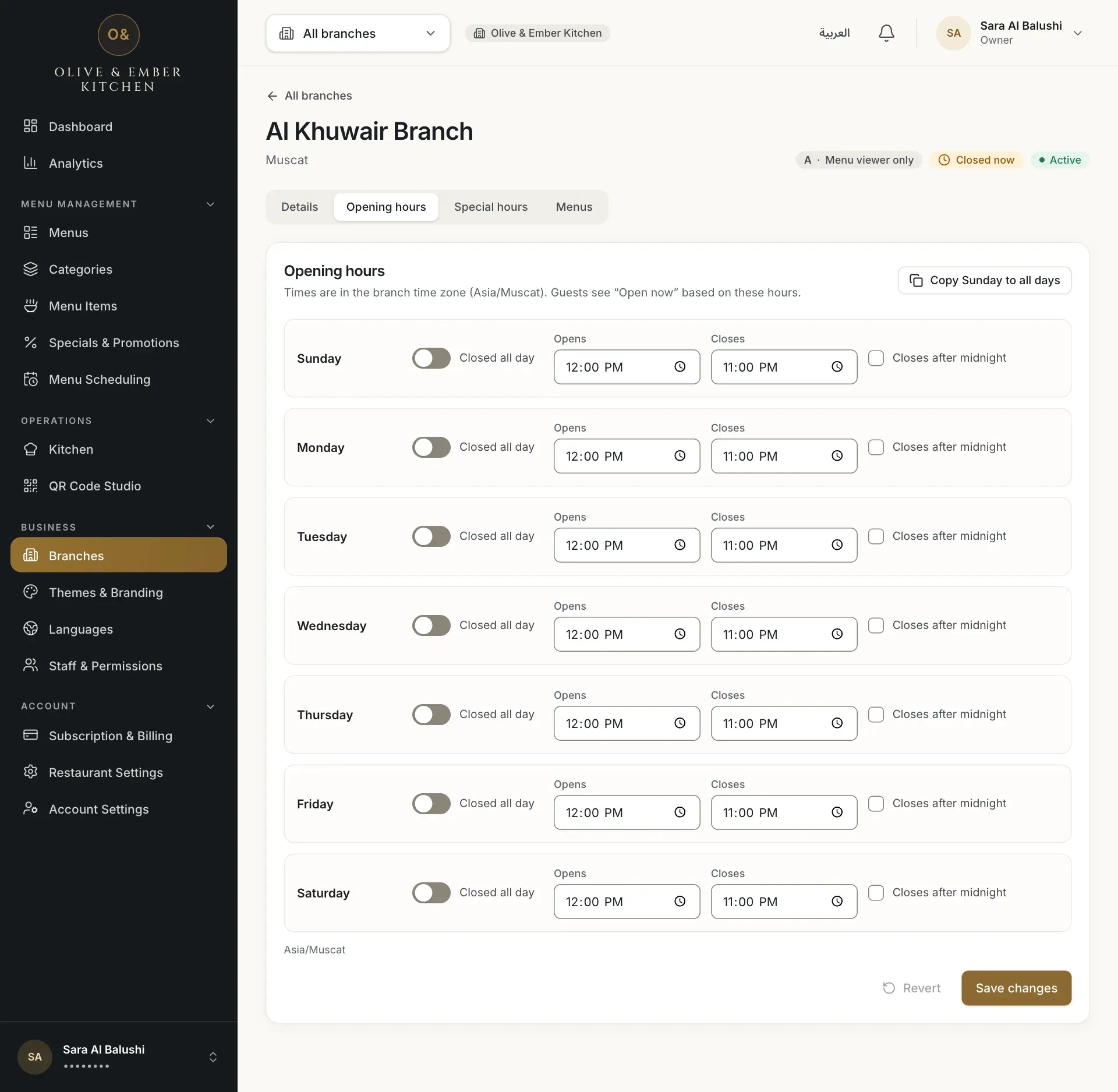
- The Opening hours tab
- Sunday opening time
- Sunday closing time
- The Copy Sunday to all days button
Set Sunday and copy it to every day
Change the Sunday times, then click Copy Sunday to all days. A notice says Sunday’s hours were copied to every day. Remember to save. and the label Unsaved changes appears. Nothing is stored until you save.
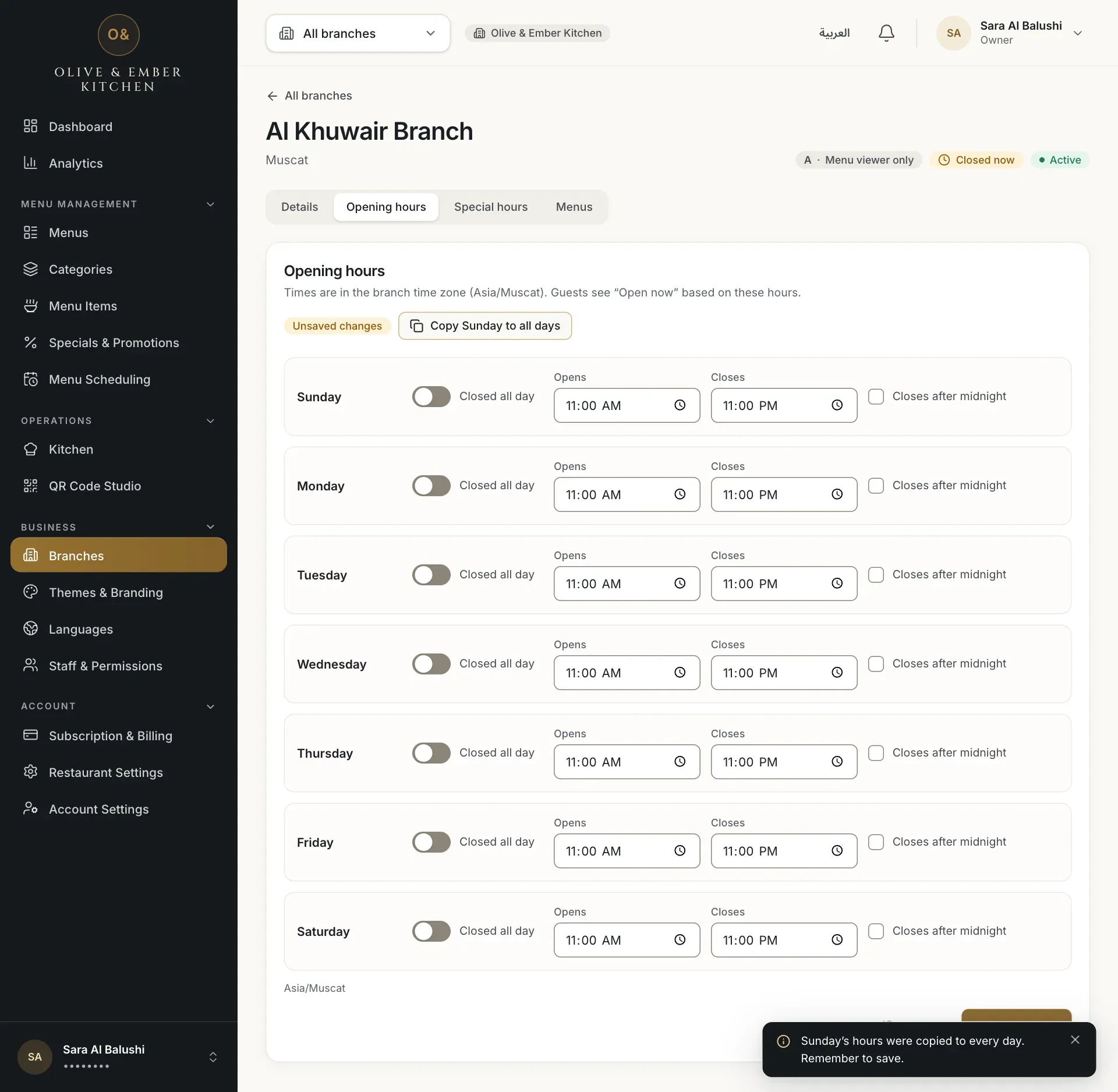
- Sunday opening time
- Sunday closing time
- The Copy Sunday to all days button
- The Unsaved changes label
Handle a day that closes after midnight
If a day opens in the evening and closes after midnight, for example from 18:00 to 02:00, the closing time looks earlier than the opening time and the day turns red: Closing time must be after opening time — or tick “Closes after midnight”. Tick Closes after midnight. A note confirms Closes at 02:00 AM the next day. (the time format follows your browser).
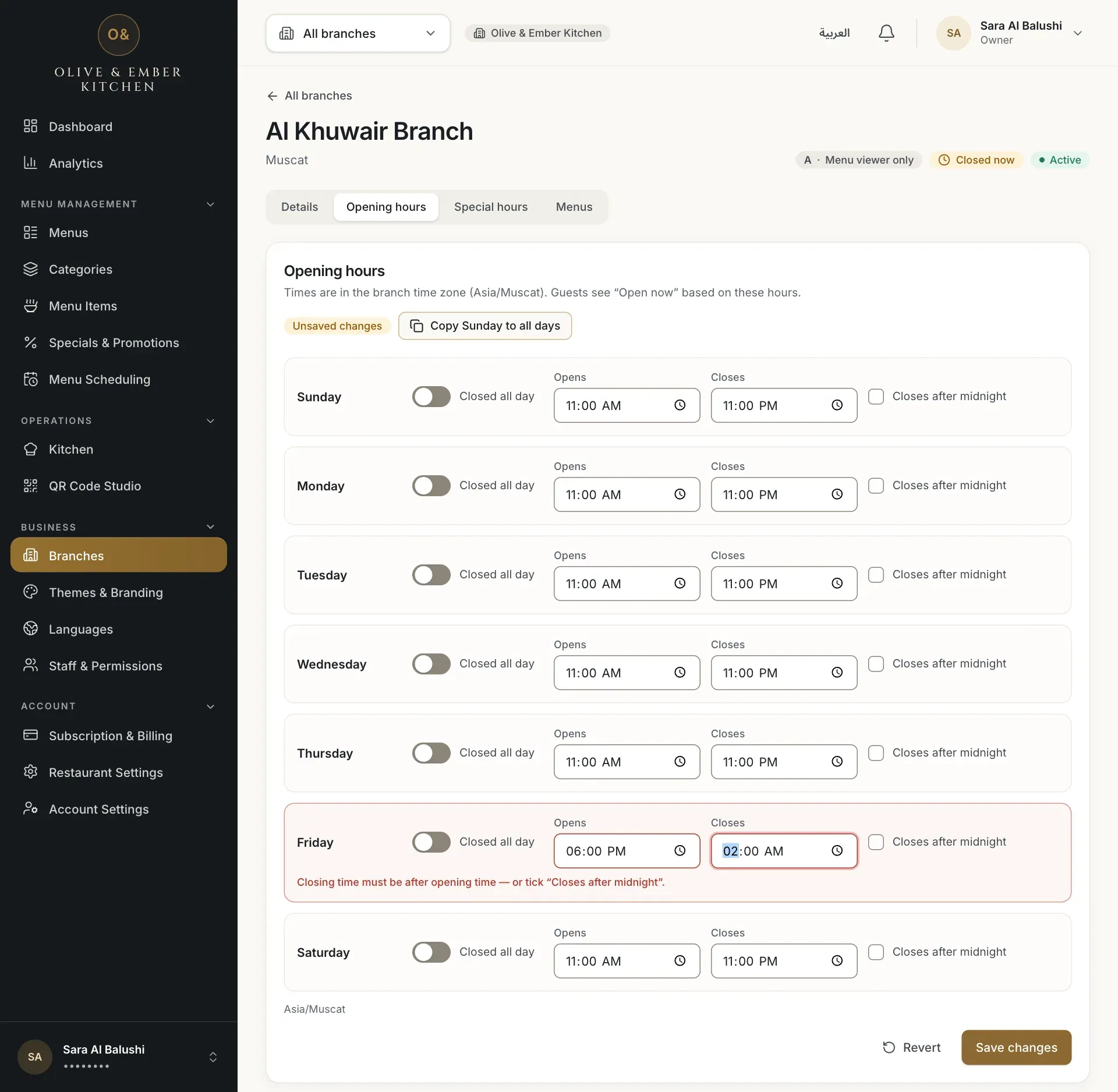
- The closing time of Friday
- The error message
- The Closes after midnight box
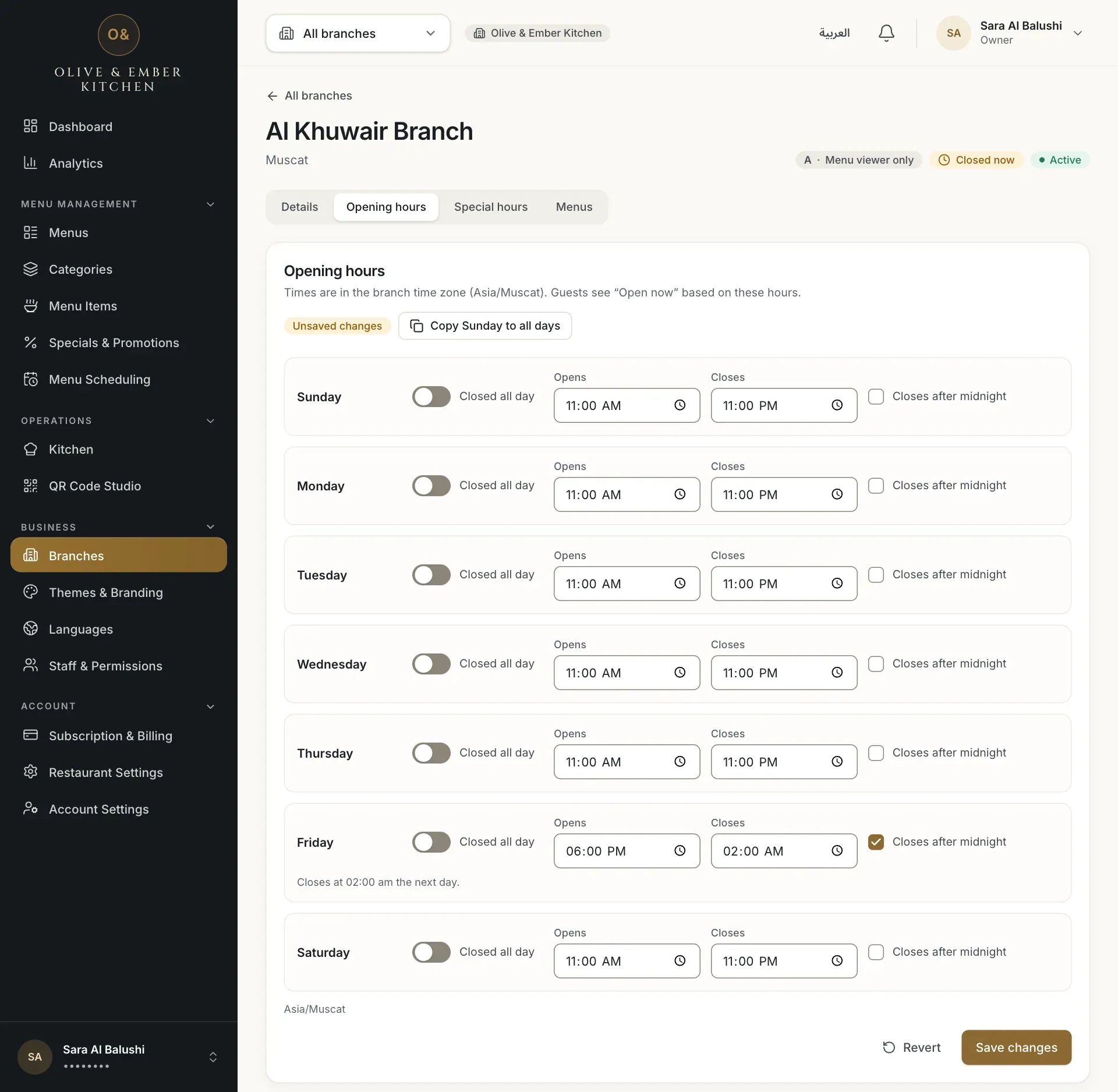
- The Closes after midnight box ticked
- The note about closing the next day
Mark a day off
Turn on Closed all day for a day when the branch is closed. Its time fields are switched off, and guests see the branch as closed that day.
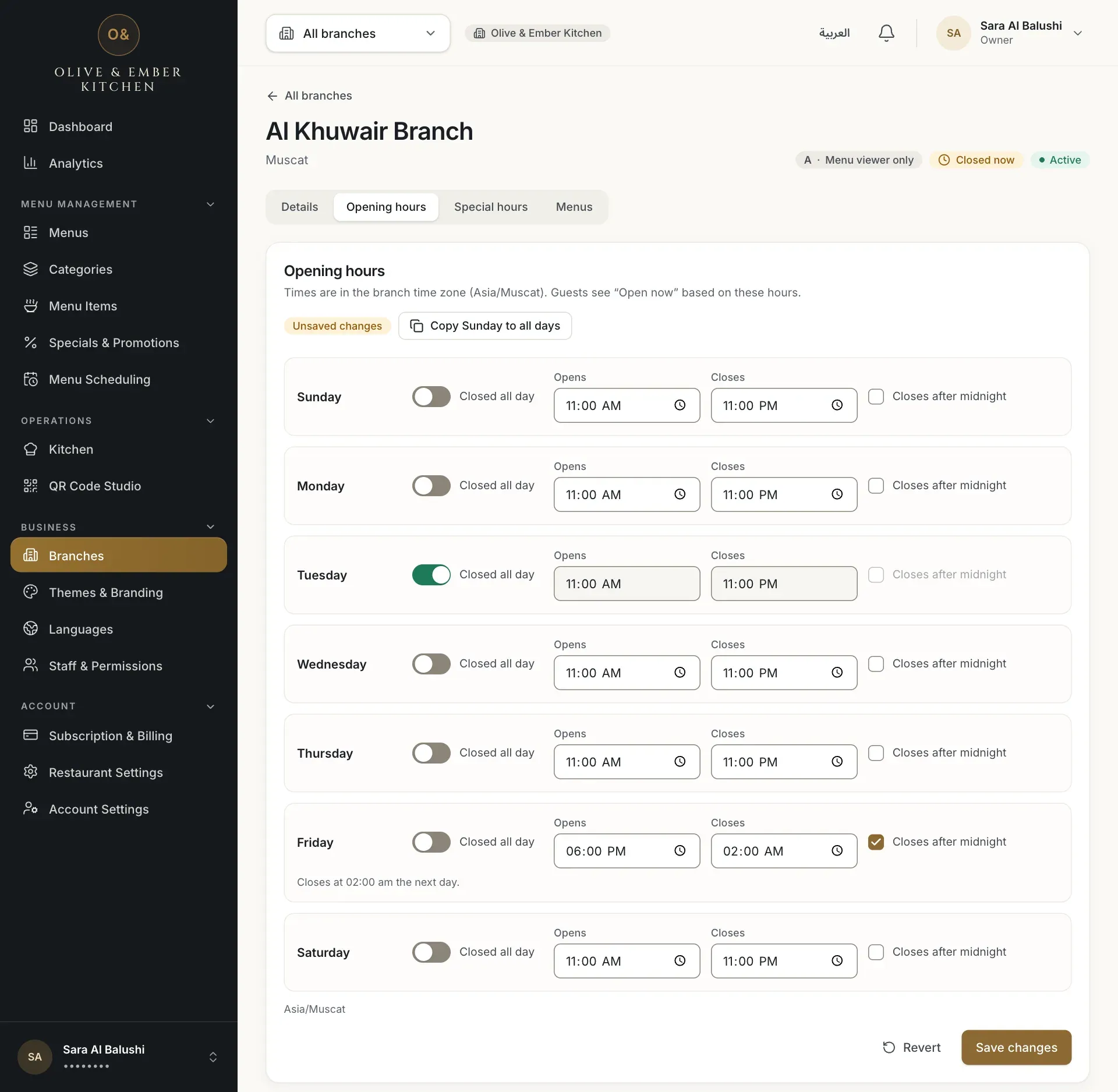
- The Closed all day switch of Tuesday
Save the hours
Click Save changes at the bottom. The notice Changes saved. appears. If you change your mind before saving, click Revert.
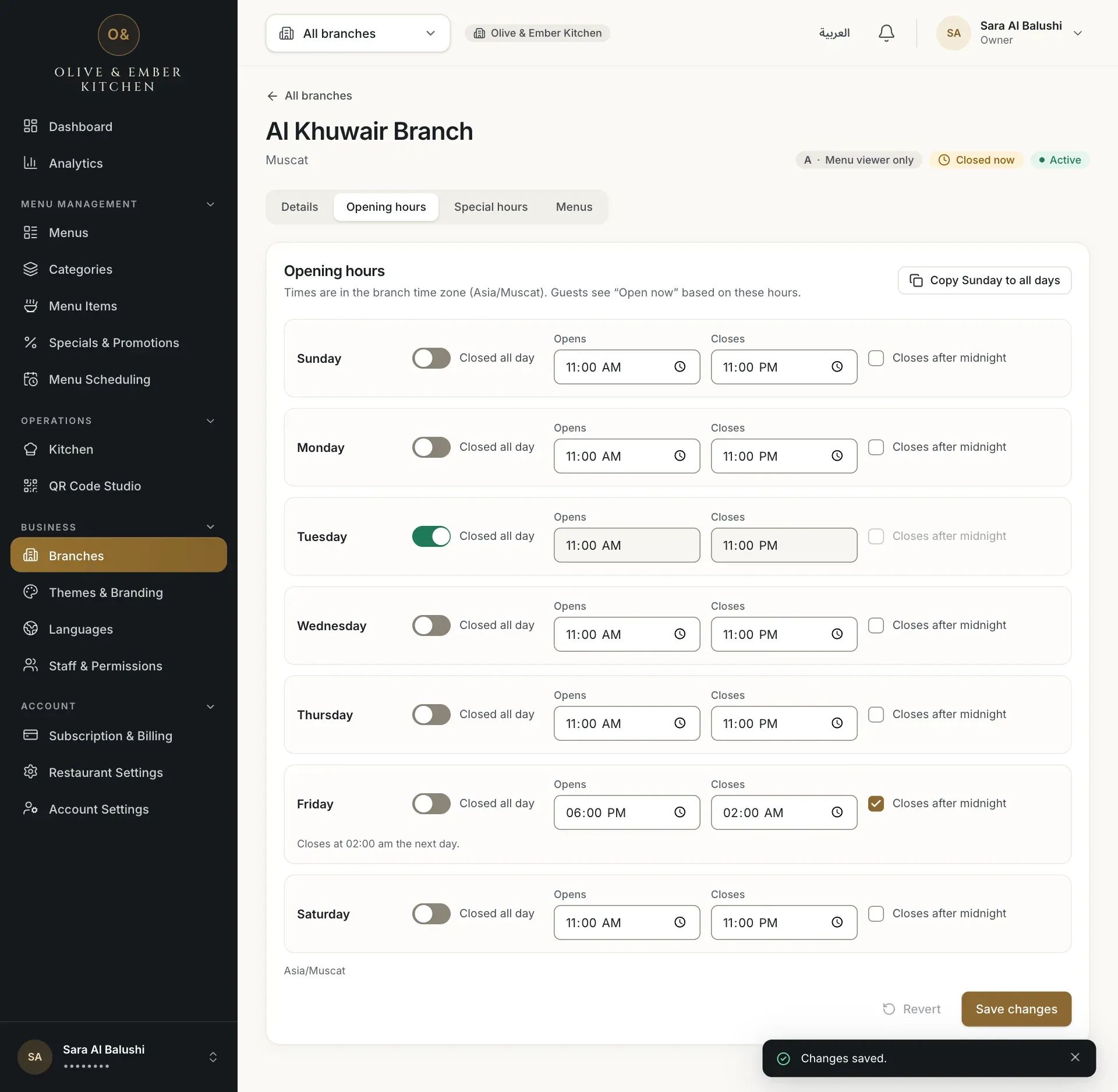
- The Save changes button
Holidays and special days
The tab Special hours is a preview with sample data and does not save. There is no way yet to close the branch on a single holiday. Change the day in the weekly list instead, and change it back afterwards.
Troubleshooting
One of the time fields is empty. Fill both, or turn on Closed all day.
The closing time is earlier than the opening time. If the branch really closes after midnight, tick Closes after midnight; otherwise correct the time.
Use different times. For a day with no service turn on Closed all day.
Closes after midnight is ticked but the closing time is later than the opening time. Untick the box, or change the closing time to, for example, 02:00.
One or more days are red. Read the message under each and correct it, then save again.
Related guides
- Restaurant setupAdd a branchAdd your first branch with its names, address, phone and e-mail, and understand the branch limit.
- Restaurant setupOperating modesChoose what guests can do at your restaurant (A, B or C), apply it to all branches or override one branch.
- MenuMenu schedulingServe a different menu at different times of day, with days, a time window and a priority for each schedule.