
Ordering and tax settings
Switch ordering on or off, set the session length, the largest order, the service charge and VAT.
- Goal
- You control whether guests can send orders, how long a table session lasts, the largest order allowed, and how the service charge and VAT are added.
- Before you start
- A restaurant and a branch
- Owner or admin access (branch managers can change the ordering controls of their branch)
These settings are on Restaurant Settings. They matter when a branch runs in Mode C (table ordering), see Operating modes. Guests never pay in the app: No payment is taken here. Pay at the table when you are done.
Accept or pause orders
The switch Accept orders is the master switch. When it is off, guests can still browse the menu but cannot send orders. It applies as soon as you flip it.
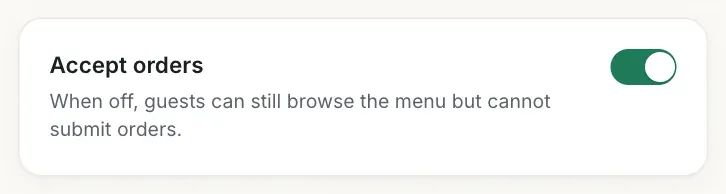
- The Accept orders switch, on
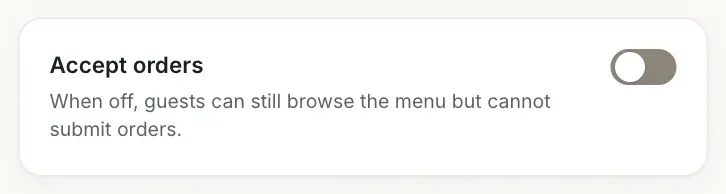
- The Accept orders switch, off
Set the table session duration
In the card Guest sessions & display, Table session duration (minutes) is how long a table session stays open after the first order. Enter a number from 15 to 720 (the default is 120, two hours) and click Save changes. The switches Show allergens on dishes and Show calories on dishes and the field Analytics retention (days) are saved, but they do not change what guests see today.
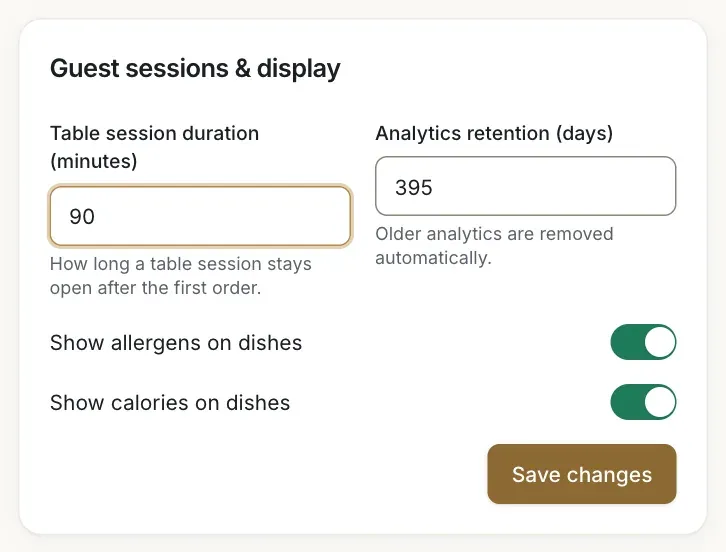
- The table session duration
- The Save changes button
Set the ordering controls of a branch
The card Ordering controls sets safety limits for each branch. Largest order total (OMR) refuses any order above the amount: choose between 1 and 1,000 OMR, or leave it empty to use the default of OMR 100. Require staff to confirm each table session makes a guest who scans a table QR code wait until staff confirm them on the Tables screen; turn it on if your tables are visible from outside the restaurant. Click Save ordering controls. With more than one branch, a Branch list lets you pick the branch first.
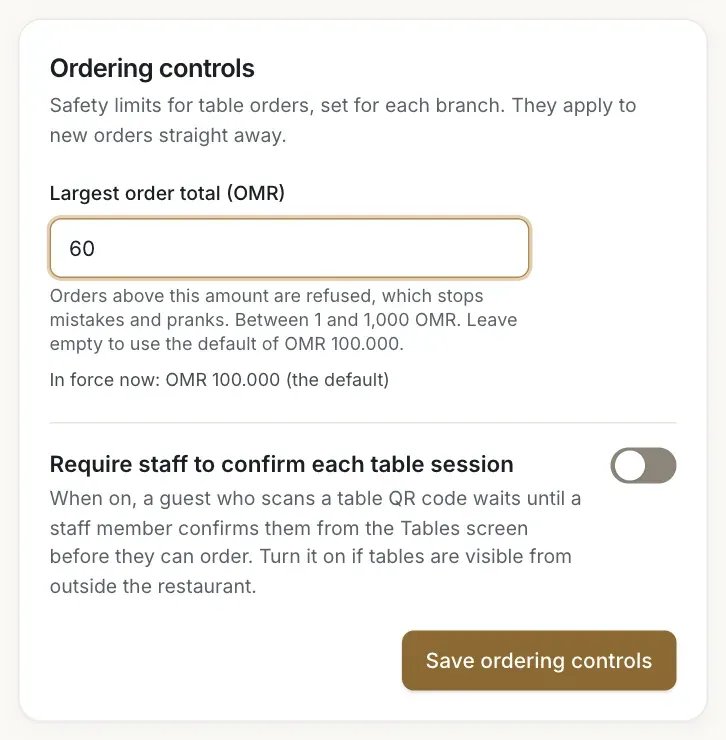
- Largest order total (OMR)
- Require staff to confirm each table session
- The Save ordering controls button
Read the tax notices
The card Tax & service charge always shows two notices. The blue one says the 5% VAT of a new restaurant is a provisional default until the rate is legally verified, and that the service charge is off by default. The yellow one says the tax rules are provisional and not yet verified, to use the restaurant for trials only, and not to use these rules for commercial service until the rates and the treatment of the service charge have been confirmed. There is no switch to clear it. Check your rates with your own tax adviser.
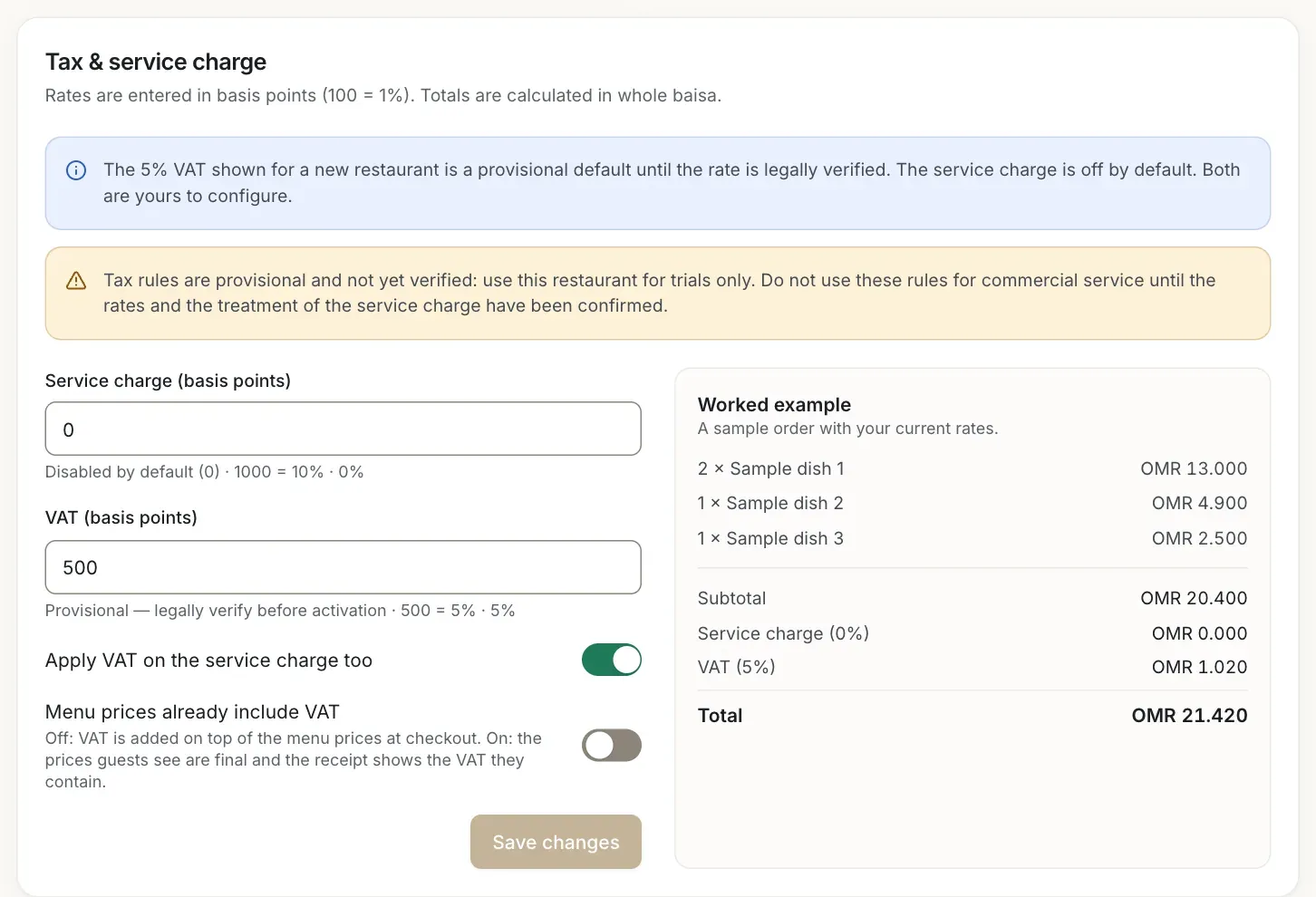
- The provisional VAT notice
- The not yet verified notice
Set the service charge and VAT
Rates are entered in basis points, where 100 equals 1%. Service charge (basis points) is 0 by default; 1000 means 10%. VAT (basis points) is 500 (5%) by default. Both accept 0 to 3000. Apply VAT on the service charge too adds VAT to the service charge. Menu prices already include VAT tells the app that the prices you entered are final: off adds VAT on top of the menu price, on shows VAT as part of it. The Worked example panel recalculates a sample order as you type, so check your numbers there.
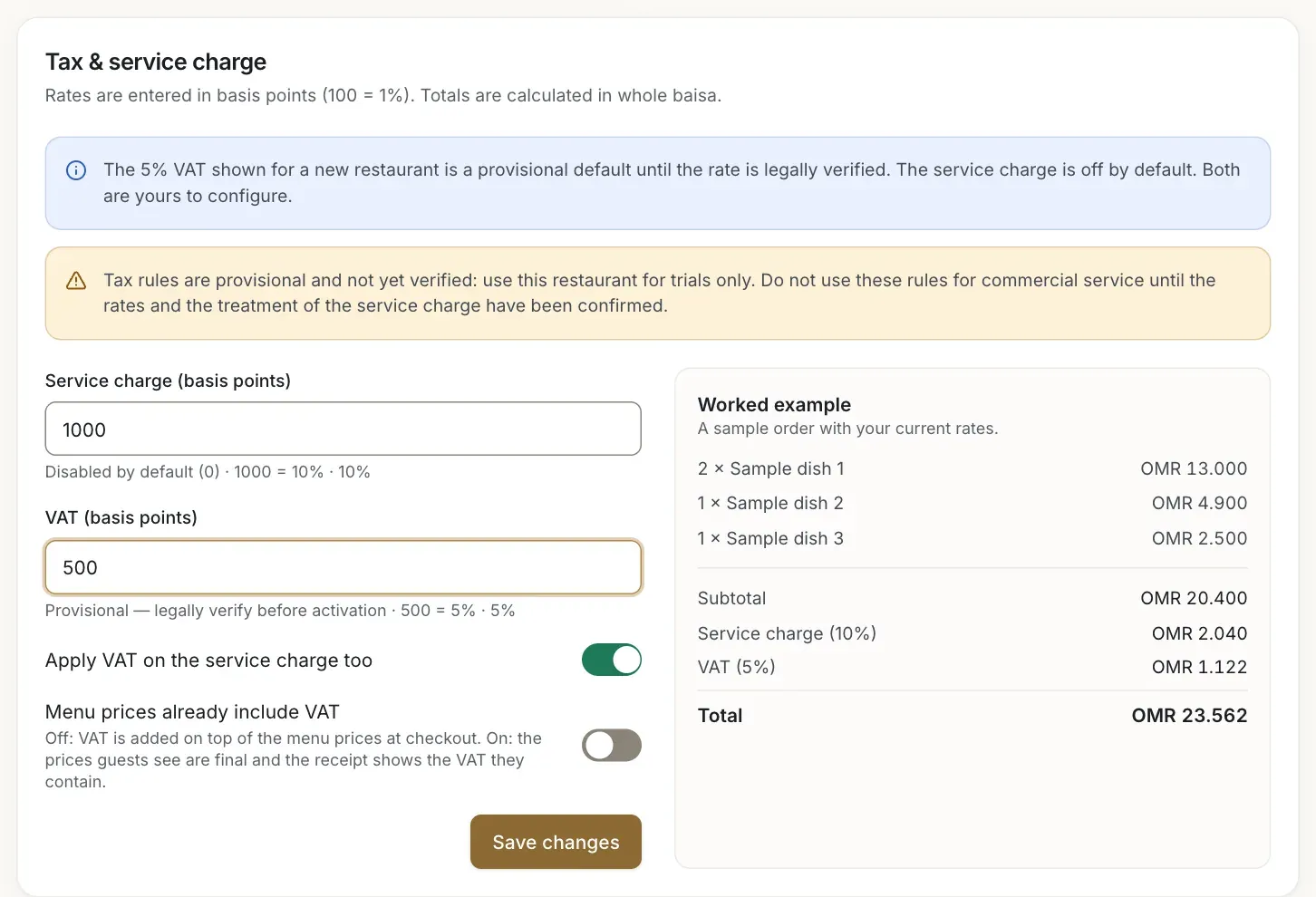
- Service charge (basis points)
- VAT (basis points)
- Apply VAT on the service charge too
- Menu prices already include VAT
- The Worked example panel
Save the tax settings
Click Save changes in the tax card. The notice Changes saved. appears and the Worked example keeps showing your new rates.
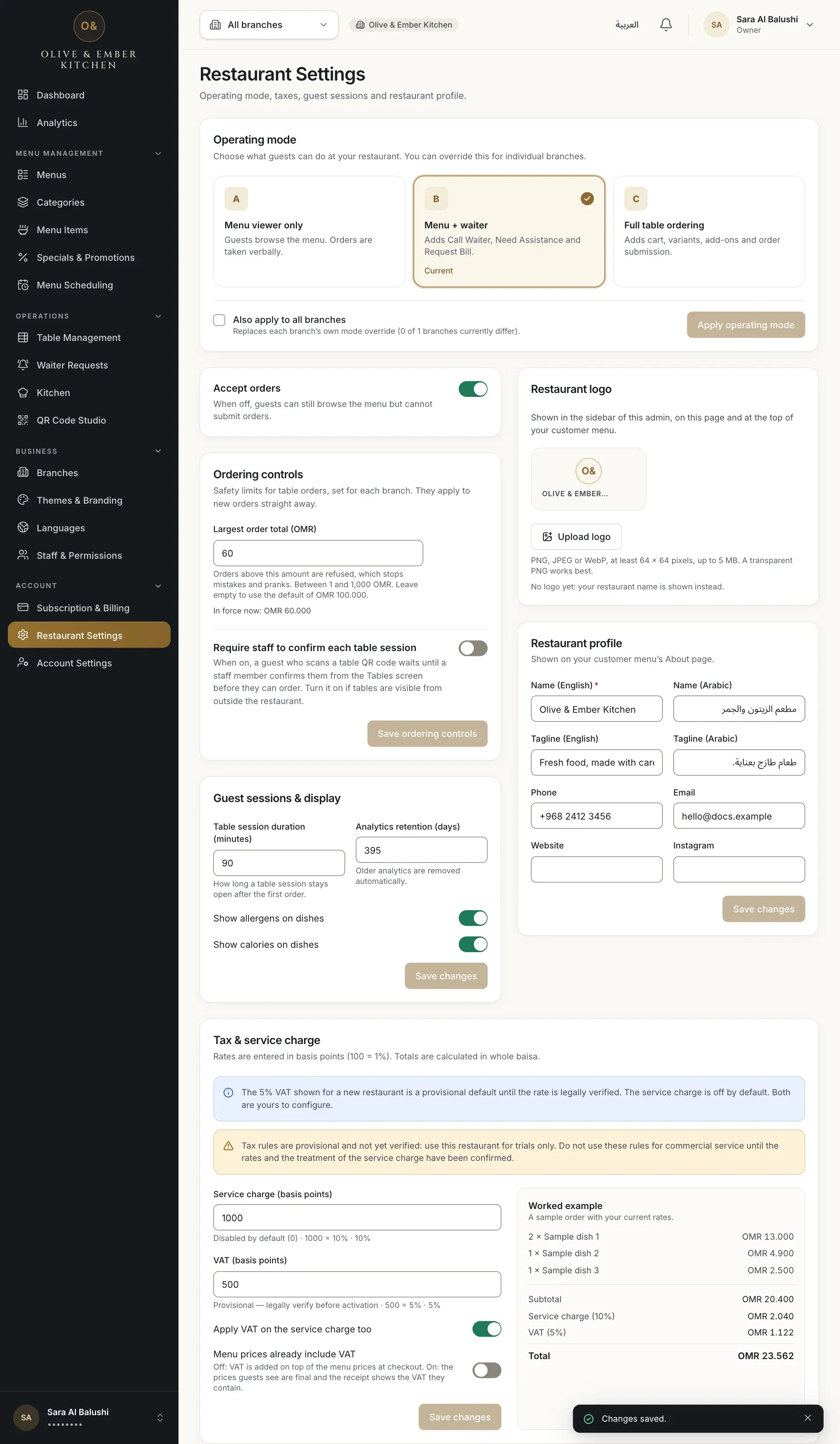
- The Save changes button of the tax card
Know who can change them
Owners and admins can change these settings. Ordering controls can also be changed by a branch manager. Everyone else sees the page read-only with the banner Read-only access: your role (Viewer) can view this page but not change it.
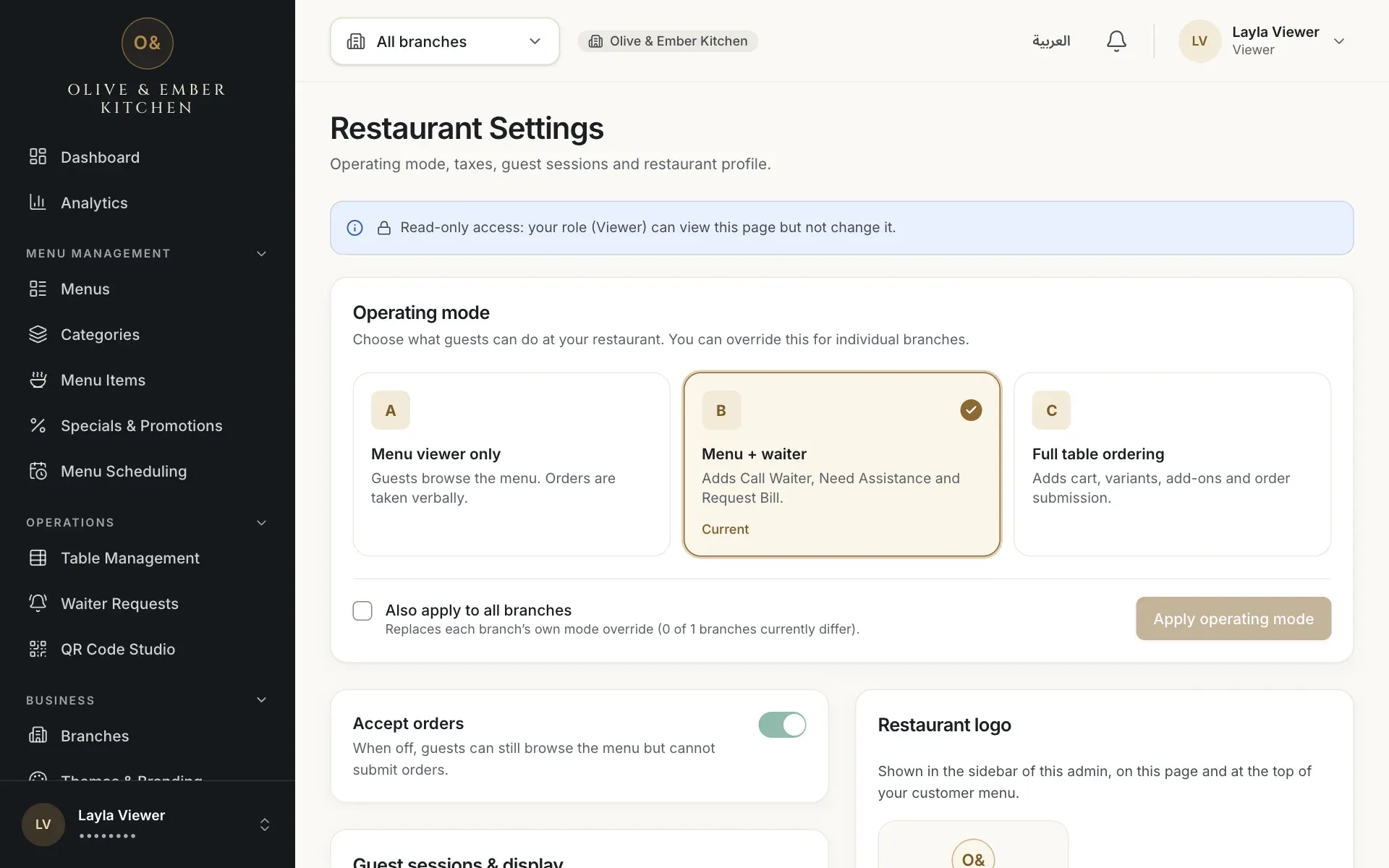
- The read-only banner
Currency
All amounts are in Omani rial (OMR) with three decimals. There is no online payment, tip or split bill in RothDine.
Troubleshooting
Service charge and VAT take whole numbers of basis points. For 7.5% enter 750.
The largest order total must be from 1 to 1,000. Empty means the default of OMR 100.
The table session duration is in minutes, from 15 (a quarter of an hour) to 720 (12 hours).
The card has nothing to set until a branch exists. See Add a branch.
Your role cannot change the ordering controls. Ask the owner or a branch manager.
Related guides
- Restaurant setupOperating modesChoose what guests can do at your restaurant (A, B or C), apply it to all branches or override one branch.
- OrdersHow guests orderWhat your guests do on their phone, from scanning the table QR code to sending an order, following it and calling the waiter.
- Tables & QR codesAdd tablesAdd the tables of your branch, give each one a short code and a number of seats, then edit or remove them.
- Restaurant setupAdd a branchAdd your first branch with its names, address, phone and e-mail, and understand the branch limit.