
Menu scheduling
Serve a different menu at different times of day, with days, a time window and a priority for each schedule.
- Goal
- A second menu is served automatically on the days and hours you choose, and you can check which menu is live at any moment.
- Before you start
- At least two published menus assigned to your branch, for example a lunch menu and an evening menu
- You can publish menus (owner, admin or menu editor)
Without a schedule, guests at a branch see the menu assigned to it. A schedule tells RothDine to serve another menu during a time window. Times follow the clock of the branch (the page shows the time zone, for example Asia/Muscat). Scheduling is set up per branch.
Open Menu Scheduling and choose the branch
In the sidebar choose Menu Scheduling. Pick the branch in the list at the top right, then click Add schedule. A blue box, How overlaps work, explains that the schedule with the higher priority wins.
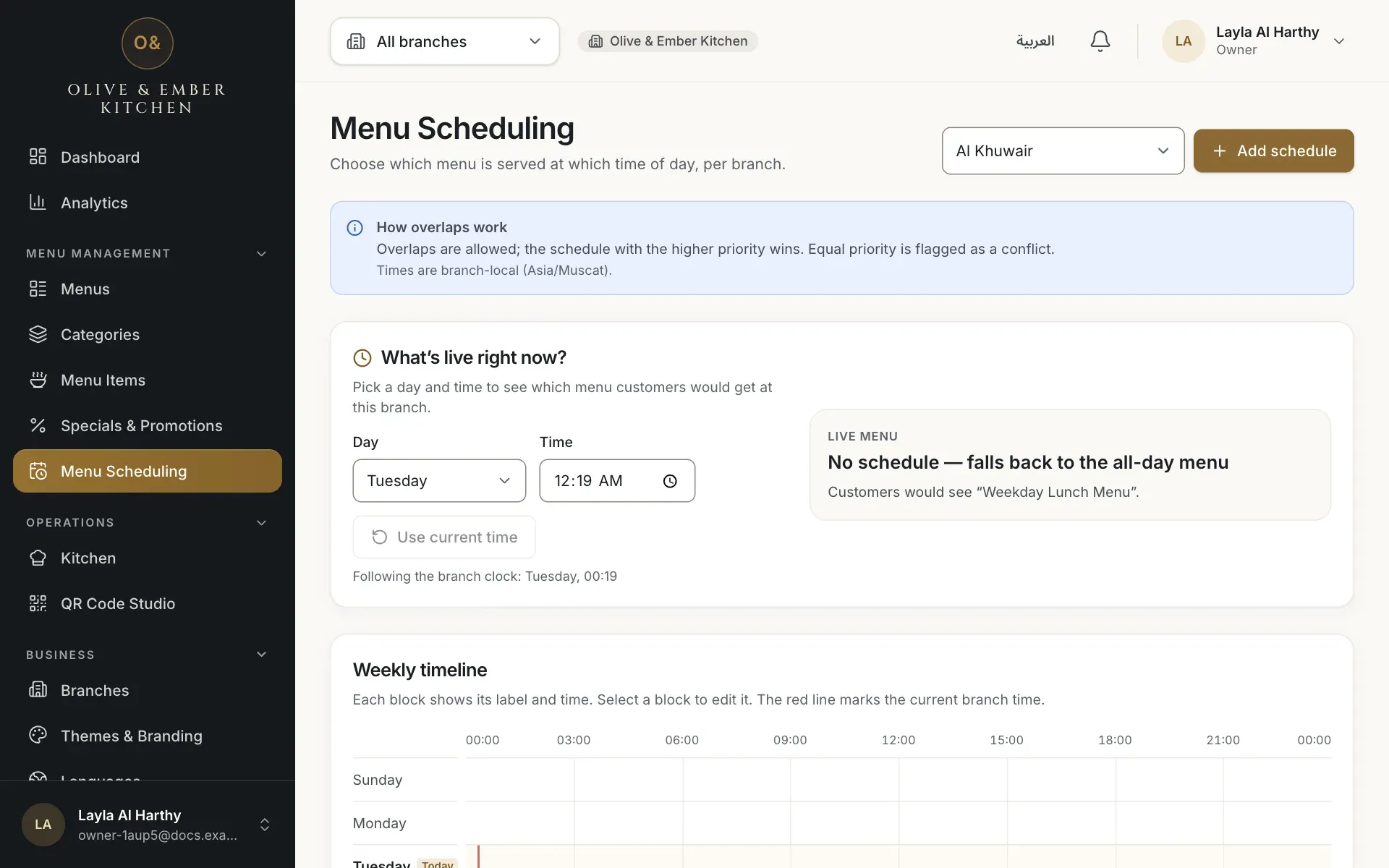
- The branch list
- The Add schedule button
Fill in the schedule
In Add schedule type the Label (English) and Label (Arabic), choose the Menu, and tick the Days it applies to (turn off the days you do not want). Set Starts at and Ends at in the branch's local time (the form may show 12-hour times such as 6:00 PM). If the end is earlier than the start, the window runs past midnight and a note says so. Choose a Priority from 1 to 9: the higher number wins when two schedules overlap. Click Create.
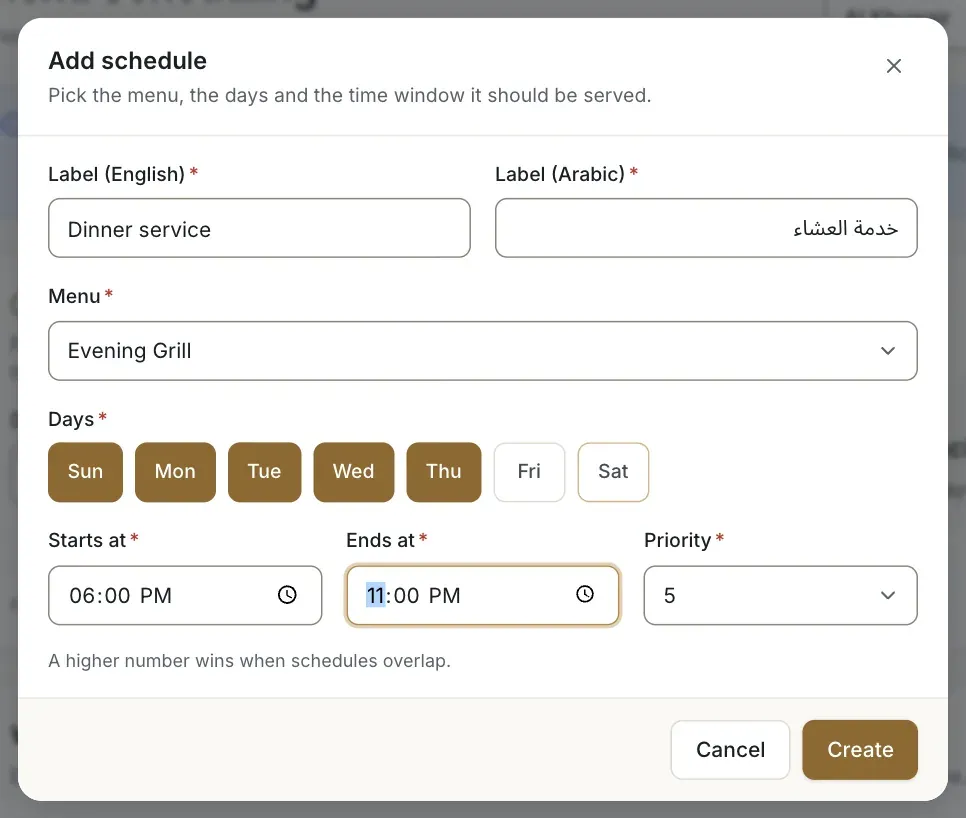
- The label in English
- The menu to serve
- A day that is turned off
- The start time
- The end time
- The priority
Check the list and the timeline
The schedule appears in Schedules with its menu, days, time and priority, and as a coloured block in the Weekly timeline. A red line marks the current time at the branch. Click a block to edit it.
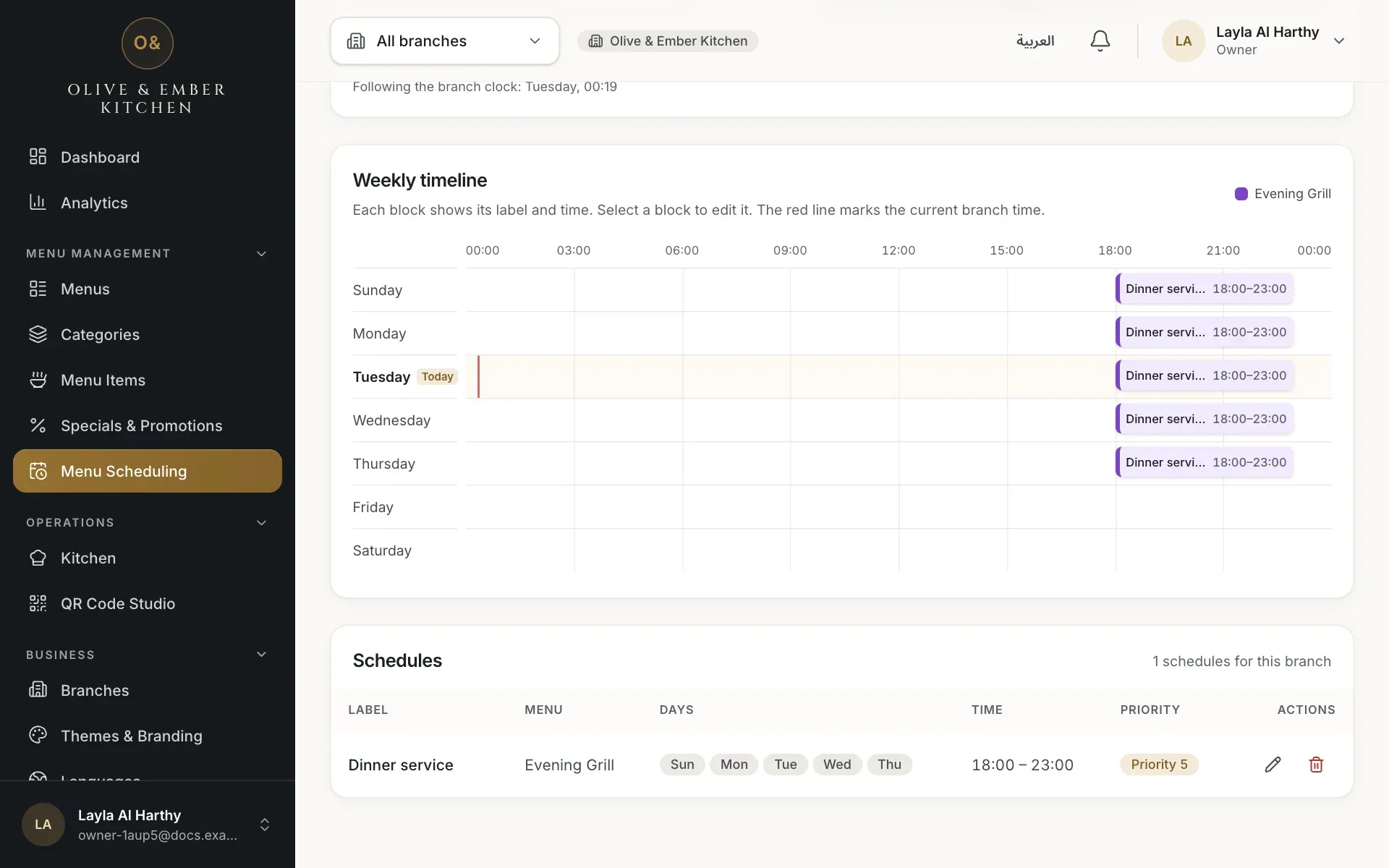
- The new schedule
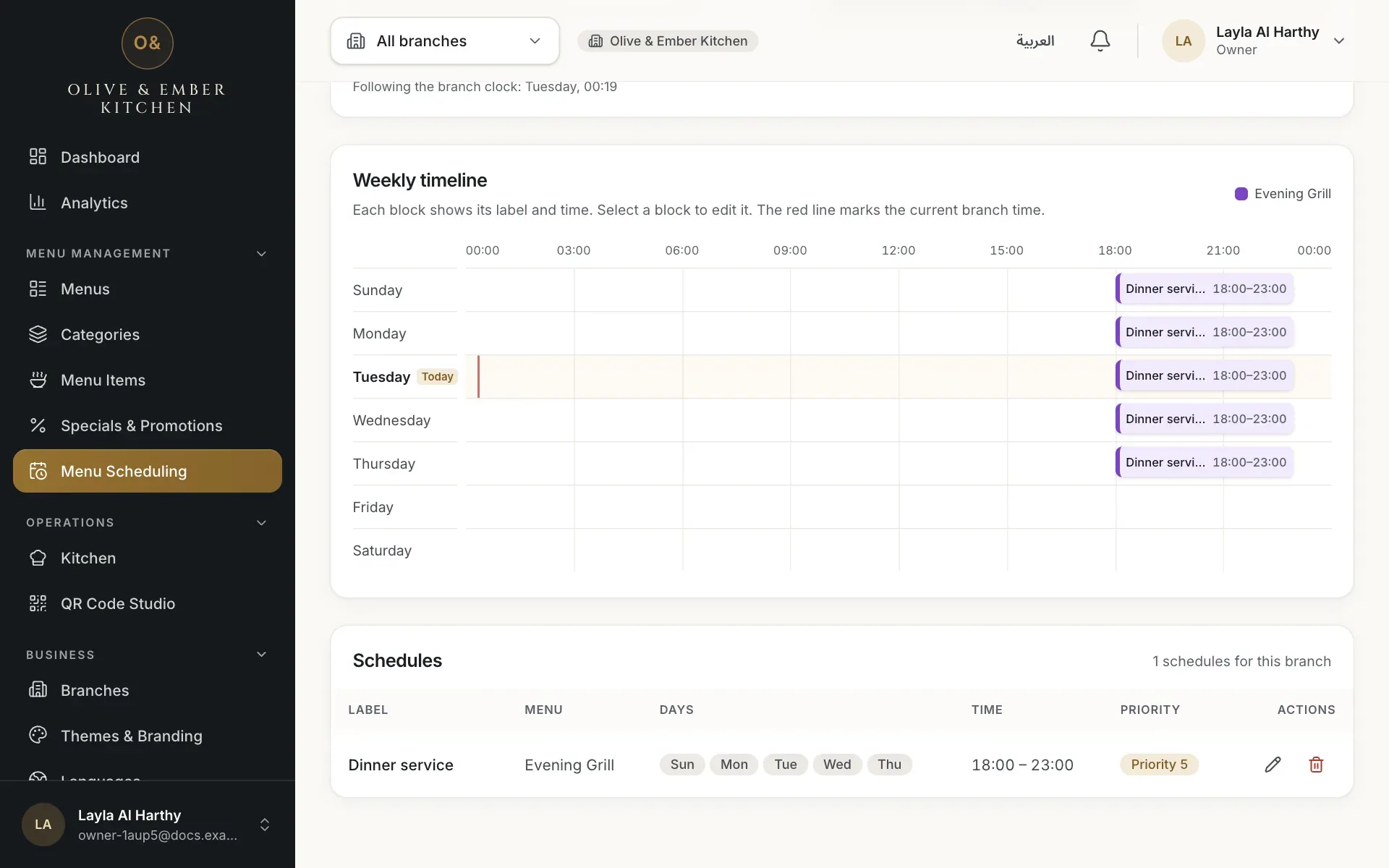
- The weekly timeline
Handle overlaps with priority
When you add a second schedule that overlaps the first, the dialog warns you. If both have the same priority, it says Overlaps “Dinner service” at the same priority (5) — this will be flagged as a conflict. Customers could get either menu. Raise one priority to solve it: the schedule with the higher priority serves the overlap.
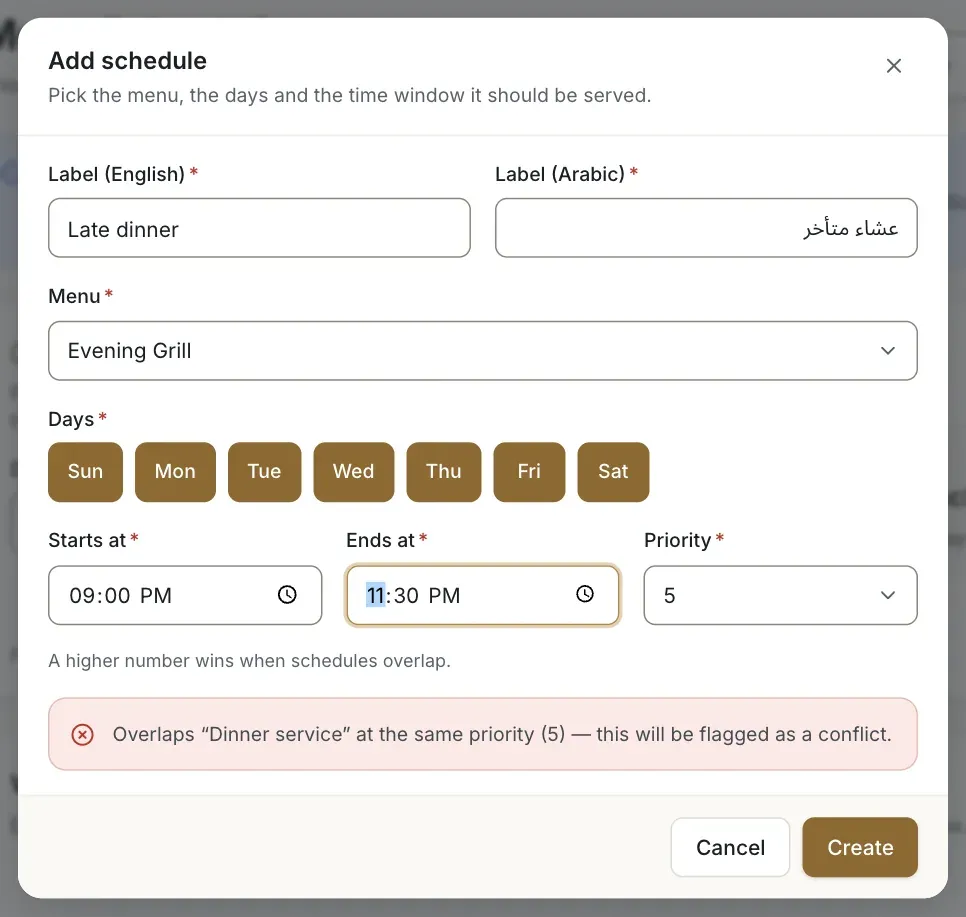
- The overlap warning
- The priority list
See what is live right now
The panel What’s live right now? shows the menu customers would get. Change the Day and Time to test any moment, for example Monday at 19:00, or click Use current time. If no schedule matches, the panel says No schedule — falls back to the all-day menu, which is the menu assigned to the branch.
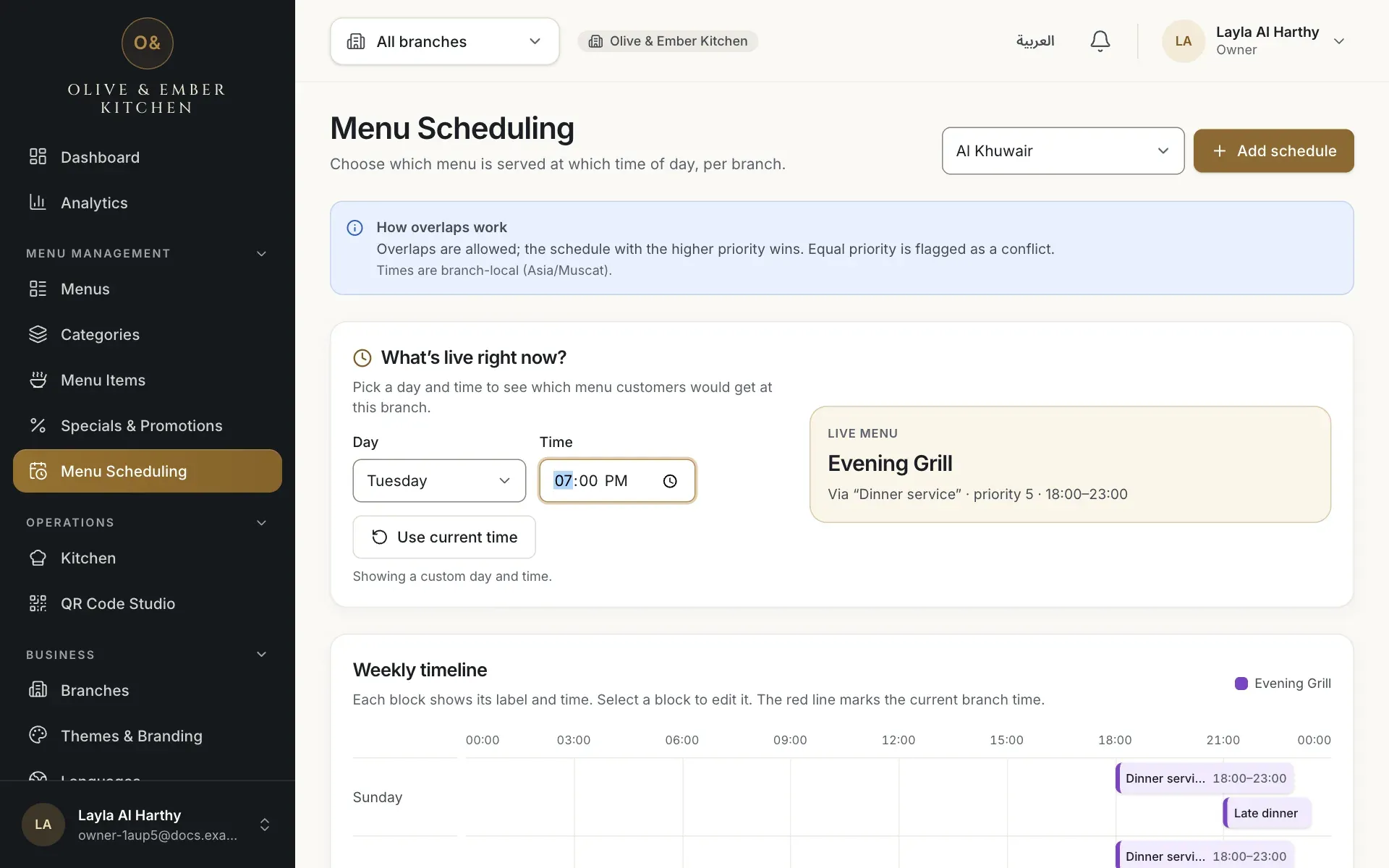
- The panel that shows which menu is live at a chosen time
Menus must be published
Guests can only see a menu that is published and assigned to the branch, so publish and assign each menu before you schedule it. See Publish your menu.
Troubleshooting
Turn on at least one day button before saving.
Choose different start and end times. For a window past midnight, set the end earlier than the start (for example 22:00 to 02:00).
Pick a priority between 1 and 9.
Two overlapping schedules have the same priority. Edit one and give it a higher priority.
Check the days and the times of the schedule, that the branch in the list at the top is the right one, and use What’s live right now? to test that moment. Scheduling is available to roles that can publish menus: the owner, admins and menu editors.
Related guides
- MenuPublish your menuCheck the draft, assign the menu to a branch, publish it, read the version history, roll back, discard changes or take a menu away.
- MenuMenus and draftsCreate a menu, understand draft versus live, and rename, duplicate or archive a menu.
- Restaurant setupOpening hoursSet the weekly opening hours of a branch, copy Sunday to every day, mark late closings and days off.