
English and Arabic
How RothDine handles English and Arabic for staff and guests, what the Languages page really does, and how to enter Arabic names.
- Goal
- You know which language settings really work, how to enter Arabic and English text correctly, and what a guest sees in each language.
- Before you start
- A restaurant with a branch and a published menu
RothDine is fully bilingual. The dashboard works in English and in Arabic (right to left), and your guests can read the menu in either language. These are two separate choices: the language of your dashboard changes only what you see, and the language of a guest is their own choice on their phone.
Open the Languages page
In the sidebar, under Business, choose Languages. On the left you find Menu languages (with English and Arabic switches and a Default language), Admin interface language, Right-to-left preview and Fallback rule. On the right, Translation completeness and Items missing Arabic.
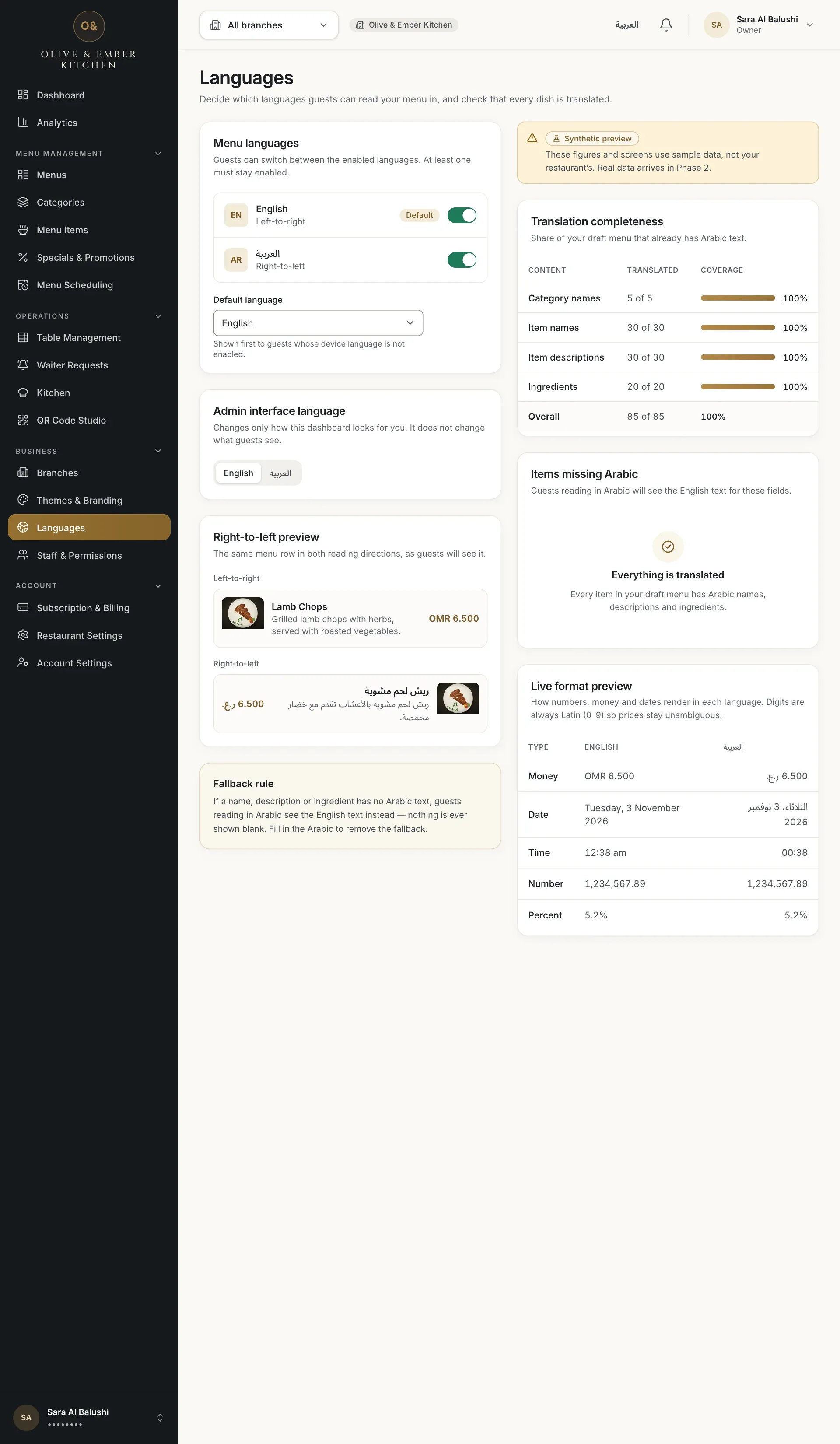
- The Menu languages card
- The Translation completeness card
Know what is real on this page
Be careful with this page. The figures in Translation completeness, Items missing Arabic, the previews and the Synthetic preview notice come from sample data, not from your restaurant. The switches and the Default language in Menu languages can be saved, but they do not change the guest menu: guests can always switch between English and Arabic, and the first language they see is English unless they (or a link they opened) already chose Arabic on that phone, not your Default language. The two things that really work are the admin language below and the fallback rule.
Choose your dashboard language
Admin interface language switches the dashboard between English and العربية. It affects only you, not guests and not your team. You can also use the language button in the top bar, or Preferred language on the Account page.
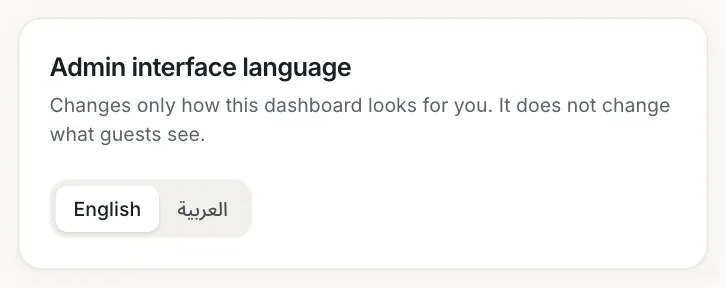
- The language options of the dashboard
Enter both languages for every dish
Every text that guests read has an English field and an Arabic field: names, descriptions and ingredients of dishes, names of categories and menus, branch names and addresses. The English field accepts Latin letters and the Arabic field accepts Arabic letters. If you type English words in the Arabic field you get Use Arabic letters in the Arabic field. Switch your keyboard layout to type Arabic. Digits always stay Latin (0-9) and prices are shown as OMR 3.500. Nothing is translated by machine: you write both texts.
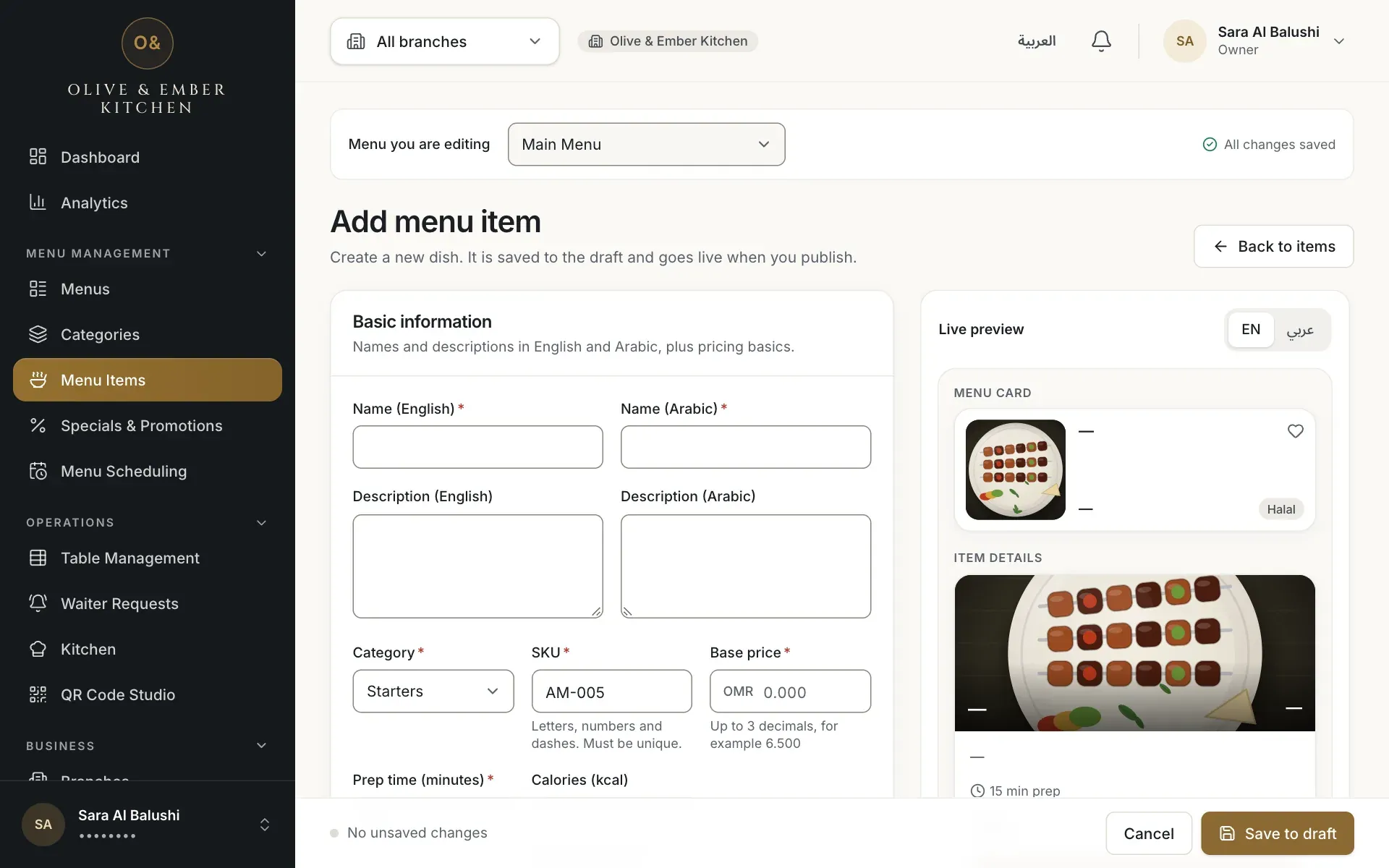
- Name (English)
- Name (Arabic)
Understand the fallback rule
If an Arabic text is empty, a guest reading Arabic sees the English text instead, and the other way round. Nothing is ever shown blank. Fill in the missing language to remove the fallback.
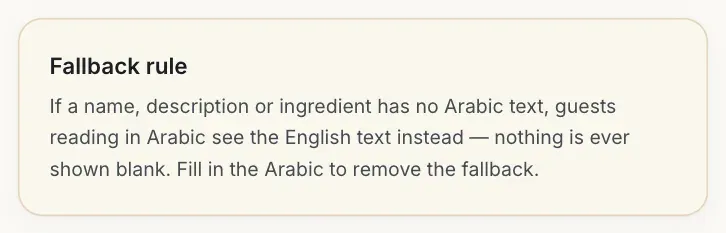
- The Fallback rule card
See what guests see
On a phone the guest menu opens in English at first, or in the language the guest chose before on that phone. English shows English names in a left-to-right layout; Arabic shows Arabic names, a right-to-left layout and the Arabic restaurant name from your profile.
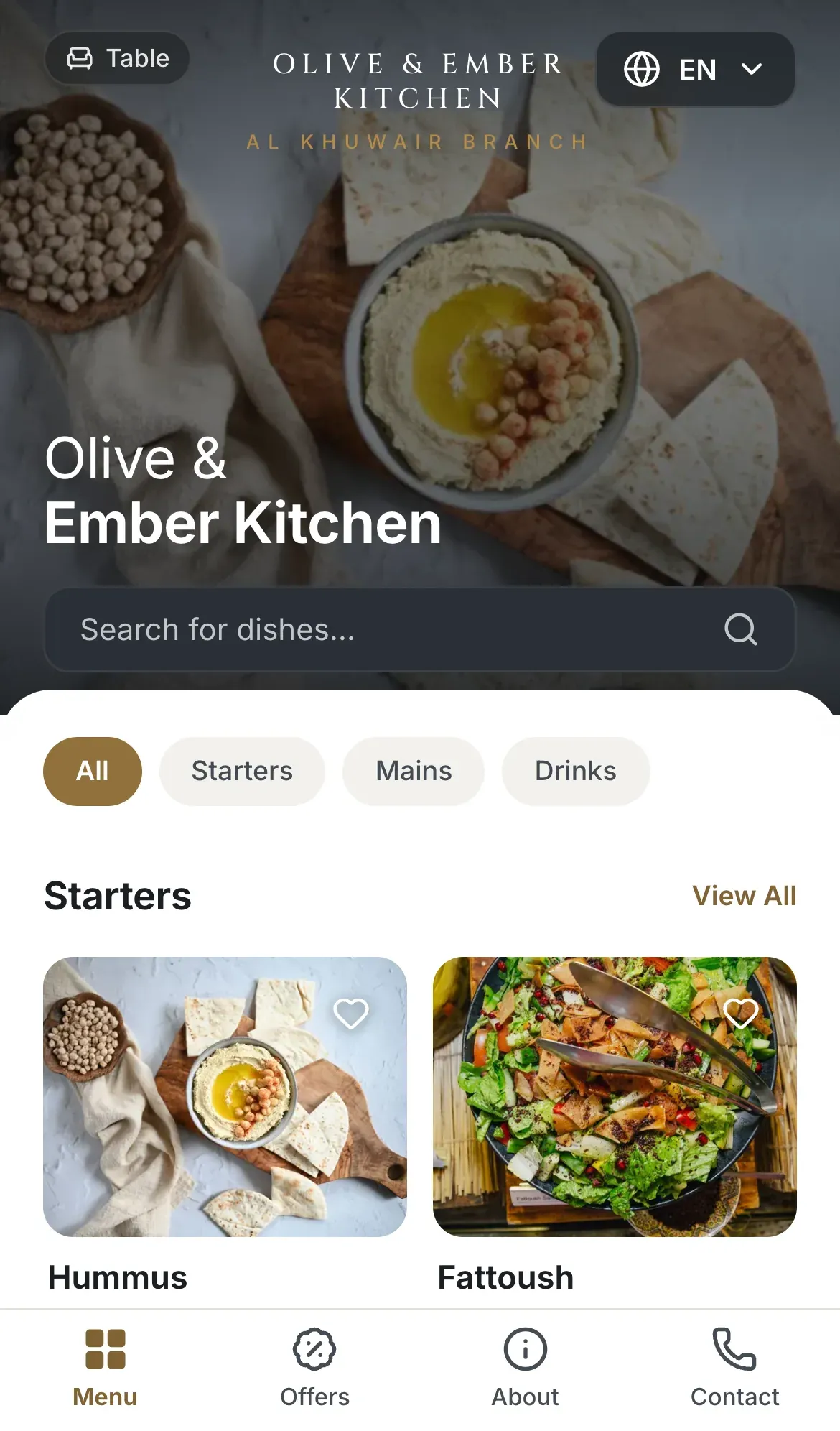
- The language button
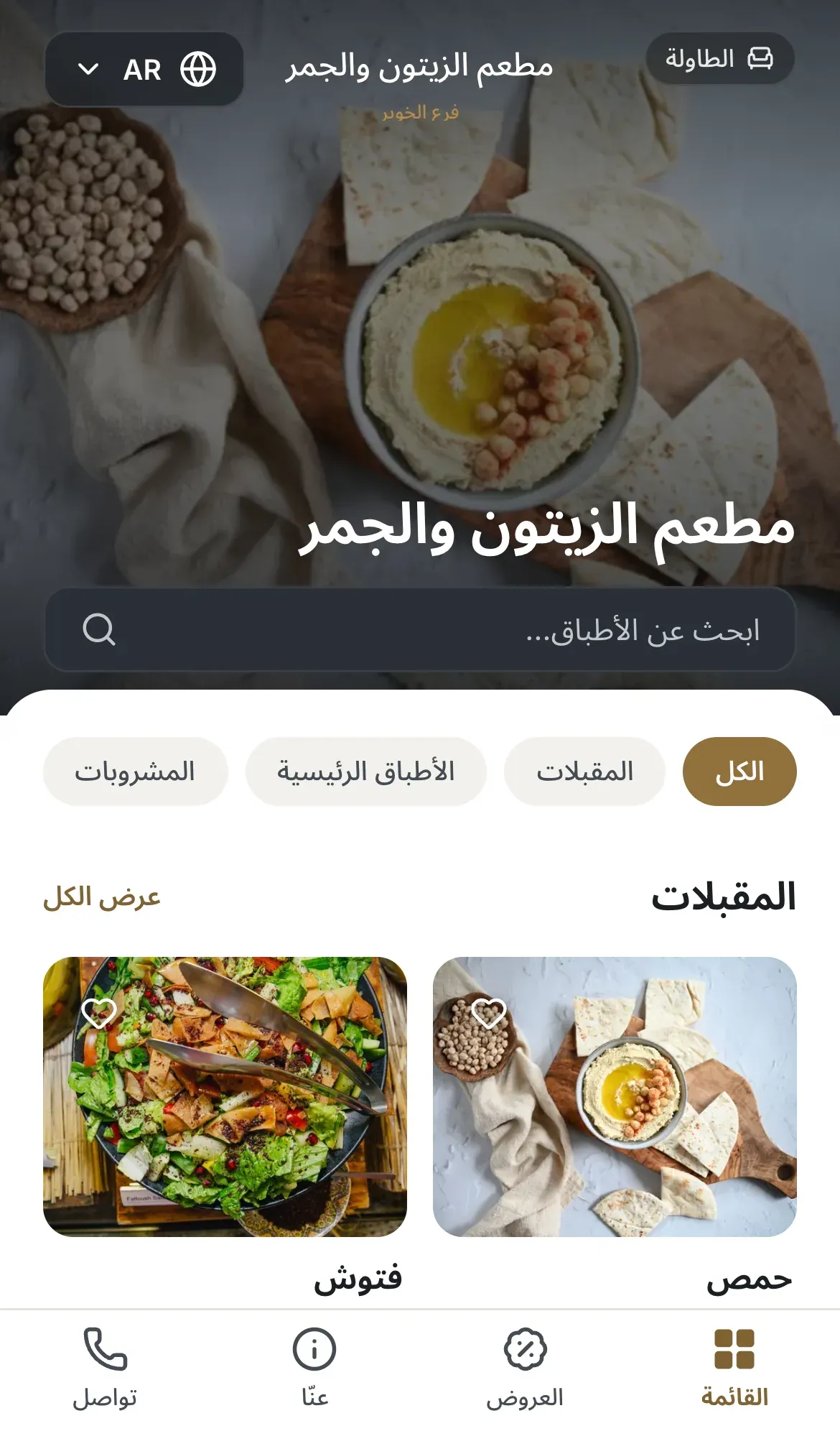
- The language button
Let guests switch language
Guests tap the language button at the top of the menu (EN or AR) and choose English or العربية. The page flips at once, and the choice stays on that phone.
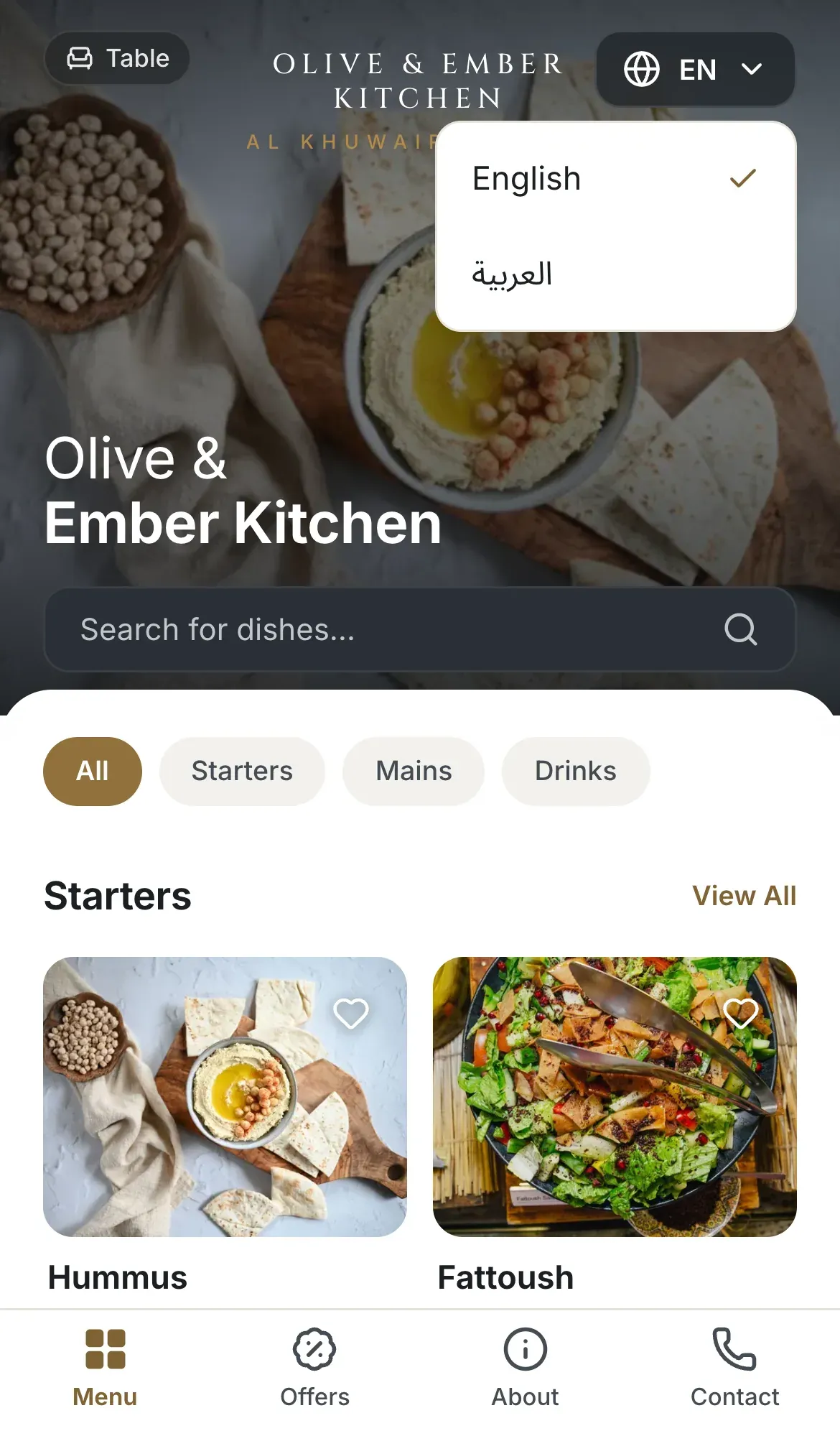
- The language button
- The language list
Link to one language
A guest menu link can end with ?lang=ar or ?lang=en to open in that language. The language button in the menu adds it for you when a guest switches.
Troubleshooting
The Arabic field contains Latin letters. Switch to an Arabic keyboard and retype the text. The English field has the opposite rule: Use English letters in the English field.
This is the same rule on the restaurant profile and the branch form. Type the Arabic name or tagline in Arabic letters.
Ingredients need a pair: an English and an Arabic ingredient together, or neither.
The Arabic text is empty, so the fallback shows English. Edit the dish and fill in the Arabic fields, then publish the menu again.
The language switches on that page do not change the guest menu. The guest menu always offers English and Arabic.
Related guides
- Restaurant setupRestaurant profileSet your restaurant's Arabic name, taglines and contact details, and learn what guests do and do not see.
- MenuAdd a dishFill in the dish form from names and price to sizes, extras, allergens and availability, then save it to the draft.
- MenuManage categoriesAdd categories in English and Arabic, show or hide them, put them in order and delete one safely.
- Themes & brandingChoose a themePick one of seven themes, set an accent colour and tagline, preview it in English and Arabic, and save it to your guest menu.