
Manage categories
Add categories in English and Arabic, show or hide them, put them in order and delete one safely.
- Goal
- Your menu has categories such as Starters, Grills and Drinks, in the order you want, and you know what happens when you hide or delete one.
- Before you start
- A menu exists (see Menus and drafts)
- You can edit menus (owner, admin or menu editor)
Categories are the sections guests scroll through. Each dish belongs to one category. Categories belong to the menu you are editing, so the menu shown under Menu you are editing at the top of the page decides which categories you see. Every change is saved to the draft and reaches guests only after you publish.
Open the Categories page
In the sidebar choose Categories. A new menu shows No categories yet. Check that Menu you are editing shows the right menu.
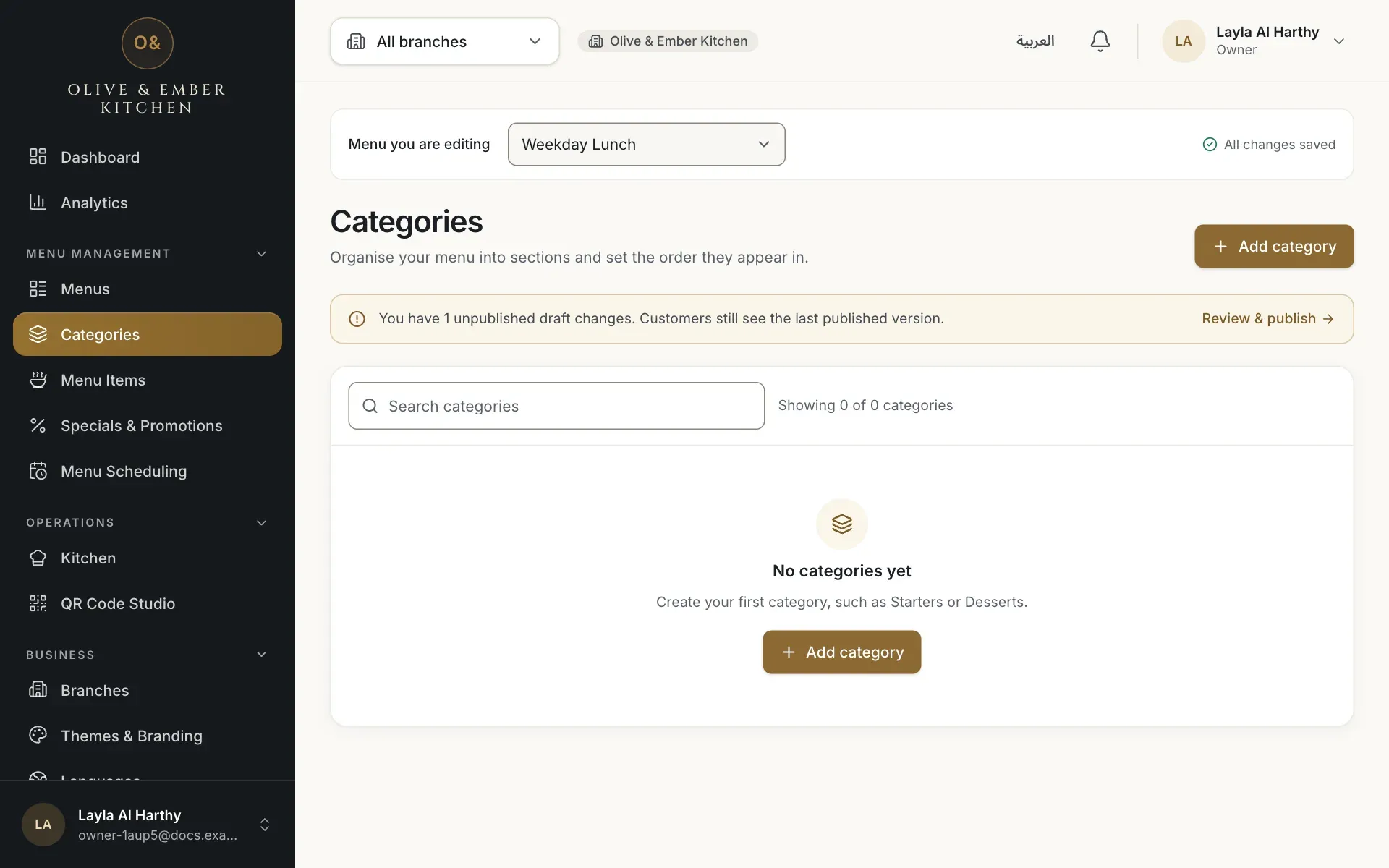
- The Add category button
Add a category
Click Add category. Fill in Name (English) and Name (Arabic), both required, with at least 2 characters. Descriptions are optional (up to 160 characters each). Keep Visible to customers on, then click Create. You can have up to 100 categories in a menu.
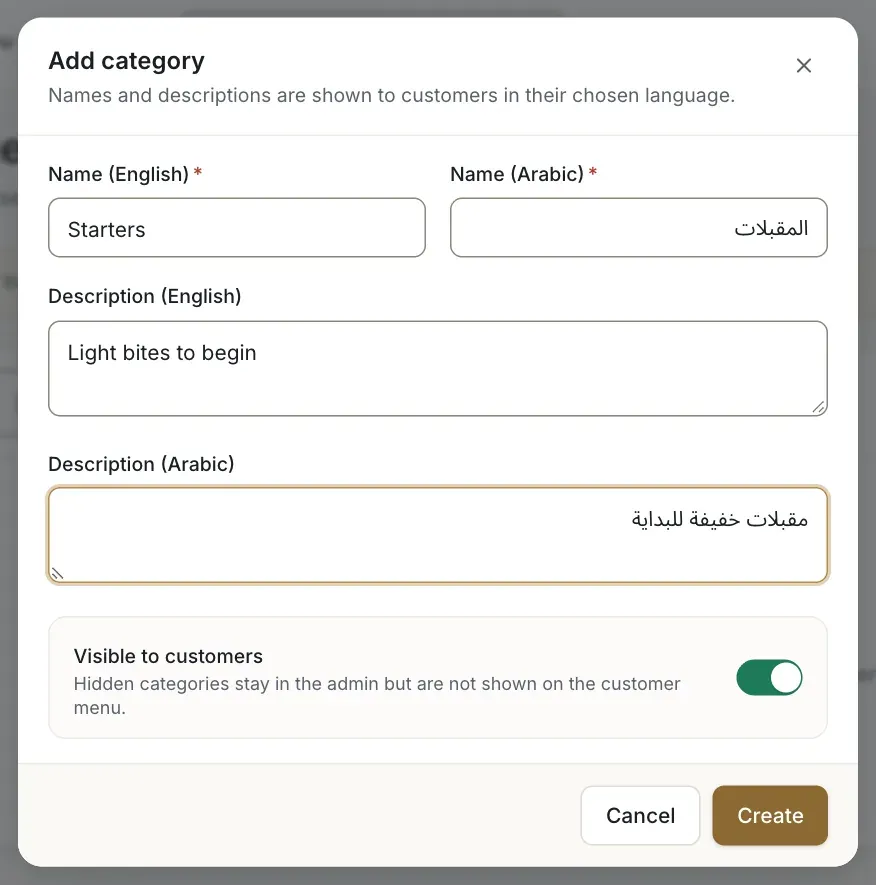
- The English name
- The Arabic name
- The Visible to customers switch
- The Create button
Check the list
Repeat for each category. The list shows the order number, both names, the description, how many dishes each category holds and whether it is visible. The counter above the list says, for example, Showing 3 of 3 categories.
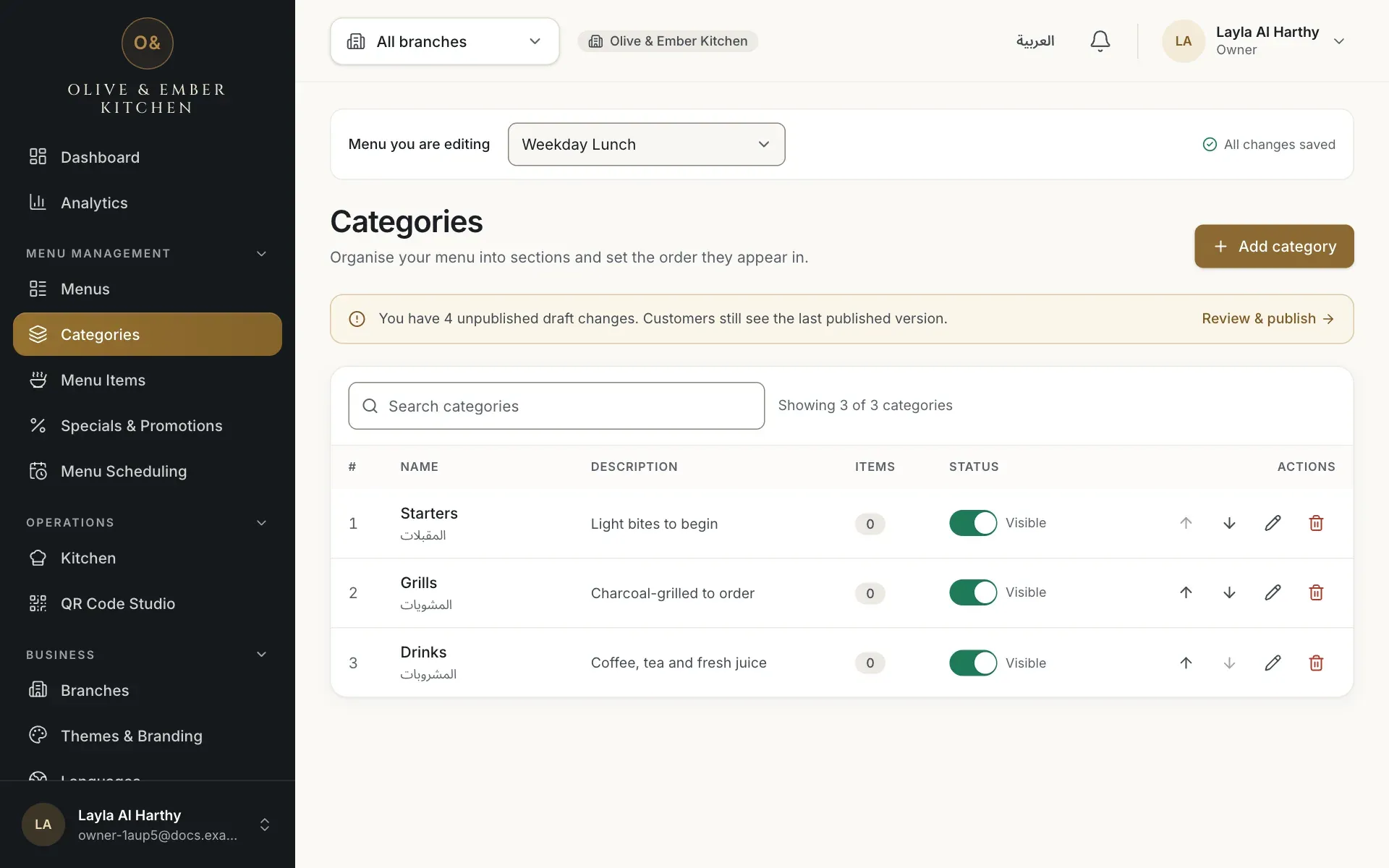
- The first category row
- The counter of categories
Change the order
Use the arrow buttons Move up and Move down at the end of a row. The order here is the order guests see. You cannot reorder while a search is active; clear the search first.
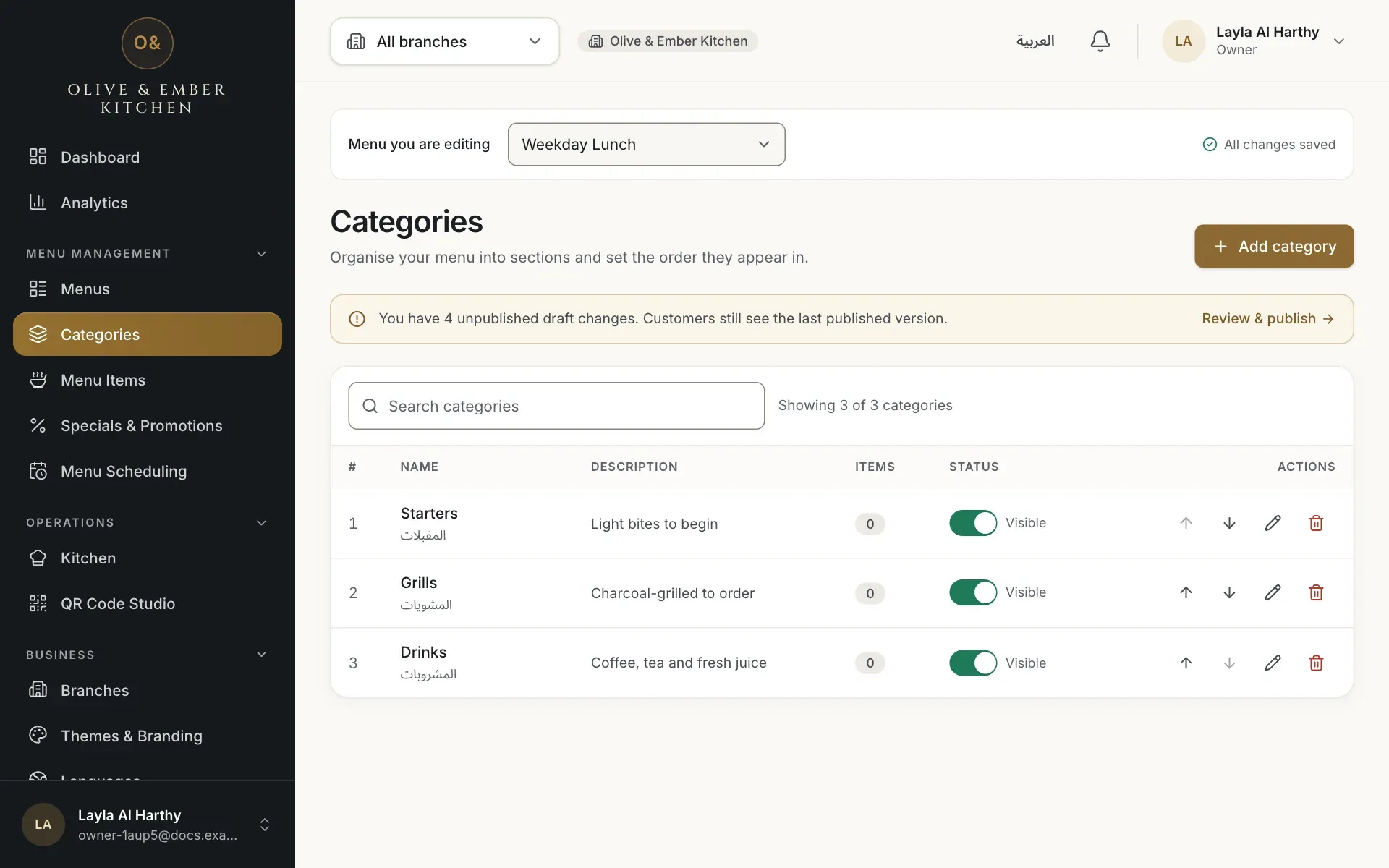
- The Move up button of Drinks
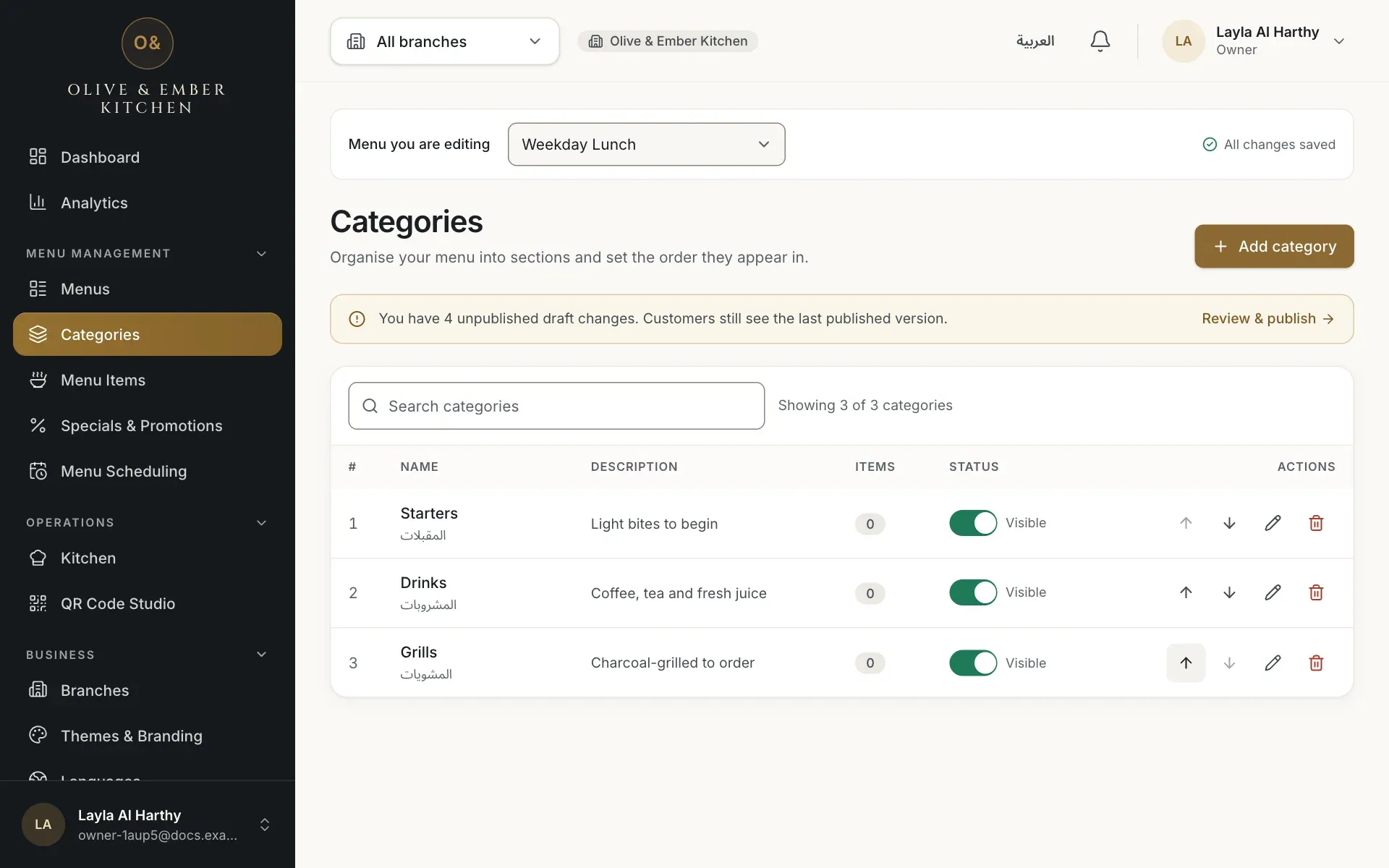
- Drinks, now second in the list
Hide a category without deleting it
Use the switch in the row. When it is off the row says Hidden. A hidden category stays in your dashboard but guests do not see it once you publish. Switch it on again to show it.
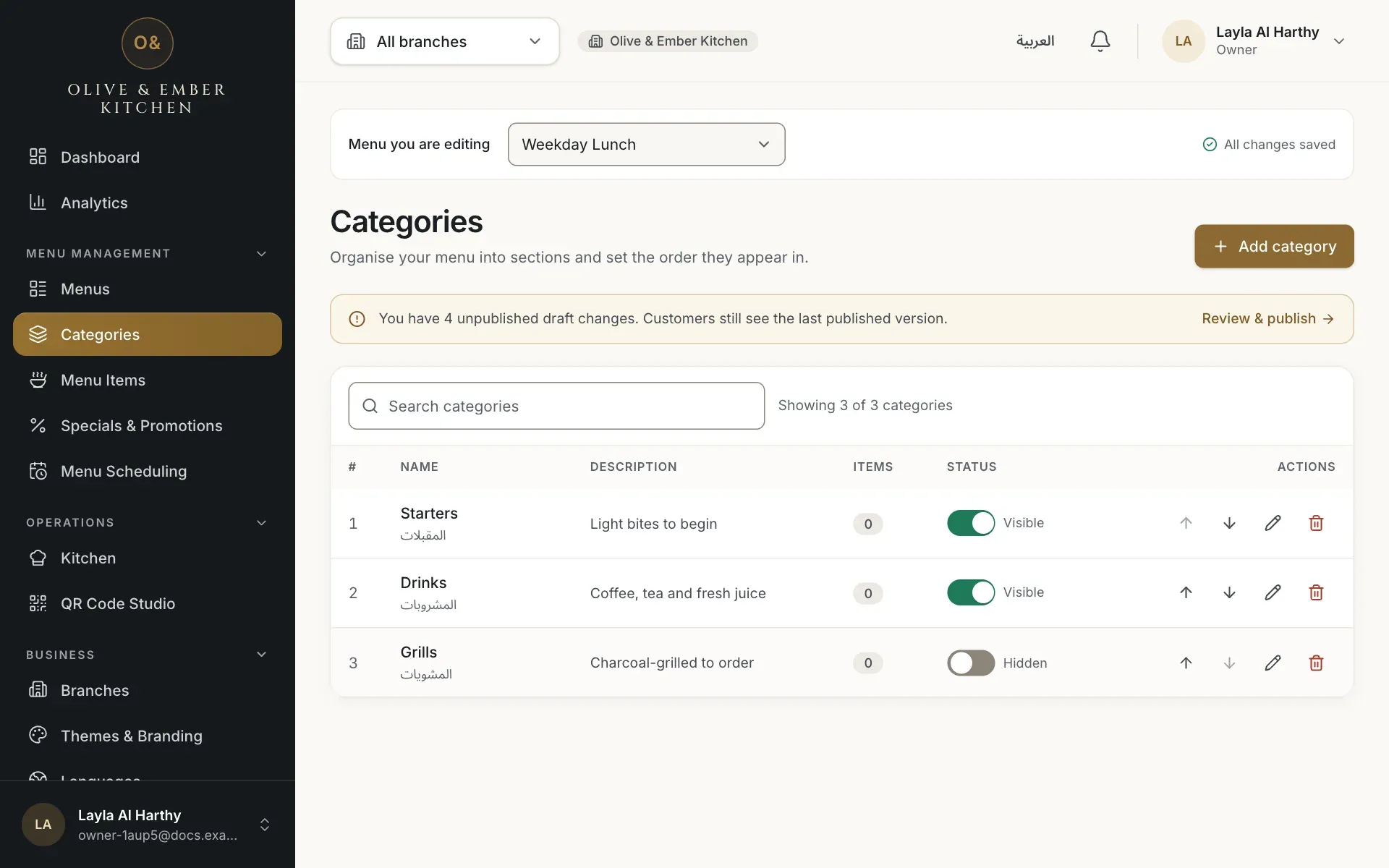
- The visibility switch of Grills
Delete a category
Click the bin icon in the row. The dialog Delete “Drinks”? warns you what happens to its dishes: they become hidden drafts and are marked unavailable, and you can move them to another category to show them again. Nothing changes for guests until you publish. Click Delete to confirm, or Cancel to keep it.
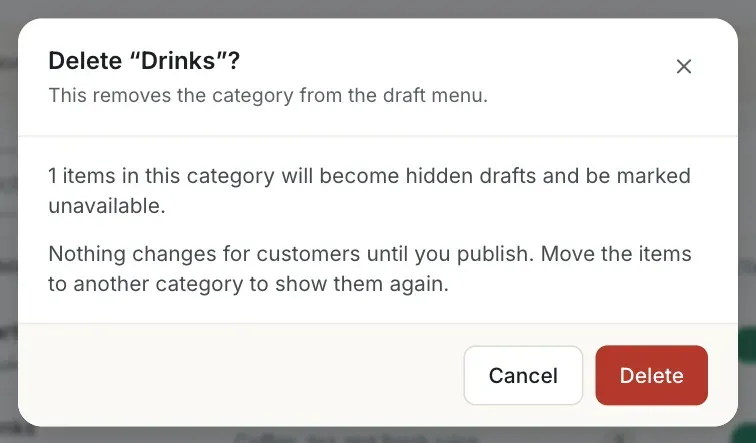
- The Cancel button
- The Delete button
Deleting does not delete the dishes
The dishes of a deleted category are kept as hidden drafts, but they are marked unavailable. Open each one in Menu Items, choose another category, set it to Active and turn Availability on before you publish.
Troubleshooting
The name is too short. Names need at least 2 characters in both languages.
The English field contains Arabic letters. Put the English name in Name (English) and the Arabic name in Name (Arabic).
The Arabic field has no Arabic letters. Type the Arabic name there.
A colleague changed the menu while you were working. Review the refreshed list and repeat your change.
Related guides
- MenuAdd a dishFill in the dish form from names and price to sizes, extras, allergens and availability, then save it to the draft.
- MenuMenus and draftsCreate a menu, understand draft versus live, and rename, duplicate or archive a menu.
- MenuPublish your menuCheck the draft, assign the menu to a branch, publish it, read the version history, roll back, discard changes or take a menu away.