
Menus and drafts
Create a menu, understand draft versus live, and rename, duplicate or archive a menu.
- Goal
- You have a menu, you know the difference between your draft and the live menu, and you can rename, duplicate and archive menus.
- Before you start
- You are signed in as the owner, an admin or a menu editor
- Your restaurant is created
A menu is a list of categories and dishes. Every change you make is saved to a draft. Guests keep seeing the last published version until you publish. Editing needs the permission to edit menus. Publishing is limited to the owner, admins and menu editors.
Open the Menus page
In the sidebar, under Menu Management, choose Menus. Your menus are shown as cards. A new restaurant has none yet.
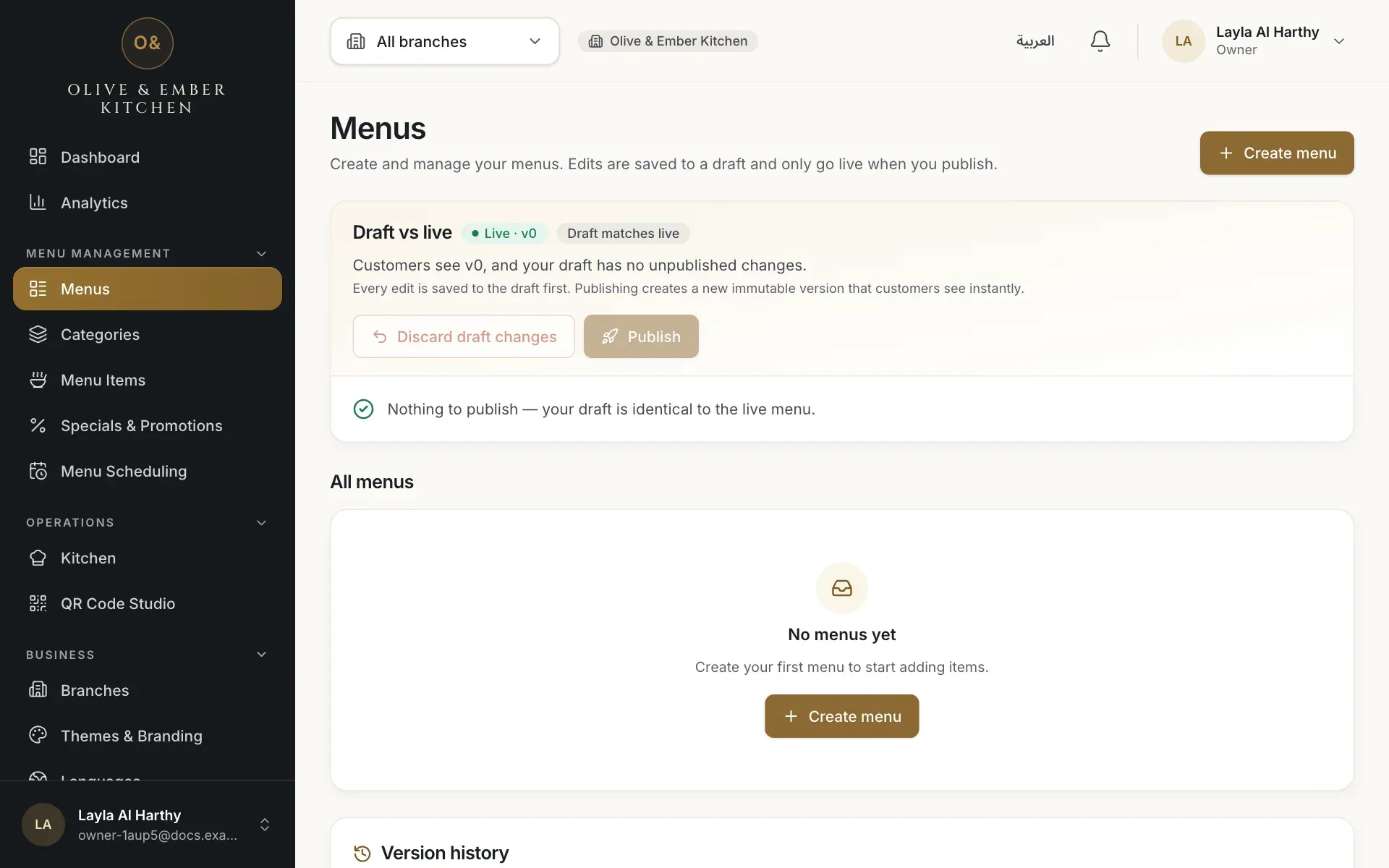
- The Create menu button
Create a menu
Click Create menu. In the dialog Create a menu, type the name in Name (English) and Name (Arabic). Each name needs at least 2 characters, English letters in the English field and Arabic letters in the Arabic field. Click Create.
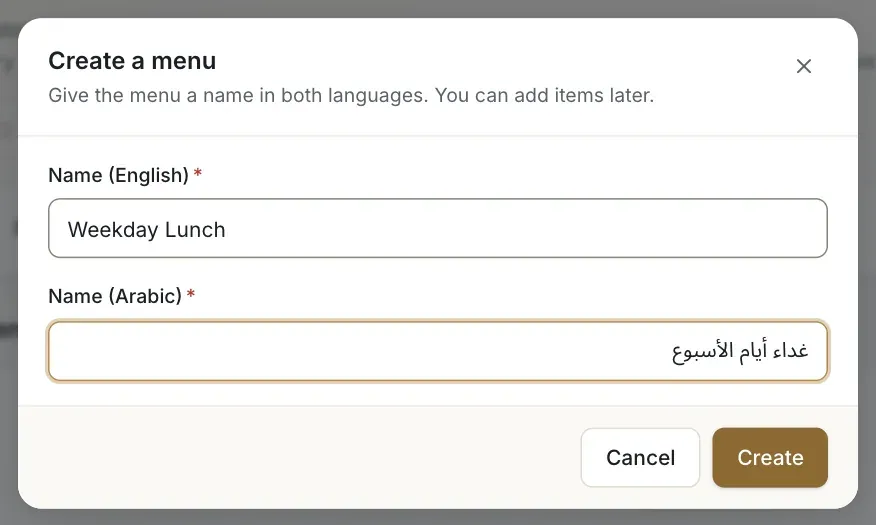
- The English name
- The Arabic name
- The Create button
See the new menu card
The card shows the badges Draft and Never published. The badge Editing now marks the menu you are working on, and No branches warns that no branch serves it yet, so no guest can see it. To change what you edit, use Edit this menu on another card.
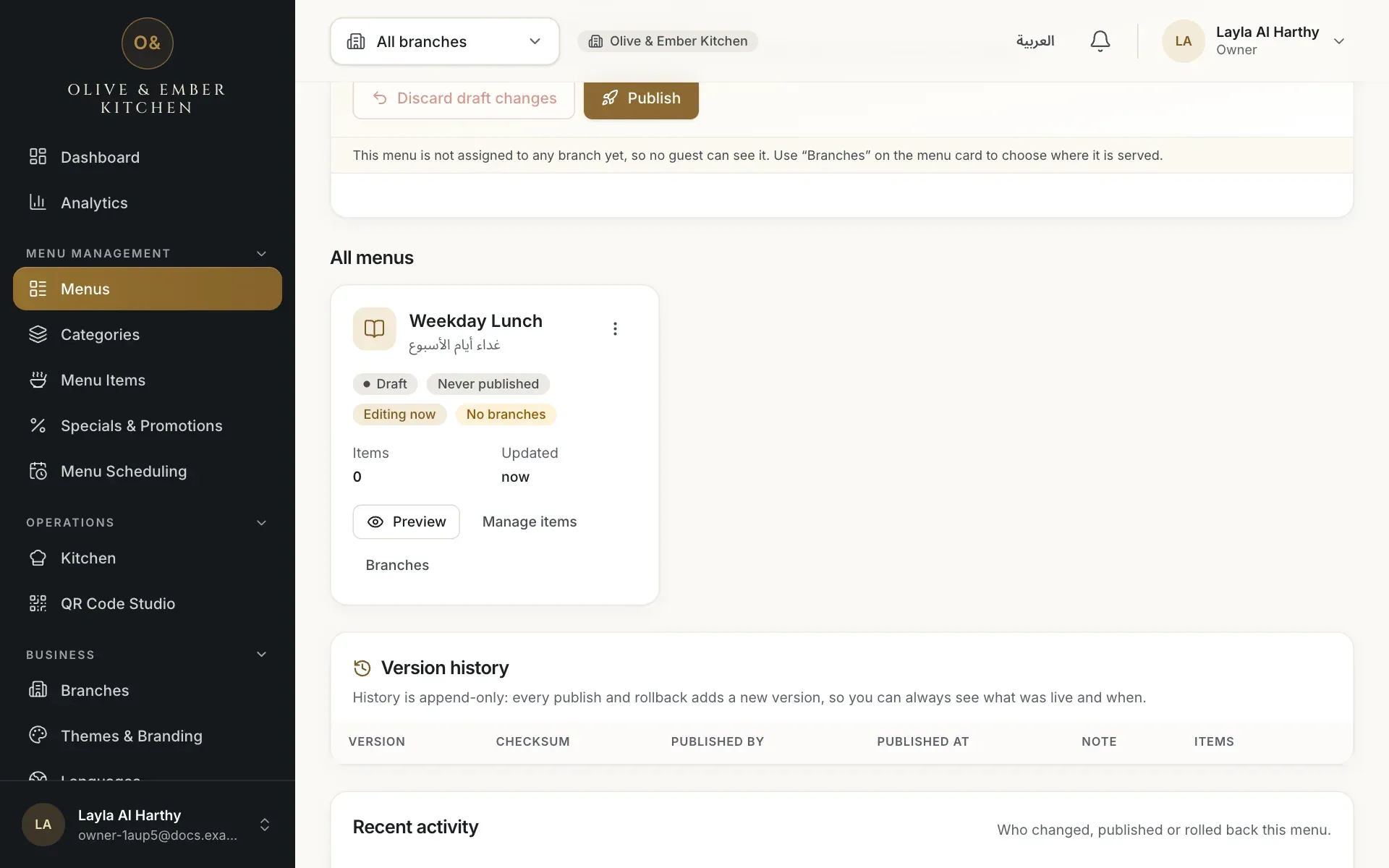
- The card of the new menu
Read the Draft vs live panel
At the top of the Menus page, Draft vs live tells you which version guests see (for example Live · v3) and how many changes are waiting (for example 1 unpublished changes). When nothing is waiting it says Draft matches live. The card of a published menu shows its version number, for example Version 3.
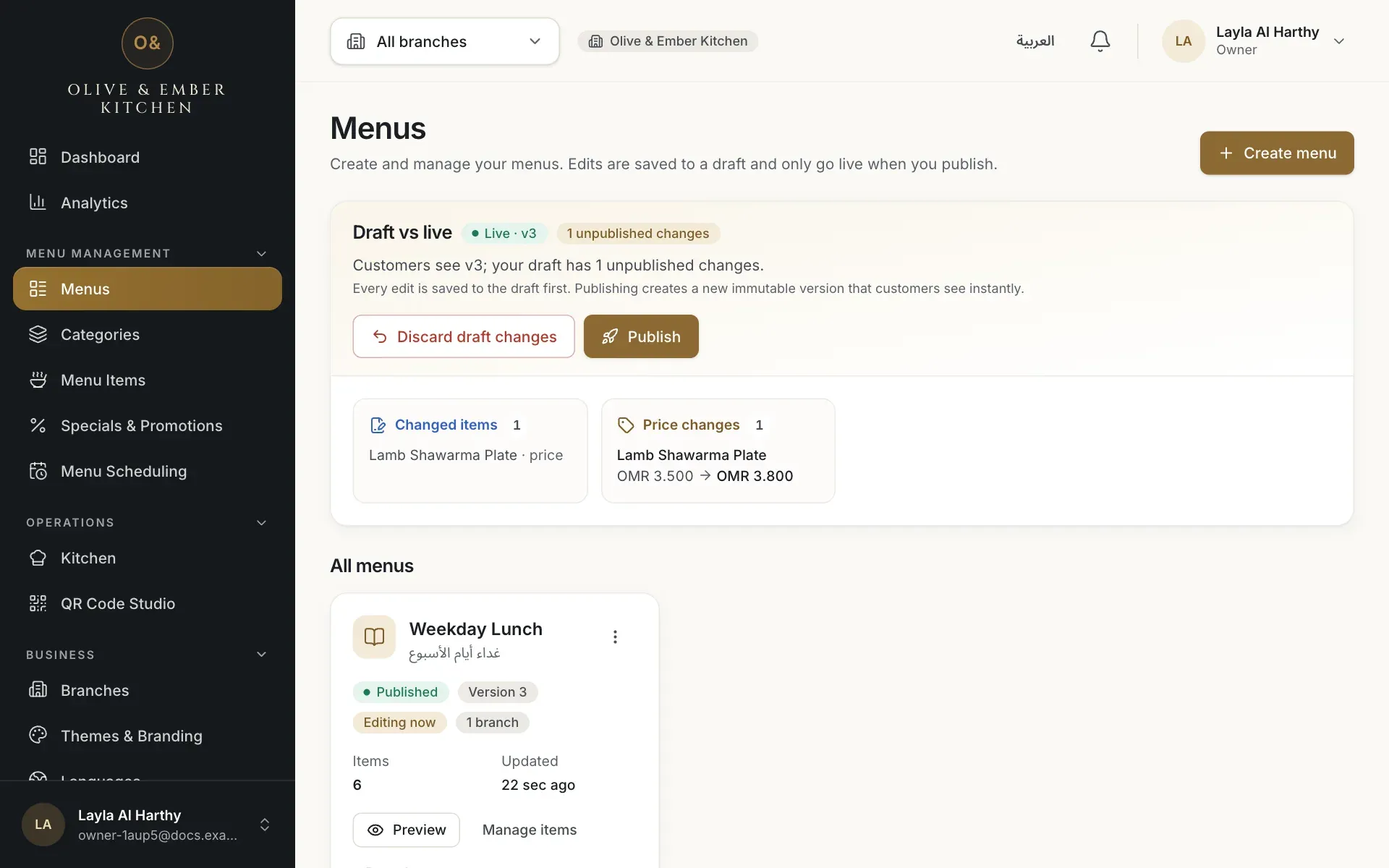
- The live version badge
- The number of unpublished changes
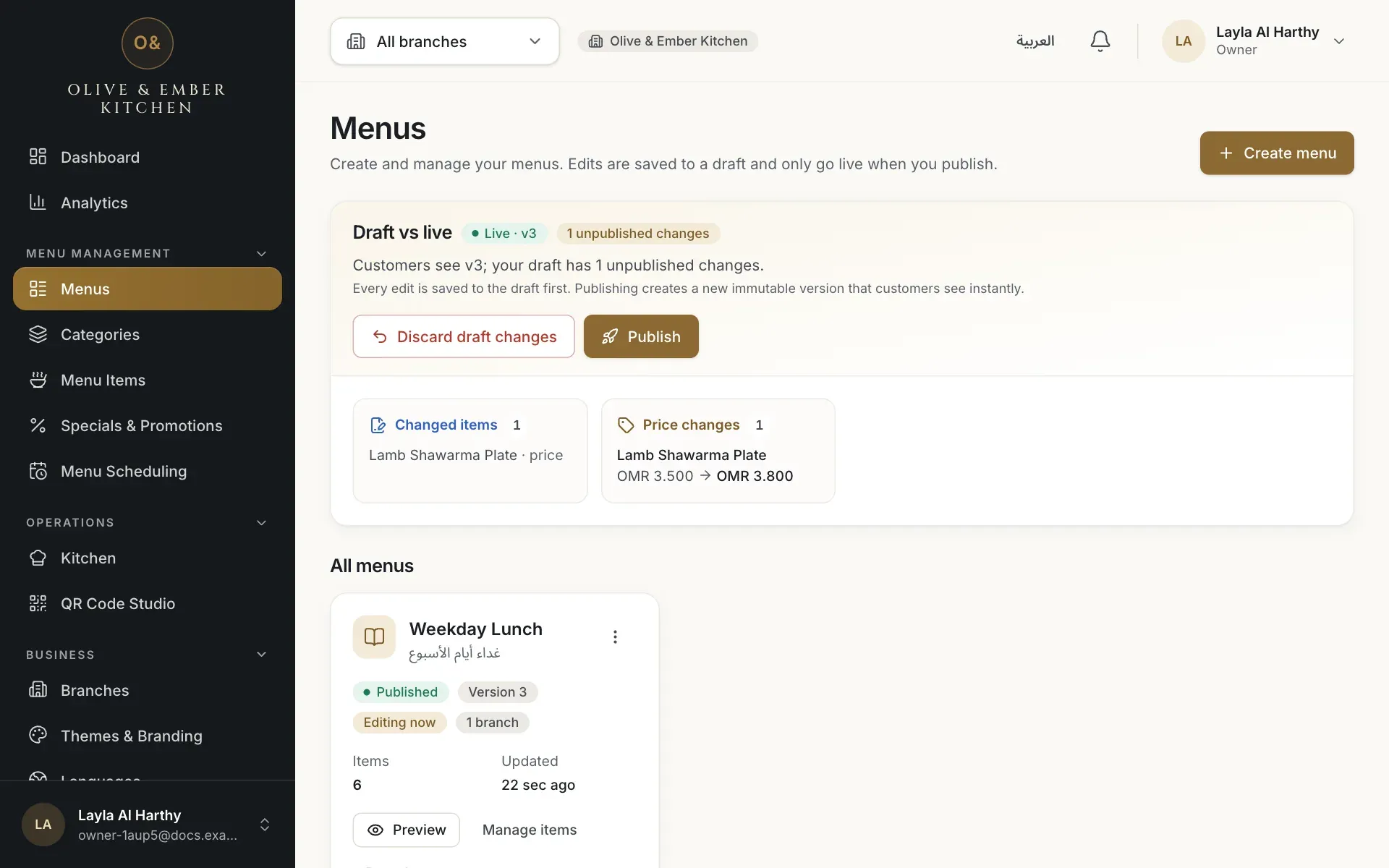
- The version number of the published menu
Watch for the draft banner
On the Categories and Menu Items pages, a yellow banner says You have {n} unpublished draft changes. Customers still see the last published version. Use Review & publish in the banner to go to the Menus page. See Publish your menu.
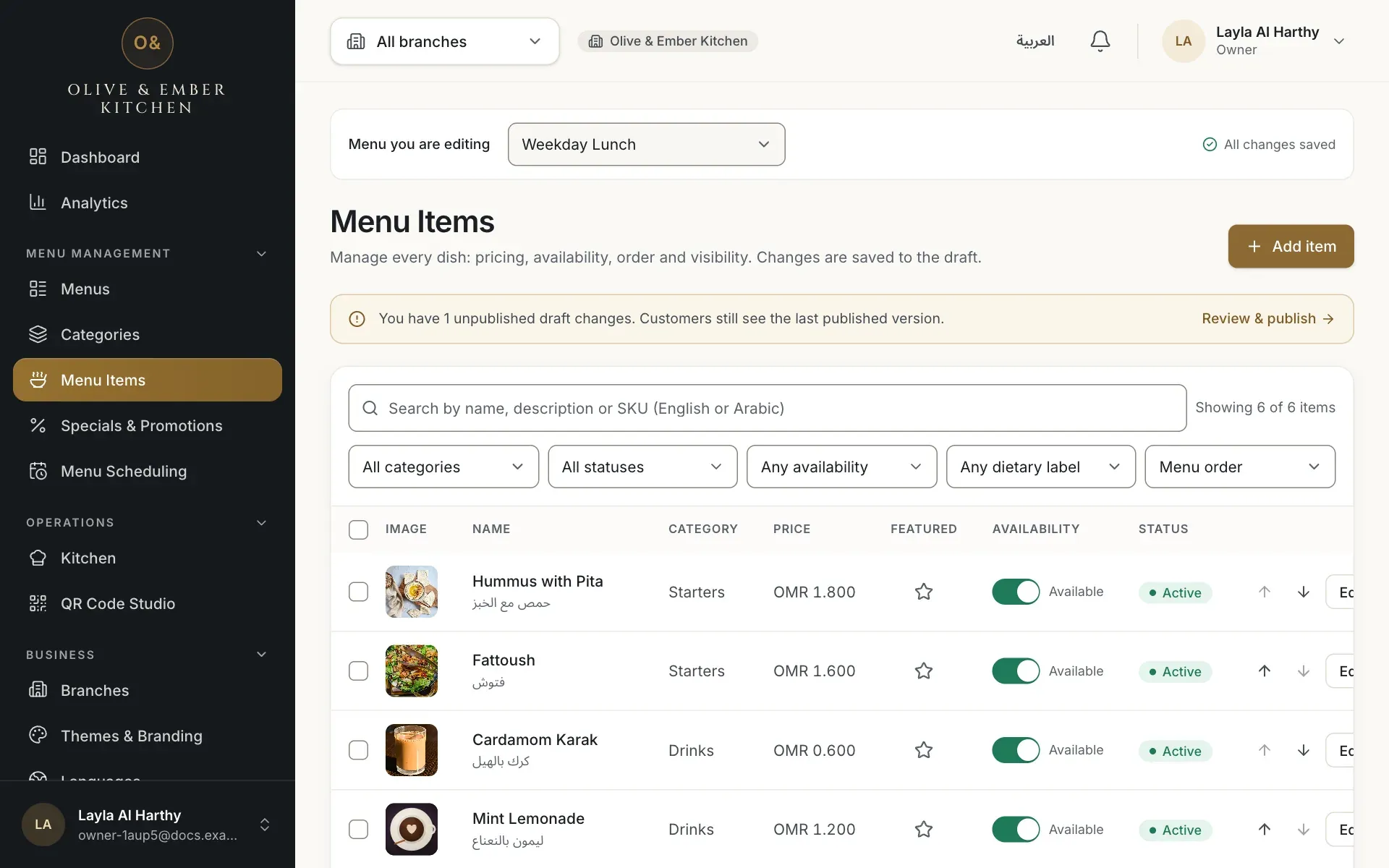
- The draft banner
- The Review & publish link
Rename a menu
Click the three dots on the card and choose Rename. Change the names and click Save changes. Names can be up to 120 characters, and two menus cannot have the same name.
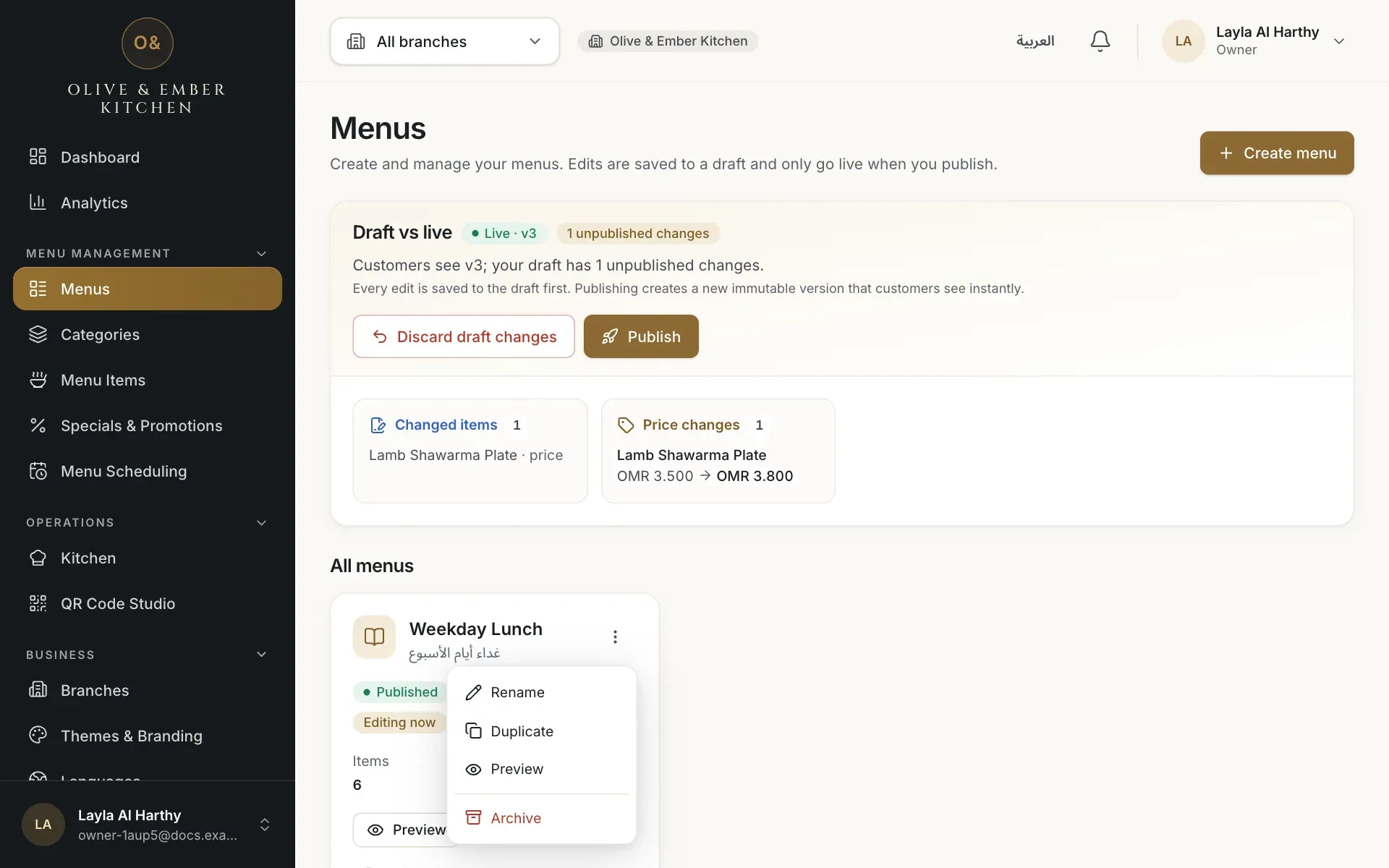
- Rename
- Duplicate
- Archive
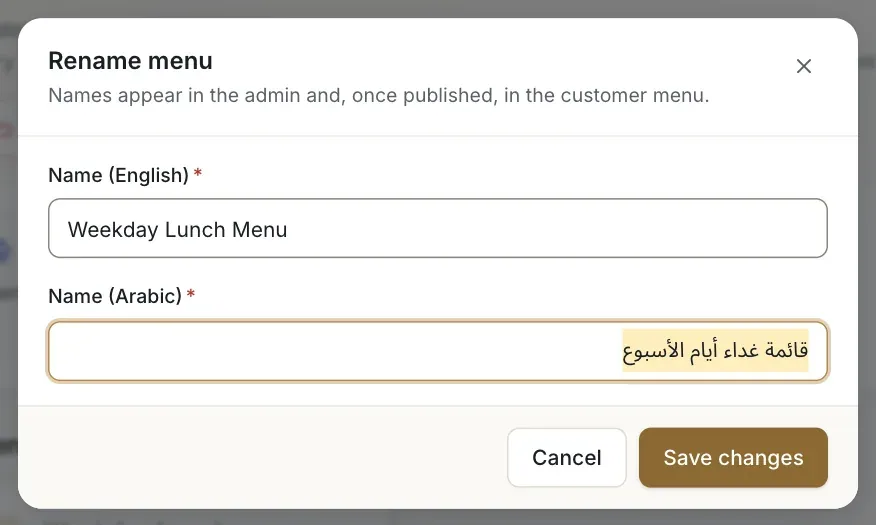
- The English name
- The Arabic name
- The Save changes button
Duplicate a menu
Choose Duplicate from the same list. A copy appears as a new draft menu, named like the original with "(copy)" added, with the same categories and dishes. Rename and change it as you like. Use it to start a seasonal or evening menu.
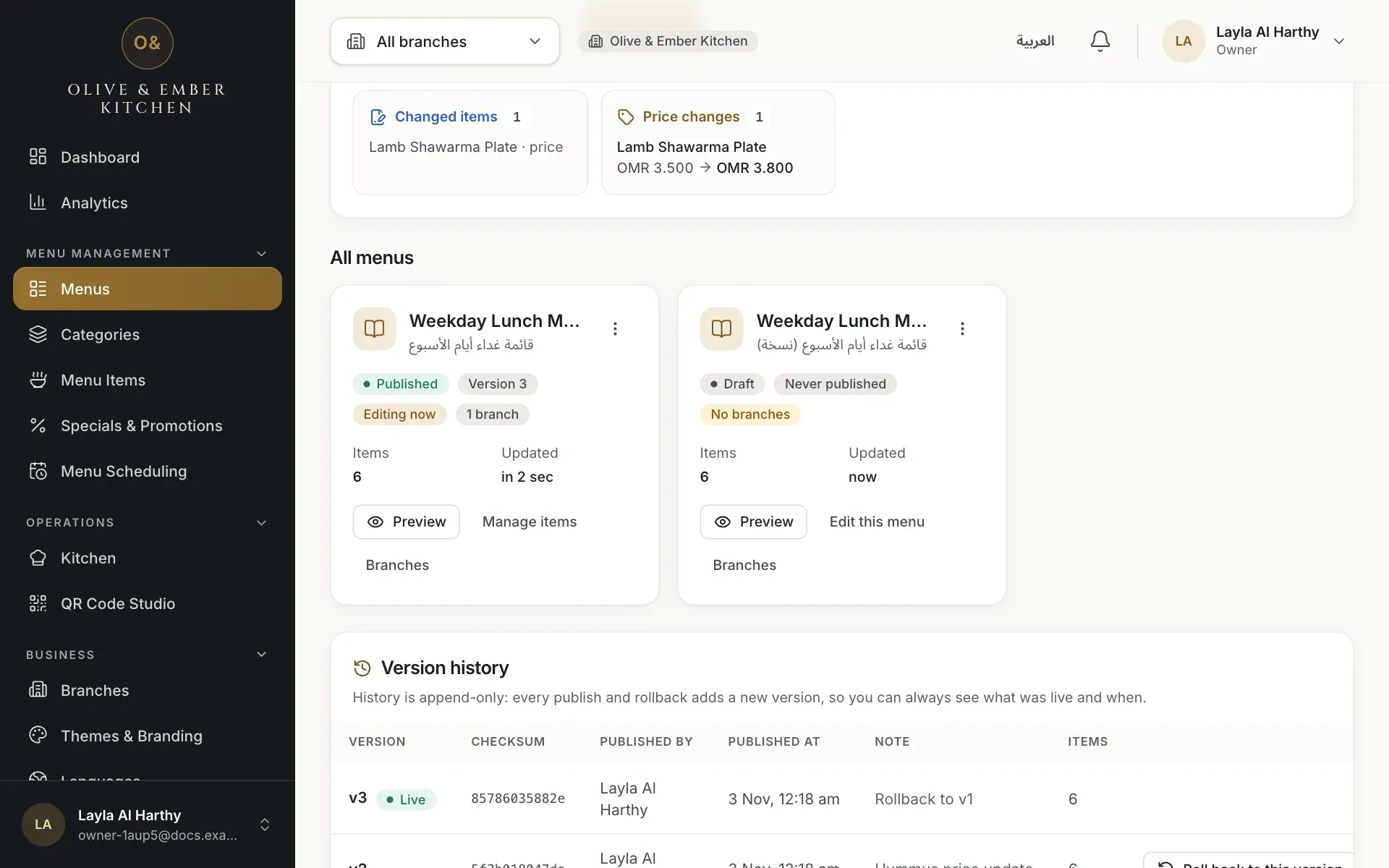
- The new copy, shown as a draft
Archive a menu you no longer use
Choose Archive from the list. The card shows Archived and the menu is set aside; guests no longer get it. You can bring it back with Restore in the same list.
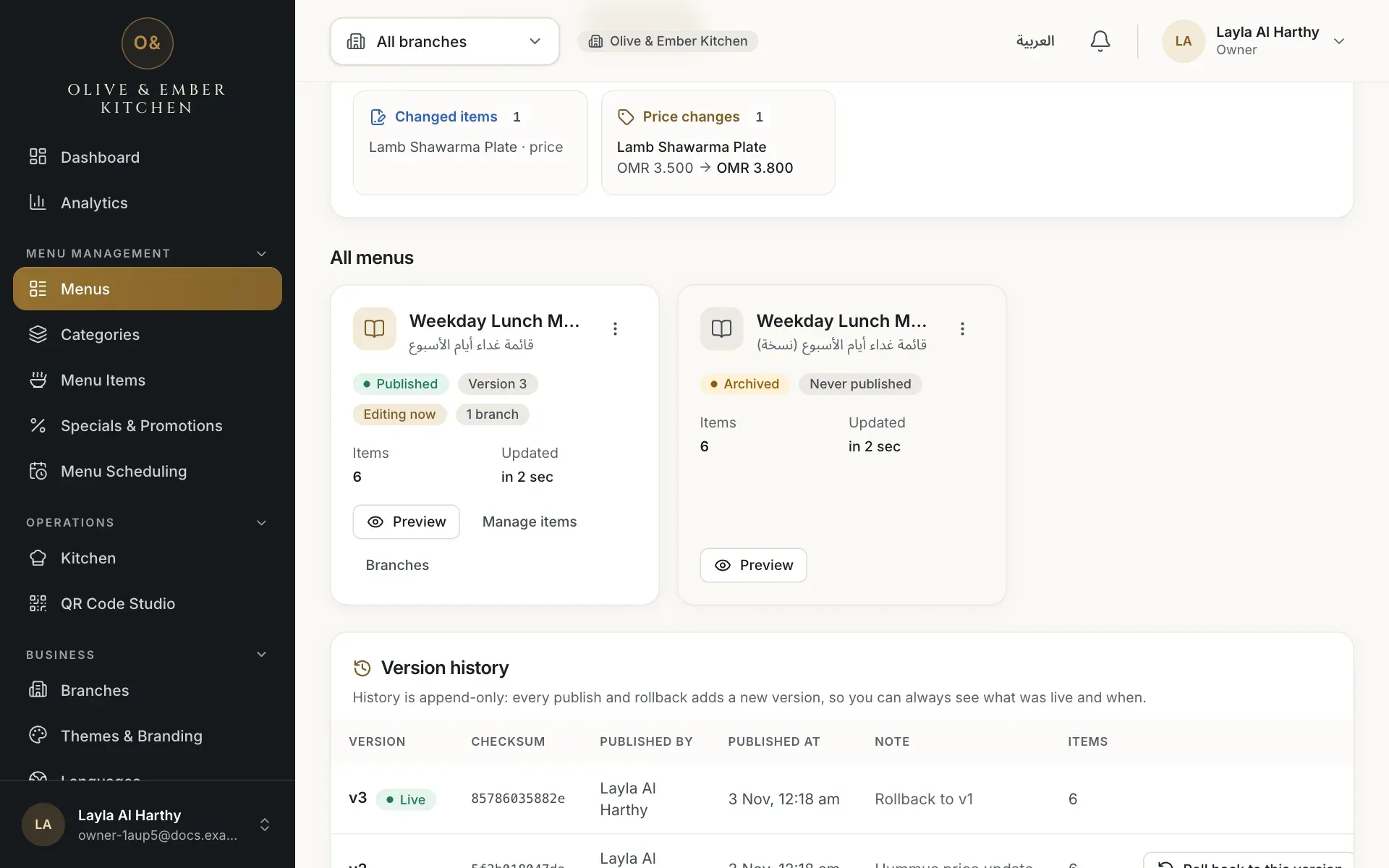
- The archived menu
How many menus can I have?
Your plan sets the number of menus (the free trial allows 5, Starter 2, Professional 5, Business 10). An account can never hold more than 100 menus. See Plans and limits.
Troubleshooting
Another menu already uses that name. Choose a different name, or rename the old menu first.
You reached the number of menus in your plan. Archive a menu you do not need, or look at your plan on the billing page. This message appears in English even when the dashboard is in Arabic.
A colleague saved a change while you were editing. Your screen has been refreshed with their change. Check it and repeat your edit.
Your role can change the draft, but publishing needs the owner, an admin or a menu editor. Ask one of them to publish.
Related guides
- MenuManage categoriesAdd categories in English and Arabic, show or hide them, put them in order and delete one safely.
- MenuPublish your menuCheck the draft, assign the menu to a branch, publish it, read the version history, roll back, discard changes or take a menu away.
- MenuMenu schedulingServe a different menu at different times of day, with days, a time window and a priority for each schedule.