
Specials and promotions
Create a banner or a special offer for a dish, publish it, and see what guests really see on the Offers page.
- Goal
- A banner and a special offer are published, and you know exactly how they look to guests on their phones.
- Before you start
- A published menu with at least one active dish
- You can edit menus (owner, admin or menu editor)
Specials & Promotions lets you announce something to guests: a banner (a message) or a special offer linked to one dish. It is a way to highlight dishes and news. It does not change prices: RothDine does not apply discounts, coupons or codes to orders.
Open Specials & Promotions
In the sidebar choose Specials & Promotions. The tabs All, Active, Scheduled, Expired and Paused count your promotions. Click New promotion.
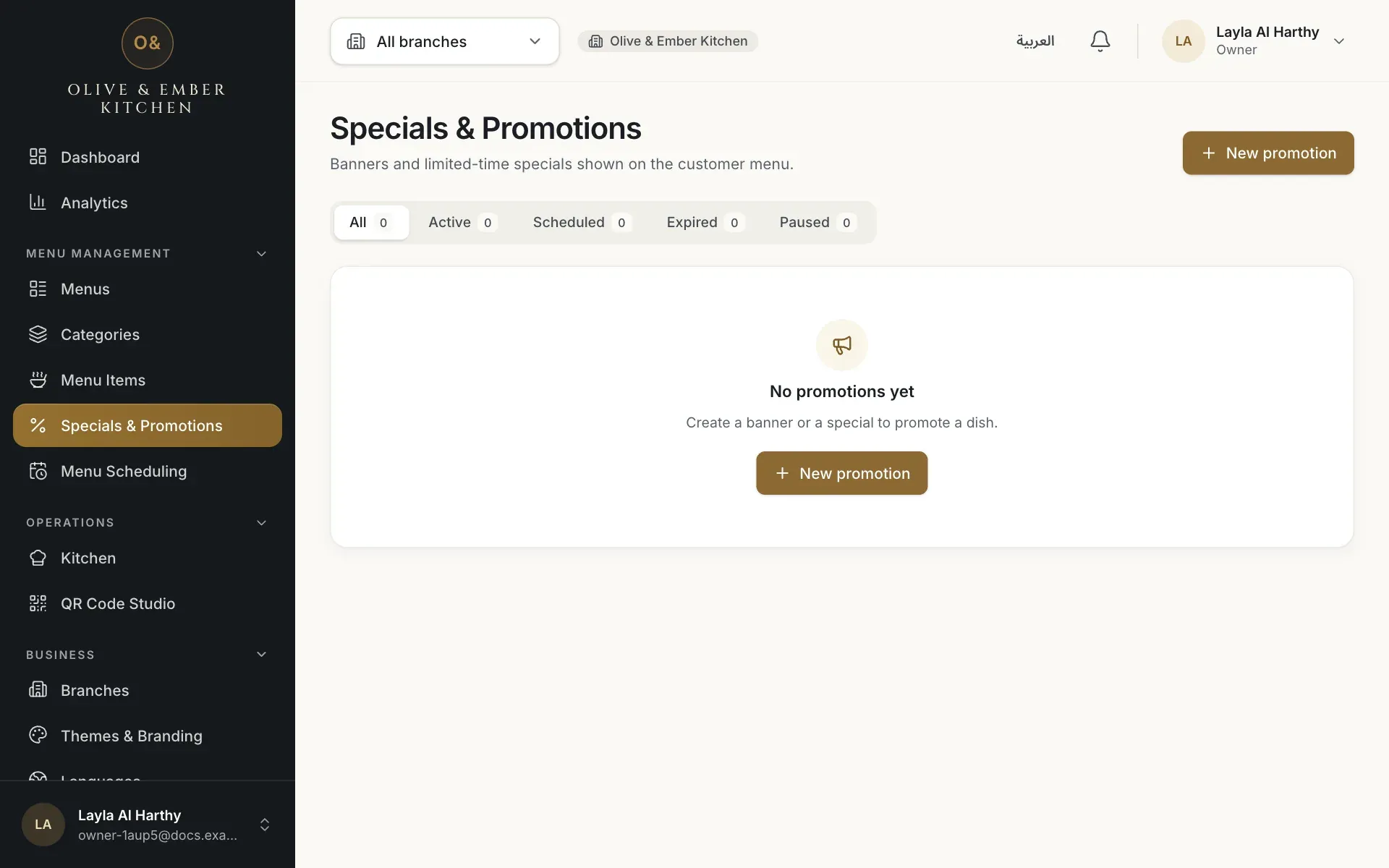
- The New promotion button
Create a banner
Keep Type on Banner. Type the Title (English) and Title (Arabic) (at least 2 characters each), and optionally the Details in both languages (up to 240 characters). Starts and Ends are in Muscat time (GMT+4); the end must be after the start. Click Create.
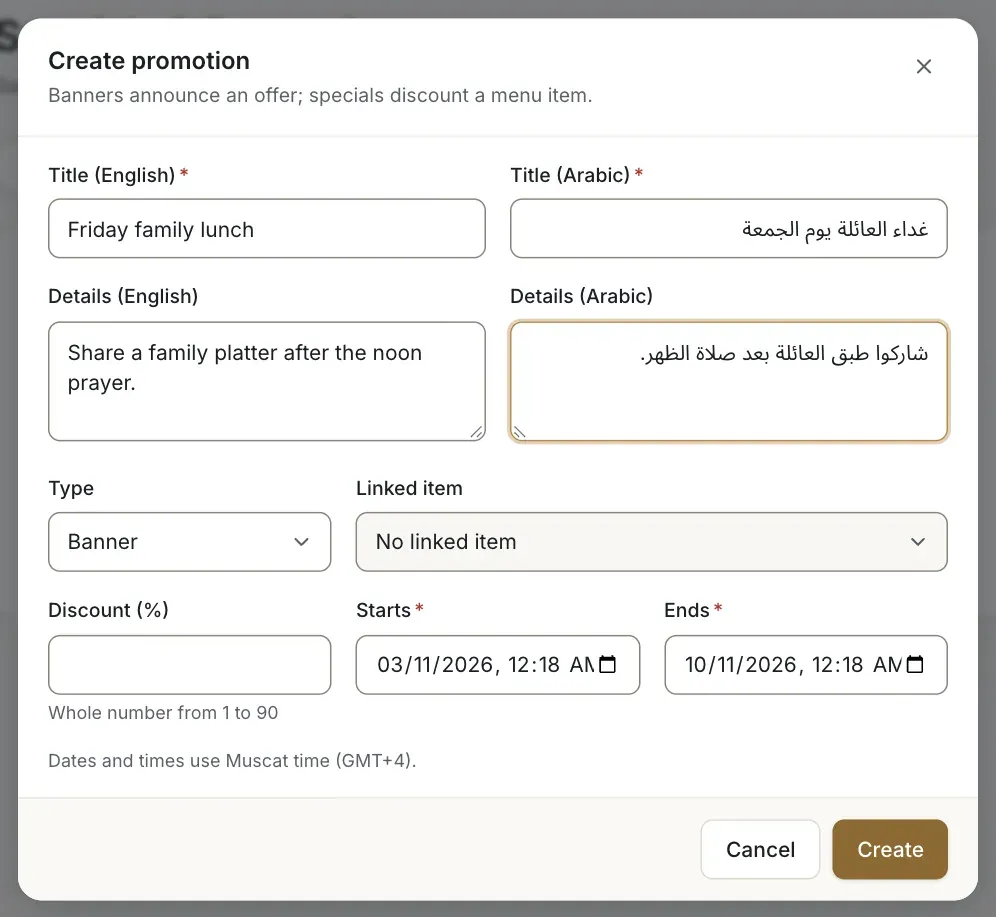
- The type
- The title in English
- The title in Arabic
- The start date and time
- The end date and time
Create a special offer for a dish
Create another promotion and set Type to Special offer. Choose the Linked item, the dish you want to promote. The form also asks for a Discount (%), a whole number from 1 to 90.
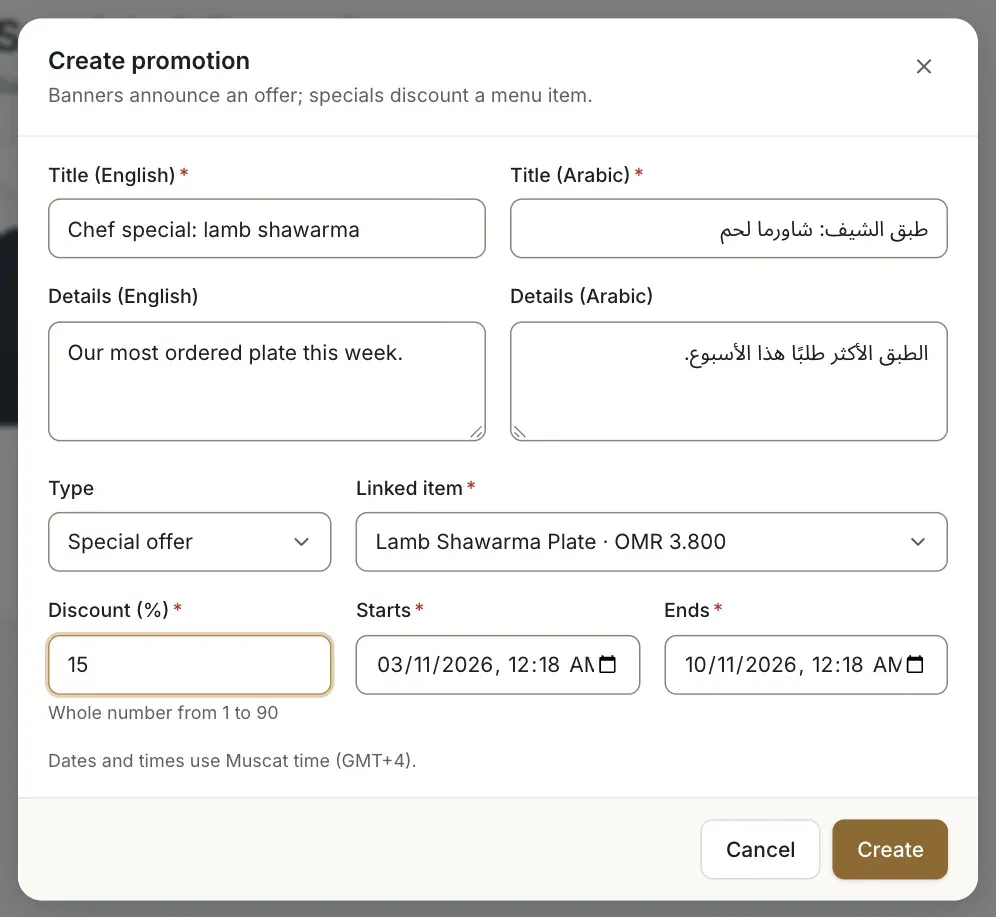
- The type Special offer
- The linked item
- The discount field
The discount percentage is not shown or applied
The discount number is stored, and the dashboard card shows a percentage and a calculated price, but guests never see them and orders are never reduced. Guests see the promotion as a recommended dish at its normal price. Do not promise guests a price reduction.
Manage your promotions
Each card shows its type, its dates and its status (for example Active). Use Edit, Pause (and Resume) or Delete. A deleted promotion is removed at once and cannot be restored.
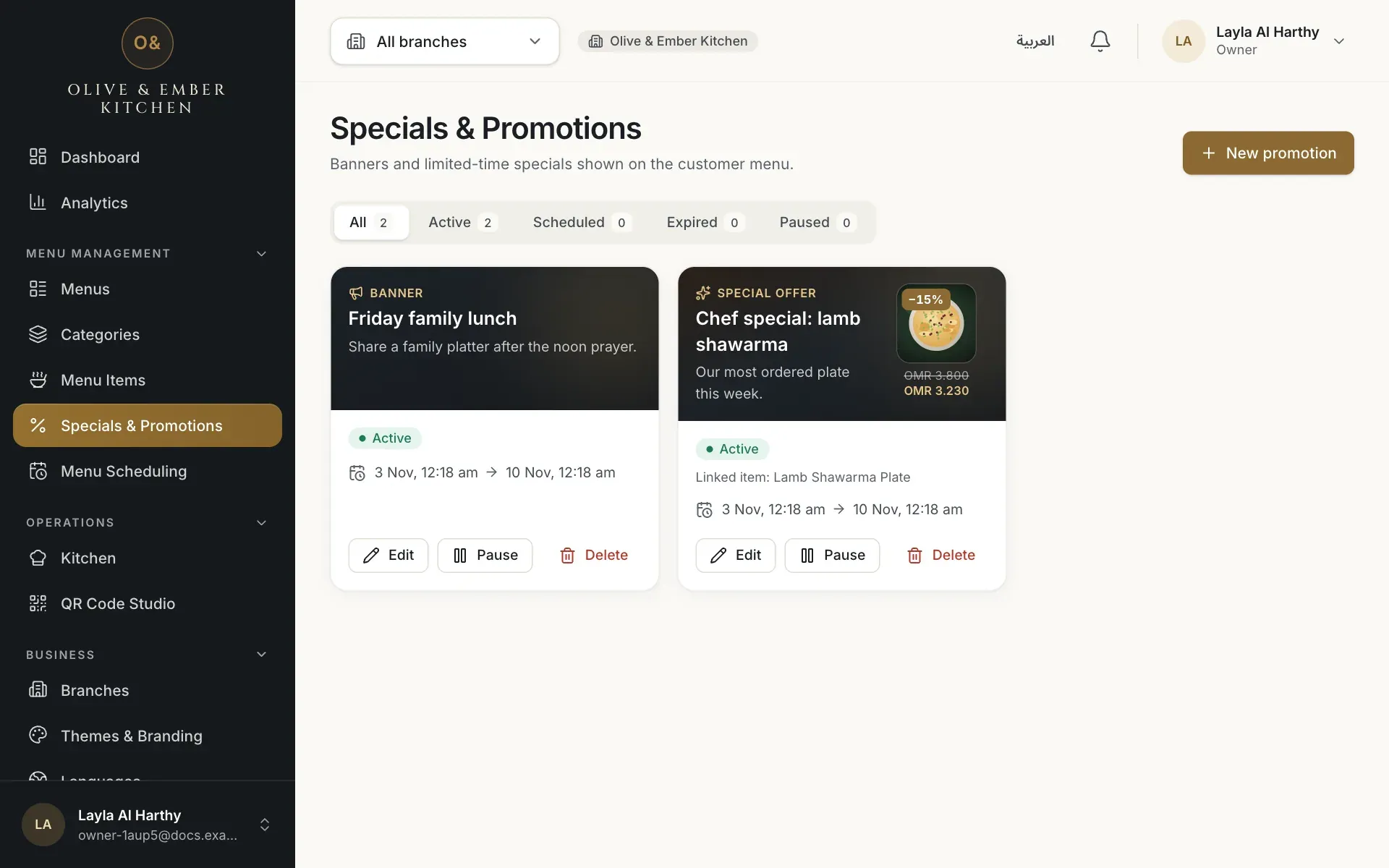
- The banner card
- The Pause button
Publish so guests get it
Promotions travel with a published menu version. On the Menus page the new promotions count as unpublished changes. Click Publish and Publish now. See Publish your menu.
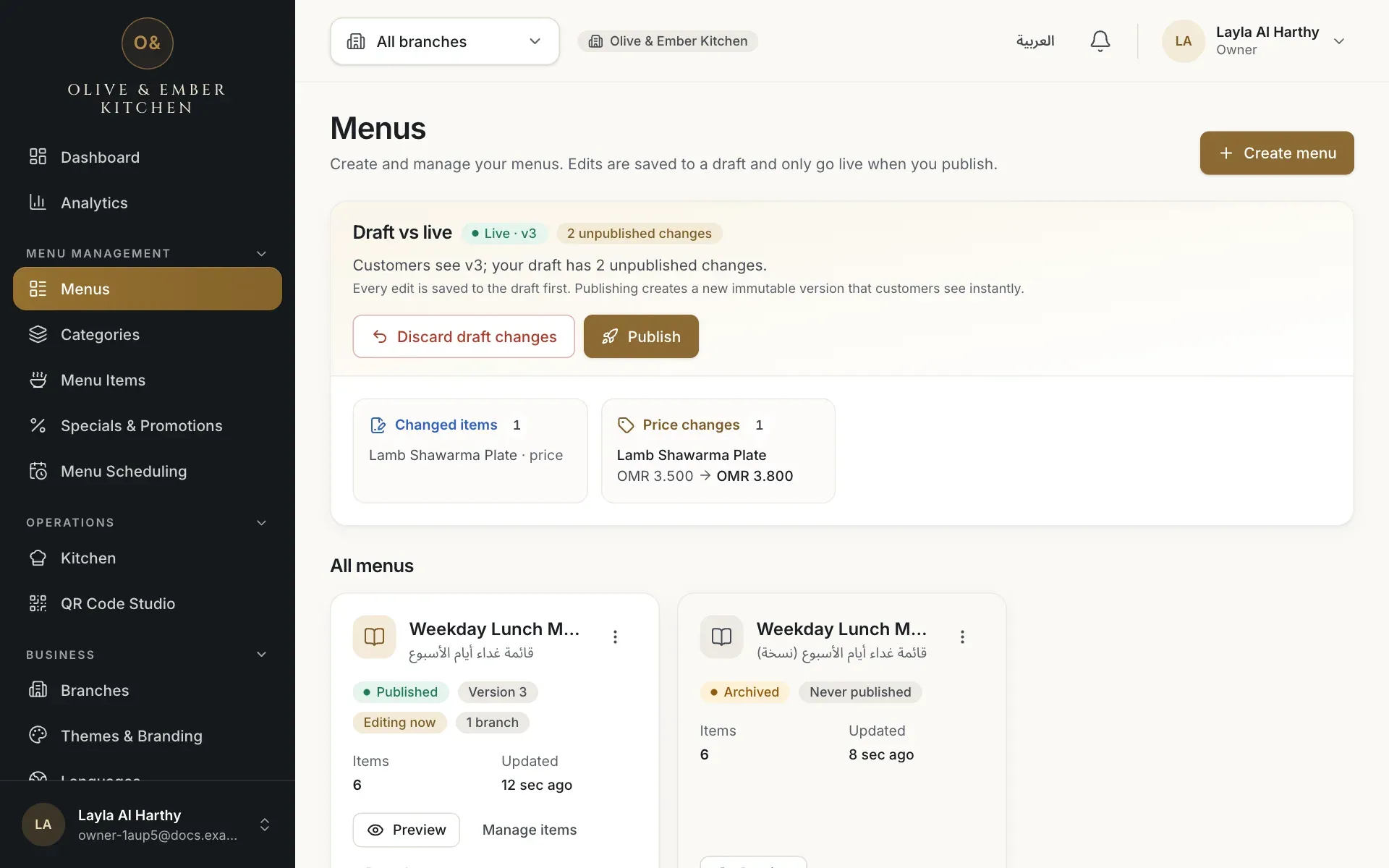
- The unpublished changes
- The Publish button
See what guests see
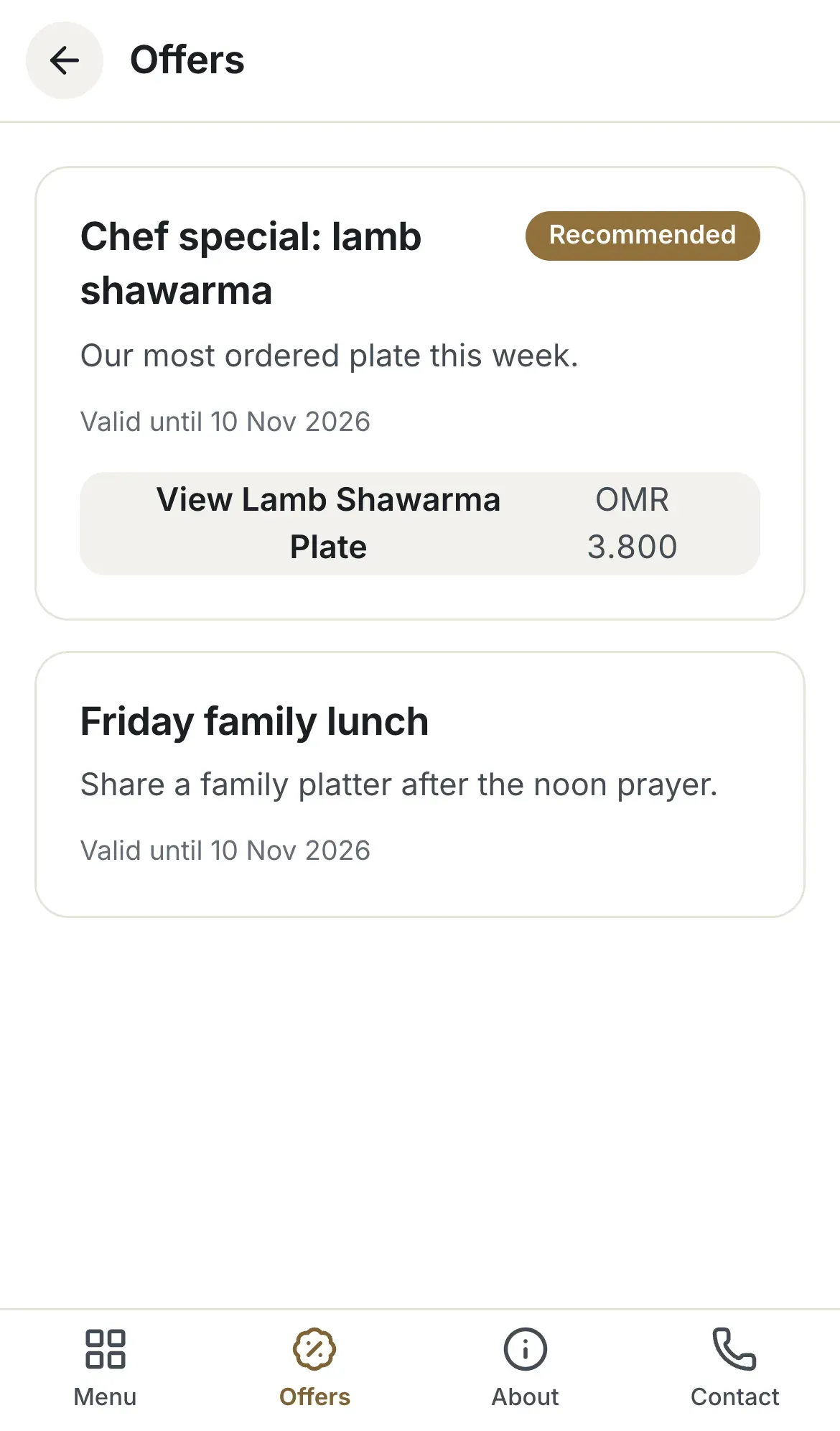
Guests open the Offers tab at the bottom of the menu. A banner shows its title, details and Valid until date. A special offer shows the title, the tag Recommended and a line View followed by the dish name with the dish's normal price. There is no percentage or reduced price.
Troubleshooting
The Offers page is empty when no promotion is active in the published menu. Check the dates (Muscat time), that the promotion is not paused, and that you published the menu after creating it.
A special offer needs a linked dish. Pick one in Linked item.
The discount field is required for special offers: enter a whole number from 1 to 90, even though guests do not see it.
Change Ends so that it is later than Starts.
A promotion whose end date has passed is finished. Create a new promotion with new dates.
Related guides
- MenuPublish your menuCheck the draft, assign the menu to a branch, publish it, read the version history, roll back, discard changes or take a menu away.
- MenuPrices and availabilityChange a price, mark a dish sold out, feature it, set its status and mark a dish sold out at one branch only.
- Themes & brandingChoose a themePick one of seven themes, set an accent colour and tagline, preview it in English and Arabic, and save it to your guest menu.