
Prices and availability
Change a price, mark a dish sold out, feature it, set its status and mark a dish sold out at one branch only.
- Goal
- You can change a price, switch a dish off for today, highlight your best dishes and sell out a dish at one branch without republishing.
- Before you start
- A dish exists in your menu
- To sell out at one branch: a published menu that is assigned to that branch
Most day-to-day changes happen on the Menu Items page. Price, featured, bestseller and status changes are saved to the draft and need a publish. The branch-level sold-out switch is different: it works at once, without publishing.
Open the dish and change the price
In Menu Items click the dish name. In Base price type the new price in OMR with up to 3 decimals, for example 3.800.
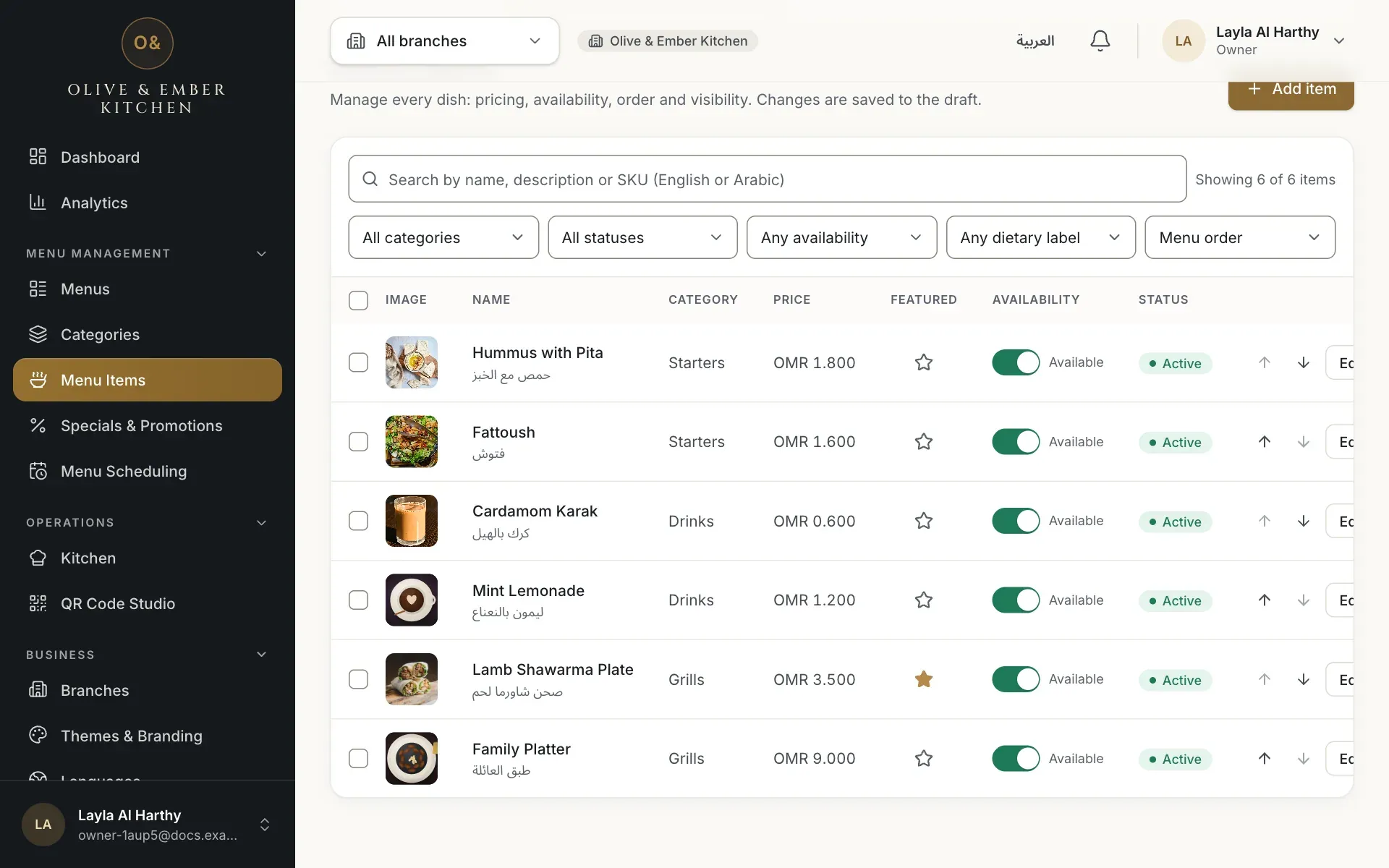
- The current price of the dish
- The dish name that opens the form
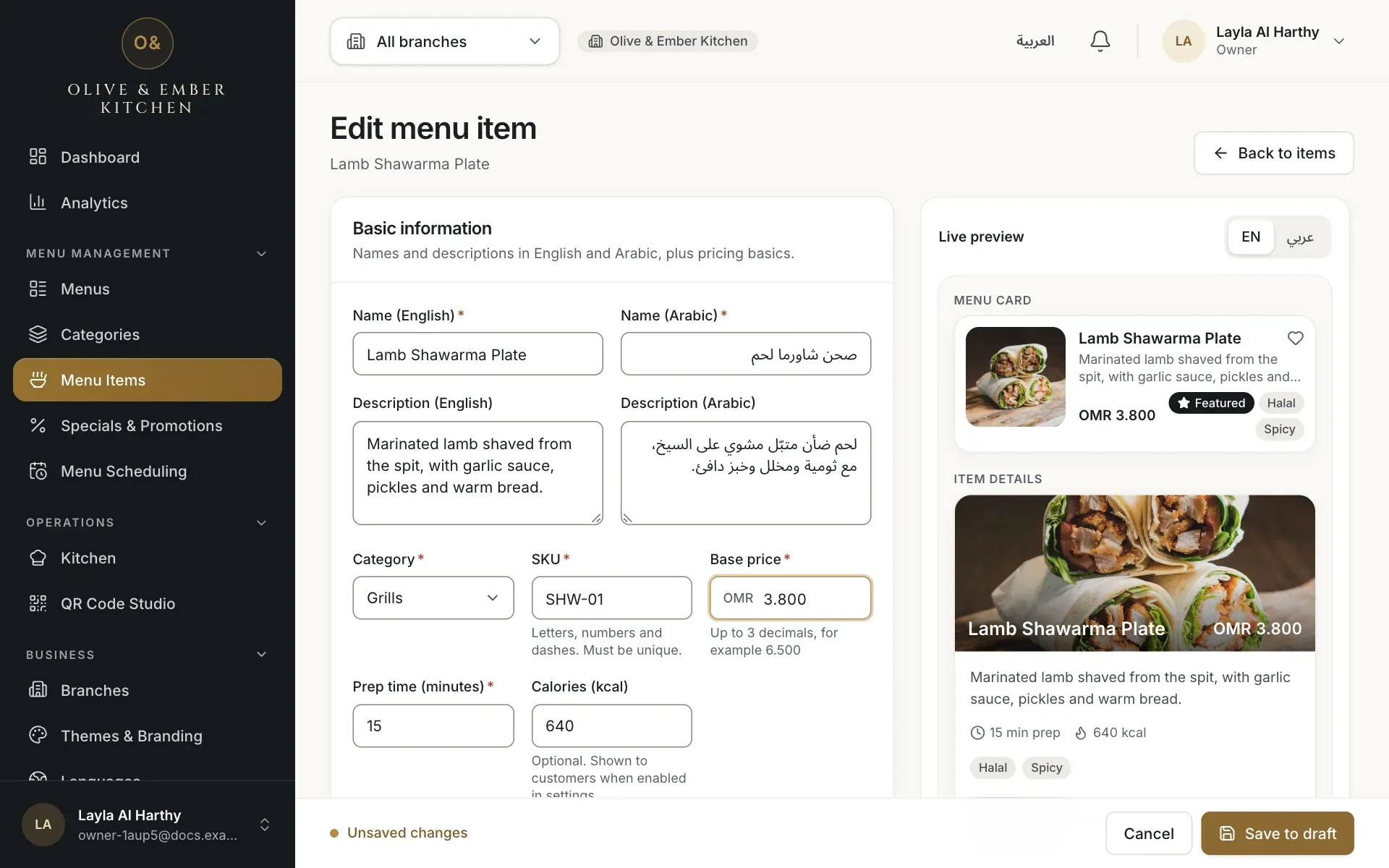
- The base price field
Save and check the list
Click Save to draft, then Back to items. The price column shows the new price. Guests still see the old price until you publish. The Menus page lists the change under Price changes.
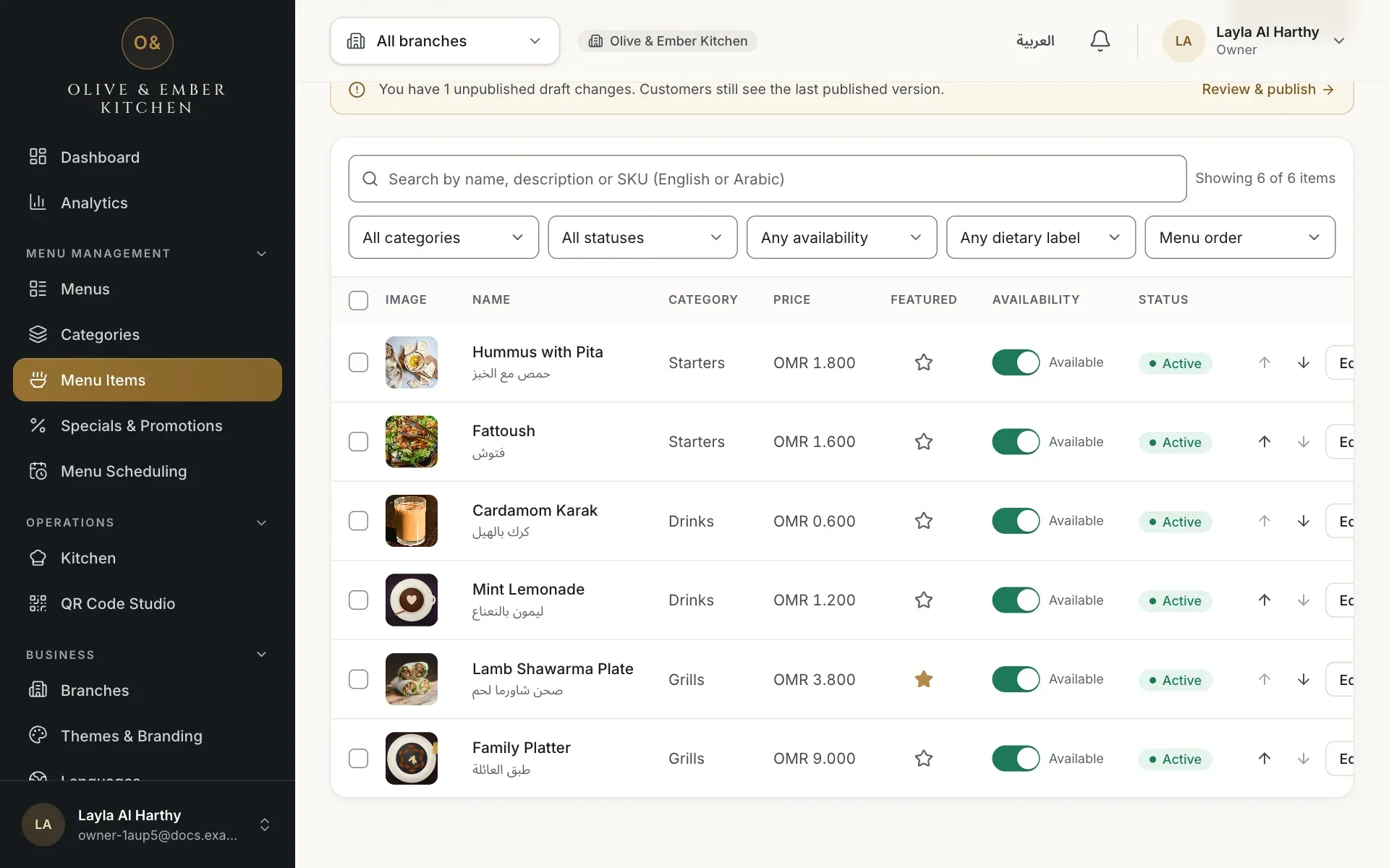
- The new price
Mark a dish sold out today
In the Availability column, click the switch of the dish. It changes to Unavailable. Click it again when the dish is back. This is saved to the draft like any other edit, so publish for guests to see it.
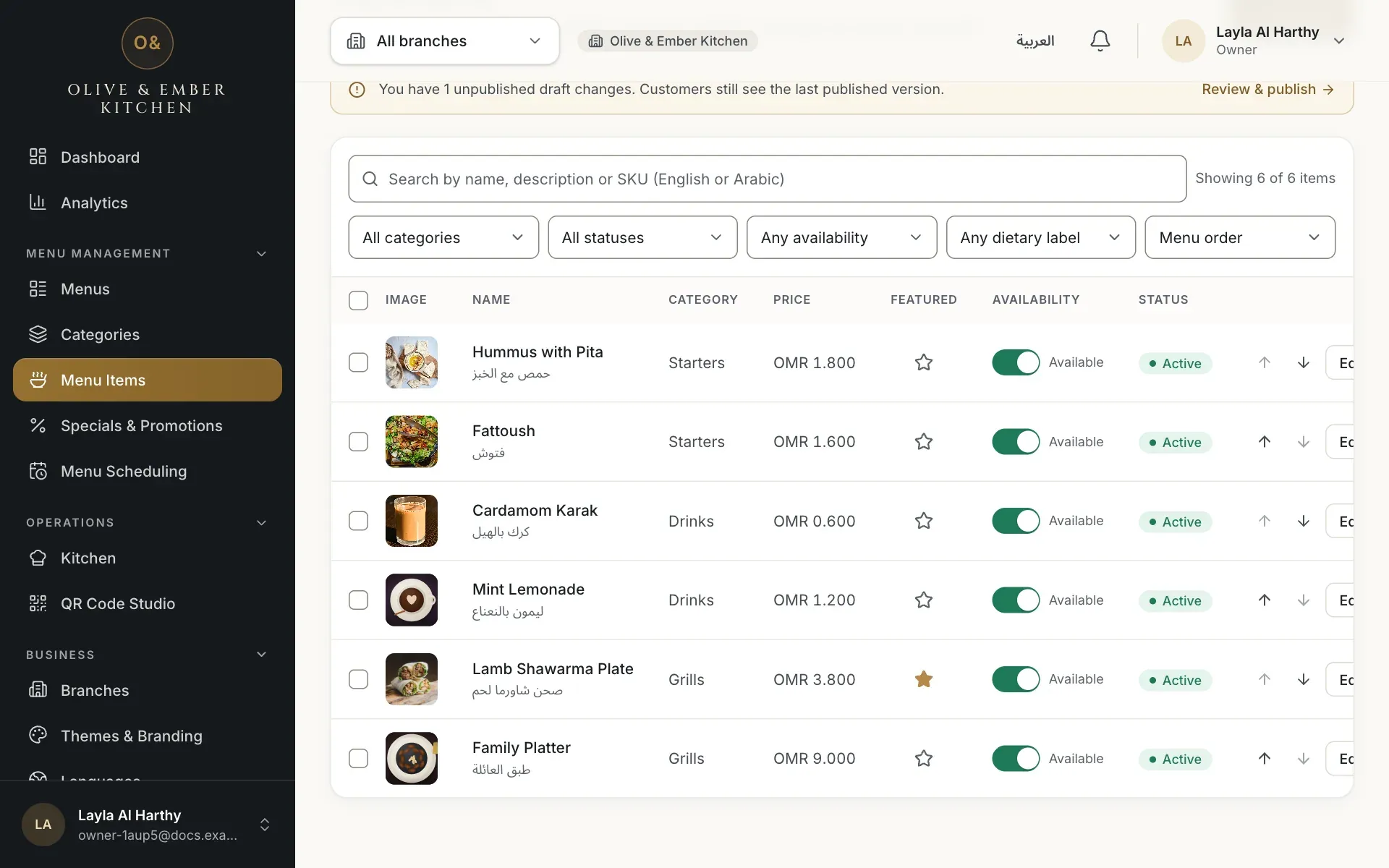
- The availability switch
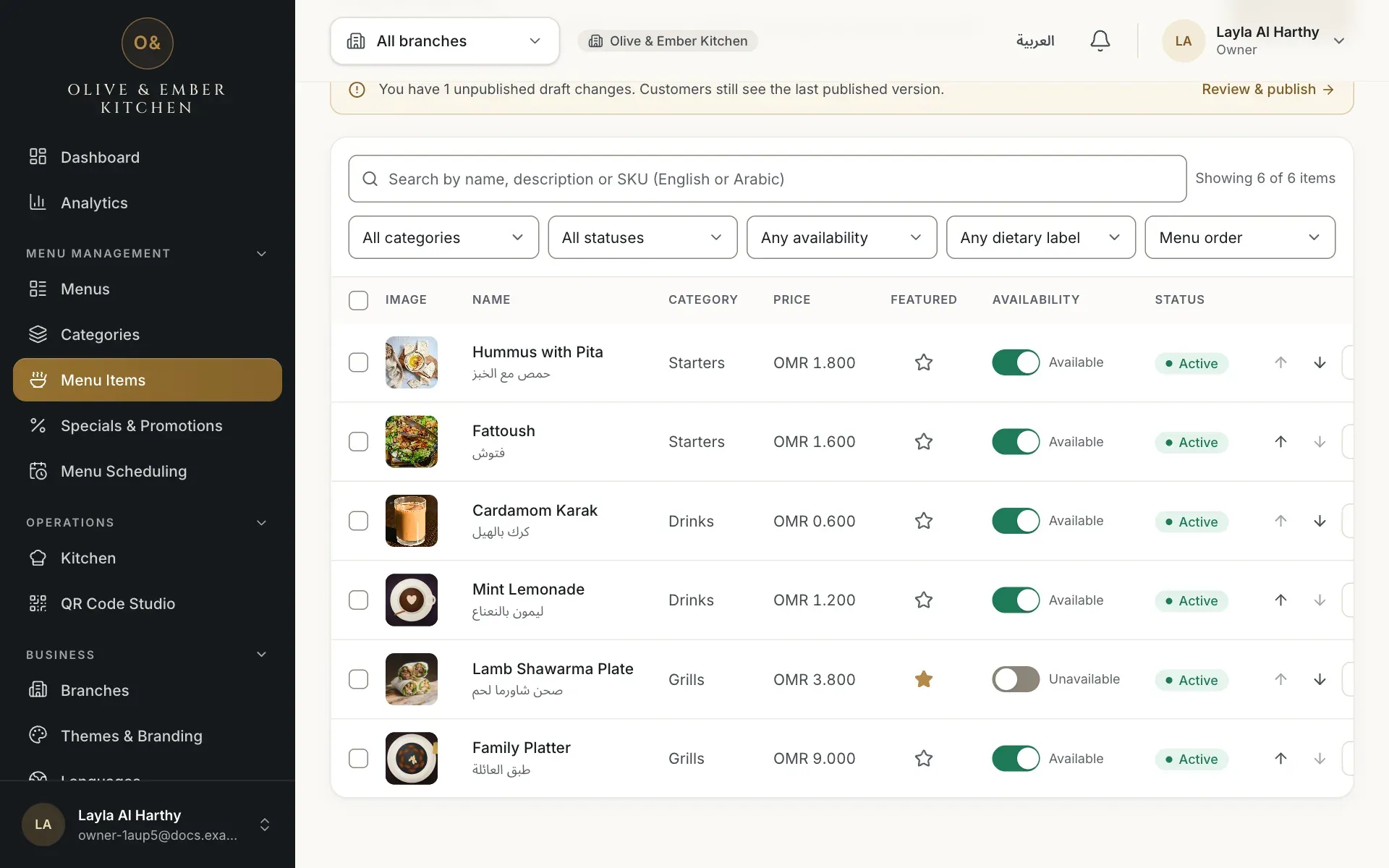
- The switch, now off
Feature a dish
Click the star in the Featured column. Featured dishes are highlighted in Chef's Specials on the guest menu.
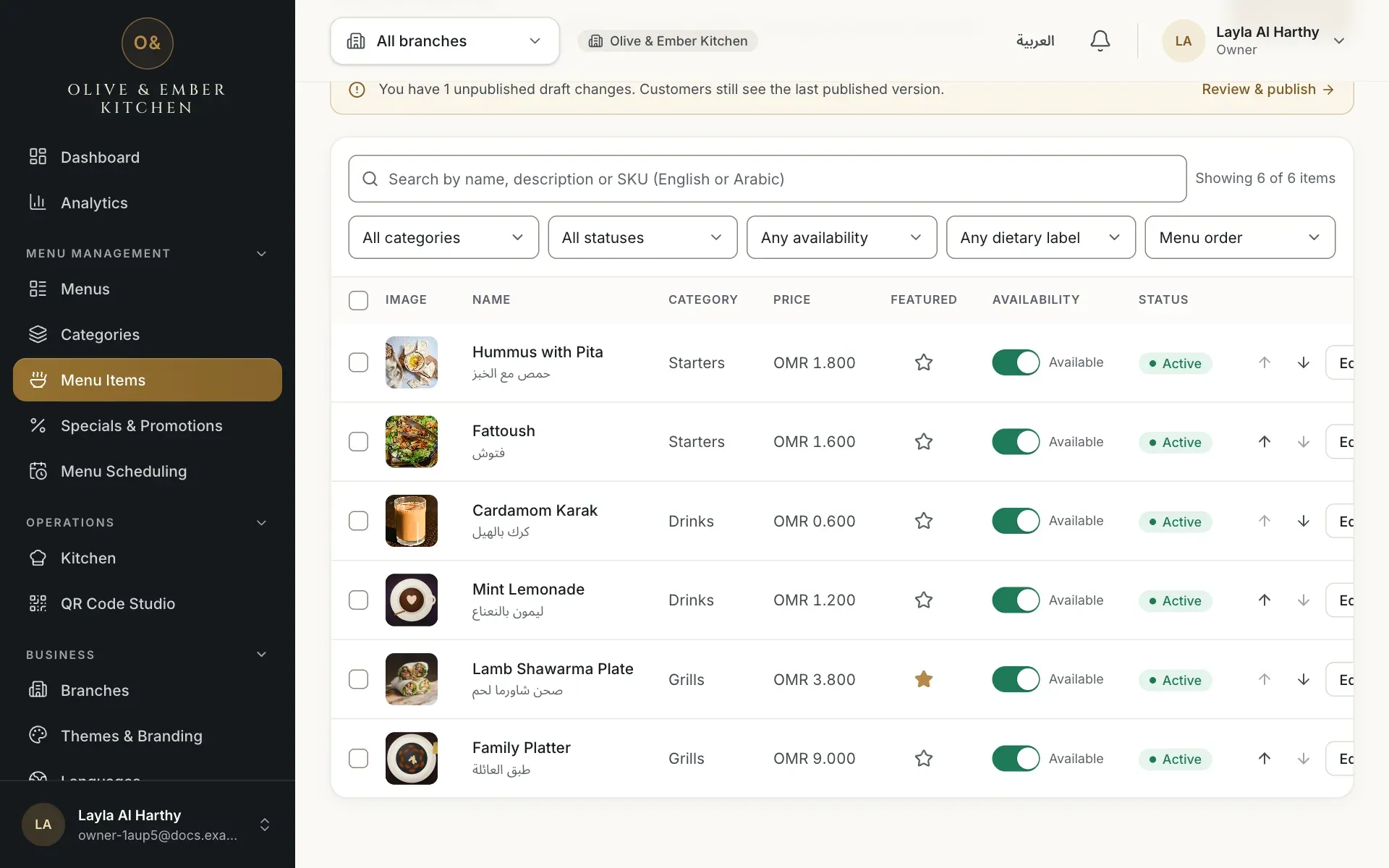
- The featured star
Add the Bestseller tag and set the status
Open the dish and scroll to Availability & status. Bestseller adds a Bestseller tag. Status is Active (guests can see it once published), Draft (kept private, not published) or Archived (put away). A dish that has been published cannot be deleted, only archived. Save to draft.
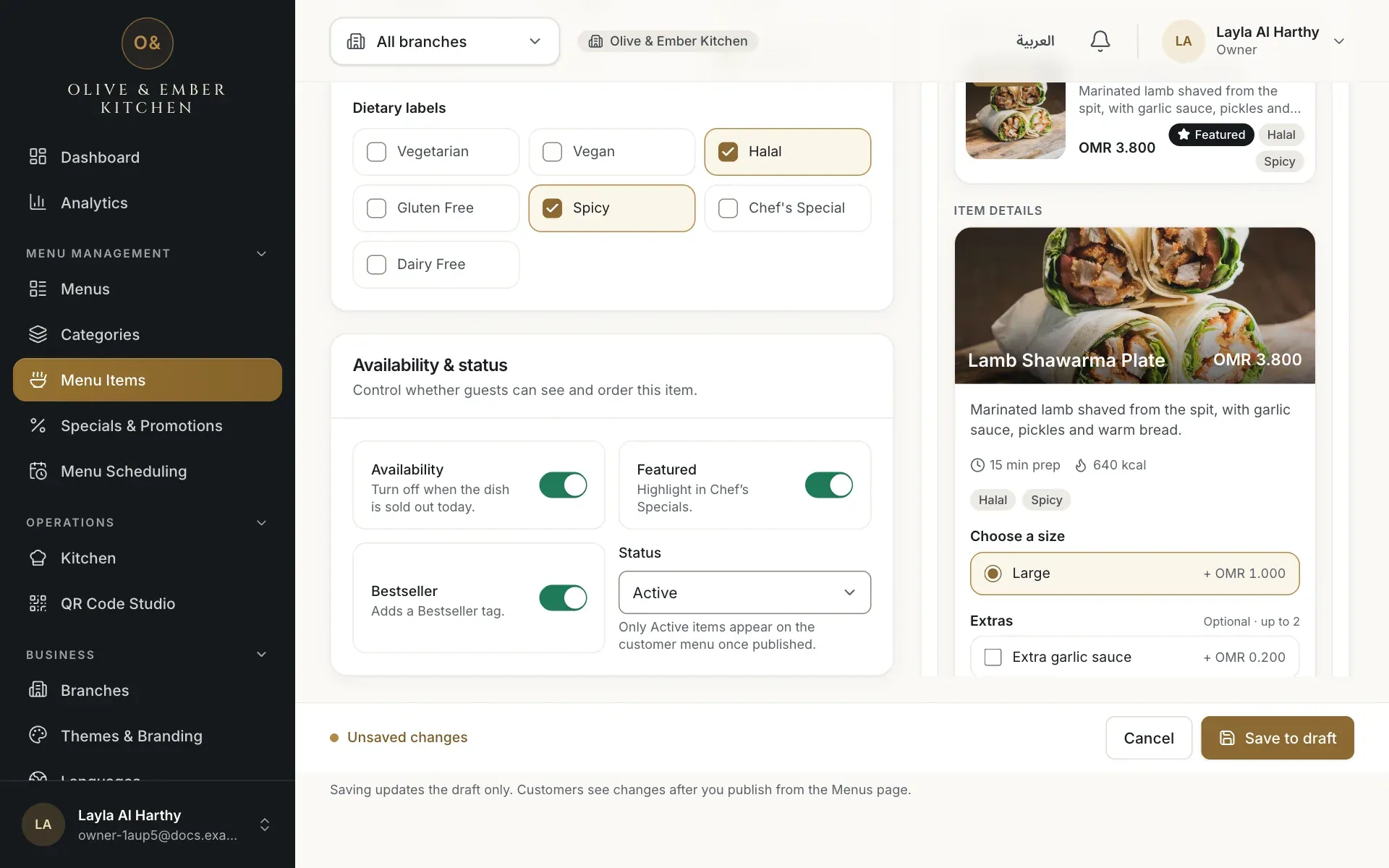
- Availability
- Featured
- Bestseller
- Status
Sell out at one branch only
In the top bar open the branch list and choose your branch instead of All branches. A blue notice explains that the availability switch now marks dishes sold out at this branch only and that the published menu does not change. Click the switch of the dish: it shows Branch override. This takes effect immediately and affects only that branch. Switch it back on when the dish returns, and choose All branches to edit the menu itself again.
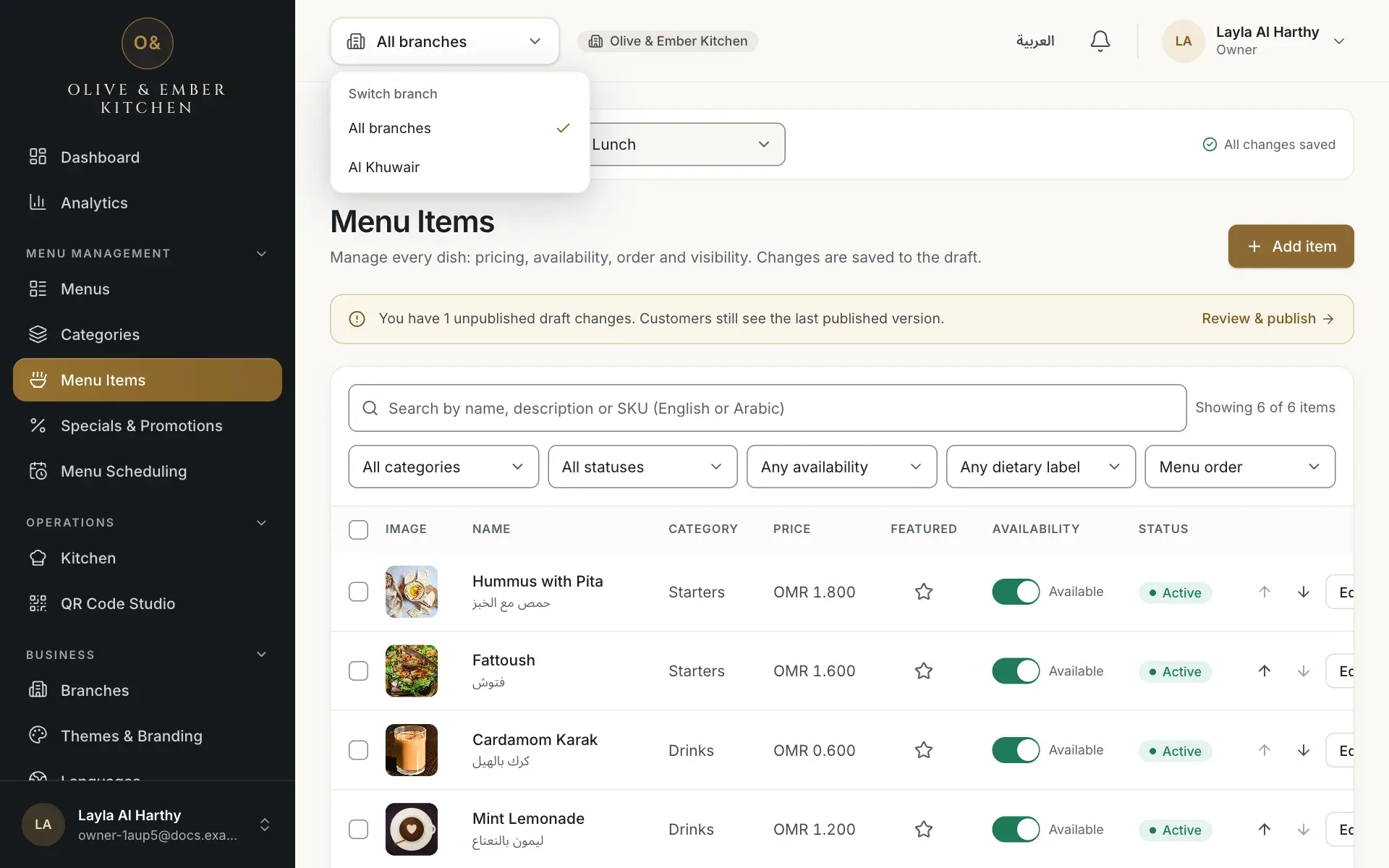
- The branch Al Khuwair
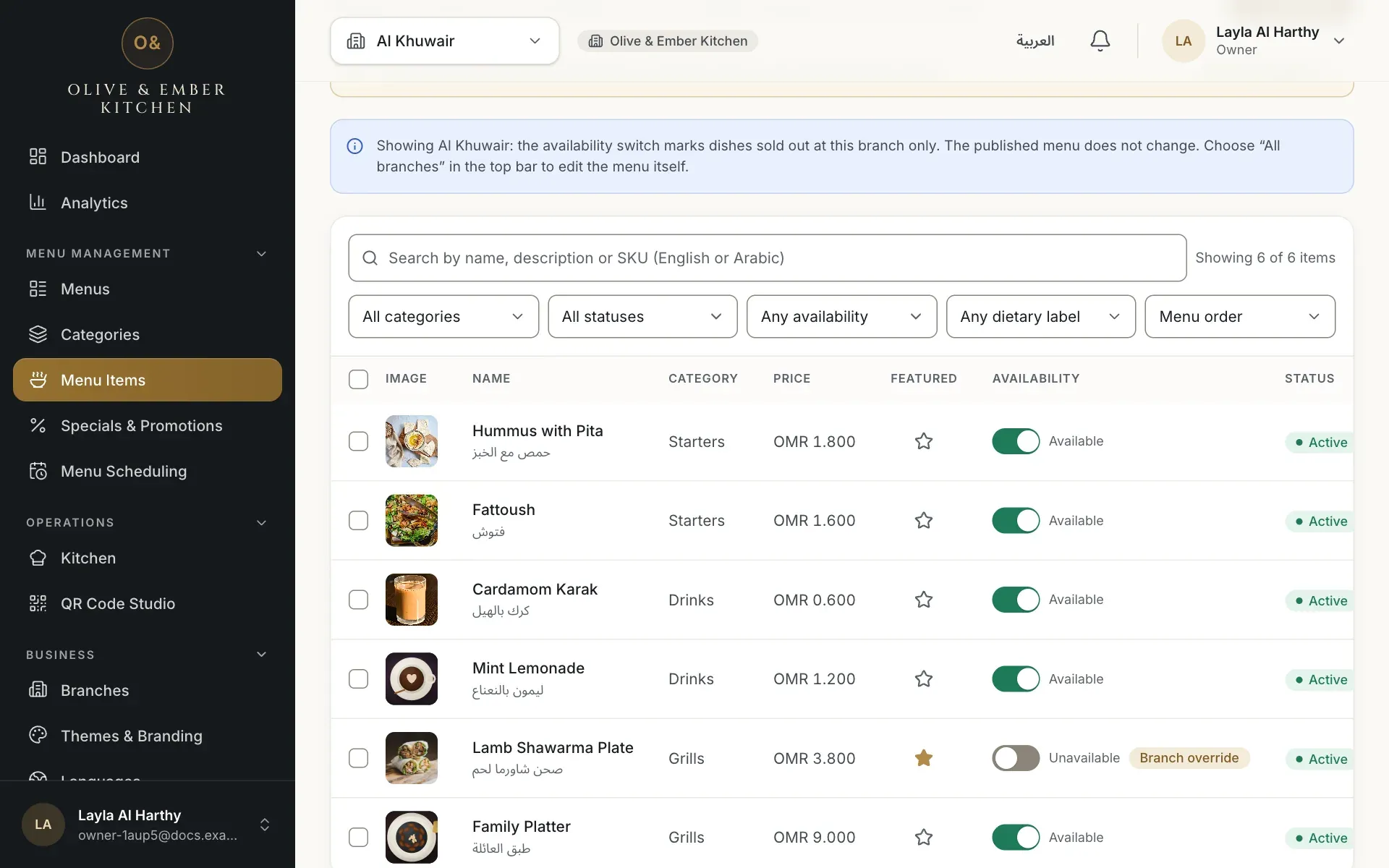
- The notice about branch sold-out
- The availability switch, off
- The Branch override badge
Menu price or branch price?
There is one price per dish for the whole menu. Changing it on this page changes it at every branch once published. A separate price per branch is not available in the dashboard.
Troubleshooting
A price of 0 is not accepted. Type a price above zero.
Use digits and one decimal point, with at most 3 decimals, for example 3.800.
A colleague saved this dish before you. Reload the page, check their change and repeat yours. This message appears in English even when the dashboard is in Arabic.
Switching availability in the list is a draft change. Publish the menu, or use the branch sold-out switch (with a single branch chosen in the top bar) for an immediate effect at that branch.
Related guides
- MenuAdd a dishFill in the dish form from names and price to sizes, extras, allergens and availability, then save it to the draft.
- MenuPublish your menuCheck the draft, assign the menu to a branch, publish it, read the version history, roll back, discard changes or take a menu away.
- MenuMenus and draftsCreate a menu, understand draft versus live, and rename, duplicate or archive a menu.