
Check kitchen and service times
See how long orders wait to be accepted, prepared and served, which orders were delayed, and when there is not enough data.
- Goal
- You can read the accept, preparation and service times, the delayed orders, and you know when a time is not shown.
- Before you start
- Your role may view analytics
- Orders that your team moves through the statuses (Accepted, Preparing, Ready, Served)
The Kitchen section measures time between the status changes your team makes on each order. It never guesses: a time exists only for orders that have both status changes recorded. If your team does not press the buttons, there is nothing to measure. The section does not show times per person. To see who started or finished an order, read the Kitchen activity (see Review kitchen activity).
Read the three time cards
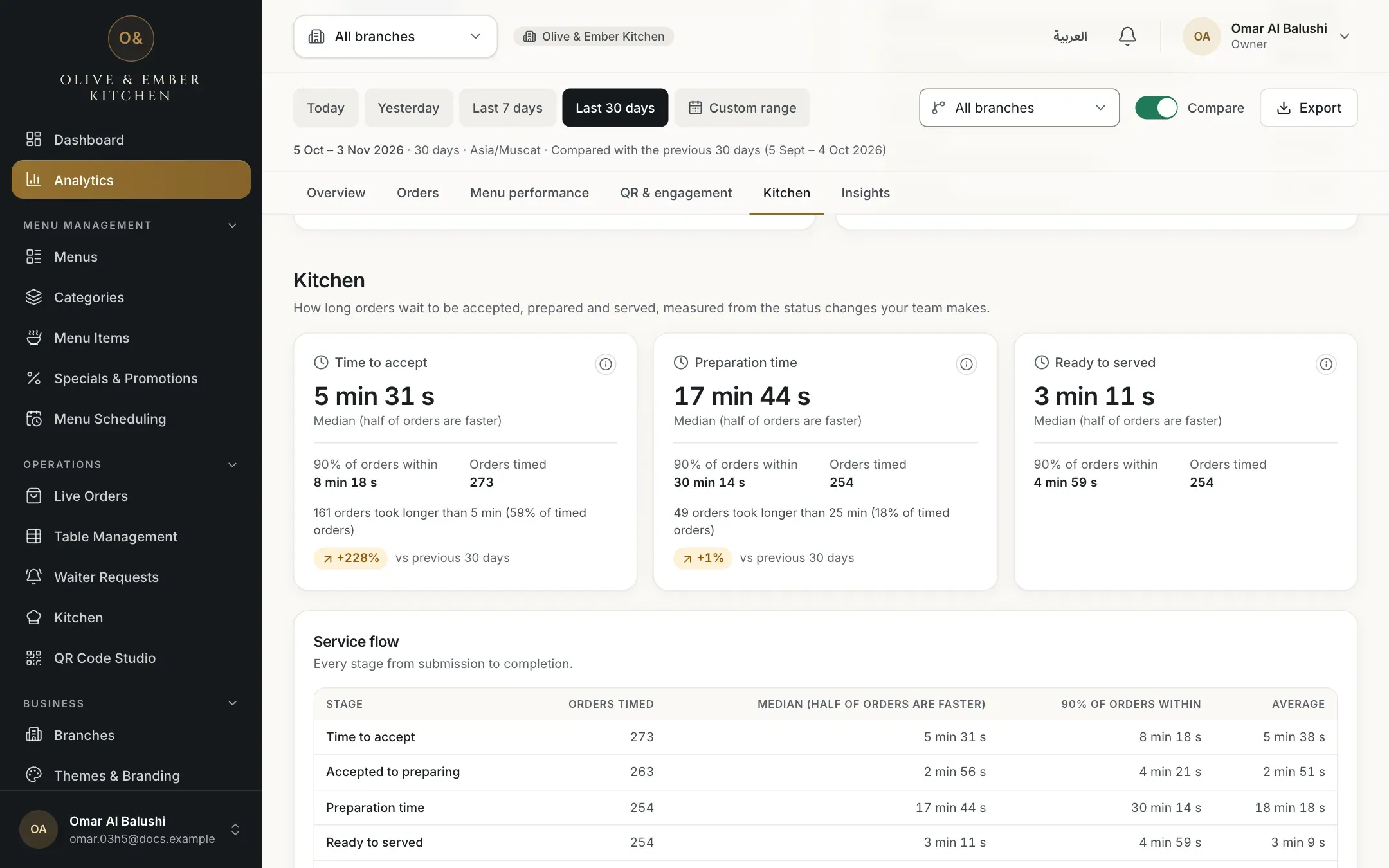
Open Kitchen. The cards are:
- Time to accept: from the moment the guest submits the order until your team accepts it.
- Preparation time: from the moment the kitchen starts preparing until the order is marked ready.
- Ready to served: from ready until the order is marked served.
Each card shows the Median (half of orders are faster) as the big figure. The median is used instead of the average because a few very slow orders do not distort it. Under it, 90% of orders within shows the time that nine orders out of ten stay within, and Orders timed shows how many orders the figures are based on.
- Time to accept
- Preparation time
- Ready to served
Read the delayed orders
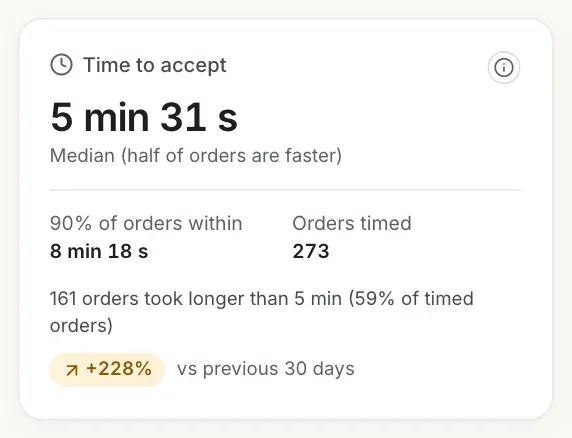
Under Time to accept and Preparation time a line counts the delayed orders, for example 161 orders took longer than 5 min (59% of timed orders). The limits are fixed: more than 5 minutes to accept, more than 25 minutes to prepare. When Compare is on, a badge shows how the median changed against the previous period.
- The delayed orders line
- The time that 90% of orders stay within
Read every stage in the service flow
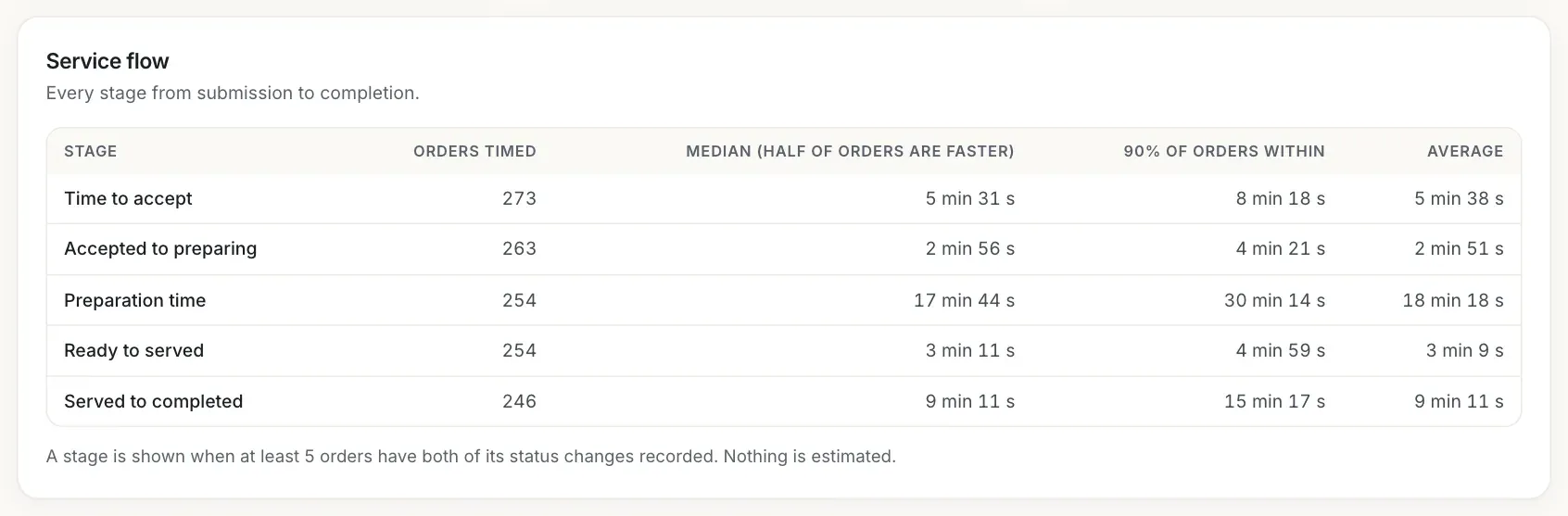
Service flow is a table with every stage from submission to completion: Time to accept, Accepted to preparing, Preparation time, Ready to served and Served to completed. For each stage it shows the orders timed, the median, the 90% time and the average. A stage appears when at least 5 orders have both of its status changes. Otherwise it shows dashes.
Find the kitchen's busy hours
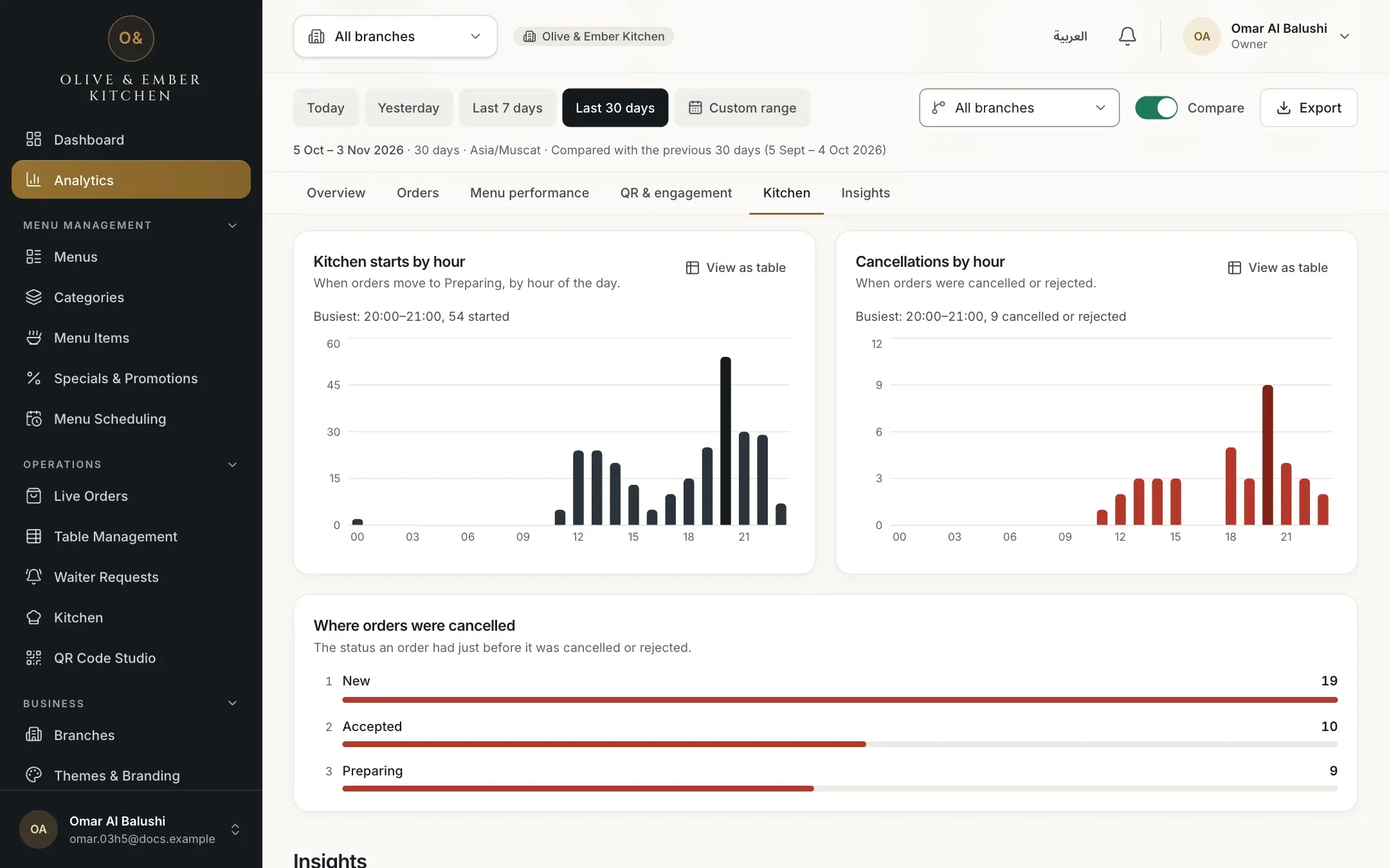
Kitchen starts by hour counts when orders moved to Preparing, by hour of the day. Cancellations by hour shows when orders were cancelled or rejected. Below them, Where orders were cancelled shows the status an order had just before it was cancelled, for example New or Accepted.
- Kitchen starts by hour
- Cancellations by hour
Know when there is not enough data
A time needs at least 5 orders that have both status changes. With fewer, the card says Not enough data and, for example, 3 timed orders so far; at least 5 are needed., and a notice explains that the times appear as your team moves orders through the kitchen. The figure is never filled in with a guess. Choosing a longer period, or All branches, usually solves it.
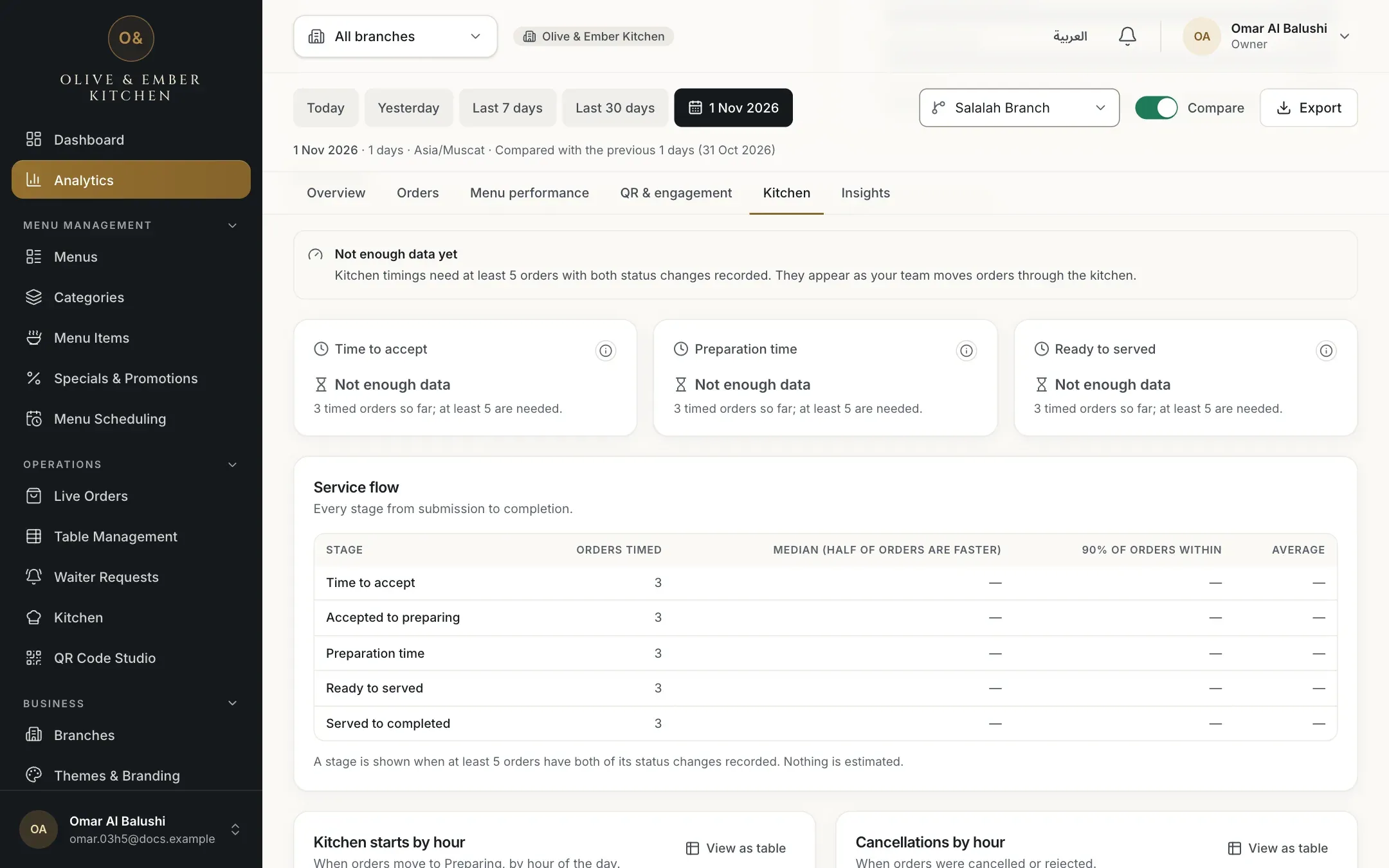
- The notice that explains what is needed
- The count of timed orders so far
A slow time is not always the kitchen
Time to accept starts when the guest submits the order, so it includes the time before anyone saw it. If a time looks long, check that someone watches new orders and that the team presses the status buttons at the right moment. Times measure when the buttons were pressed.
Troubleshooting
Fewer than 5 orders have both status changes recorded. Choose a longer period or All branches, and make sure your team uses the status buttons.
Kitchen times are measured from orders, and there are none in the period or branch you chose.
They are exactly the gaps between button presses. An order accepted and started in the same minute shows a very short step. An order left in a status for an hour shows an hour. Check the activity of the order on the kitchen board.
That stage has fewer than 5 timed orders. Stages that skipped a status, for example an order that was never marked served, are not timed for that stage.
Related guides
- Kitchen staffUse the kitchen boardRead the New, Preparing and Ready columns, understand an order card, and move orders with Start preparing and Mark ready.
- Kitchen staffReview kitchen activitySee who started preparing and who marked each order ready, with the time and the branch.
- OrdersOrder statusesWhat New, Accepted, Preparing, Ready, Served, Completed, Rejected and Cancelled mean for your guest and for your team, and who can set each one.
- Analytics and insightsRead your insightsUnderstand each insight card: what happened, the evidence, the period, why it may matter and what you might consider.